Copyright
© 2005 Proxim Corporation. All rights reserved. Covered by one or more of the following U.S. patents: 5,231,634; 5,875,179; 6,006,090; 5,809,060; 6,075,812; 5,077,753. This user’s guide and the software described in it are copyrighted with all rights reserved. No part of this publication may be reproduced, transmitted, transcribed, stored in a retrieval system, or translated into any language in any form by any means without the written permission of Proxim Corporation.
Trademarks
ORiNOCO is a registered trademark, and Proxim, and the Proxim logo are trademarks of Proxim Corporation. Acrobat Reader is a registered trademark of Adobe Systems Incorporated.
Ekahau is a trademark of Ekahau, Inc.
HyperTerminal is a registered trademark of HilGraeve, Incorporated.
Microsoft and Windows are a registered trademarks of Microsoft Corporation. Netscape is a registered trademark of Netscape Communications Corporation. SolarWinds is a registered trademark of SolarWinds.net.
All other trademarks mentioned herein are the property of their respective owners.
OpenSSL License Note
This product contains software developed by the OpenSSL Project for use in the OpenSSL Toolkit (http://www.openssl.org/) and that is subject to the following copyright and conditions:
Copyright (c) 1998-2002 The OpenSSL Project. All rights reserved.
The names "OpenSSL Toolkit" and "OpenSSL Project" must not be used to refer to, endorse, or promote the products or for any other purpose related to the products without prior written permission. For written permission, please contact [email protected].
This software is provided by the OpenSSL Project “as is” and any expressed or implied warranties, including, but not limited to, the implied warranties of merchantability and fitness for a particular purpose are disclaimed. In no event shall the OpenSSL Project or its contributors be liable for any direct, indirect, incidental, special, exemplary, or consequential damages (including, but not limited to, procurement of substitute goods or services; loss of use, data, or profits; or business interruption) however caused and on any theory of liability, whether in contract, strict liability, or tort (including negligence or otherwise) arising in any way out of the use of this software, even if advised of the possibility of such damage.
ORiNOCO AP-700 User Guide Software v3.1
Contents
1
Introduction . . . 9
Document Conventions . . . 9
Introduction to Wireless Networking . . . 9
Guidelines for Roaming . . . 10
IEEE 802.11 Specifications . . . 10
Management and Monitoring Capabilities . . . 11
HTTP/HTTPS Interface . . . 11
Command Line Interface . . . 11
SNMP Management . . . 12
SSH (Secure Shell) Management . . . 12
2
Installation and Initialization . . . 14
AP-700 Hardware Description . . . 14
Overview. . . 14
Antennas . . . 15
Active Ethernet . . . 16
LED Indicators . . . 16
Prerequisites . . . 17
Product Package . . . 19
System Requirements . . . 19
Hardware Installation. . . 20
Required Materials . . . 20
Cabling the AP-700 . . . 20
Installing the Security Cover. . . 21
Mounting the AP-700 . . . 21
Installing External Antennas . . . 22
Installing the AP in a Plenum . . . 23
Initialization . . . 24
Using ScanTool. . . 24
Logging In. . . 26
Using the Setup Wizard . . . 27
Installing the Software . . . 29
Related Topics . . . 32
3
System Status . . . 33
4
Advanced Configuration . . . 34
System . . . 36
Dynamic DNS Support . . . 36
IP Configuration . . . 38
DHCP Server . . . 39
DHCP Relay Agent. . . 41
Link Integrity . . . 42
SNTP (Simple Network Time Protocol) . . . 43
Interfaces. . . 46
Operational Mode . . . 46
Wireless (802.11a/b/g Radio) . . . 49
Ethernet . . . 56
Management . . . 58
Passwords . . . 58
IP Access Table . . . 59
Services . . . 59
Automatic Configuration (AutoConfig) . . . 65
Hardware Configuration Reset (CHRD) . . . 67
Filtering . . . 70
Ethernet Protocol . . . 70
Static MAC . . . 70
Advanced . . . 73
TCP/UDP Port . . . 73
Alarms . . . 75
Groups . . . 75
Syslog. . . 80
Rogue Scan . . . 83
Bridge . . . 87
Spanning Tree . . . 87
Storm Threshold . . . 88
Intra BSS . . . 89
Packet Forwarding . . . 89
QoS . . . 90
Wireless Multimedia Extensions (WME)/Quality of Service (QoS). . . 90
Priority Mapping . . . 92
Enhanced Distributed Channel Access (EDCA). . . 93
Radius Profiles . . . 96
RADIUS Servers per Authentication Mode and per VLAN . . . 96
Configuring Radius Profiles . . . 97
MAC Access Control Via RADIUS Authentication . . . 100
802.1x Authentication using RADIUS. . . 100
RADIUS Accounting . . . 100
SSID/VLAN/Security . . . 103
Management VLAN . . . 105
Security Profile . . . 106
MAC Access . . . 113
Wireless . . . 113
Broadcast SSID and Closed System . . . 118
5
Monitoring . . . 119
Version . . . 120
ICMP . . . 121
IP/ARP Table . . . 121
Learn Table . . . 122
IAPP . . . 122
RADIUS . . . 123
Interfaces. . . 124
Station Statistics . . . 127
6
Commands . . . 129
Introduction to File Transfer via TFTP or HTTP . . . 129
TFTP File Transfer Guidelines . . . 130
HTTP File Transfer Guidelines . . . 130
Image Error Checking During File Transfer . . . 130
Update AP . . . 131
Update AP via TFTP. . . 131
Update AP via HTTP . . . 132
Retrieve File . . . 133
Retrieve File via TFTP . . . 133
Retrieve File via HTTP . . . 134
Reboot . . . 136
Reset . . . 136
Help Link . . . 137
7
Troubleshooting . . . 138
Troubleshooting Concepts. . . 138
Symptoms and Solutions. . . 138
Connectivity Issues. . . 138
Basic Software Setup and Configuration Problems . . . 139
Client Connection Problems . . . 140
VLAN Operation Issues . . . 141
Active Ethernet (AE) . . . 141
Recovery Procedures . . . 142
Forced Reload Procedure . . . 142
Setting IP Address using Serial Port . . . 145
Related Applications . . . 146
RADIUS Authentication Server. . . 146
TFTP Server . . . 146
A Command Line Interface (CLI). . . 148
General Notes . . . 148
Prerequisite Skills and Knowledge . . . 148
Notation Conventions . . . 148
Important Terminology . . . 148
Navigation and Special Keys . . . 149
CLI Error Messages . . . 149
Command Line Interface (CLI) Variations . . . 150
Bootloader CLI . . . 150
CLI Command Types. . . 151
Operational CLI Commands . . . 151
Parameter Control Commands. . . 155
Using Tables and Strings. . . 159
Working with Tables . . . 159
Using Strings . . . 159
Configuring the AP using CLI commands . . . 160
Log into the AP using HyperTerminal . . . 160
Log into the AP using Telnet. . . 160
Set Basic Configuration Parameters using CLI Commands . . . 160
Other Network Settings . . . 164
CLI Monitoring Parameters . . . 173
Parameter Tables . . . 174
System Parameters . . . 176
Network Parameters. . . 177
Interface Parameters . . . 180
Management Parameters . . . 185
Filtering Parameters . . . 190
Alarms Parameters. . . 192
Bridge Parameters . . . 194
RADIUS Parameters . . . 196
Security Parameters . . . 197
VLAN/SSID Parameters . . . 198
Security Profile Table . . . 198
Other Parameters . . . 199
CLI Batch File . . . 201
Auto Configuration and the CLI Batch File . . . 202
CLI Batch File Format and Syntax . . . 202
Reboot Behavior. . . 202
B ASCII Character Chart . . . 204
C Specifications . . . 205
Software Features . . . 205
Number of Stations per BSS . . . 205
Management Functions . . . 205
Advanced Bridging Functions. . . 206
Medium Access Control (MAC) Functions . . . 206
Security Functions . . . 206
Network Functions . . . 207
Hardware Specifications . . . 208
Physical Specifications . . . 208
Electrical Specifications . . . 208
Environmental Specifications . . . 208
Ethernet Interface . . . 208
Serial Port Interface . . . 208
Active Ethernet Interface . . . 208
Available Channels . . . 209
RF Performance . . . 210
D Technical Support. . . 211
Online Support . . . 211
Telephone Support . . . 212
E
Statement of Warranty . . . 213
Warranty Coverage . . . 213
Repair or Replacement . . . 213
Limitations of Warranty . . . 213
Support Procedures . . . 213
Other Information . . . 214
Search Knowledgebase . . . 214
Ask a Question or Open an Issue. . . 214
Other Adapter Cards . . . 214
F
Regulatory Compliance . . . 215
Safety Information (USA, Canada, & European Union) . . . 216
Federal Communications Commission (FCC) . . . 217
Caution: Exposure to Radio Frequency Radiation . . . 218
Modifications . . . 218
Industry Canada (IC) . . . 219
European Union . . . 220
1
Introduction
This chapter contains information on the following: • Document Conventions
• Introduction to Wireless Networking • Guidelines for Roaming
• IEEE 802.11 Specifications
• Management and Monitoring Capabilities
Document Conventions
• AP refers to an AP-700 Access Point.
• 802.11 is used to describe features that apply to the 802.11a, 802.11b, and 802.11g wireless standards. • Blue underlined text indicates a link to a topic or Web address. If you are viewing this documentation on your
computer, click the blue text to jump to the linked item.
• Text enclosed within triangle brackets, < >, should be replaced with a user-defined value. • The following special notations are used:
NOTE:A note contains important information that helps you make better use of the AP or your computer.
CAUTION:A Caution indicates potential damage to hardware or loss of data.
WARNING: A Warning indicates imminent danger to hardware or loss of data.
Introduction to Wireless Networking
An Access Point extends the capability of an existing Ethernet network to devices on a wireless network. Wireless devices can connect to a single Access Point, or they can move between multiple Access Points located within the same vicinity. As wireless clients move from one coverage cell to another, they maintain network connectivity.
In a typical network environment (see Figure 1-1), the AP functions as a wireless network access point to data and voice networks. An AP network provides:
• Seamless client roaming for both data and voice (VoIP) • Easy installation and operation
Figure 1-1 Typical Wireless Network Access Infrastructure
Guidelines for Roaming
• Typical voice network cell coverages vary based on environment. Proxim recommends having a site survey done professionally to ensure optimal performance. For professional site surveyors, Ekahau™ Site Survey software is included in the Xtras folder of the Installation CD.
• An AP can only communicate with client devices that support its wireless standard. • All Access Points must have the same Network Name to support client roaming.
• All workstations with an 802.11 client adapter installed must use either a Network Name of “any” or the same Network Name as the Access Points that they will roam between. If an AP has Closed System enabled, a client must have the same Network Name as the Access Point to communicate (see Broadcast SSID and Closed System).
• All Access Points and clients must have matching security settings to communicate.
• The Access Points’ cells should overlap to ensure that there are no gaps in coverage and to ensure that the roaming client will always have a connection available. To ensure optimal AP placement, Proxim recommends having a professional site survey done. To facilitate the automation of this placement, site surveyors may use the Ekahau™ Site Survey software included in the Xtras folder of the Installation CD.
• An 802.11a or 802.11b/g AP operates at faster data rates than the 802.11b AP. 802.11a and 802.11g products operate at speeds of up to 54 Mbits/sec; 802.11b products operate at speeds of up to 11 Mbits/sec.
• All Access Points in the same vicinity should use a unique, independent channel. By default, the AP automatically scans for available channels during boot-up but you can also set the channel manually (see Interfaces for details). • Access Points that use the same channel should be installed as far away from each other as possible to reduce
potential interference.
IEEE 802.11 Specifications
In 1997, the Institute of Electrical and Electronics Engineers (IEEE) adopted the 802.11 standard for wireless devices operating in the 2.4 GHz frequency band. This standard includes provisions for three radio technologies: direct sequence spread spectrum, frequency hopping spread spectrum, and infrared. Devices that comply with the 802.11 standard operate at a data rate of either 1 or 2 Megabits per second (Mbits/sec).
802.11 direct sequence devices (that operate at 1 or 2 Mbits/sec). Available Frequency Channels vary by regulatory domain and/or country. See Available Channels for details.
Also in 1999, the IEEE modified the 802.11 standard to support devices operating in the 5 GHz frequency band. This standard is referred to as 802.11a. 802.11a devices are not compatible with 2.4 GHz 802.11 or 802.11b devices. 802.11a radios use a radio technology called Orthogonal Frequency Division Multiplexing (OFDM) to achieve data rates of up to 54 Mbits/sec. Available Frequency Channels vary by regulatory domain and/or country. See Available Channels for details.
In 2003, the IEEE introduced the 802.11g standard. 802.11g devices operate in the 2.4 GHz frequency band using OFDM to achieve data rates of up to 54 Mbits/sec. In addition, 802.11g devices are backwards compatible with 802.11b devices. Available Frequency Channels vary by regulatory domain and/or country. See Available Channels for details.
Management and Monitoring Capabilities
There are several management and monitoring interfaces available to the network administrator to configure and manage an AP on the network:
• HTTP/HTTPS Interface • Command Line Interface
• SNMP Management
• SSH (Secure Shell) Management
HTTP/HTTPS Interface
The HTTP Interface (Web browser Interface) provides easy access to configuration settings and network statistics from any computer on the network. You can access the HTTP Interface over your LAN (switch, hub, etc.), over the Internet, or with a “crossover” Ethernet cable connected directly to your computer’s Ethernet Port.
HTTPS provides an HTTP connection over a Secure Socket Layer. HTTPS is one of three available secure management options on the AP; the other secure management options are SNMPv3 and SSH. Enabling HTTPS allows the user to access the AP in a secure fashion using Secure Socket Layer (SSL) over port 443. The AP supports SSLv3 with a 128-bit encryption certificate maintained by the AP for secure communications between the AP and the HTTP client. All
communications are encrypted using the server and the client-side certificate.
The AP comes pre-installed with all required SSL files: default certificate, private key and SSL Certificate Passphrase installed.
Command Line Interface
The Command Line Interface (CLI) is a text-based configuration utility that supports a set of keyboard commands and parameters to configure and manage an AP.
Users enter Command Statements, composed of CLI Commands and their associated parameters. Statements may be issued from the keyboard for real time control, or from scripts that automate configuration.
For example, when downloading a file, administrators enter the download CLI Command along with IP Address, file name, and file type parameters.
SNMP Management
In addition to the HTTP and the CLI interfaces, you can also manage and configure an AP using the Simple Network Management Protocol (SNMP). Note that this requires an SNMP manager program, like HP Openview or Castlerock’s SNMPc. The AP supports several Management Information Base (MIB) files that describe the parameters that can be viewed and/or configured over SNMP:
• MIB-II (RFC 1213) • Bridge MIB (RFC 1493) • Ethernet-like MIB (RFC 1643) • 802.11 MIB
• ORiNOCO Enterprise MIB
Proxim provides these MIB files on the CD-ROM included with each Access Point. You need to compile one or more of the above MIBs into your SNMP program’s database before you can manage an Access Point using SNMP. See the documentation that came with your SNMP manager for instructions on how to compile MIBs.
The Enterprise MIB defines the read and read-write objects that can be viewed or configured using SNMP. These objects correspond to most of the settings and statistics that are available with the other management interfaces. See the Enterprise MIB for more information; the MIB can be opened with any text editor, such as Microsoft Word, Notepad, or WordPad.
SNMPv3 Secure Management
SNMPv3 is based on the existing SNMP framework, but addresses security requirements for device and network management.
The security threats addressed by Secure Management are:
• Modification of information: An entity could alter an in-transit message generated by an authorized entity in such a way as to effect unauthorized management operations, including the setting of object values. The essence of this threat is that an unauthorized entity could change any management parameter, including those related to
configuration, operations, and accounting.
• Masquerade: Management operations that are not authorized for some entity may be attempted by that entity by assuming the identity of an authorized entity.
• Message stream modification: SNMP is designed to operate over a connectionless transport protocol. There is a threat that SNMP messages could be reordered, delayed, or replayed (duplicated) to effect unauthorized
management operations. For example, a message to reboot a device could be copied and replayed later.
• Disclosure: An entity could observe exchanges between a manager and an agent and thereby could learn of notifiable events and the values of managed objects. For example, the observation of a set command that changes passwords would enable an attacker to learn the new passwords.
To address the security threats listed above, SNMPv3 provides the following when secure management is enabled: • Authentication: Provides data integrity and data origin authentication.
• Privacy (a.k.a Encryption): Protects against disclosure of message payload. • Access Control: Controls and authorizes access to managed objects.
The default SNMPv3 username is administrator, with SHA authentication, and DES privacy protocol.
SSH (Secure Shell) Management
The SSH server (AP) has host keys - a pair of asymmetric keys - a private key that resides on the AP and a public key that is distributed to clients that need to connect to the AP. As the client has knowledge of the server host keys, the client can verify that it is communicating with the correct SSH server.
2
Installation and Initialization
This chapter contains information on the following: • AP-700 Hardware Description
– Overview – Antennas – Active Ethernet – LED Indicators • Prerequisites • Product Package • System Requirements • Hardware Installation • Initialization
– Using ScanTool – Logging In
– Using the Setup Wizard – Installing the Software • Related Topics
AP-700 Hardware Description
Overview
The AP-700 is a tri-mode AP that supports 802.11b, 802.11g, or 802.11a clients.
The AP-700 contains one embedded 802.11a/b/g radio that supports the following operational modes: • 802.11a only mode
• 802.11b only mode • 802.11g only mode • 802.11b/g mode • 802.11g-wifi
NOTE:802.11g-wifi has been defined for Wi-Fi testing purposes. It is not recommended for use in your wireless network environment.
NOTE:In countries in which 802.11a (5 GHz) is not available for use, the AP-700 provides dual-band (802.11b and 802.11g) support only. 802.11a functionality covered in this User Guide is not supported.
The AP-700 can be powered through either Active Ethernet (802.3af Power over Ethernet) or through an external DC power source using the power cord.
Figure 2-1 Rear Panel
The AP-700 has been designed to rest horizontally on a flat surface, but can be wall- or ceiling- mounted with the long axis vertical. The unit includes screw slots in the bottom plastic for mounting to a flat wall or ceiling.
Antennas
The AP-700 employs two internal antennas for antenna diversity: one is vertically polarized, and the other is horizontally polarized to provide optimal spatial and polarization diversity. When the AP is hung on the wall of an office or building, the horizontally polarized antenna provides coverage for that particular floor level. The vertically polarized antenna provides spatial diversity for the horizontally polarized antenna in the event of an antenna null. In addition, the vertically polarized antenna provides some coverage above and below the current floor level. When the AP is mounted on the ceiling or sitting on a table, the effect is the same, but the roles of the two antennas switch.
The AP supports both receive and transmit diversity. When receiving, the AP chooses the antenna that recieves the strongest signal. When transmitting, the AP chooses the antenna with the highest success rate, and broadcasts are transmitted on alternating antennas.
Antenna diversity is enabled by default (set to “auto”). When using the internal antennas, Proxim recommends leaving antenna diversity disabled. However, you may disable antenna diversity by manually selecting which antenna to use through the Command Line Interface. See Configure Antenna Diversity for information.
External Antennas
The AP-700 also has two antenna connectors for use with external antennas.
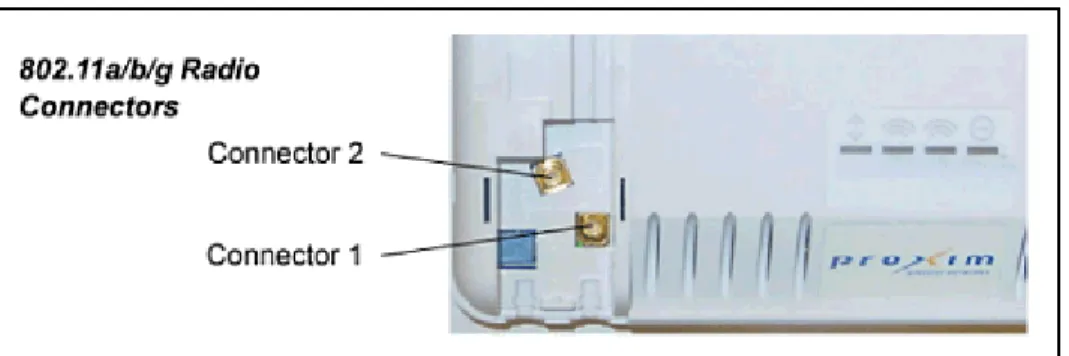
Figure 2-2 AP-700 Antenna Connectors
vertically polarized internal antenna, and connector 2 corresponds to the horizontally polarized internal antenna. Plugging an external antenna in to the antenna connector disables the corresponding internal antenna.
The AP continues to support antenna diversity with external antennas connected. With one external antenna connected to one of the two antenna connectors, one internal antenna and one external antenna are used for antenna diversity. With two external antennas connected, both external antennas are used for antenna diversity, and both internal antennas are disabled.
With external antennas connected, you may wish to manually select a particular antenna for use. To do so, disable antenna diversity by manually selecting which antenna to use through the Command Line Interface. See Configure Antenna Diversity for information.
NOTE: Using two external antennas is not recommended.
For a list of recommended antennas, see http://www.proxim.com/products/wifi/accessories. For installation instructions, see Installing External Antennas.
Active Ethernet
The AP-700 is equipped with an 802.3af-compliant Active Ethernet module. Active Ethernet (AE) delivers both data and power to the access point over a single Ethernet cable. If you choose to use Active Ethernet, there is no difference in operation; the only difference is in the power source.
• The Active Ethernet (AE) integrated module receives ~48 VDC over a standard Category 5 Ethernet cable. • To use Active Ethernet, you must have an AE hub (also known as a power injector) connected to the network. • The cable length between the AE hub and the Access Point should not exceed 100 meters (approximately 325 feet).
The AE hub is not a repeater and does not amplify the Ethernet data signal.
• If connected to an AE hub and an AC power simultaneously, the Access Point draws power from Active Ethernet. Also see Hardware Specifications.
NOTE: The AP’s 802.3af-compliant Active Ethernet module is backwards compatible with all ORiNOCO Active Ethernet hubs that do not support the IEEE 802.3af standard.
LED Indicators
The top panel of the AP-700 has the following LED indicators.
Figure 2-3 LED Indicators on the Top Panel Power Wireless
Interface
The LED indicators exhibit the following behavior:
Prerequisites
Before installing an AP-700, you need to gather certain network information. The following table identifies the information you need.
Indication Power Wireless Interface
(802.11a/b/g radio)
Ethernet
Solid Green AP image running. Wireless interface is preparing for use.
Ethernet interface is connected at 100 Mbps with no traffic. Blinking Green n/a Wireless interface is transmitting
or receiving wireless packets.
Ethernet interface is connected at 100 Mbps with traffic.
Solid Amber The Bootloader is loading the application software.
n/a Ethernet interface is connected
at 10 Mbps with no traffic. Blinking Amber The AP is reloading. n/a The Ethernet interface is
connected at 10 Mbps with traffic.
Solid Red Power On Self Test (POST) running.
n/a n/a
Blinking Red Rebooting. n/a n/a
Network Name (SSID of the wireless cards)
You must assign the Access Point a Network Name before wireless users can communicate with it. The clients also need the same Network Name. This is not the same as the System Name, which applies only to the Access Point. The network administrator typically provides the Network Name.
AP’s IP Address If you do not have a DHCP server on your network, then you need to assign the Access Point an IP address that is valid on your network.
HTTP Password Each Access Point requires a read/write password to access the web interface. The default password is “public”.
CLI Password Each Access Point requires a read/write password to access the CLI interface. The default password is “public”.
SNMP Read Password Each Access Point requires a password to allow get requests from an SNMP manager. The default password is “public”.
SNMP Read-Write Password Each Access Point requires a password to allow get and set requests from an SNMP manager. The default password is “public”.
SNMPv3 Authentication Password
If Secure Management is enabled, each Access Point requires a password for sending authenticated SNMPv3 messages. The default password is “public”. The default SNMPv3 username is administrator, with SHA authentication, and DES privacy protocol.
SNMPv3 Privacy Password If Secure Management is enabled, each Access Point requires a password when sending encrypted SNMPv3 data. The default password is “public”.
Security Settings You need to determine what security features you will enable on the Access Point. Authentication Method A primary authentication server may be configured; a backup authentication server is
optional. The network administrator typically provides this information. Authentication Server Shared
Secret
This is a password shared between the Access Point and the RADIUS authentication server (so both passwords must be the same), and is typically provided by the network administrator.
Authentication Server Authentication Port
Client IP Address Pool Allocation Scheme
The Access Point can automatically provide IP addresses to clients as they sign on. The network administrator typically provides the IP Pool range.
DNS Server IP Address The network administrator typically provides this IP Address. Gateway IP Address and
Subnet Mask
Product Package
Each AP-700 comes with the following:
• AP-700 unit (with integrated 802.11a/b/g radio and Active Ethernet) • Power adapter
• One ceiling or wall mounting plate • Security cover
• One Installation CD-ROM that contains the following: – Software Installation Wizard
– ScanTool – MIBs
– User’s Guide in PDF format
– Xtras folder containing the following • SolarWinds® TFTP software • Ekahau™ Site Survey software • Acrobat® Reader software • One Quick Start Flyer
If any of these items are missing or damaged, please contact your reseller or Technical Support (see Technical Support for contact information).
System Requirements
To begin using an AP, you must have the following minimum requirements:
• A 10Base-T Ethernet or 100Base-TX Fast Ethernet switch or hub or cross-over Ethernet cable • At least one of the following IEEE 802.11-compliant devices:
– An 802.11a, 802.11b, or 802.11b/g client device
• A computer that is connected to the same IP network as the AP and has one of the following Web browsers installed: – Microsoft® Internet Explorer 6 with Service Pack 1 or later and patch Q323308
– Netscape® 7.1 or later
Hardware Installation
Required Materials
• AP-700 unit• Mounting bracket with screws • Power adapter
• Security cover • Quick Start Flyer
Perform the following procedures to install the AP hardware: • Cabling the AP-700
• Installing the Security Cover • Mounting the AP-700 • Installing External Antennas
Cabling the AP-700
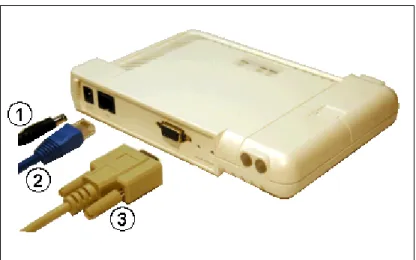
Connect cables to the AP as follows: 1. Provide power to the AP, as follows:
a. Plug the power cord into the power jack (the left port) and connect the unit to an AC power outlet (100~240V, 50~60Hz).
b. If using Active Ethernet, connect power to the unit from a DC injector device, such as the ORiNOCO 1-Port Active Ethernet DC Injector hub.
NOTE:
Before installing and using this product, see the Regulatory Compliance section.
NOTE:
Avant l’installation et l’utilisation de ce produit, veuillez vous référer à la partie « Regulatory Compliance » (conformité aux réglementations).
NOTA:
Prima di installare ed utilizzare questo prodotto, fare riferimento alla sezione relativa alla “Regulatory Compliance” (conformità alle norme).
ANMERKUNG:
Bitte lesen Sie vor der Installation und Verwendung dieses Produkts im Abschnitt „Regulatory Compliance".
NOTA:
Antes de instalar y usar este producto, consulte la sección "Regulatory Compliance” (Cumplimiento de la normativa).
注記:
製品をインス ールして 使用 る前 、 AP-700 User Guide (AP-700 ー ー ガイ ) の
2. Attach one end of an Ethernet cable to the AP's LAN port (the center port, labeled “LAN”) and the other end to a network hub or switch.
3. Optionally, connect an RS-232 cable to the RS-232 console port (the right port, labeled “RS-232”). NOTE: You cannot install the security cover to the AP-700 if an RS-232 cable is connected.
Figure 2-4 Cabling the AP-700 4. Verify LED Status
5. When the AP-700 boots, it performs a series of self-tests. 6. Wait for the power LED to turn green before proceeding.
Installing the Security Cover
You can optionally install a security cover to deter unauthorized access to the AP-700. The security cover is a plastic cover that prevents access to the cabling and to the Reset and Reload buttons.
NOTE: You cannot connect an RS-232 cable to the AP-700 when a security cover is installed.
1. Slide the hinging end of the security cover into the hole on the rear panel of the AP-700 to the left of the connectors. 2. Use two screws to screw the right side of the security cover to the RS-232 screw holes on the rear panel of the
AP-700.
Mounting the AP-700
Proxim recommends that you have a site survey professionally conducted to determine the best location for the AP. For professional site surveyors, Ekahau Site Survey software is included in the Xtras folder on the Installation CD-ROM. Once you have chosen a final location for your unit, mount the AP-700 to a wall, to a T-bar ceiling, or in a vehicle as follows:
Mounting the AP-700 to a Ceiling
Figure 2-5 AP-700 Mounting Plate Mounting the AP-700 to a Wall
1. Put the mounting plate up to the wall. 2. Screw through the mounting plate.
3. Place the AP up against the mounting plate. Orient the AP with the long access vertical, with the connectors facing to the left.
Installing External Antennas
You can optionally install external antennas on the AP-700. For information on the AP’s antenna functionality, see Antennas.
Follow the mounting instructions included with your external antenna, and then connect the antenna cable to the AP, as follows:
1. Press down near the center of the compartment covering and slide open the external antenna access compartment. The compartment closer to the LED panel contains the connectors.
Figure 2-6 Opening the Antenna Compartment
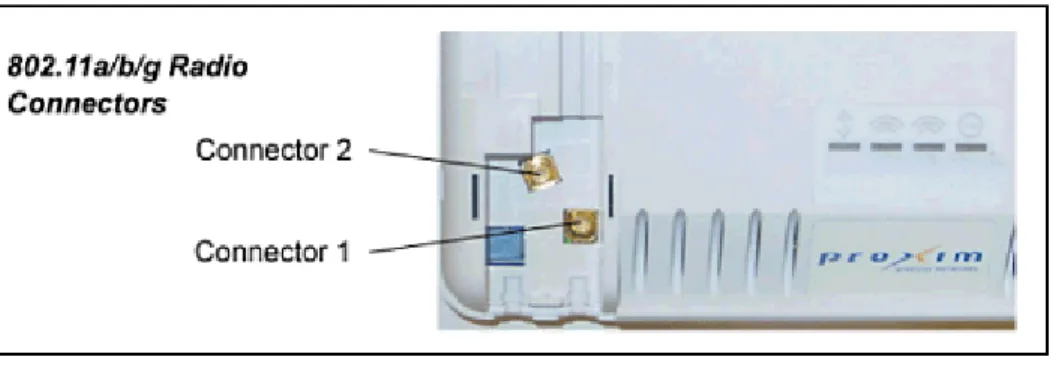
2. There are two antenna connectors in the AP-700, labeled 1 and 2. Connect the antenna cable to connector 1 (the connector closer to the LED panel in the compartment).
Figure 2-7 AP-700 Antenna Connectors
3. If installing a second external antenna (not recommended), connect the antenna cable to connector 2. 4. Close the external antenna access compartment.
5. If desired, manually select which antenna(s) to use through the Command Line Interface. See Configure Antenna Diversity.
Installing the AP in a Plenum
In an office building, plenum is the space between the structural ceiling and the tile ceiling that is provided to help air circulate. Many companies also use the plenum to house communication equipment and cables. These products and cables must comply with certain safety requirements, such as Underwriter Labs (UL) Standard 2043: “Standard for Fire Test for Heat and Visible Smoke Release for Discrete Products and Their Accessories Installed in Air-Handling Spaces”. The AP-700 has been certified under UL Standard 2043 and can be installed in the plenum.
Initialization
The following sections detail how to initialize the AP using ScanTool, log in to the HTTP interface, perform an initial configuration of the AP using the Setup Wizard, and download the required AP software.
• Using ScanTool • Logging In
• Using the Setup Wizard • Installing the Software
Using ScanTool
ScanTool is a software utility that is included on the installation CD-ROM. It is an initial configuration tool that allows you to find the IP address of an Access Point by referencing the MAC address in a Scan List, or to assign an IP address if one has not been assigned.
The tool automatically detects the Access Points installed on your network, regardless of IP address, and lets you configure each unit’s IP settings. In addition, you can use set initial device parameters that will allow the AP to retrieve a new software to an AP that does not have a valid software image installed (see Client Connection Problems).
To access the HTTP interface and configure the AP, the AP must be assigned an IP address that is valid on its Ethernet network. By default, the AP is configured to obtain an IP address automatically from a network Dynamic Host
Configuration Protocol (DHCP) server during boot-up. If your network contains a DHCP server, you can run ScanTool to find out what IP address the AP has been assigned. If your network does not contain a DHCP server, the Access Point’s IP address defaults to 169.254.128.132. In this case, you can use ScanTool to assign the AP a static IP address that is valid on your network.
ScanTool Instructions
Follow these steps to install ScanTool and initialize the AP:
1. Locate the unit’s Ethernet MAC address and write it down for future reference. The MAC address is printed on the product label. Each unit has a unique MAC address, which is assigned at the factory.
2. Confirm that the AP is connected to the same LAN subnet as the computer that you will use to configure the AP. 3. Power up, reboot, or reset the AP.
The unit requests an IP Address from the network DHCP server.
4. Insert the Installation CD into the CD-ROM drive of the computer that you will use to configure the AP. The installation program will launch automatically.
5. Follow the on-screen instructions to install the Access Point software and documentation. NOTE:The ORiNOCO Installation program supports the following operating systems:
• Windows® 98SE • Windows® 2000 • Windows® NT • Windows® ME • Windows® XP
6. After the software has been installed, double-click the ScanTool icon on the Windows desktop to launch the program (if the program is not already running).
ScanTool scans the subnet and displays all detected Access Points. The ScanTool’s Scan List screen appears, as shown in the following example.
change your adapter setting at any time by clicking the Select Adapter button on the Scan List screen. Note that the ScanTool Network Adapter Selection screen will not appear if your computer only has one network adapter installed.
Figure 2-8 Scan List
7. Locate the MAC address of the AP you want to initialize within the Scan List.
NOTE:If your Access Point does not show up in the Scan List, click the Rescan button to update the display. If the unit still does not appear in the list, see Troubleshooting for suggestions. Note that after rebooting an Access Point, it may take up to five minutes for the unit to appear in the Scan List.
8. Do one of the following:
• If the AP has been assigned an IP address by a DHCP server on the network, write down the IP address and click Cancel to close ScanTool. Proceed to the Logging In section for information on how to access the HTTP interface using this IP address.
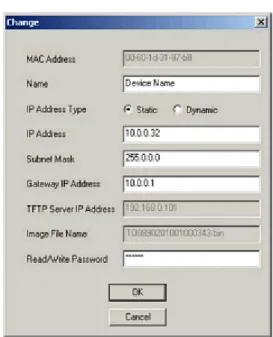
• If the AP has not been assigned an IP address (in other words, the unit is using its default IP address, 169.254.128.132), follow these steps to assign it a static IP address that is valid on your network: a. Highlight the entry for the AP you want to configure.
b. Click the Change button. The Change screen appears.
d. Enter a static IP Address for the AP in the field provided. You must assign the unit a unique address that is valid on your IP subnet. Contact your network administrator if you need assistance selecting an IP address for the unit.
e. Enter your network’s Subnet Mask in the field provided.
f. Enter your network’s Gateway IP Address in the field provided.
g. Enter the SNMP Read/Write password in the Read/Write Password field (for new units, the default SNMP Read/Write password is “public”).
NOTE:The TFTP Server IP Address and Image File Name fields are only available if ScanTool detects that the AP does not have a valid software image installed. See Client Connection Problems.
h. Click OK to save your changes.
i. The Access Point will reboot automatically and any changes you made will take effect. j. When prompted, click OK a second time to return to the Scan List screen.
k. Click Cancel to close the ScanTool.
Logging In
Once the AP has a valid IP Address and an Ethernet connection, you may use your web browser to monitor and configure the AP. (To configure and monitor using the command line interface, see Command Line Interface (CLI).) 1. Open a Web browser on a network computer.
– The HTTP interface supports the following Web browsers: • Microsoft® Internet Explorer 6 with Service Pack 1 or later • Netscape® 7.1 or later
2. If necessary, disable the browser’s Internet proxy settings. For Internet Explorer users, follow these steps: – Select Tools > Internet Options.
– Click the Connections tab. – Click LAN Settings.
– If necessary, remove the check mark from the Use a proxy server box. – Click OK twice to save your changes and return to Internet Explorer.
3. Enter the Access Point’s IP address in the browser’s Address field and press Enter or Go.
This is either the dynamic IP address assigned by a network DHCP server or the static IP address you manually configured. See Using ScanTool for information on how to determine the unit’s IP address and manually configure a new IP address, if necessary.
The Enter Network Password screen appears.
4. Enter the HTTP password in the Password field. Leave the User Name field blank. For new units, the default HTTP password is public.
If you are logging on for the first time the Setup Wizard will launch automatically.
NOTE:To prevent the Setup Wizard from launching upon log in, click on Management > Services and choose
Disable from the Setup Wizard drop down menu.
5. Follow the steps below to configure the AP using the Setup Wizard (see Using the Setup Wizard), or click Exit to configure the system manually. Upon clicking Exit, the System Status screen will appear.
Figure 2-11 System Status Screen
The buttons on the left of the screen provide access to the monitoring and configuration options for the AP. See Advanced Configuration to begin configuring the AP without using the Setup Wizard.
The Command Line Interface (CLI) also provides a method for monitoring and configuring the AP using Telnet or a serial connection. For more information about monitoring and configuring the AP with the CLI, see Command Line Interface (CLI).
Using the Setup Wizard
Figure 2-12 Setup Wizard Setup Wizard Instructions
1. Click Setup Wizard to begin. The Setup Wizard supports the following navigation options:
• Save & Next Button: Each Setup Wizard screen has a Save & Next button. Click this button to submit any changes you made to the unit’s parameters and continue to the next page. The instructions below describe how to navigate the Setup Wizard using the Save & Next buttons.
• Navigation Panel: The Setup Wizard provides a navigation panel on the left-hand side of the screen. Click the link that corresponds to the parameters you want to configure to be taken to that particular configuration screen. Note that clicking a link in the navigation panel will not submit any changes you made to the unit’s configuration on the current page.
• Exit: The navigation panel also includes an Exit option. Click this link to close the Setup Wizard at any time.
CAUTION:If you exit from the Setup Wizard, any changes you submitted (by clicking the Save & Next button) up to that point will be saved to the unit but will not take effect until it is rebooted.
2. Configure the System Configuration settings and click Save & Next. See System for more information. 3. Configure the Access Point’s Basic IP address settings, if necessary, and click Save & Next. See Basic IP
Parameters for more information.
4. Assign the AP new passwords to prevent unauthorized access and click Save & Next. Each management interface has its own password:
• SNMP Read Password • SNMP Read-Write Password • CLI Password
• HTTP (Web) Password
By default, each of these passwords is set to “public”. See Passwords for more information. 5. Configure the basic Wireless Interface Configuration settings:
• Select the Operational Mode as follows and click Save & Next: — 802.11a only mode: The radio uses the 802.11a standard only. — 802.11b mode only: The radio uses the 802.11b standard only.
— 802.11g mode only: The radio is optimized to communicate with 802.11g devices. This setting will provide the best results if this radio interface will only communicate with 802.11g devices.
— 802.11g-wifi: 802.11g-wifi has been defined for Wi-Fi testing purporses. It is not recommended for use in your wireless network environment.
NOTE:In countries in which 802.11a (5 GHz) is not available for use, the AirSPEED AP541 provides
dual-band (802.11b and 802.11g) support only. 802.11a functionality covered in this User Guide is not supported.
In general, you should use either 802.11g only mode (if you want to support 802.11g devices only) or 802.11b/g mode to support a mix of 802.11b and 802.11g devices.
• Configure the following available options and click Save & Next:
— Primary Network Name (SSID): Enter a Network Name (between 1 and 32 characters long) for the wireless network. You must configure each wireless client to use this name as well. Note that the AP-700 supports up to 16 SSIDs and VLANs. Please see the Advanced Configuration chapter for information on the detailed rules on configuring multiple SSIDs, VLANs, and security profiles.
NOTE:Do not use quotation marks (single or double) in the Network Name; this will cause the AP to misinterpret the name.
— Auto Channel Select: By default, the AP scans the area for other Access Points and selects the best available communication channel, either a free channel (if available) or the channel with the least amount of interference. Remove the check mark to disable this option. See Dynamic Frequency Selection/Radar Detection (DFS/RD) for information and Available Channels for a list of available channels.
— Frequency Channel: When Auto Channel Select is enabled, this field is read-only and displays the Access Point’s current operating channel. When Auto Channel Select is disabled, you can specify the Access Point’s channel. If you decide to manually set the unit’s channel, ensure that nearby devices do not use the same frequency. Available Channels vary based on regulatory domain. See Dynamic Frequency Selection/Radar Detection (DFS/RD) for details more information and Available Channels for a list of available channels. — Transmit Rate: Use the drop-down menu to select a specific transmit rate for the AP-700 radio. The Auto
Fallback feature allows the AP to select the best transmit rate based on the cell size.
— For 802.11a only mode, choose between 6, 9, 12, 18, 24, 36, 48, 54 Mbits/s, and Auto Fallback. — For 802.11b only mode, choose between 1, 2, 5.5, 11 Mbits/s, and Auto Fallback.
— For 802.11g only mode, choose between 6, 9, 12, 18, 24, 36, 48, 54 Mbits/s, and Auto Fallback. — For 802.11bg mode, choose between 1, 2, 5.5, 6, 9, 11, 12, 18, 24, 36, 48, 54 Mbits/sec, and Auto
Fallback.
— For 802.11g-wifi mode, choose between 6, 9, 12, 18, 24, 36, 48, 54 Mbits/s, and Auto Fallback.
NOTE: 802.11g-wifi has been defined for Wi-Fi testing purposes. It is not recommended for use in your wireless network environment.
Additional advanced settings are available in the Wireless Interface Configuration screen.See Interfaces for details. See Security Profile for a description of security features, Management VLAN for a description of VLAN capabilities, and Configuring Security Profiles for detailed configuration procedures.
6. Review the configuration summary. If you want to make any additional changes, use the navigation panel on the left-hand side of the screen to return to an earlier screen. After making a change, click Save & Next to save the change and proceed to the next screen.
7. When finished, click Reboot on the Summary screen to restart the AP and apply your changes.
Installing the Software
Download the Software
1. In your web browser, go to http://support.proxim.com. 2. If prompted, create an account to gain access.
NOTE:The Knowledgebase is available to all website visitors. First-time users will be asked to create an account to gain access.
3. Click Search Knowledgebase.
4. In the Search Knowledgebase field, enter 1686.
5. From the Search By drop-down menu, select Answer ID. 6. Click Search.
7. Click on the appropriate link to download the software.
8. Use the instructions in the following sections to install the new software.
Install Software with HTTP Interface
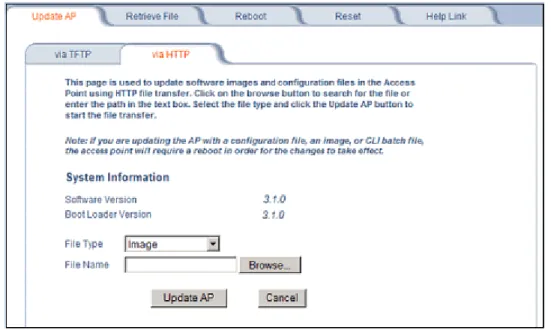
Use the Update AP via HTTP tab to update the AP with the latest software image. 1. Click Commands > Update AP > via HTTP.
Figure 2-13 Update AP via HTTP Command Screen 2. From the File Type drop-down menu, select Image.
3. Use the Browse button to locate or manually type in the name of the file (including the file extension) the file you downloaded from the Proxim Knowledgebase. If typing the file name, you must include the full path and the file extension in the file name text box.
4. To initiate the HTTP Update operation, click the Update AP button.
Figure 2-14 Warning Message
5. Click OK to continue with the operation or Cancel to abort the operation.
6. If the operation is unsuccessful, you will receive an error message. If this occurs, see the Troubleshooting chapter or attempt installing the software with a TFTP server, as described in the next section.
7. If the operation is successful, you will receive a confirmation message. For installation changes to take effect, reboot the AP as follows:
• Click Commands > Reboot. • Enter 0 in the Time to Reboot field. • Click OK.
Install Software with TFTP Server
A Trivial File Transfer Protocol (TFTP) server allows you to transfer files across a network. You can upload files from the AP for backup or copying, and you can download the files for configuration and AP Image upgrades. The Solarwinds TFTP server software is located on the ORiNOCO AP Installation CD-ROM. You can also download the latest TFTP software from Solarwind’s Web site at http://www.solarwinds.net.
NOTE: If a TFTP server is not available in the network, you can perform similar file transfer operations using the HTTP interface.See Update AP via HTTP.
After the TFTP server is installed:
• Check to see that TFTP is configured to point to the directory containing the AP Image.
• Make sure you have the proper TFTP server IP address, the proper AP Image file name, and that the TFTP server is operational.
• Make sure the TFTP server is configured to both Transmit and Receive files, with no automatic shutdown or time-out. Three types of files can be downloaded to the AP from a TFTP server:
• Image (AP software image or kernel) • Config (configuration file)
• BspBl (BSP/Bootloader firmware file)
Install Updates from your TFTP Server using the Web Interface
1. Download the latest software from http://support.proxim.com (Knowledgebase Answer ID 1686). See Download the Software for instructions).
2. Copy the latest software updates to your TFTP server.
3. In the Web Interface, click the Commands button and select the Download tab. 4. Enter the IP address of your TFTP server in the field provided.
5. Enter the File Name (including the file extension). Enter the full directory path and file name. If the file is located in the default TFTP directory, you need enter only the file name.
6. Select the File Type from the drop-down menu (use Img for software updates). 7. Select Download & Reboot from the File Operation drop-down menu.
Install Updates from your TFTP Server using the CLI
1. Download the latest software to http://support.proxim.com (Knowledgebase Answer ID 1686). See Download the Software for instructions).
1. Copy the latest software updates to your TFTP server. 2. Open the CLI interface via Telnet or a serial connection. 3. Enter the CLI password when prompted.
4. Enter the command: download <tftpaddr> <filename> img
The download will begin, and the image will be downloaded to the Access Point. 5. When the download is complete, type reboot 0 and press Enter.
NOTE: See Command Line Interface (CLI) for more information.
Related Topics
The Setup Wizard helps you configure the basic AP settings required to get the unit up and running. The AP supports many other configuration and management options. The remainder of this user guide describes these options in detail. • See Advanced Configuration for information on configuration options that are available within the Access Point’s
HTTP interface.
• See Monitoring for information on the statistics displayed within the Access Point’s HTTP interface. • See Commands for information on the commands supported by the Access Point’s HTTP interface. • See Troubleshooting for troubleshooting suggestions.
3
System Status
The first screen displayed after Logging In is theSystem Status screen. You can always return to this screen by clicking the Status button.
Figure 3-1 System Status Screen
The System Status screen provides the following information:
• System Status: This area provides system-level information, including the unit’s IP address and contact information. See System for information on these settings.
• System Alarms: System traps (if any) appear in this area. Each trap identifies a specific severity level: critical, major, minor, and informational. See Alarms for a list of possible alarms.
4
Advanced Configuration
This chapter contains information on configuring settings in the following categories:
• System: Configure specific system information such as system name and contact information.
• Network: Configure IP, DNS client, DHCP server, DHCP Relay Agent, DHCP Relay Servers, Link Integrity, and SNTP settings.
• Interfaces: Configure the Access Point’s interfaces: Wireless and Ethernet settings. Configure the Channel Blacklist Table and a Wireless Distribution System (WDS).
• Management: Configure the Access Point’s management Passwords, IP Access Table, and Services such as configuring secure or restricted access to the AP via SNMPv3, HTTPS, or CLI. Configure Secure Management, SSL, Secure Shell (SSH), and RADIUS Based Access Management. Set up Automatic Configuration for Static IP.
• Filtering: Configure Ethernet Protocol filters, Static MAC Address filters, Advanced filters, and Port filters. • Alarms: Configure the Alarm (SNMP Trap) Groups, the Alarm Host Table, and the Syslog features.
• Bridge: Configure the Spanning Tree Protocol, Storm Threshold protection, Intra BSS traffic, and Packet Forwarding. • QoS: Configure Wireless Multimedia Enhancements/Quality of Service parameters and QoS policies.
• Radius Profiles: Configure RADIUS features such as RADIUS Access Control and Accounting.
• SSID/VLAN/Security: Configure SSIDs, VLANs, and security profiles. Configure security features such as MAC Access Control, WPA, WEP Encryption, and 802.1x.
To configure the AP using the HTTP/HTTPS interface, you must first log in to a web browser. See Logging In for instructions.
You may also configure the AP using the command line interface. See Command Line Interface (CLI) for more information.
To configure the AP via HTTP/HTTPS:
Figure 4-1 Configure Main Screen
2. Click the tab that corresponds to the parameter you want to configure. For example, click Network to configure the Access Point’s TCP/IP settings.
System
You can configure and view the following parameters within the System Configuration screen:
• Name: The name assigned to the AP. See the Dynamic DNS Support and Access Point System Naming Convention sections for rules on naming the AP.
• Location: The location where the AP is installed.
• Contact Name: The name of the person responsible for the AP.
• Contact Email: The email address of the person responsible for the AP. • Contact Phone: The telephone number of the person responsible for the AP.
• Object ID: This is a read-only field that displays the Access Point’s system object identification number; this information is useful if you are managing the AP using SNMP.
• Ethernet MAC Address: This is a read-only field that displays the unique MAC (Media Access Control) address for the Access Point’s Ethernet interface. The MAC address is assigned at the factory.
• Descriptor: This is a read-only field that reports the Access Point’s name, serial number, current image software version, and current bootloader software version.
• Up Time: This is a read-only field that displays how long the Access Point has been running since its last reboot.
Figure 4-2 System Tab
Dynamic DNS Support
DNS is a distributed database mapping the user readable names and IP addresses (and more) of every registered system on the Internet. Dynamic DNS is a lightweight mechanism which allows for modification of the DNS data of host systems whose IP addresses change dynamically. Dynamic DNS is usually used in conjunction with DHCP for assigning meaningful names to host systems whose IP addresses change dynamically.
Access Point System Naming Convention
The Access Point's system name is used as its host name. In order to prevent Access Points with default configurations from registering similar host names in DNS, the default system name of the Access Point is uniquely generated. Access Points generate unique system names by appending the last 3 bytes of the Access Point's MAC address to the default system name.
The system name must be compliant with the encoding rules for host name as per DNS RFC 1123. The DNS host name encoding rules are:
• Alphanumeric or hyphen characters are allowed. • The name cannot start or end with a hyphen. • The name cannot start with a digit.
Network
The Network tab contains the following sub-tabs: • IP Configuration
• DHCP Server • DHCP Relay Agent • Link Integrity
• SNTP (Simple Network Time Protocol)
IP Configuration
This tab is used to configure the internet (TCP/IP) settings for the access point.
These settings can be either entered manually (static IP address, subnet mask, and gateway IP address) or obtained automatically (dynamic).The DNS Client functionality can also be configured, so that host names used for configuring the access point can be resolved to their IP addresses.
Figure 4-3 IP Configuration Sub-tab
You can configure and view the following parameters within the IP Configuration sub-tab:
Basic IP Parameters
• IP Address Assignment Type: Set this parameter to Dynamic to configure the Access Point as a Dynamic Host Configuration Protocol (DHCP) client; the Access Point will obtain IP settings from a network DHCP server automatically during boot-up. If you do not have a DHCP server or if you want to manually configure the Access Point’s IP settings, set this parameter to Static.
• IP Address: The Access Point’s IP address. When IP Address Assignment Type is set to Dynamic, this field is read-only and reports the unit’s current IP address. The Access Point will default to 169.254.128.132 if it cannot obtain an address from a DHCP server.
• Subnet Mask: The Access Point’s subnet mask. When IP Address Assignment Type is set to Dynamic, this field is read-only and reports the unit’s current subnet mask. The subnet mask will default to 255.255.0.0 if the unit cannot obtain one from a DHCP server.
• Gateway IP Address: The IP address of the Access Point’s gateway. When IP Address Assignment Type is set to Dynamic, this field is read-only and reports the IP address of the unit’s gateway. The gateway IP address will default to 169.254.128.133 if the unit cannot obtain an address from a DHCP server.
DNS Client
If you prefer to use host names to identify network servers rather than IP addresses, you can configure the AP to act as a Domain Name Service (DNS) client. When this feature is enabled, the Access Point contacts the network’s DNS server to translate a host name to the appropriate network IP address. You can use this DNS Client functionality to identify RADIUS servers by host name.
• Enable DNS Client: Place a check mark in the box provided to enable DNS client functionality. Note that this option must be enabled before you can configure the other DNS Client parameters.
• DNS Primary Server IP Address: The IP address of the network’s primary DNS server.
• DNS Secondary Server IP Address: The IP address of a second DNS server on the network. The Access Point will attempt to contact the secondary server if the primary server is unavailable.
• DNS Client Default Domain Name: The default domain name for the Access Point’s network (for example, “proxim.com”). Contact your network administrator if you need assistance setting this parameter.
Advanced
• Default TTL (Time to Live): Time to Live (TTL) is a field in an IP packet that specifies the number of hops, or servers in different locations, that the request can travel before returning a failed attempt message. The Access Point uses the default TTL for generated packets for which the transport layer protocol does not specify a TTL value. This parameter supports a range from 0 to 255. By default, TTL is 64.
DHCP Server
If your network does not have a DHCP Server, you can configure the AP as a DHCP server to assign dynamic IP addresses to Ethernet nodes and wireless clients.
CAUTION: Make sure there are no other DHCP servers on the network and do not enable the DHCP server without checking with your network administrator first, as it could disrupt normal network operation. Also, the AP must be configured with a static IP address before enabling this feature.
Figure 4-4 DHCP Server Configuration Screen
You can configure and view the following parameters within the DHCP Server Configuration screen:
NOTE: You must reboot the Access Point before changes to any of these DHCP server parameters take effect.
• Enable DHCP Server: Place a check mark in the box provided to enable DHCP Server functionality.
NOTE:You cannot enable the DHCP Server functionality unless there is at least one IP Pool Table Entry configured.
• Subnet Mask: This field is read-only and reports the Access Point’s current subnet mask. DHCP clients that receive dynamic addresses from the AP will be assigned this same subnet mask.
• Gateway IP Address: The AP will assign the specified address to its DHCP clients. • Primary DNS IP Address: The AP will assign the specified address to its DHCP clients. • Secondary DNS IP Address: The AP will assign the specified address to its DHCP clients.
• Number of IP Pool Table Entries: This is a read-only field that reports the number of entries in the IP Pool Table. • IP Pool Table Entry: This entry specifies a range of IP addresses that the AP can assign to its wireless clients. Click
Add to create a new entry. Click Edit to change an existing entry. Each entry contains the following field: – Start IP Address
– End IP Address
– Default Lease Time (optional): The default time value for clients to retain the assigned IP address. DHCP automatically renews IP Addresses without client notification. This parameter supports a range between 0 and 86400 seconds. The default is 86400 seconds.
– Maximum Lease Time (optional): The maximum time value for clients to retain the assigned IP address. DHCP automatically renews IP Addresses without client notification. This parameter supports a range between 0 and 86400 seconds. The default is 86400 seconds.
– Status: IP Pools are enabled upon entry in the table. You can also disable or delete entries by changing this field’s value.
NOTE: You must reboot the Access Point before changes to any of these DHCP server parameters take effect.
DHCP Relay Agent
When enabled, the DHCP relay agent forwards DHCP requests to the set DHCP server.
Click the Configure > Network > DHCP R A to configure DHCP relay agent servers and enable the DHCP relay agent. NOTE: At least one DHCP server must be enabled before DHCP Relay Agent can be enabled.
The DHCP Relay functionality of the AP supports Option 82 and sends the system name of the AP (as a NAS identifier) as a sub-option of Option 82.
The AP makes a DHCP Request for lease renewal five minutes ahead of the expiration of the Rebinding time as specified in the DHCP Offer from the DHCP server obtained during the last renewal.
Figure 4-5 DHCP Relay Agent DHCP Server IP Address Table
The AP supports the configuration of a maximum of 10 server settings in the DHCP Relay Agents server table. At least one server must be configured to enable DHCP Relay.
Figure 4-6 DHCP Server IP Address Table - Edit Entries
To add an entry, enter the IP Address of the DHCP Server and a comment (optional), and click OK.
To edit an entry, make changes to the appropriate entry. Enable or disable the entry by choosing Enable or Disable from the Status drop-down menu, and click OK.
Link Integrity
The Link Integrity feature checks the link between the AP and the nodes on the Ethernet backbone. These nodes are listed by IP address in the Link Integrity IP Address Table. The AP periodically pings the nodes listed within the table. If the AP loses network connectivity (that is, the ping attempts fail), the AP disables its wireless interface(s). Note that this feature does not affect WDS links (if WDS links are configured and enabled).
You can configure and view the following parameters within the Link Integrity Configuration screen: • Enable Link Integrity: Place a check mark in the box provided to enable Link Integrity.
• Poll Interval (milliseconds): The interval between link integrity checks. Range is 500-15000 ms in increments of 500 ms; default is 500 ms.
• Poll Retransmissions: The number of times a poll should be retransmitted before the link is considered down. Range is 0 to 255; default is 5.
• Target IP Address Entry: This entry specifies the IP address of a host on the network that the AP will periodically poll to confirm connectivity. The table can hold up to five entries. By default, all five entries are set to 0.0.0.0. Click Edit to update one or more entries. Each entry contains the following field:
– Target IP Address – Comment (optional)
Figure 4-7 Link Integrity Configuration Screen
SNTP (Simple Network Time Protocol)
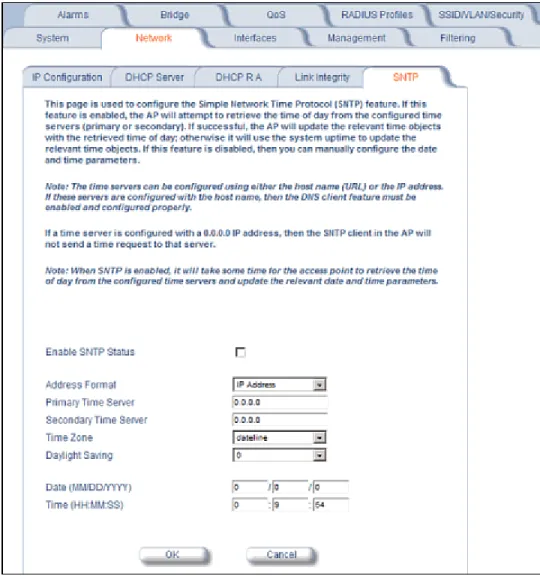
Figure 4-8 SNTP Configuration Screen
You can configure and view the following parameters within the SNTP screen:
• SNTP Status: Select Enable or Disable from the drop-down menu. The selected status will determine which of the parameters on the SNTP screen are configurable.
NOTE:When SNTP is enabled, it will take some time for the AP to retrieve the time of day from the configured time servers and update the relevant date and time parameters.
• Addressing Format: If SNTP is enabled, choose whether you will use the host name or the IP address to configure the primary/secondary SNTP servers. If these servers are configured with the host name, the DNS client feature must be enabled and configured properly.
• Primary Server Name or IP Address: If SNTP is enabled, enter the host name or IP address of the primary SNTP server.
• Secondary Server Name or IP Address: If SNTP is enabled, enter the host name or IP address of the secondary SNTP server.
• Time Zone: Select the appropriate time zone from the drop down menu.
• Daylight Savings Time: Select the number of hours to adjust for daylight savings time.
– Year: Enter the current year.
Interfaces
From the Interfaces tab, you configure the Access Point’s operational mode settings, power control settings, wireless interface settings and Ethernet settings. You may also configure a Wireless Distribution System for AP-to-AP
communications. The Interfaces tab contains the following sub-tabs: • Operational Mode
• Wireless (802.11a/b/g Radio) • Ethernet
Operational Mode
From this tab, you can configure and view the operational mode for the Wireless interface.
Figure 4-9 Operational Mode Screen
The Wireless (802.11a/b/g) interface can be configured to operate in the following modes: • 802.11a only mode: The radio uses the 802.11a standard only.
• 802.11b mode only: The radio uses the 802.11b standard only.
• 802.11g mode only: The radio is optimized to communicate with 802.11g devices. This setting will provide the best results if this radio interface will only communicate with 802.11g devices.