Veritas InfoScale Enterprise 7.4.1 for RHEL on AWS
構築手順書
EBS を用いた共有ディスク + Private IP 切替 編
2019 年 6 月
ベリタステクノロジーズ合同会社
テクノロジーセールス本部
テクニカルホワイトペーパー
2
免責事項
ベリタステクノロジーズ合同会社は、この文書の著作権を留保します。 また、記載された内容の無謬性を保証し
ません。Veritas InfoScale は将来に渡って仕様を変更する可能性を常に含み、これらは予告なく行われること
もあります。なお、当ドキュメントの内容は参考資料として、読者の責任において管理/配布されるようお願いいた
します。
3
目次
免責事項 ... 2
1.
はじめに ... 4
本書の目的 ... 4
2.
システム構成 ... 4
本書の前提となるシステム構成 ... 4
AWS 上に RHEL を構築する場合の注意点 ... 5
3.
インストール ... 7
インストール ... 7
4.
VXVM と VXFS の設定 ... 15
ディスクの確認とイニシャライズ ... 15
VXVM のディスクグループの作成 ... 15
VXVM のボリュームと VXFS のファイルシステムの作成 ... 16
5.
AWSCLI の設定 ... 18
AWSCLI のインストール ... 18
AWSCLI で使用する IAM ユーザーの決定とキーの確認 ... エラー!
ブックマークが定義されていません。
AWSCLI の構成 ... 18
AWS でのポリシー/ロールの作成と、インスタンスへの割り当て ... 19
6.
クラスターの設定... 25
サービスグループの作成 ... 25
リソースの作成 ... 25
疑似アプリケーションの作成とリソース登録 ... 27
7.
切り替えテスト ... 30
アプリケーションを管理するサービスグループの手動切り替え ... 30
障害によるサービスグループの自動切り替え ... 30
障害ノードの復旧 ... 30
アプリケーション障害 ... 30
4
1. はじめに
本書の目的
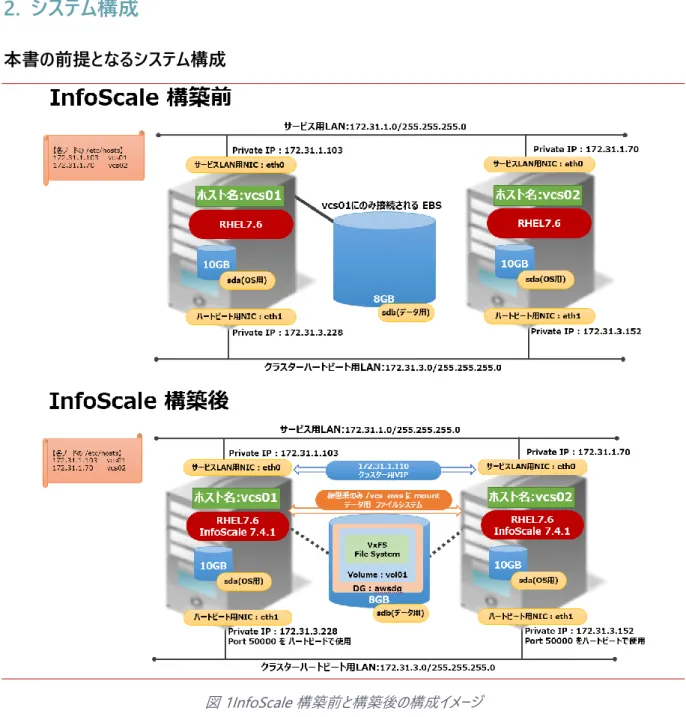
本書は、InfoScale Enterprise 7.4.1 を用いて、EBS を用いた共有ディスク型で、且つ AWS の Private IP を切
り替える 2 ノード稼働待機型クラスター構成の構築の理解を目的に作成されています。
2. システム構成
本書の前提となるシステム構成
5
AWS 上に RHEL を構築する場合の注意点
InfoScale は、AWS 上の RHEL での稼働を保証しています。ただし、InfoScale を構築する場合は、以下の条
件を満たすように RHEL を構築してください。
• ノード間で ping が通ること:InfoScale はインストーラー時や稼働時に、ping による相互監視を行います。
しかし、AWS 上の RHEL はデフォルトで ping が通らない設定になっています。セキュリティグループの「インバ
ウンドの設定」を変更し、ping が通るようにしてください。
• RHEL のインスタンスに ssh を用いて root でパスワードを用いてログインできること:InfoScale のインストー
ル時は、1 台のノードから push install を行いますが、その際に他のノードに ssh を用いて root でパスワードを
用いてログインします。AWS 上で deploy される RHEL は、デフォルトで ssh を用いて root でパスワードを用
いてログインできるようになっていません。/etc/ssh/sshd_config や /etc/passwd を変更してパスワードを
用いて root で ssh ができるようにしてください。
• yum が使用できること:AWS 上で deploy される RHEL には、InfoScale が必要とするパッケージの幾つか
がインストールされていません。そのため、InfoScale のインストーラーの中で yum を用いて必要なパッケージを
インストールします。適切なネットワークの設定(踏み台サーバーを経由して yum のサーバーにアクセス等)も
しくは yum のリポジトリの設定を行い、yum が使用できるようにしてください。
• AWSCLI が使用できること:InfoScale は、ディスクや IP を切り替えるために AWSCLI を使用して EC2 イン
スタンスを IAM からコントロールします。InfoScale がインストールされるノードが踏み台サーバーを経由して
IAM に接続できるようにする等して、AWSCLI が使用できるようにしてください。
6
• swap があること:AWS 上で deploy される RHEL には、swap がありません。InfoScale のインストール時
は、swap が必須ですので、ファイルを作成して swap に割り当ててください。
# dd if=/dev/zero of=/home/swapfile bs=1024k count=1024 1024+0 records in
1024+0 records out
1073741824 bytes (1.1 GB) copied, 0.532228 s, 2.0 GB/s # mkswap /home/swapfile
Setting up swapspace version 1, size = 1048572 KiB no label, UUID=f26daf30-7e86-47e3-9bf0-86c47352bac3 # swapon /home/swapfile
swapon: /home/swapfile: insecure permissions 0644, 0600 suggested. # cat /proc/swaps
Filename Type Size Used Priority /home/swapfile file 1048572 0 -2
• データ配置用の EBS が、一方のノードにのみ割り当てられている事:EBS は、共有ディスク構成をサポート
せず、EBS は常に1つの EC2 インスタンスにのみ紐付けられます。InfoScale は、AWSCLI を使用して EBS
を複数の EC2 インスタンス間で切り替えます。REHL を構築する際は、すべてのデータ格納用 EBS を、1 台
の RHEL に紐付けてください。InfoScale 構築すると、この EBS を共有ディスクとして使用できるようになりま
す。
7
3. インストール
インストール
ここでは、InfoScale Enterprise のインストールを行います。
メディアイメージ配下の “installer” を実行してください
# ./installer“I” (Install)を指定して、先に進んでください
Veritas InfoScale Storage and Availability Solutions 7.4.1 Install Program
Task Menu:
P) Perform a Pre-Installation Check I) Install a Product C) Configure a Product Component G) Upgrade a Product O) Perform a Post-Installation Check U) Uninstall a Product L) License a Product S) Start a Product D) View Product Descriptions X) Stop a Product R) View Product Requirements ?) Help
Enter a Task: [P,I,C,G,O,U,L,S,D,X,R,?] I
InfoScale Enterprise をインストールするので、“4”を指定し、Configuration の選択の部分では“3”の
SFHA を指定し、ライセンスに同意して、先に進んでください。
Veritas InfoScale Storage and Availability Solutions 7.4.1 Install Program
1) Veritas InfoScale Foundation 2) Veritas InfoScale Availability 3) Veritas InfoScale Storage 4) Veritas InfoScale Enterprise b) Back to previous menu
Select a product to install: [1-4,b,q,?] 4
Would you like to configure InfoScale Enterprise after installation? [y,n,q] (n) y
1) Cluster Server (VCS) 2) Storage Foundation (SF)
3) Storage Foundation and High Availability (SFHA) 4) Storage Foundation Cluster File System HA (SFCFSHA) 5) Storage Foundation for Oracle RAC (SF Oracle RAC)
Select a component to configure: [1-5,q] 3
This product may contain open source and other third party materials that are subject to a separate license.
See the applicable Third-Party Notice at https://www.veritas.com/about/legal/license-agreements
Do you agree with the terms of the End User License Agreement as specified in the EULA/en/EULA.pdf file present on media? [y,n,q,?] y
8
インストールすべきホスト名を指定して、先に進んでください。複数のノードに同時にインストール可能で
す。
Enter the system names separated by spaces: [q,?] vcs01 vcs02
途中略
キーレスライセンス:”2” を選択し、”4”の「Veritas InfoScale Enterprise」を指定して先に進んでくださ
い。
Veritas InfoScale Enterprise 7.4.1 Install Program vcs01 vcs02
To comply with the terms of our End User License Agreement, you have 60 days to either:
* Enter a valid license key matching the functionality in use on the systems
* Enable keyless licensing and manage the systems with a Management Server. For more details visit http://www.veritas.com/community/blogs/introducing-keyless-feature-enablement-storage-foundation-ha-51. The
product is fully functional during these 60 days.
1) Enter a valid license key(Key file path needed)
2) Enable keyless licensing and complete system licensing later
How would you like to license the systems? [1-2,q] (2) 2
1) Veritas InfoScale Foundation 2) Veritas InfoScale Availability 3) Veritas InfoScale Storage 4) Veritas InfoScale Enterprise b) Back to previous menu
Which product would you like to register? [1-4,b,q] (4) 4
Registering keyless key ENTERPRISE on Veritas InfoScale Enterprise Successfully registered ENTERPRISE keyless key on vcs01
Successfully registered ENTERPRISE keyless key on vcs02
InfoScale7.4.1 から、Veritas Telemetry Collector が実装されました。これは、顧客が望む場合に
限り、InfoScale の情報をネットワーク経由でベリタスに送付し、ベリタス主体でライセンス管理等を行
えるようにするオプション機能です。もちろん使用しない事も可能です。インストーラーでは、この機能を使
用する前提でエッジサーバーの IP とポートの情報を要求します。本件では、Veritas Telemetry
Collector は使用しませんので、エッジサーバーの IP アドレスとポートは実在しない物を指定します。実
在しない物を指定しても、インストールは正しく行われ、InfoScale も問題なく機能しますので、ご安心く
ださい。
The Veritas Cloud Receiver (VCR) is a preconfigured, cloud-based edge server deployed by Veritas. Enter telemetry.veritas.com to use the Veritas Cloud Receiver as an edge server for your environment. Enter the edge server's hostname/ip: [q,?] 172.31.3.115
CPI WARNING V-9-40-1382 Could not ping the Edge server 172.31.3.115 from following hosts: vcs01 vcs02 Please make sure 172.31.3.115 is accessible from vcs01 vcs02 for telemetry collector to work. Installer will proceed.
Press [Enter] to continue:
9
本書の前提では、I/O Fencing は構成しないので、”n” を指定して先に進んでください。
I/O Fencing
It needs to be determined at this time if you plan to configure I/O Fencing in enabled or disabled mode, as well as help in determining the number of network interconnects (NICS) required on your systems. If you configure I/O Fencing in enabled mode, only a single NIC is required, though at least two are recommended.
A split brain can occur if servers within the cluster become unable to communicate for any number of reasons. If I/O Fencing is not enabled, you run the risk of data corruption should a split brain occur. Therefore, to avoid data corruption due to split brain in CFS environments, I/O Fencing has to be enabled.
If you do not enable I/O Fencing, you do so at your own risk
See the Administrator's Guide for more information on I/O Fencing
Do you want to configure I/O Fencing in enabled mode? [y,n,q,?] (y) n
Enter を押して次に進んでください。
Veritas InfoScale Enterprise 7.4.1 Install Program vcs01 vcs02
To configure VCS, answer the set of questions on the next screen.
When [b] is presented after a question, 'b' may be entered to go back to the first question of the configuration set.
When [?] is presented after a question, '?' may be entered for help or additional information about the question.
Following each set of questions, the information you have entered will be presented for confirmation. To repeat the set of questions and correct any previous errors, enter 'n' at the confirmation prompt.
No configuration changes are made to the systems until all configuration questions are completed and confirmed.
Press [Enter] to continue:
クラスター名をしていします。これは任意なので、今回は aws を指定しています。
Veritas InfoScale Enterprise 7.4.1 Install Program vcs01 vcs02
To configure VCS for InfoScale Enterprise the following information is required:
A unique cluster name
Two or more NICs per system used for heartbeat links A unique cluster ID number between 0-65535
One or more heartbeat links are configured as private links You can configure one heartbeat link as a low-priority link
All systems are being configured to create one cluster.
10
ハートビートの設定方法は” LLT over TCP、使用する NIC は eth1、あらかじめハートビート用に設定し
ておいた IP アドレス(1 号機は 172.31.3.228、2 号機は 172.31.3.152)、使用するポートは 50000
を指定します。オンプレでの InfoScale を用いたクラスターは、ハートビート用の NIC が2つ必要でした
が、Cloud 上の場合は NIC がバックエンドで冗長化されているため、1つで構いません。
Veritas InfoScale Enterprise 7.4.1 Install Program vcs01 vcs02
1) Configure the heartbeat links using LLT over Ethernet 2) Configure the heartbeat links using LLT over UDP 3) Configure the heartbeat links using LLT over TCP 4) Configure the heartbeat links using LLT over RDMA 5) Automatically detect configuration for LLT over Ethernet b) Back to previous menu
How would you like to configure heartbeat links? [1-5,b,q,?] (5) 3
Discovering NICs on vcs01 ... Discovered eth0 eth1
Enter the NIC for the first private heartbeat link on vcs01: [b,q,?] eth1 eth1 has an IP address configured on it. It could be a public NIC on vcs01.
Are you sure you want to use eth1 for the first private heartbeat link? [y,n,q,b,?] (n) y
Some configured IP addresses have been found on the NIC eth1 in vcs01, Do you want to choose one for the first private heartbeat link? [y,n,q,?] (y) y
Please select one IP address: 1) 172.31.3.228/24
2) fe80::4a6:80ff:fe97:b36/64 b) Back to previous menu
Please select one IP address: [1-2,b,q,?] (1) 1
Enter the TCP port for the first private heartbeat link on vcs01: [b,q,?] (50000) 50000
Are you using the same NICs for private heartbeat links on all systems? [y,n,q,b,?] (y) y
Some configured IP addresses have been found on the NIC eth1 in vcs02, Do you want to choose one for the first private heartbeat link? [y,n,q,?] (y) y
Please select one IP address: 1) 172.31.3.152/24
2) fe80::430:c4ff:fe68:4120/64 b) Back to previous menu
Please select one IP address: [1-2,b,q,?] (1) 1 The TCP Port for this link: 50000
Checking media speed for eth1 on vcs01 ... Unknown Checking media speed for eth1 on vcs02 ... Unknown
CPI WARNING V-9-40-3128 installer cannot detect media speed for the selected private NICs properly. Consult your Operating System manual for information on how to set the Media Speed.
11
クラスターID は、0~65535 からランダムに指定されます。同一ネットワークセグメント上でクラスターID
が重複しない必要があります。チェックが通ったら次に進みます。
Enter a unique cluster ID number between 0-65535: [b,q,?] (41214)
The cluster cannot be configured if the cluster ID 41214 is in use by another cluster. Installer can perform a check to determine if the cluster ID is duplicate. The check will take less than a minute to complete.
Would you like to check if the cluster ID is in use by another cluster? [y,n,q] (y) y
Checking cluster ID ... Done
Duplicated cluster ID detection passed. The cluster ID 41214 can be used for the cluster.
Press [Enter] to continue:
内容をチェックして、問題なければ先に進んでください。
Veritas InfoScale Enterprise 7.4.1 Install Program vcs01 vcs02
Cluster information verification:
Cluster Name: aws Cluster ID Number: 41214
Private Heartbeat NICs for vcs01: link1=eth1 ove TCP
ip 172.31.3.228 netmask 255.255.255.0 port 50000
Private Heartbeat NICs for vcs02: link1=eth1 ove TCP
ip 172.31.3.152 netmask 255.255.255.0 port 50000
LLT tagging:
When configuring LLT over UDP or TCP, tags are used in LLT configuration file with set-addr option. Due to this, LLT configuration file may use local NIC identifiers referring to remote IP addresses.
Is this information correct? [y,n,q,?] (y) y
本書では、インストール時にクラスターの仮想 IP を設定する必要はないので “n” を答えて先に進んでく
ださい。
Veritas InfoScale Enterprise 7.4.1 Install Program vcs01 vcs02
The following data is required to configure the Virtual IP of the Cluster:
A public NIC used by each system in the cluster A Virtual IP address and netmask
12
本書では、VCS をセキュアモードで設定しないので、”n” に続いて “y” を指定し、先に進んでください。
Veritas InfoScale Enterprise 7.4.1 Install Program vcs01 vcs02
We recommend that you run Cluster Server in secure mode.
Running VCS in Secure Mode guarantees that all inter-system communication is encrypted, and users are verified with security credentials.
When running VCS in Secure Mode, NIS and system usernames and passwords are used to verify identity. VCS usernames and passwords are no longer utilized when a cluster is running in Secure Mode.
Would you like to configure the VCS cluster in secure mode? [y,n,q,?] (y) n
CPI WARNING V-9-40-3394 We recommend that you install the cluster in secure mode. This ensures that communication between cluster components is encrypted and cluster information is visible to specified users only.
Are you sure that you want to proceed with non-secure installation? [y,n,q] (n) y
VCS のオペレーションを行うためのユーザーとパスワードを設定します。この ID は、複数の VCS 同士で連
携したり、OS に root 以外でログインしたユーザーで VCS のオペレーションを行う際に必要です。本書で
は、デフォルトのユーザー:admin のみを設定しています。
Veritas InfoScale Enterprise 7.4.1 Install Program vcs01 vcs02
The following information is required to add VCS users:
A user name
A password for the user
User privileges (Administrator, Operator, or Guest)
Do you wish to accept the default cluster credentials of 'admin/password'? [y,n,q] (y) y
Do you want to add another user to the cluster? [y,n,q] (n) n
内容を確認し、”y” を指定して先に進んでください。
Veritas InfoScale Enterprise 7.4.1 Install Program vcs01 vcs02
VCS User verification:
User: admin Privilege: Administrators
Passwords are not displayed
13
本書では、SMTP 通知は行わないので “n” を指定して先に進んでください。
Veritas InfoScale Enterprise 7.4.1 Install Program vcs01 vcs02
The following information is required to configure SMTP notification:
The domain-based hostname of the SMTP server The email address of each SMTP recipient
A minimum severity level of messages to send to each recipient
Do you want to configure SMTP notification? [y,n,q,?] (n) n
本書では、SNMP 通知は行わないので “n” を指定して先に進んでください。
Veritas InfoScale Enterprise 7.4.1 Install Program vcs01 vcs02
The following information is required to configure SNMP notification:
System names of SNMP consoles to receive VCS trap messages SNMP trap daemon port numbers for each console
A minimum severity level of messages to send to each console
Do you want to configure SNMP notification? [y,n,q,?] (n) n
本書では、グローバルクラスターの設定は行わないので “n” を指定して先に進んでください。
Veritas InfoScale Enterprise 7.4.1 Install Program vcs01 vcs02
The following data is required to configure the Global Cluster Option:
A public NIC used by each system in the cluster A Virtual IP address and netmask
Do you want to configure the Global Cluster Option? [y,n,q,?] (n) n
インストールを続行するには、関連プロセスやドライバーの再起動が必要です。”y” を指定して先に進ん
でください。
All InfoScale Enterprise processes that are currently running must be stopped
Do you want to stop InfoScale Enterprise processes now? [y,n,q,?] (y) y
14
Storage Foundation and High Availability Startup completed successfully
The updates to VRTSaslapm package are released via the SORT web page: https://sort.veritas.com/asl. To make sure you have the latest version of VRTSaslapm (for up to date ASLs and APMs), download and install the latest package from the SORT web page.
After configuring the cluster, you can configure application monitoring using Veritas InfoScale Operation Manager.
To launch the High Availability Configuration Wizard:
1. Log on to the Veritas InfoScale Operation Manager Management Server domain.
2. In the Veritas InfoScale Operation Manager home page, click the Availability icon from the list of perspectives.
3. Locate the cluster and then right-click on the cluster or on one of the systems under the cluster. 4. Click Configure Application.
Installation procedures and diagnostic information are saved in the log files under directory
/var/tmp/installer-201905311037OEF. This information helps us identify and resolve failed operations performed by the installer. Would you like to send the information to us to help improve installation in the future? [y,n,q,?] (y) n
Checking online updates for Veritas InfoScale Enterprise 7.4.1
No updates available for Veritas InfoScale Enterprise 7.4.1
Visit https://sort.veritas.com for more information.
ssh is configured in password-less mode on vcs02
Do you want to cleanup the communication for the systems vcs02? [y,n,q] (n) n
installer log files, summary file, and response file are saved at:
/opt/VRTS/install/logs/installer-201905311037OEF
Would you like to view the summary file? [y,n,q] (n) n
#
これで、InfoScale のインストールは終了です。インストール時に問題が発生した場合は、インストーラーの
最後で表示された/opt/VRTS/install/logs 配下のログを収集してください。
15
4.
VxVM と VxFS の設定
ディスクの確認とイニシャライズ
まず、VxVM から認識されているディスクの確認とイニシャライズを行います。この章の作業は、データ配置用 EBS
が紐付けられたノードからのみ行ってください。以下の手順は、データ配置用 EBS が 1 号機に紐付けられた前提
で行っています。
オペレーションの準備、ディスクのイニシャライズ
オペレーションを始める前に、PATH と MANPATH の設定を行ってください。
# PATH=$PATH:/opt/VRTS/bin export PATH# MANPATH=$MANPATH/opt/VRTS/man export MANPATH
1 号機で認識できているディスクを確認してください。OS のディスク(xvda)以外に、1 本のディスクが
見えています。これをデータ用として使用します。
# vxdisk list
DEVICE TYPE DISK GROUP STATUS xvda auto:none - - online invalid 01_xen-vd0_0 auto:none - - online invalid
前述のディスクをイニシャライズしてください。
# vxdisksetup -i 01_xen-vd0_0
VxVM のディスクグループの作成
次に、ディスグループを作成します。ディスクグループは、Linux の LVM で言う所の Volume Group に相当し、
VxVM でボリューム(仮想デバイス)を作成して使用する場合は、ボリュームは必ずいずれかのディスクグループに
所属している必要があります。
ディスクグループの作成
vxdg コマンドを用いて、以下の例に従って awsdg という名前のディスクグループを作成します。ディスク
として 01_xen-vd0_0 を使用しています。
16
ディスクグループの作成に成功すると、vxdisk list コマンドの出力は以下のようになり、従来空欄だった
“GROUP” の列にディスクグループ名である “awsdg” が表示されます。
# vxdisk list
DEVICE TYPE DISK GROUP STATUS xvda auto:none - - online invalid 01_xen-vd0_0 auto:cdsdisk 01_xen-vd0_0 awsdg online
VxVM のボリュームと VxFS のファイルシステムの作成
次に、ボリュームを作成します。ボリュームは、Linux の LVM で言う所の Volume に相当します。ボリュームを作製
したら、そこにファイルシステムを構築します。
まず、VxVM のボリュームを作製します。下記例では、”awsdg” というディスクグループ内の
“01_xen-vd0_0” というディスクを用いて、“vol01” という名前の容量 8Gbyte のボリュームを作成しています。
vxassist -g awsdg make vol01 8g 01_xen-vd0_0
作製したボリュームは、vxprint コマンドで確認できます。
# vxprint
Disk group: awsdg
TY NAME ASSOC KSTATE LENGTH PLOFFS STATE TUTIL0 PUTIL0
dg awsdg awsdg - - - - - -
dm 01_xen-vd0_0 01_xen-vd0_0 - 16703232 - - - -
v vol01 fsgen ENABLED 16701440 - ACTIVE - -
pl vol01-01 vol01 ENABLED 16701440 - ACTIVE - -
sd 01_xenvd0_001 vol0101 ENABLED 16701440 0
-作製されたボリューム上にファイルシステムを作製します。このオペレーションも 1 号機のみで行います。指
定するデバイスパス名は /dev/vx/rdsk までが固定で、その後にディスクグループ名(下記例では
awsdg)、最後にボリューム名(下記例では vol01)、というフォーマットです。
# mkfs -t vxfs /dev/vx/rdsk/awsdg/vol01
version 15 layout
16701440 sectors, 8350720 blocks of size 1024, log size 16384 blocks
rcq size 1024 blocks
largefiles supported
maxlink supported
WORM not supported
17
作成したファイルシステムが使用できることを確認するために、mount point を作成し、実際に mount
してみてください。尚、mount point の作成は、クラスターを構成する他方のノードでも忘れずに行ってく
ださい。これを怠ると、クラスターの切り替え時にファイルシステムが正しく切り替わりません。
# mkdir /vcs_aws
# mount -t vxfs /dev/vx/dsk/awsdg/vol01 /vcs_aws # df -h
Filesystem Size Used Avail Use% Mounted on /dev/xvda2 10G 6.9G 3.2G 69% / devtmpfs 3.8G 0 3.8G 0% /dev tmpfs 3.9G 0 3.9G 0% /dev/shm tmpfs 3.9G 17M 3.9G 1% /run tmpfs 3.9G 0 3.9G 0% /sys/fs/cgroup tmpfs 782M 0 782M 0% /run/user/0 /dev/vx/dsk/awsdg/vol01 8.0G 21M 7.5G 1% /vcs_aws
18
5.
AWSCLI の設定
ここでは、AWSCLI の設定を行います。
AWSCLI のインストール
両方のノードで AWSCLI をインストールしてください。
まず、AWSCLI をサイトからダウンロードし、解凍します。
# curl "https://s3.amazonaws.com/aws-cli/awscli-bundle.zip" -o "awscli-bundle.zip" # unzip awscli-bundle.zip # ls awscli-bundle awscli-bundle.zip
次に、AWSCLI のインストールを行います。
# cd awscli-bundle # ls install packages# ./install -i /usr/local/aws -b /usr/local/bin/aws
Running cmd: /usr/bin/python virtualenv.py --no-download --python /usr/bin/python /usr/local/aws Running cmd: /usr/local/aws/bin/pip install --no-cache-dir --no-index --find-links
file:///home/aws/awscli-bundle/packages/setup setuptools_scm-1.15.7.tar.gz Running cmd: /usr/local/aws/bin/pip install --no-cache-dir --no-index --find-links file:///home/aws/awscli-bundle/packages awscli-1.16.167.tar.gz
You can now run: /usr/local/bin/aws --version
AWSCLI の構成
RHEL のインスタンスが立ち上がる region を確認したら、AWSCLI の構成を行います。Access Key と
Secret Key を入力する必要はありません。
# /usr/local/bin/aws configure AWS Access Key ID [None]: AWS Secret Access Key [None]:
Default region name [None]: ap-northeast-1 Default output format [None]:json
※
「Default output format」は、必ず「json」にしてください。「json」以外では、InfoScale は AWSCLI
19
AWS でのポリシー/ロールの作成と、インスタンスへの割り当て
InfoScale がインストールされたノードから AWSCLI を使用する際、セキュリティリスク回避の観点から、クラスター
の動作に必要な機能のみが可能になるべきです。その為に、ポリシーとロールを作成し、それを InfoScale がイン
ストールされたノード(インスタンス)に割り当てます。
IAM のメニューからポリシーを選択します
「ポリシーの作成」を選択します
20
「VCS」という名称でポリシーを作成し、「編集」メニューで内容を決定します。以下例の Action のみ可
能になるように設定してください。これらの Action は、EBS の切り替えと IP の切り替えに必要なものだ
けを列挙しています。
21
次にロールを作成します。IAM のメニューからロールの作成を選択します
22
ロールにアタッチするポリシーを選択します。先ほど作成したポリシー:VCS をアタッチします。
23
「VCSRole」というロール名を指定し、ロールが作成できました。
作成したロールを、InfoScale がインストールされるインスタンスに紐づけます。EC2 のメニューの「インスタ
ンス」でインスタンス一覧を表示し、作成したロールに紐付けたいインスタンスを右クリックして「IAM ロー
ルの割り当て/置換」を選択してください。
24
下記の例の通り、「VCSRole」というロールをインスタンスに紐付けます
インスタンスの詳細を表示して、正しく紐付けられたことを確認してください。
最後に、InfoScale がインストールされるノード上で AWSCLI が正しく機能することを確認します。18 ペ
ージで許可した Action の全てが使用できることを確認してください。下記例では、18 ページで指定した
「DescribeVolumes」が可能か確認しています。Action 名のフォーマットが異なります(コマンドライン
では、describe-volumes)ので、注意してください。
# aws ec2 describe-volumes
{
"Volumes": [
{
"AvailabilityZone": "ap-northeast-1a",
"Attachments": [
(以下略)
25
6. クラスターの設定
いよいよ、AWS 上の RHEL 上で、アプリケーション及びその稼働に必要な個々のコンポーネントが、InfoScale に
よって適切に監視/リカバリーされるための設定を行います。この作業は、どちらか一方ノーノードから行います。
サービスグループの作成
アプリケーション及びその稼働に必要な個々のコンポーネントの集合体を「サービスグループ」と呼びます。切り替え
は、このサービスグループ単位で行います。
まず、クラスターの構成を編集可能にするためのモード設定を行ってください。
# haconf -makerw
サービスグループ:testsg を作製します。このサービスグループは、クラスターが立ち上がる際に、自動的
にオンラインになる設定にしています。自動的にオンラインにしたくない場合は、「hagrp -modify testsg
AutoStartList vcs01 vcs02」の実行を省略してください。
# hagrp -add testsg
VCS NOTICE V-16-1-10136 Group added; populating SystemList and setting the Parallel attribute
recommended before adding resources
# hagrp -modify testsg Parallel 0
# hagrp -modify testsg SystemList vcs01 0 vcs02 1
# hagrp -modify testsg AutoStartList vcs01 vcs02
リソースの作成
サービスグループに属するアプリケーション及びその稼働に必要な個々のコンポーネントそれぞれを「リソース」と呼び
ます。監視は、このリソース単位で行われます。
作成したサービスグループ内にリソース:nic を作製します。このリソースは、サービス用 Private IP アドレ
スを立ち上げる NIC を監視します。監視対象 NIC は eth0 です。
# hares -add nic NIC testsg
VCS NOTICE V-16-1-10242 Resource added. Enabled attribute must be set before agent monitors
# hares -modify nic Device eth0
# hares -modify nic Enabled 1
次にリソース:ip を作製します。このリソースは、サービスで使用する Private IP アドレスを立ち上げ、そ
れを監視します。IP アドレスは 172.31.1.110 です。このリソースの online の条件が、既に構成済みの
リソースである nic の online である事を設定します。
# hares -add ip IP testsg
# hares -modify ip Device eth0
# hares -modify ip Address 172.31.1.110
# hares -modify ip NetMask 255.255.255.0
# hares -modify ip Enabled 1
26
次にリソース:awsip を作製します。このリソースは、nic リソースでインスタンス内に立ち上げた Private
IP に、VPC 内の他のインスタンスからアクセスできるようにします。尚、AWSBinDir のパラメーターには、
AWSCLI を構成する際に設定した「aws コマンドが格納された絶対パス」を正確に指定してください。
最後に、このリソースの online の条件が、既に構成済みのリソースである ip の online である事を設定
します。
# hares -add awsip AWSIP testsg
# hares -modify awsip PrivateIP 172.31.1.110
# hares -modify awsip Device eth0
# hares -modify awsip AWSBinDir /usr/local/aws/bin
# hares -modify awsip Enabled 1
# hares -link awsip ip
ここからは、ディスク関係のリソースの設定を行いますが、その前にデータ用 EBS の volume-id を確認し
ます。RHEL の構築時にデータ用 EBS が紐付けられたインスタンスの詳細を表示し、volume-id を確
認します。volume-id は「vol-0f02f76d2fa855bf7」であることが確認できました。
volume-id が確認できたら、データ用 EBS を管理するリソース:ebs を作製します。このリソースは、デ
ータ用 EBS の監視と切り替えを行います。AWSBinDir のパラメーターには、AWSCLI を構成する際に
設定した「aws コマンドが格納された絶対パス」を正確に指定してください。「VolumeId」パラメーターに
は、前ページで確認したデータ用 EBS の volume-id を正確に指定します。
# hares -add ebs EBSVol testsg
VCS NOTICE V-16-1-10242 Resource added. Enabled attribute must be set before agent monitors
# hares -modify ebs AWSBinDir /usr/local/aws/bin
# hares -modify ebs VolumeId vol-0f02f76d2fa855bf7
# hares -modify ebs Enabled 1
27
次にリソース:dg を作製します。このリソースは、データ用 EBS 上に構築されたディスクグループの監視
と切り替えを行います。このリソースの online の条件が、既に構成済みのリソースである ebs の online
である事を設定します。
# hares -add dg DiskGroup testsg
VCS NOTICE V-16-1-10242 Resource added. Enabled attribute must be set before agent monitors
# hares -modify dg DiskGroup awsdg
# hares -modify dg Enabled 1
# hares -link dg ebs
次にリソース:mount を作製します。このリソースは、データ用 EBS 上に構築されたファイルシステムの
mount と監視を行います。「BlockDevice」パラメーターに指定するデバイスパス名は /dev/vx/dsk
(rdsk ではなく、dsk であることに注意してください)までが固定で、その後にディスクグループ名(下
記例では awsdg)、最後にボリューム名(下記例では vol01)、というフォーマットです。このリソース
の online の条件が、既に構成済みのリソースである dg の online である事を設定します。
# hares -add mount Mount testsg
VCS NOTICE V-16-1-10242 Resource added. Enabled attribute must be set before agent monitors
# hares -modify mount MountPoint /vcs_aws
# hares -modify mount FSType vxfs
# hares -modify mount BlockDevice /dev/vx/dsk/awsdg/vol01
# hares -modify mount FsckOpt %-y
# hares -modify mount Enabled 1
# hares -link mount dg
疑似アプリケーションの作成とリソース登録
クラスターの動作確認の為に疑似的なアプリケーションを作成し、その切り替えと監視を行うリソースを作成しま
す。
下記が擬似アプリケーションです。自身のプロセス ID を/tmp/datetime.pid に保存した後、5 秒に一
回の間隔で、データ用 EBS 上に構築されたファイルシステム配下に日付とホスト名を書き込みます。
# cat /usr/local/bin/app.sh
#!/bin/sh
echo $$ > /tmp/datetime.pid
while :
do
date >> /vcs_aws/date.dat
hostname >> /vcs_aws/date.dat
sleep 5
done
下記が、擬似アプリケーションを起動するシェルです。
# cat /usr/local/bin/start.sh
#!/bin/sh
/usr/local/bin/app.sh &
exit 0
28
下記が、擬似アプリケーションを停止するシェルです。
# cat /usr/local/bin/stop.sh
#!/bin/sh
kill `cat /tmp/datetime.pid`
rm -f /tmp/datetime.pid
exit 0
下記が擬似アプリケーションを監視するシェルです。擬似アプリケーションのプロセス ID ファイルが存在す
るかどうかを確認し、存在すれば exit110(online)、存在しなければ exit100(offline)で終了し
ます。
# cat /usr/local/bin/monitor.sh
#!/bin/bash
if [ -e /tmp/datetime.pid ]; then
exit 110
else
exit 100
fi
擬似アプリケーションと、それを起動・停止・監視する為のスクリプトを作製し、全てのノードに同じ絶対
パスで保存したら、これらを制御するリソース:app を作製します。このリソースの online の条件が、既に
構成済みのリソースである awsip と mount の online である事を設定します。
# hares -add app Application testsg
VCS NOTICE V-16-1-10242 Resource added. Enabled attribute must be set before agent monitors
# hares -modify app StartProgram /usr/local/bin/start.sh
# hares -modify app StopProgram /usr/local/bin/stop.sh
# hares -modify app MonitorProgram /usr/local/bin/monitor.sh
# hares -modify app Enabled 1
# hares -link app awsip
# hares -link app mount
サービスグループ: testsg の設定が完了したら、このサービスグループを 1 号機で online にします。
29
サービスグループが 1 号機で online になっており、1 号機で Private IP : 172.31.1.110 が立ち上がって
おり、疑似アプリケーションが動作していることを確認します。
# hastatus -sum
-- SYSTEM STATE
-- System State Frozen
A vcs01 RUNNING 0
A vcs02 RUNNING 0
-- GROUP STATE
-- Group System Probed AutoDisabled State
B testsg vcs01 Y N ONLINE
B testsg vcs02 Y N OFFLINE
#
# ifconfig -a | grep 172.31.1.110
inet 172.31.1.110 netmask 255.255.255.0 broadcast 172.31.1.255
# tail /vcs_aws/date.dat
Fri May 31 05:26:20 UTC 2019
vcs01
Fri May 31 05:26:25 UTC 2019
vcs01
Fri May 31 05:26:30 UTC 2019
vcs01
Fri May 31 05:26:35 UTC 2019
vcs01
#
最後に、必ずクラスターの構成をディスクに反映させ、編集不可にするモード設定を行ってください。これ
を行わないと、サーバー再起動やクラスターの停止時に、そこまでの設定変更が無効になってしまいま
す。
30
7. 切り替えテスト
最後に、AWS 上の RHEL 上で、アプリケーション及びその稼働に必要な個々のコンポーネントが、InfoScale によ
って適切に監視/リカバリーされるかを確認するための簡単なテストを行います。
アプリケーションを管理するサービスグループの手動切り替え
以下のコマンドで、サービスグループが 2 号機に切り替わります。
# hagrp –switch testsg –to vcs02
2 号機への切り替えが正常に完了すると、hastatus の結果は以下のようになります。
# hastatus -sum
-- SYSTEM STATE
-- System State Frozen
A vcs01 RUNNING 0
A vcs02 RUNNING 0
-- GROUP STATE
-- Group System Probed AutoDisabled State
B testsg vcs01 Y N OFFLINE
B testsg vcs02 Y N ONLINE
障害によるサービスグループの自動切り替え
アプリケーションが稼働している方の RHEL インスタンスを、AWS の EC2 のコンソールから停止してくださ
い。 その後で、生き残ったノードに正しくサービスグループが切り替わっていることを ifconfig や df や
hastatus で確認してください。
障害ノードの復旧
上記のテストで停止したノードを AWS の EC2 のコンソールから再立ち上げし、立ち上がったノードにサー
ビスグループを手動で切り替えてください。この前と後で、各ノードの ifconfig や df や hastatus の表示
がどう変わったか確認してください。
# hagrp –switch testsg –to node02
アプリケーション障害
アプリケーションが稼働しているノードで、以下のコマンドで pid ファイルを消去してください。そのの後、障
害が検知され、他方のノードに正しくサービスグループが切り替わっていることを ifconfig や df や
hastatus で確認してください。
31
© 2019 Veritas Technologies LLC. All rights reserved. Veritas および Veritas のロゴは、米国およびその他の国における Veritas Technologies LLC またはその関連会社の商標ま たは登録商標です。その他の名称は、それぞれの所有者の商標である場合があります。