User guide for Voters v 1
Electronic Balloting Portal
ITS – [email protected]
7/25/2017
電子投票ポータル
投票者のためのユーザガイド v 1
英和対訳
一般財団法人 日本規格協会
Table of Contents
TABLE OF CONTENTS ... 2
1 INTRODUCTION ... 3
1.1 THE BALLOTING WORKFLOW ... 3
1.2 BALLOTING ROLES ... 4
2 LOGGING IN AND LOGGING OUT ... 5
2.1 LOGGING IN ... 5
2.2 LOGGING OUT ... 7
2.3 PASSWORD FORGOTTEN ... 7
3 USER INTERFACE AND NAVIGATION ... 8
3.1 ELECTRONIC BALLOTING APPLICATION OVERVIEW ... 8
3.2 GENERAL NAVIGATION ... 9
3.3 SEARCHING FOR BALLOTS ... 10
3.4 ACCESSING CLOSED BALLOTS ... 11
3.5 VIEWING THE DETAILS OF A BALLOT... 12
3.6 TOOLS MENU... 14
3.7 HELP MENU ... 14
4 VOTING AND COMMENTING ... 15
4.1 CAST A VOTE ON A BALLOT ... 15
4.2 MODIFYING AND DELETING VOTES AND/OR COMMENTS ... 16
5 DOWNLOAD THE BALLOT RESULTS/COMMENTS (ZIP FILE) ... 17
目次
目次 ... 2 1 序文 ... 3 1.1 投票のワークフロー ... 3 1.2 投票の役割 ... 4 2 ログインとログアウト ... 5 2.1 ログイン ... 5 2.2 ログアウト... 7 2.3 パスワードを忘れた場合 ... 7 3 ユーザインターフェースとナビゲーション ... 8 3.1 電子投票アプリケーションの概観 ... 8 3.2 一般的なナビゲーション ... 9 3.3 投票の検索 ... 10 3.4 終了した投票へのアクセス ... 11 3.5 投票の詳細を見る ... 12 3.6 ツールメニュー ... 14 3.7 ヘルプメニュー... 14 4 投票とコメント ... 15 4.1 投票の回答を提出する ... 15 4.2 回答及び/又はコメントを変更・削除する ... 16 5 投票結果/コメントをダウンロードする(ZIP ファイル) ... 17 6 ヘルプデスクの情報 ... 181 Introduction
1.1 The balloting workflow
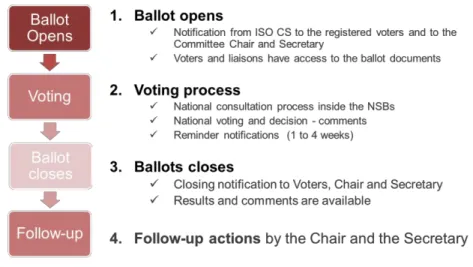
The balloting process and its follow up are characterized by the following main stages:
1 序文
1.1 投票のワークフロー 投票のプロセスとフォローアップは以下の主な段階を特徴とする: 1. 投票開始 ISO/CS からの通知が登録された投票者と委員会の議長及び 国際幹事に送信される。 投票者とリエゾンが投票文書にアクセスできる。 2. 投票プロセス NSB における国内の協議プロセス 国内の投票と決定 ‐ コメント リマインダの通知(1~4 週間前) 3. 投票終了 終了の通知が投票者、議長、国際幹事に送信される。 結果とコメントが入手可能になる。 4. 議長と国際幹事によるフォローアップの措置 図 1 – 投票のワークフロー1.2 Balloting roles
Users are registered in the ISO Global Directory in the roles of voters for different ballot types. Depending on the role assigned in the GD, different permissions will be granted in the electronic balloting portal. Users and their roles are registered and maintained by the user administrators of the ISO Members in the Global Directory.
Role in the GD Description Permission Committee Secretary and
support team
Responsible to launch CIB ballots and take appropriate actions on CIB, DIS, FDIS and SR ballots.
Can create CIB ballots, can see DIS/FDIS/SR ballots
Voter (CIB, DIS, FDIS, SR*) An individual representing an organization (a member), who has an obligation to vote on ballots submitted to the P- members in a committee (such as New Work Item, Proposals, Committee Drafts etc.). There may be more than one individual with this role in a particular committee.
Can cast vote on CIB, DIS, FDIS or SR Ballots in TCs/SCs they are assigned to.
For individuals representing O- members in a committee, only comments can be cast on CIB ballots.
*SR Voters have also the rights
to cast a vote on Withdrawal Consultation but without any obligation to vote whether they are registered as P-member, O- member or Non-member.
Ballot monitor An individual representing an organization (a member) that is either P- or O-member in the committee and who needs to be informed about ballots without the responsibility to cast a vote.
Can see ballots in TCs/SCs they are assigned to, but cannot cast a vote or submit a
comment.
Can see the votes cast by other users on behalf of their
member.
Voter (Votes to all members) An individual working for a Member who is responsible to vote on all ballots issued to all members.
Can cast vote on all Vote to all members ballots.
1.2 投票の役割
ユーザは、ISO Global Directory (GD) で様々なタイプの投票のための投票者の役割に登録されている。GD で割当て ら れた役割に応じて、電子投票ポータルにおいて様々な権限が与えられる。 ユーザとその役割は、ISO 会員のユーザ管 理者によって GD に登録され、メンテナンスされる。 GD における役割 説明 権限 委員会の国際幹事と サポートチーム CIB 投票を開始し、CIB、DIS、FDIS、SR の投票 に関して適切な措置を取る責任を持つ。 CIB 投票を設定し、DIS/FDIS/SR の投票 を見ることができる。 投 票 者 ( CIB 、 DIS 、 FDIS、SR*) 組織(会員)を代表する個人で、委員会の P メ ンバーに提出された投票(新業務項目、提案、 CD、その他)について回答する義務を持つ。特 定の委員会においてこの役割を持つ個人は複 数存在し得る。 割当てられた TC/SC において CIB、DIS、 FDIS、SR の投票について回答できる。 委 員会で O メンバーを代表する個人は、 CIB 投票についてコメントのみ送信するこ とができる。 *SR の投票者は、(規格の)廃止協議にも 投票する権利を有するが、登録元が P メ ンバー、O メンバー、ノン・メンバーのいず れであっても投票の義務を負うものではな い。 投票モニター 委員会において P 又は O メンバーの地位にあ る組織(会員)を代表する個人で、投票する責 任は持たないが、投票について通知される必 要がある人。 割当てられた TC/SC における投票を見る ことはできるが、回答やコメントを提出する ことはできない。 会員を代表して他のユ ーザが提出した回 答を見ることができ る。 投 票者 ( 全 会 員 を対 象とする投票) 全会員を対象として発行される全投票に関し て投票する責任を持つ会員のために働く個 人。 全会員を対象とした投票に関して回答を 提出することができる。
2 Logging in and logging out 2.1 Logging in
Your username will be sent to you by e-mail after your initial registration by your National Member Body in the ISO Global Directory and will contain a link to choose a password and activate your account. Please follow the instructions in the email to activate your account and choose a password.
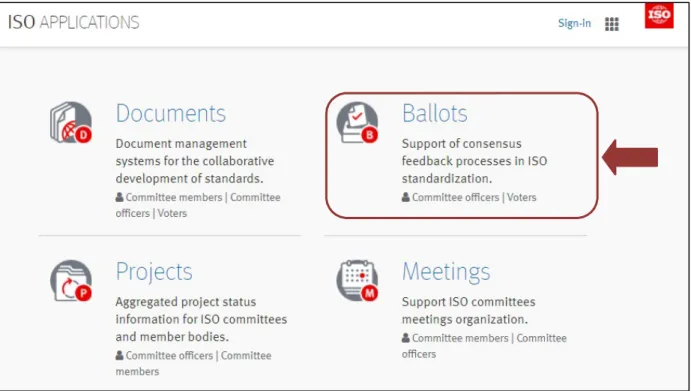
a) Start your Internet browser and open the following URL: https://login.iso.org.
You will be directed to the ISO electronic applications login page. Click on "Ballots" to access:
Figure 2 - List of ISO electronic applications
b) The electronic balloting portal homepage will open. Click on any of the ballot instances and you will be prompted to enter your username and password.
Please note that both username and password are case-sensitive, i.e. they have to be entered exactly as provided.
2 ログインとログアウト
2.1 ログイン ユーザ名は、自国の会員団体が GD に初期登録した後、E メールで送信される。その E メールには、パスワ ードを選択し、 アカウントを起動させるためのリンクが含まれている。E メールに記載された指示に従ってアカウントを起動さ せ、パス ワードを選択すること。
a) インターネットブラウザを起動させ、URL: https://login.iso.org を開く: ISO 電子アプリケーションのログイ
ンページに移動する。“Ballots”をクリックしてアクセスする: 図 2 - ISO 電子アプリケーションのリスト b) 電子投票ポータルのホームページが開く。いずれかの投票インスタンスをクリックすると、ユーザ名とパスワードを 入力 するよう促される。
ユーザ名とパスワードはどちらも大文字と小文字を区別することに留意すること。つまり、定められた通りに正確に
入力しなければならない。
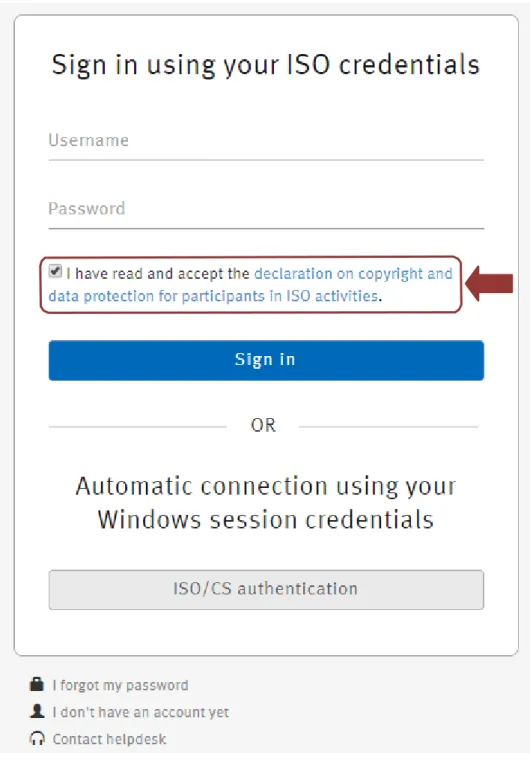
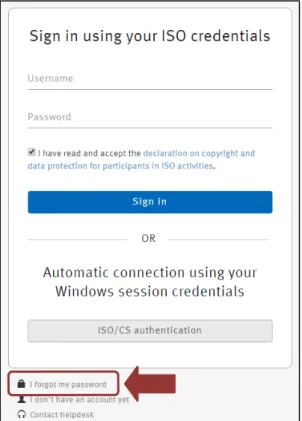
Figure 3 - ISO Log-in screen
c) Enter your username and password
d) Read the declaration and tick the box to accept the conditions
図 3 – ISO のログイン画面
c) ユーザ名とパスワードを入力する。
d) Declaration を読み、ボックスにチェックマークを入れて条件を承諾する。 e) Sign in をクリックする。選択した電子投票ポータルのインスタンスが開く。
2.2 Logging out
a) Choose Log-out on the Tools menu on the top right of the screen. b) You will be forwarded to the list of ISO applications.
Figure 4 - Logout Button
2.3 Password forgotten
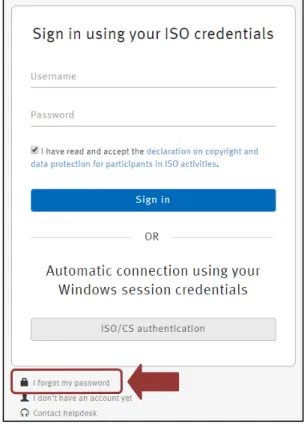
If you forgot your password, click on “Sign in”, then on the link I forgot my password on the login screen and follow the instructions on the screen. Within the next few minutes you will receive an e-mail with a link to reset your password.
2.2 ログアウト
a) 画面右上にある Tools メニューで Log-out を選択する。 b) ISO アプリケーションのリストに戻る。
図 4 - ログアウトのボタン
2.3 パスワードを忘れた場合
パスワードを忘れた場合は、ログイン画面の"Sign in"に続いて I forgot my password(パスワードを忘れました)をクリッ クし、画面の指 示に従う。数分後に、パスワードをリセットするためのリンクが E メールで届く。
3 User interface and navigation
3.1 Electronic Balloting application overview
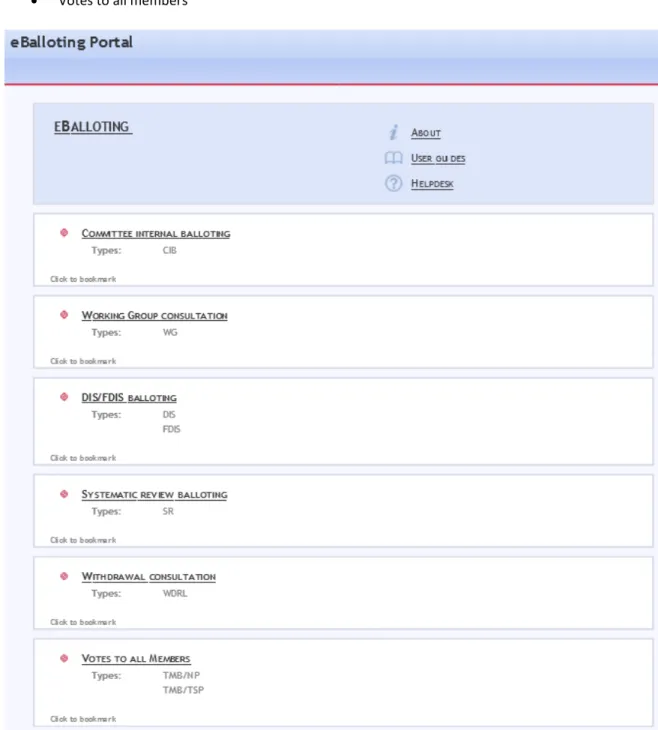
The electronic Balloting portal is split in four main sections: • Committee Internal Balloting (CIB)
• Working Group Consultation • DIS/FDIS Balloting
• Systematic Review Balloting • Votes to all members
Figure 6 - Electronic Balloting application overview
3 ユーザインターフェースとナビゲーション
3.1 電子投票アプリケーションの概観
電子投票ポータルは 5 つの主なセクションに区分される:
委員会内投票 (CIB)
Working Group Consultation DIS/FDIS の投票
定期見直しの投票
全会員を対象とした投票
図 6 – 電子投票アプリケーションの概観
3.2 General Navigation
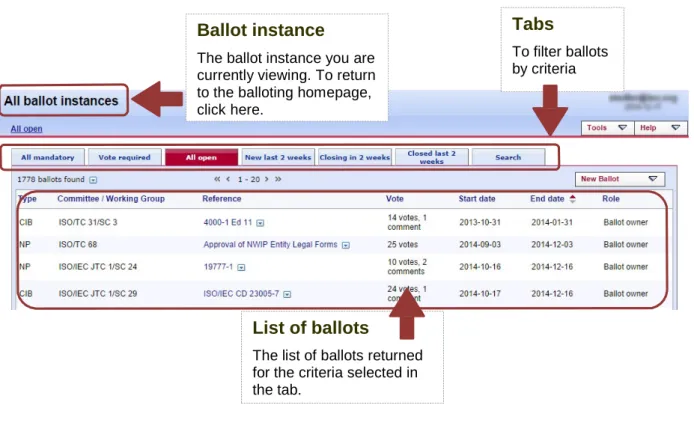
All ballot instances have the same navigation principle: Different tabs show you the ballots depending on different criteria. By default, you will be directed to the All open tab which shows all ballots that you have access to that are open for voting:
Figure 7 - Balloting main page
All columns in the Home Screen are sortable. By clicking on the column heading the column will be sorted. Clicking a second time will reverse the sort.
Sorting applies to all ballots currently found (the number indicated on top of the ballot list) and not only to the ballots displayed on the current screen. Therefore, a ballot may disappear from the 20 listed due to the sorting
Ballot instance
The ballot instance you are currently viewing. To return to the balloting homepage, click here.
Tabs
To filter ballots by criteria
List of ballots
The list of ballots returned for the criteria selected in the tab.
3.2 一般的なナビゲーション すべての投票インスタンスに同じナビゲーションの原則がある。様々な基準に応じて投 票を表示するタブが複数ある。 初期設定では All open のタブになり、現在開かれているアクセス権のある全投票が表 示される: 図 7 - 投票の主要ページ
ホーム画面のすべての縦列はソートできる。縦列の見出しをクリックするとソートされる。もう一度クリッ
クすると、逆順にソートされる。 ソートは、画面に表示されている投票だけでなく、その時点で検出され
る全投票に適用される(投票リ ストの最上部に件数が表示される)。従って、ソートによってリストアップ
された 20 件から投票が消える 場合もある。
投票インスタンス 現在見ている投票インスタン ス。投票ホームページ に戻 るには、ここをクリックする。 タブ 基準で投票を 絞り込む 投票リスト タブで選択した基準で絞り 込まれた投票のリストFigure 8 - CIB tabs functions
The tabs at the top of the page have the following functions:
Tab Description
All mandatory Displays all ballots for committees where your NSB is a P-member independently to the fact that the voter has already voted or not
Vote required Displays all ballots for committees where your NSB is a P-member and has not yet voted
All open Displays all ballots on which you can vote or submit a comment.
New last 2 weeks Displays all ballots which were opened within the last 2 weeks
Closing in 2 weeks Displays all open ballots which will close during the next 2 weeks.
Closed last 2 weeks Displays all ballots which closed during the last 2 weeks.
Search Opens the search screen which allows to search with user defined values
3.3 Searching for ballots
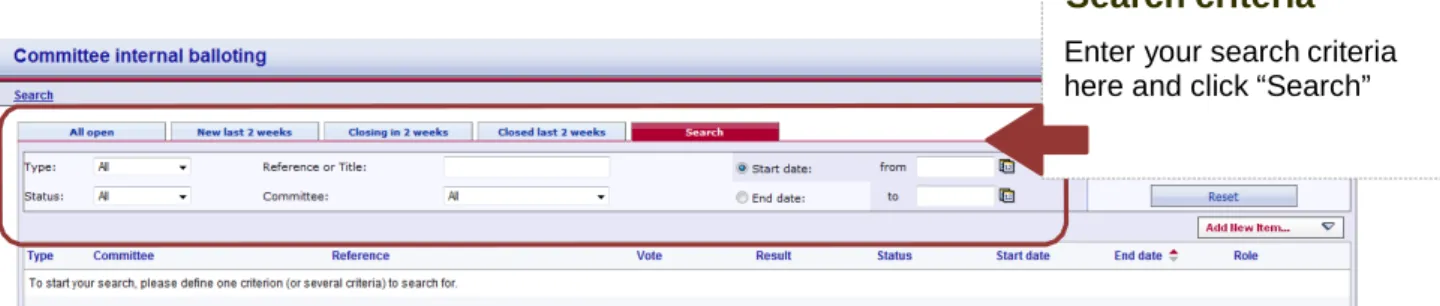
The Ballot search screen allows you to enter parameters into the search fields to find the ballots which match those criteria. This functionality is useful for specific requests, e.g. to find all ballots of a particular committee, a ballot based on its reference number or ballots open or closed within time periods which are not covered by the predefined queries executed through the tabs.
To initiate a search, click on Search after having entered the search parameters. To clear the screen and remove search parameters, click on Reset.
Search criteria
Enter your search criteria here and click “Search”
ページ最上部のタブは、以下の機能を持つ(左から右): タブ 説明 All mandatory 自国の NSB が P メンバーになっている委員会の全投票を、投票者が既に投票して いるか否かは問わず、表示する。 Vote required 自国の NSB が P メンバーになっている委員会の全投票のうち、未投票になっている ものを表示する。 All open 投票又はコメント提出が可能な全投票を表示する。
New last 2 weeks 過去 2 週間以内に開始された全投票を表示する。
Closing in 2 weeks 今後 2 週間以内に終了する予定の投票期間中の全投票を表示する。
Closed last 2 weeks 過去 2 週間以内に終了した全投票を表示する。
Search ユーザの条件に合致するものを検索することができる検索画面が開かれる。 3.3 投票の検索 投票検索画面では、検索欄に条件を入力し、その検索条件に合致する投票を見つけることができる。 この機能は、例 えば、特定委員会の全投票検索、規格参照番号に基づく投票検索、タブ経由で実行される所定のクエ リには含まれ ていない特定期間内に開始又は終了した全投票の検索など、具体的な要求に役立つ。 検索を開始するには、検索条件を入力し、Search をクリックする。画面のデータを消去し検索条件を除去するには、 Reset をクリックする。 図 9 -検索機能 検索条件 ここに検索条件を入力し、 “Search”をクリックする
The Search screen allows to enter or to select parameters in the following search fields:
Search Fields Explanation/Function of the fields
Type Type of ballot, for example CIB, CD, DIS, FDIS etc.
Depending on the ballot instance you are accessing, the type of ballot displayed will match the ballot instance. For example, you cannot search for an FDIS ballot from the SR ballot instance.
Status Ballot status (Open/Closed)
Ref/Title Ballot reference number or document title element.
Note: A search by reference or title is a free text search that matches in any part of the ballot reference number or the title (e.g. searching for "smit" will match "smith").
Committee Only those committees to which your profile is registered will be displayed.
Start date Specifies that the date in the range between "From" and "To" is an opening date
End date Specifies that the date in the range between "From" and "To" is a closing date
From Range start date
To Range end date
Figure 10 -Search parameters
3.4 Accessing closed ballots
Closed ballots can be accessed in two ways:
• Click on "Closed last 2 weeks" from the main screen, which will list all ballots which have been closed during this period.
• Open the Search screen and then choose from the field Status the value "Closed". Enter additional search values to further specify your query.
Search の画面では、以下の検索領域について条件を入力又は選択することができる: 検索領域 領域の説明/機能 Type CIB、CD、DIS、FDIS などの投票のタイプ。 アクセスしている投票インスタンスに応じ て、投票インスタンスに合致した投票タイプが 表示される。例えば、SR 投票インスタン スから FDIS 投票は検索できない。 Status 投票の状態(開始/終了)。 Ref/Title 規格参照番号又は文書名の要素。 注記: 参照番号又は名称による検索は、参照番号又は名称の一部が合致したものを 検出する全文検索である(例:"smit"で検索すると"smith"も検出される)。 Committee ユーザのプロフィールが登録されている委員会のみが表示される。
Start date "From"と"To"で投票開始日の範囲を指定する。
End date "From"と"To"で投票終了日の範囲を指定する。
From 指定する範囲の最初の日
To 指定する範囲の最後の日
図 10 -検索条件
3.4 終了した投票へのアクセス
終了した投票にアクセスするには、2 つの選択肢がある:
主要画面から"Closed last 2 weeks"をクリックすると、その期間に終了した全投票が列挙される。
Search screen を開き、
Status
の領域から"Closed".を選択する。さらにクエリを絞り込むには、追加の検索条件 を 入力する。3.5 Viewing the details of a ballot
From the search screen, click on the ballot reference to open the ballot details screen:
Figure 11 - Open ballot details
This will open the Ballot details screen:
Figure 12 - Ballot Information screen
List of ballots
Click on the ballot
reference name to open a specific ballot
3.5 投票の詳細を見る 検索画面で投票の詳細画面を開くには、規格参照番号をクリックする: 図 11 - 投票の詳細を開く 投票の詳細画面が開く: 図 12 - 投票の情報画面 投票リスト 規格参照番号 をクリックして 特定の投票 を開く
The ballot contains tabs with the following information:
Tab Description
Information Shows the ballot attributes, the reference documents or hyperlinks, questions and votes
Result Shows the ballot result with the number of answers for each question and the comments received. Includes a link to download the results and access to Post-voting decision tool.
Participation Shows the list of members who are participating in the ballot.
投票には、以下の情報を伴うタブが含まれている: タブ 説明 Information 投票の属性、参照文書又はハイパーリンク、質問及び回答を表示する。 Result 各質問に対する回答の件数と寄せられたコメントを伴う投票結果をリストアップする。 そ れらの投票結果をダウンロードし、投票後の決定ツールにアクセスするためのリン ク先も含まれている。 Participation 投票に参加している会員のリストを表示する。 図 13 -投票の詳細画面のタブ
3.6 Tools Menu
The tools menu provides shortcuts to access different functions of the electronic balloting application:
Figure 14 -Tools menu
Within the Tools menu there are the following options:
Tools menu Description
Balloting Portal Electronic balloting Portal start page.
Open Ballots Direct link to the All Open tab.
Search Direct link to the Search tab
ISOTC Committee areas Direct link to the ISOTC server (eCommittee) Commenting Template Link to the Commenting template
Comment Collation tool Link to the Comment Collation Tool
Manage my roles Displays all the roles of the user. Roles can be disabled temporarily and re-enabled.
Figure 15 - Tools menu options 3.7 Help Menu
The Help menu provides an easy way to access help files on Electronic Balloting, User Guides and release notes.
3.6 ツールメニュー Tools メニューは、電子投票アプリケーションの様々な機能にアクセスするショートカットを提供する: 図 14 -Tools メニュー Tools メニューには以下の選択肢がある: ツールメニュー 説明 Balloting Portal 電子投票ポータルの開始ページ
Open Ballots All Open のタブへの直接リンク
Search Search タブへの直接リンク
ISOTC Committee areas ISOTC サーバ(eCommittee)への直接リンク
Commenting Template コメントテンプレートへのリンク
Comment Collation tool Comment Collation tool へのリンク
Manage my roles ユーザの全役割を表示する。役割を一時的に無効にし、再び有効にすることが で きる。 図 15 - Tools メニューの選択肢 3.7 ヘルプメニュー Help メニューは、電子投票、ユーザガイド、リリースノートに関するヘルプファイルに簡単にアクセスする方法を提供す る。 図 16 – Help メニュー
4 Voting and commenting 4.1 Cast a vote on a ballot
Step 1: From the list of ballots, move the cursor to a particular ballot for which you wish to cast a vote
and click on the ballot reference link.
Figure 17 - Find and select ballot
Step 2: The ballot information screens opens and the following screen with ballot metadata and attached
ballot documents (if there are any) is displayed. Click on Cast vote:
4 投票とコメント
4.1 投票の回答を提出する ステップ 1: 投票リストから回答したい特定の投票にカーソルを移動し、規格参照番号のリンクをクリックする。 図 17 - 投票を探して選択す る ステップ 2: 投票の情報画面が開き、投票メタデータ及び(ある場合は)添付の投票文書を伴う以下の画面が表示さ れ る。Cast vote をクリックする: 図 18 – 投票するStep 3: Provide answers to all questions and click on Cast Vote to submit your vote.
4.2 Modifying and deleting votes and/or comments
If you wish to modify a vote, click on the Function-Button for the vote and choose either "Edit" or "Delete".
Figure 19 - Edit vote
You can modify your vote and also update the comment file, in case you wish to modify your comments.
To delete the vote, including the comments, choose "Delete" from the Functions-Menu.
ステップ 3: すべての質問に回答し、Cast Vote をクリックして回答を提出する。
4.2 回答及び/又はコメントを変更・削除する
回答を変更したい場合は、回答の機能ボタンをクリックし、"Edit"又は"Delete"を選択する。
図 19 - 回答を編集する 回答を変更できる。また、コメントを変更したい場
5 Download the ballot results/comments (ZIP file)
Open the closed ballot for which you wish to download the results.
In the Result tab, click on voting result and comments as a Zip file (click on the Zip icon
Figure 20 - Download ballot results/comments
Extract the content of the Zip file on your computer by opening the Zip archive and clicking on Extract.
Figure 21 - Extract content of Zip file
Browse the content of the extracted folder on your computer (result of voting/index.pdf, Comment files).
Figure 22 -Extracted folder
5 投票結果/コメントをダウンロードする(ZIP ファイル)
投票結果のダウンロードを希望する終了した投票を開く。
Result タブで、voting result and comments as a Zip file をクリックする(ZIP アイコン をクリックする)。
図 20 – 投票結果/コメントをダウンロードす る
ZIP アーカイブを開き、Extract をクリックして、パソコン上で ZIP ファイルのコンテンツを解凍する。
図 21 - ZIP ファイルのコンテンツを解凍する パソコン上で解凍されたフォルダのコ
ンテンツを見る(投票結果/index.pdf、コメントファイル)。
6 Helpdesk information
For further questions and assistance for eBalloting Portal and other ISO IT applications, please contact the ISO helpdesk [email protected].
For assistance with meeting setup, meeting updates, registration of users to ISO official roles (e.g. Secretary, Convenor, chairperson...) please contact the ISO STAND Administrator at [email protected].
You will find the user guides for all ISO applications under http://www.iso.org/e-guides
6 ヘルプデスクの情報
電子投票ポータル及びその他の ISO の IT アプリケーションに関して質問がある場合や支援を求める場合の問合せ先 は、ISO helpdesk: [email protected]
会議の設定、会議の最新情報、ISO の公的役割(例: 国際幹事、コンビーナ、議長)へのユーザ登録について支援を 求める場合の問合せ先は、ISO STAND Administrator: [email protected]
全 ISO アプリケーションに関するユーザガイド: http://www.iso.org/e-guides