User guide v2.1
ISO Project Portal
ISO プロジェクトポータル
ユーザガイド v2.1
英和対訳
一般財団法人 日本規格協会
ITS – [email protected]
May 2016
Table of Contents
TABLE OF CONTENTS ... 2
1 INTRODUCTION ... 3
2 LOGGING IN AND LOGGING OUT... 4
2.1 LOGGING IN ... 4
2.2 LOGGING OUT ... 6
2.3 PASSWORD FORGOTTEN ... 6
3 USER INTERFACE AND NAVIGATION ... 7
4 SEARCH FOR PROJECTS ... 8
4.1 SEARCH TAB ... 8
4.1.1 Limit search by project stage ... 9
4.1.2 Filters ... 10
4.1.3 Result of search: ... 12
4.2 SEARCH BY STAGES ... 14
5 DISPLAY DETAILED INFORMATION ON PROJECTS/STANDARDS... 15
6 ENTER TARGET DATE AND TIME FRAME: ... 17
6.1 UPDATE TARGET DATE ... 17
6.2 UPDATE TIMEFRAME ... 18
7 SUBMIT A NEW WORK ITEM PROPOSAL (FORM4 AUTOMATION ‐ EFORM4) ... 19
7.1 INTRODUCTION... 19
SINCE MAY 2016, ISOCS HAS AUTOMATED THE SUBMISSION OF FORM4 IN ORDER TO HELP THE SECRETARY REVIEW THE INFORMATION ONCE FORM4 IS RECEIVED FROM THE PROPOSER ... 19
7.2 HOW TO ACCESS THE APPLICATION ... 20
7.2.1 New project:... 20
7.2.2 Revision and/or amendment ... 20
7.3 USER INTERFACE AND NAVIGATION ... 20
7.3.1 Summary header ... 20
7.3.2 Progress bar. ... 21
7.3.3 Contextual menu ... 22
7.4 THE FORM4 PROCESS DISSECTED ... 22
7.4.1 Welcome page ... 22 7.4.2 Committee Selection ... 23 7.4.3 Resume page ... 23 7.4.4 Introduction ... 24 7.4.5 Project selection: ... 24 7.4.6 Flow ... 26 7.4.7 Ballot dates ... 26 7.4.8 Extra information ... 27
7.5 REFERENCE DOCUMENT (N‐NUMBER) ... 28
7.6 CONFIRMATION ... 29
8 REPORTS ... 30
目次
目次 ... 2 1 序文 ... 3 2 ログインとログアウト ... 4 2.1 ログイン ... 4 2.2 ログアウト ... 6 2.3 パスワードを忘れた場合 ... 6 3 ユーザインターフェースとナビゲーション ... 7 4 プロジェクトの検索 ... 8 4.1 検索タブ ... 8 4.1.1 プロジェクトの段階による限定検索 ... 9 4.1.2 フィルター ... 10 4.1.3 検索結果 ... 12 4.2 段階による検索 ... 14 5 プロジェクト/規格の詳しい情報を表示する ... 15 6 目標期日を入力する ... 17 6.1 目標期日の更新 ... 17 6.2 期間の更新 ... 18 7 新業務項目提案を提出する(Form4 自動化 - eForm4) ... 19 7.1 序文 ... 19 2016 年 5 月以来、提案者から Form4 を受け取った後、国際幹事が情報を見直すのを支援するために、ISOCS は Form4 の提出を自動化した。 ... 19 7.2 アプリケーションにアクセスする方法... 20 7.2.1 新しいプロジェクト ... 20 7.2.2 改訂及び/又は追補 ... 20 7.3 ユーザインターフェースとナビゲーション ... 20 7.3.1 サマリヘッダー... 21 7.3.2 進捗バー ... 21 7.3.3 内容メニュー ... 22 7.4 Form4 手続きの詳細... 22 7.4.1 歓迎ページ ... 22 7.4.2 委員会の選択 ... 23 7.4.3 再開ページ ... 23 7.4.4 導入 ... 24 7.4.5 プロジェクトの選択... 24 7.4.6 フロー ... 26 7.4.7 投票日 ... 26 7.4.8 追加情報 ... 27 7.5 文書参照(N 番号)... 28 7.6 確認 ... 29 8 レポート ... 30 9 ヘルプデスクと情報 ... 311 Introduction
The main function of ISO Project Portal is to provide a structured tool to the committee Secretaries in order to help them manage their entire committee work program from preliminary stages (stage 00.00) to withdrawal stage (95.99). It also gives a clear view to the ISO community of the work of the ISO committees and subcommittees, as well as provides full details on projects (history, current status and including limit/target dates).
1 序文
ISO Project Portal の主な機能は、委員会国際幹事が担当委員会の予備段階 (00.00)から廃止段階 (95.99) ま で の業務計画全体を管理しやすいように構造化されたツールを提供することである。また、ISO 会員に対して TC/SC 業務を見えやすくし、プロジェクトの全詳細(経緯、現状、期限、目標期日など)を提供する。
2 Logging in and Logging out
2.1 Logging in
Your username will be sent to you by e-mail after your initial registration by your National Member Body in the ISO Global Directory and will contain a link to choose a password and activate your account. Please follow the instructions in the email to activate your account and choose a password.
a) Start your Internet browser and open the following URL: https://login.iso.org. You will be directed to the ISO electronic applications login page. Click on Projects
Figure 1 - List of ISO electronic applications
Enter your username and password in the Login screen
b) Read the declaration and tick the box to accept the conditions c) Click on Sign in
Please note that both username and password are case-sensitive, i.e. they have to be entered exactly as provided.
2 ログインとログアウト
2.1 ログインユーザ名は、自国の会員団体が GD に初期登録した後、E メールで送信される。その E メールには、パスワードを選 択し、アカウントを起動させるためのリンクが含まれている。E メールに記載された指示に従ってアカウントを起動さ せ、パスワードを選択すること。
a) インターネットブラウザを起動させ、URL: https://login.iso.org を開く: ISO 電子アプリケーションのログインペー ジに移動する。Projects をクリックしてアクセスする: 図 1-ISO 電子アプリケーションのリスト ログイン画面にユーザ名とパスワードを入力する。 b) Declaration を読み、ボックスにチェックマークをつけて条件を承諾する。 c) Sign in をクリックする。 ユーザ名とパスワードはいずれも大文字と小文字を区別することに留意すること。つまり、定められた通り に正確に入力しなければならない。
2.2 Logging out
a) Choose Logout on the Tools menu.
b) Click on Logout on the Logout screen to confirm you wish to be logged out of the system. c) You will be forwarded to the list of ISO applications.
Figure 3 - Logout Button
2.3 Password forgotten
If you forgot your password, click on “Sign in”, then on the link I forgot my password on the login screen and follow the instructions on the screen. Within the next few minutes you will receive an e-mail with a link to reset your password.
2.2 ログアウト a) Tools メニューから Logout を選択する。 b) ログアウト画面の Logout をクリックし、システムから抜ける。 c) ISO アプリケーションのリストに移る。 図 3-Logout ボタン 2.3 パスワードを忘れた場合 パスワードを忘れた場合は、ログイン画面のリンク I forgot my password(パスワードを忘れました)をクリックし、画 面 の指示に従う。数分後に、パスワードをリセットするためのリンクが E メールで届く。 図 4 – パスワードを忘れた場合
3 User interface and navigation
After Login to the application, you are directed to the default search page corresponding to the search tab (see section 4.1, p.7).
ISO Project Portal search interface is composed of four components highlighted in the screenshot below.
Figure 5 – Components of Project portal user interface
From the Tools menu, you will find direct links to other ISO electronic applications:
•
ISOTC•
Submission interface•
e-Balloting•
Meeting Management
From the Help menu, you will find links to helpful information:
• User Guide User guide concerning the ISO Project Portal
• Explanations and rules Explanations concerning information in the ISO Project Portal and the TMB rules
• ISO/IEC Directives General link to the ISO/IEC Directives and ISO supplement • ISO Forms General link to the ISO forms, model agendas, standard letters • About ISO project portal Information about the application's version and release date
Search Options/Reports tabs
Tabs allowing to choose between different search options (Simple search or by project stage) and to access the available reports
Tools/Help menu
Links to user guides, other ISO Electronic applications and Logout
Search Criteria
Choose one or more criteria to search for projects
Search/Reset
Run the search or reset the search criteria
3 ユーザインターフェースとナビゲーション
アプリケーションにログインすると、検索タブに対応したデフォルトの検索画面が表示される(P.7 の 4.1 を参照)。 ISO Project Portal の検索インターフェースは 4 つの構成要素からなる。それらを以下に図示する。
図 5-Project Portal ユーザインターフェースの構成要素 Tools メニューには、他の ISO 電子アプリケーションに直接移動できるリンクがある。 • ISOTC • Submission Interface • e-Balloting • Meeting Management Help メニューには、以下のような役立つ情報へのリンクがある。
• User Guide ISO Project Portal に関するユーザガイド
• Explanations and rules ISO Project Portal と TMB の規則に関する注釈
• ISO/IEC Directives ISO/IEC 専門業務用指針と ISO 補足指針への総合的なリンク
・ ISO Forms ISO 書式、モデル議題、標準レターへの総合的なリンク
・ About ISO project portal 当該アプリケーションのバージョンと発行日に関する情報
Tools/Help menu
ユーザガイド、その他の ISO 電子 アプリケーション、Logout にリンク する。
Search Options/Reports tabs
様々な検索オプションから選択し(簡易検索 又はプロジェクト段階による検索)、入手可 能なレポートにアクセスすることができるタブ Search Criteria 一つ又はそれ以 上の検索条件を 選択してプロジ ェクトを検索する。 Search/Reset 検索機能を起 動する、又は、検 索条件をリセ ットする。
4 Search for projects
Once logged in the application, you are by default redirected to the Search tab (see section 4.1, p.7.). The next sections will detail the different search options available.
4.1 Search tab
From the menu Committee choose the committee for which you wish to view the committee work program. Projects of subcommittees can be included under a search for projects of a technical committee by ticking the Include SCs checkbox.
Figure 6 – Search a committee including its SCs
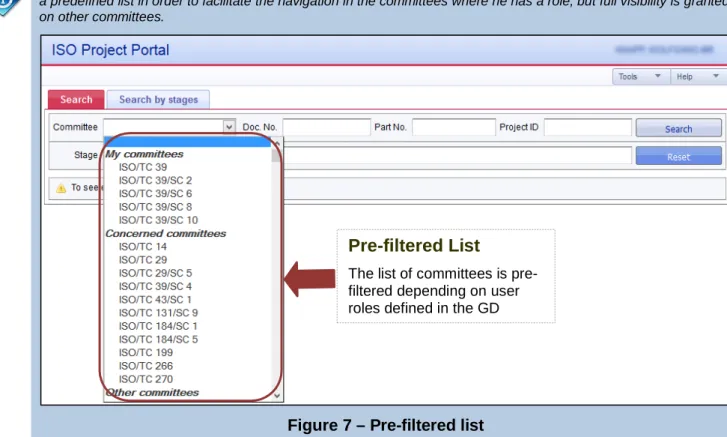
Pre-filtered List
The list of committees is pre- filtered depending on user roles defined in the GD
Since this application is based on the Committee roles defined in the Global Directory (GD), the user will be displayed a predefined list in order to facilitate the navigation in the committees where he has a role, but full visibility is granted on other committees.
Figure 7 – Pre-filtered list
My committees: list of the committees where the user has a role (i.e. secretary, chair, vice-chair, support team,
committee member, etc.)
4 プロジェクトの検索
アプリケーションにログインすると、デフォルトで Search タブにたどり着く(P.7 の 4.1 を参照)。次のセクションでは、 利用できる様々な検索オプションを詳しく説明する。 4.1 検索タブ Committee メニューから、委員会業務計画を閲覧したい委員会を選択する。SC のプロジェクトについては、 Include SCs のチェックボックスにチェックマークを入れることで、TC のプロジェクトの検索に含めることができる。 図 6-SC を含め委員会を検索する フィルター処理されたリスト 委員会のリストは、GD で定めら れたユーザの役割に基づいて 予 め フ ィ ル タ ー 処 理 さ れ て い る。 このアプリケーションは Global Directory (GD)で定められた委員会の役割に基づいているので、ユーザが役割 を担う委員会におけるナビゲーションを円滑にするために所定のリストが表示されるが、Other committees(そ の他の委員会)での完全な閲覧は許諾される。 図 7-フィルター処理されたリスト My committees(担当委員会):ユーザが役割(国際幹事、議長、副議長、サポートチーム、委員会メンバー、そ の他)を担う委員会のリストConcerned committees(関係する委員会):SC、リエゾンが設定された委員会など、"My committees"に関連 する委員会のリスト
Other committees(その他の委員会):"My committees"と"Concerned committees"を除いたすべての委員会 のリスト
By default, clicking on Search button will display all projects registered in the complete work programme as well as all published standards for the selected committee (and SCs if included) registered in the ISO/CS database.
If you wish to restrict the search to a particular project, enter the reference number (in the field Doc. No.) or the project ID (in the field Project ID).
The search result listing available projects/standards is displayed below the Search criteria.
A warning message is displayed in case no results have been found.
4.1.1 Limit search by project stage
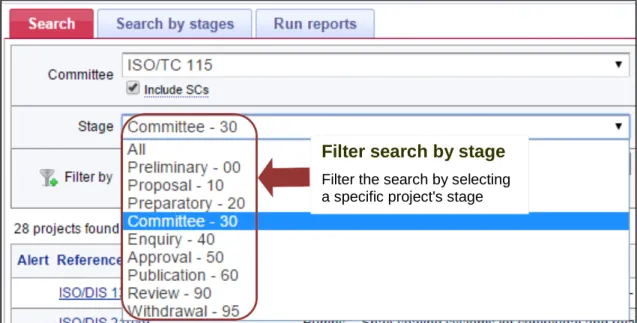
If you are looking for committee's projects with a specific stage, select the corresponding option from the Stages menu before clicking Search button.
The number of projects per page is limited to 20. Please click as shown below at the top of the search results, to navigate to the previous or to the next page:
You can also choose to display all the results in one page. This is done by clicking on the function menu and selecting Display results in one page.
"Search"ボタンをクリックすると、ISO/CS データベースに登録された、選択した委員会(SC も含める設定をした場 合 は SC も含まれる)の業務計画全体に登録されたプロジェクトと発行済規格がすべて表示される。 特定のプロジェクトに限定して検索したい場合は、その参照番号(Document No の欄)又はプロジェクト ID(プロジ ェクト ID の欄)を入力する。 閲覧できるプロジェクト/規格をリストアップした検索結果は検索条件の下に表示される。 何も検出されなかった場合は以下の警告が表示される。 4.1.1 プロジェクトの段階による限定検索 特定の段階の委員会プロジェクトを見る場合は、Search ボタンをクリックする前に Status メニューから対応するオ プションを選択する。 1 ページに表示されるプロジェクトの数は 20 件が限度である。以下に図示する検索結果のトップをクリックすれ ば前のページ又は次のページに移動することができる。 すべての結果を1ページに表示することも選択できる。そのように表示するには、機能メニュー をクリックし、
Display results in one page を選択すればよい。
検索結果は、対応するアイコンをクリックすれば、Excel 又は CSV にインポートすることもできるし、プリントする こともできる。
Figure 8 – Search using stage
Field value Description
All All projects and standards registered from stage 00.00 to 95.99 Preliminary - 00 All projects registered from stage 00.00 to 00.99
Proposal - 10 All projects registered from stage 10.00 to 10.99 Preparatory - 20 All projects registered from stage 20.00 to 20.99 Committee - 30 All projects registered from stage 30.00 to 30.99 Enquiry - 40 All projects registered from stage 40.00 to 40.99 Approval - 50 All projects registered from stage 50.00 to 50.99 Publication - 60 All projects registered from stage 60.00 to 60.60 Review – 90 All standards registered from stage 90.20 to 90.99 Withdrawal - 95 All standards registered from stage 95.20 to 95.99
4.1.2 Filters
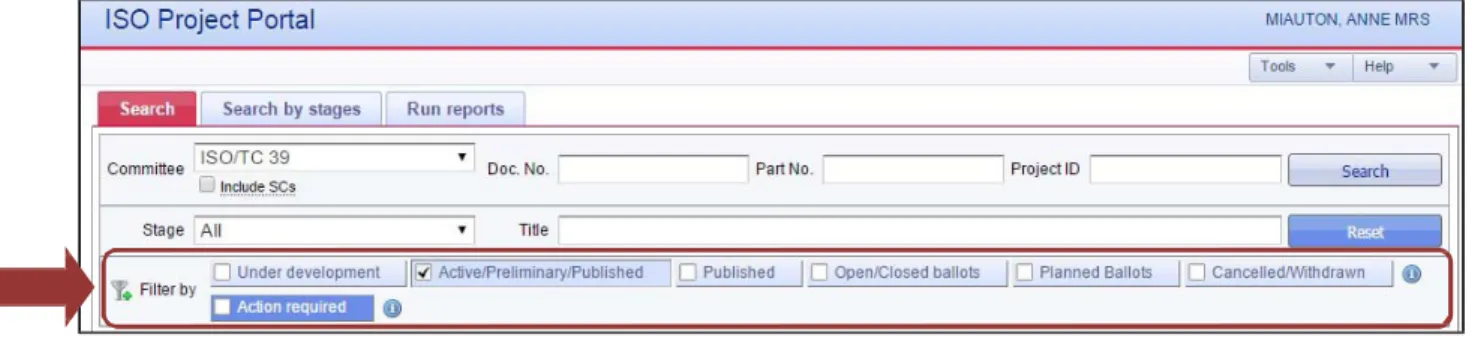
In order to refine your search result, you can now use Filters. This new functionality allows you to search projects and/or standards using different relevant criteria.
Once you have selected a committee and then clicked on the search button, the filter field is displayed. Information on stage codes is available in Annex SD of the ISO/IEC Directives, Supplement.
Filter search by stage
Filter the search by selecting a specific project's stage
図 8-段階を用いた検 索 フィールド値 説明 All(すべて) 00.00 から 95.99 までの段階に登録されているすべてのプロジェクトと規格。 Preliminary(予備)– 00 00.00 から 00.99 までの段階に登録されているすべてのプロジェクト。 Proposal(提案)- 10 10.00 から 10.99 までの段階に登録されているすべてのプロジェクト。 Preparatory(作成)- 20 20.00 から 20.99 までの段階に登録されているすべてのプロジェクト。 Committee(委員会)- 30 30.00 から 30.99 までの段階に登録されているすべてのプロジェクト。 Enquiry(照会)- 40 40.00 から 40.99 までの段階に登録されているすべてのプロジェクト。 Approval(承認)– 50 50.00 から 50.99 までの段階に登録されているすべてのプロジェクト。 Publication(発行)– 60 60.00 から 60.60 までの段階に登録されているすべてのプロジェクト。 Review (見直し)- 90 90.20 から 90.99 までの段階に登録されているすべての規格。 Withdrawal(廃止)- 95 95.20 から 95.99 までの段階に登録されているすべての規格。 4.1.2 フィルター 検索結果を絞り込むには、Filter を使用することができる。この新たな機能では、様々な関連条件を 用いてプロジェ クト及び/又は規格を検索することができる。 委員会を選択し、検索ボタンをクリックすると、フィルターの欄が表示される。 段階コードの情報は、ISO/IEC 専門業務用指針 ISO 補足指針の附属書SD で入手できる。 段階によるフィルター検索 プロジェクトの段階を選択することで 検索をフィルター処理する。
Figure 9 -- Filters
For ISO/IEC JTC 1 committee as well as its SC, there is an additional filter “Stabilized”
By default, the Filter “Active/Preliminary/Published” filter is selected.
When you select one or more filters, projects will only appear if they match all selected filters. That means, by selecting additional filters, you reduce the number of projects shown.
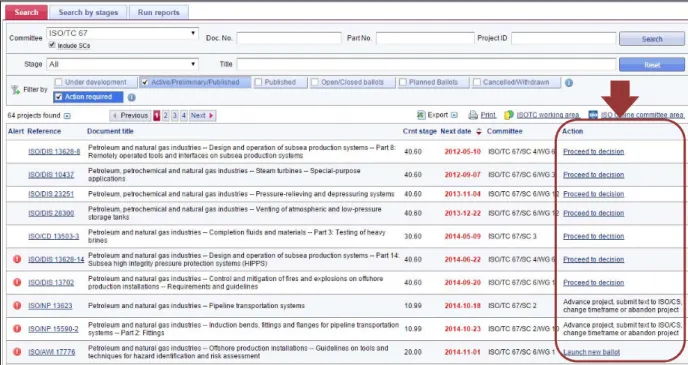
When you select the option “Action required”, only projects that have a pending action from the secretariat will be shown.
Filter Description
Under development Show all active and preliminary projects (stages 00.00 to 60.00) Active/Preliminary/Published Show all projects and standards, except those cancelled and
withdrawn (stages 00.00 to 60.60 + 90.20, 90.93 and 90.60) Published Show all published standards, including confirmed (stages 60.60
and 90.93)
Open/Closed ballots Show all current and closed ballots (stages 00.20 and 00.60) Planned ballots Show all planned ballots (any stage having a planned ballot date on
a stage xx.20)
Cancelled/Withdrawn Show all cancelled and withdrawn projects and/or standards
(stages xx.98 and 95.99)
Stabilized
(only available committee)
for ISO/EC JTC 1
Show all ISO/IEC JTC 1 stabilized standards
Action required Show projects that require an action from the secretary
図 9-Filters ISO/IEC JTC 1 とその SC については、追加のフィルター“Stabilized”がある。 図 10-ISO/IEC JTC 1 プロジェクトの Filters デフォルトでは、“Active/Preliminary/Published”のフィルターが選択される。 1 つ又はそれ以上のフィルターを選択すると、選択されたすべてのフィルターに合致するプロジェクトのみが表示さ れる。つまり、追加のフィルターを選択すると、表示されるプロジェクトの数は減る。 オプション“Action required”を選択すると、幹事国のアクションが保留になっているプロジェクトのみが表示され る。 フィルター 説明 Under development アクティブなプロジェクトと予備プロジェクトをすべて表示する(00.00~60.00) Active/Preliminary/Published 取り消されたものと廃止されたものを除く、すべてのプロジェクトと規格を表示 する(00.00~60.00 + 90.20、90.93、90.60) Published 確認されたものも含め、すべての発行済規格を表示する(60.60 及び 90.93) Open/Closed ballots 現在進行中の投票と締め切られた投票をすべて表示する(00.20 及び 00.60) Planned ballots 計画された投票すべてを表示する(段階 xx.20 に計画された投票日が設定さ れているあらゆる段階) Cancelled/Withdrawn 取り消された・廃止されたプロジェクト及び/又は規格をすべて表示する (xx.98 及び 95.99) Stabilized (ISO/EC JTC 1のみ利用可能) ISO/IEC JTC 1 の安定した規格をすべて表示する Action required 国際幹事のアクションが要求されるプロジェクトを表示する
Once you have selected your committee and click on Search button, your search result is displayed as following:
Figure 11 – Result of search sorted by Next Date
Projects are now displayed following their “next date” and not following their reference. A “Next date” is the next important date of the project (a target date or a limit date). An action may also be required. When no “Next date” is displayed, that means there is no date registered for further stages. Note that all columns are sortable.
The Alert column shows you what is the next action expected for this project. The following icons can be displayed following the stage of the project:
Alert Description
Empty field Indicates either that there are no issues to notify or the status of the project is under review by ISO/CS and/or TMB
Critical Projects for which an alert is generated on the DIS or IS limit date (which is overdue), 6-months prior to the date of automatic cancellation
Warning Projects for which an alert is generated 6-months prior to the DIS or IS limit date
Cancelled Projects which have been cancelled, the indication is displayed for 12- months following the cancellation
4.1.3 検索結果 委員会を選択し、検索ボタンをクリックすると、以下のように検索結果が表示され る:
図 11-Next Date によってソートされた検索結果
プロジェクトは、規格番号ではなく、“Next date”に沿って表示される。“Next date”は、プロジェクトの次の重要な日 で ある(目標期日又は期限)。アクションが必要になる場合もある。“Next date”が全く表示されない場合は、その後 の 段階で日付が登録されていないことを意味する。 すべての縦列がソート可能であることに留意すること。 Alert の縦列は、そのプロジェクトで求められる次のアクションは何かを示す。プロジェクトの段階によって以下のア イコンが表示される可能性がある。 Alert 説明 空欄 通知すべき問題がないか、プロジェクトの状態を ISO/CS 及び/又は TMB が見直 し中であることを示す。 Critical(緊急) DIS 又は IS の期限(期限切れ)、つまり、自動取り消し日の 6 ヵ月前に警報が表示 されるプロジェクト。 Warning(注意) DIS 又は IS の期限の 6 ヵ月前に警報が表示されるプロジェクト。 Cancelled(取り消し) 取り消されたプロジェクト。取り消し後 12 ヵ月間表示される。 Action の縦列は、国際幹事のアクションが求められている場合に、短文の情報又は適切なアプリケーションへのリ ンクを提示する。
Empty field Indicates no action is required 00.00, 00.20, 00.60, 00.98, 00.98, for this project/deliverable. 00.99, 10.20, 10.98, 20.98, 30.20, 30.98, 40.00, 40.20, 40.98, 50.00, 50.20, 50.98, 60.00, 60.60, 90.20, 90.92, 90.93, 90.99, 95.20, 95.60, 95.92, 95.99
Launch new ballot
(with a link to EB3)
Indicates that a ballot should be launched for this project
10.00, 10.92, 30.00, 30.92
Proceed to decision
(with a link on the Post-Voting decision of the project)
Indicates that a Post-Voting decision needs to be validated for this project/deliverable
10.60, 30.60, 40.60, 50.60 or 90.60
Submit to ISO/CS
(with a link on the Submission Interface)
Indicates that a submission is required
30.99, 40.93, 40.99, 50.92, 50.99
“Advance project, submit For projects registered at one 10.99, 20.00, 20.20, 20.60, 20.99, text to ISO/CS, change of this stage and that are also 40.92
timeframe or abandon on status critical or warning, project” this information text is
displayed when the next date is a limit date.
That means an action is expected from the secretary in order to move on with this project.
“Advance project or For projects registered at one 10.99, 20.00, 20.20, 20.60, 20.99, update target dates” of this stage and that are also 40.92
on status critical or warning, this information text is displayed when the next date is a target date.
That means an action is expected from the secretary in order to move on with this project.
Action 説明 段階 空欄 そのプロジェクト/規格類について要求される 00.00、00.20、00.60、00.98、 アクションがないことを示す 00.98、00.99、10.20、10.98、 20.98、30.20、30.98、40.00、 40.20、40.98、50.00、50.20、 50.98、60.00、60.60、90.20、 90.92、90.93、90.99、95.20、 95.60、 95.92、95.99
Launch new ballot そのプロジェクトについて投票が開始されること 10.00、10.92、30.00、30.92
(EB3 へのリンク付) を示す Proceed to decision そのプロジェクト/規格類について投票後の決 10.60、30.60、40.60、50.60 又 (Post-Voting decision 定を有効にする必要があることを示す は 90.60 process へのリンク付) Submit to ISO/CS 提出が要求されていることを示す 30.99、40.93、40.99、50.92、 (Submission Interface へ 50.99 のリンク付) “Advance project, この段階の 1 つに登録されているプロジェクト、 10.99、20.00、20.20、20.60、 submit text to ISO/CS,
change timeframe or abandon project” 並びに、Critical(緊急)又は Warning(注意)の 状態にあるプロジェクトについて、Next date が 期限(Limit date)である場合にこの情報テキス 20.99、40.92 トが表示される。 つまり、そのプロジェクトを進めるために国際幹 事のアクションが求められていることを意味す る。 “Advance project or この段階の 1 つに登録されたプロジェクト、並び 10.99、20.00、20.20、20.60、 update target dates” に、Critical(緊急)又は Warning(注意)の状態 20.99、40.92
にあるプロジェクトについて、Next date が目標 期日である場合にこの情報テキストが表示され る。 つまり、そのプロジェクトを進めるために国際幹 事のアクションが求められていることを意味す る。
Figure 12 – Action required in Search result
4.2 Search by stages
When the search tab Search by stages is selected, all searches are based on the projects stage information.
By default, the search criteria Current stages is set in order to restrict the query but any search criteria can be changed. You can also select the search based on Current & historic stages information within a specific the date range.
Figure 13 – Search by stages
Change search tab
Search for projects by stages
Define search criteria
- Search Current stages or Current & historic stages - Select the stage/substage you are looking for
図 12-検索結果において要求されるアクション 4.2 段階による検索
検索タブ Search by stages が選択されている時は、すべての検索はプロジェクト段階の情報に基づく。
デフォルトでは、クエリー(問合せ)を制限するために検索条件 Current stages が設定されているが、検索条件は 変更することができる。特定の日付範囲内の Current & historic stages(現在及び過去の段階)の情報に基づく 検索を選択することもできる。 図 13-段階による検索 検索タブを変更する 段階によるプロジェクト検索 検索条件を決める - 現在の段階又は現在及び過去の段階で検索する - 探している段階/準段階を選択する - 日付範囲を入力して検索結果を限定できる
Field value Description
Preliminary (00) Projects for which the stage between 00.00 and 00.99 (including 00.98) is within the requested date range.
Proposal (10) Projects for which the stage between 10.00 and 10.99 (including 10.98) is within the requested date range.
Preparatory (20) Projects for which the stage between 20.00 and 20.99 (including 20.98) is within the requested date range.
Committee (30) Projects for which the stage between 30.00 and 30.99 (including 30.98) is within the requested date range.
Enquiry (40) Projects for which the stage between 40.00 and 40.99 (including 40.98) is within the requested date range.
Approval (50) Projects for which the stage between 50.00 and 50.99 (including 50.98) is within the requested date range.
Publication (60) Projects for which the stage between 60.00 and 60.60 is within the requested date range.
Review (90) Deliverables for which the stage between 90.20 and 90.99 is within the requested date range.
Withdrawal (95) Deliverables for which the stage between 95.20 and 95.99 is within the requested date range.
5 Display detailed information on projects/standards
Detailed information is always available on each project or standard by clicking directly on the project/standard reference in the search results.
A page will be displayed containing the following information:
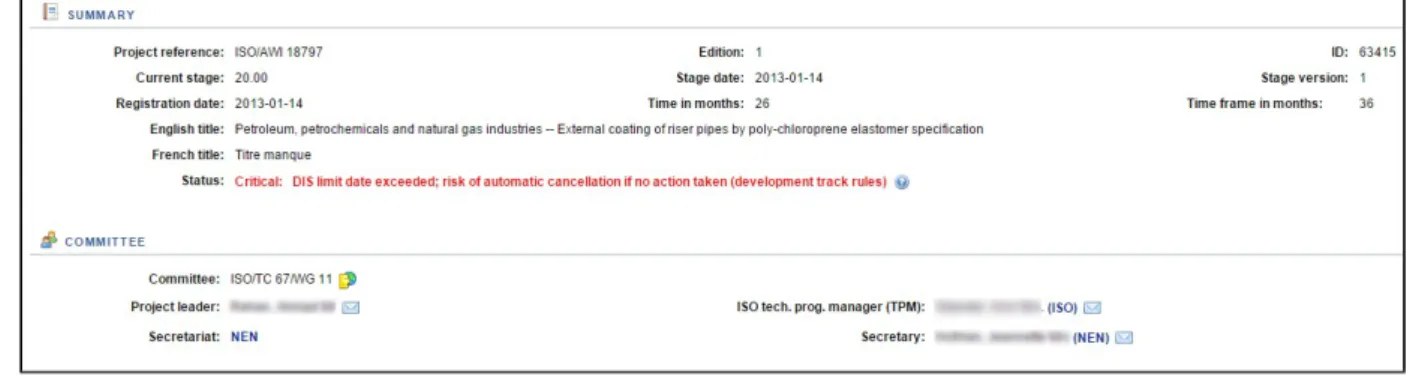
Summary: This section includes all metadata of the project such as its reference, ID number, stage, registration date, English and French titles and status.
Committee: This section provides relevant information on the committee of the project with a direct link on ISOTC using this icon: as well as all details of the people to be contacted if necessary (direct email option available by clicking on the icon ).
可能な段階は以下のとおり: フィールド値 説明 Preliminary (00) 現段階 00.00~00.99(00.98 を含む)が、所定の日付範囲内にあるプロジェクト。 Proposal (10) 現段階 10.00~10.99(10.98 を含む)が、所定の日付範囲内にあるプロジェクト。 Preparatory (20) 現段階 20.00~20.99(20.98 を含む)が、所定の日付範囲内にあるプロジェクト。 Committee (30) 現段階 30.00~30.99(30.98 を含む)が、所定の日付範囲内にあるプロジェクト。 Enquiry (40) 現段階 40.00~40.99(40.98 を含む)が、所定の日付範囲内にあるプロジェクト。 Approval (50) 現段階 50.00~50.99(50.98 を含む)が、所定の日付範囲内にあるプロジェクト。 Publication (60) 現段階 60.00~60.60 が、所定の日付範囲内にあるプロジェクト。 Review (90) 現段階 90.20~90.99 が、所定の日付範囲内にある規格類。 Withdrawal (95) 現段階 95.20~95.99 が、所定の日付範囲内にある規格類。
5 プロジェクト/規格の詳しい情報を表示する
検索結果のプロジェクト/規格の参照番号を直接クリックすると、各プロジェクト又は規格の詳しい情報をいつでも 入手できる。 以下の情報を含むページが表示される: Summary: .このセクションは、プロジェクトのすべてのメタデータ(例: 規格参照番号、ID 番号、段階、登録日、英 語とフランス語の名称、状態)を含む。 Committee: このセクションは、プロジェクトの委員会に関する情報をアイコン を用いた ISOTC への直接リン ク とともに提供し、必要に応じて連絡を取る人々のすべての詳細を提供する(アイコン をクリックすれば直接 E メー ルを出すことができる)。 段階コードの情報は、ISO/IEC 専門業務用指針 ISO 補足指針の附属書SD で入手できる。Figure 14 – Information on projects/deliverables
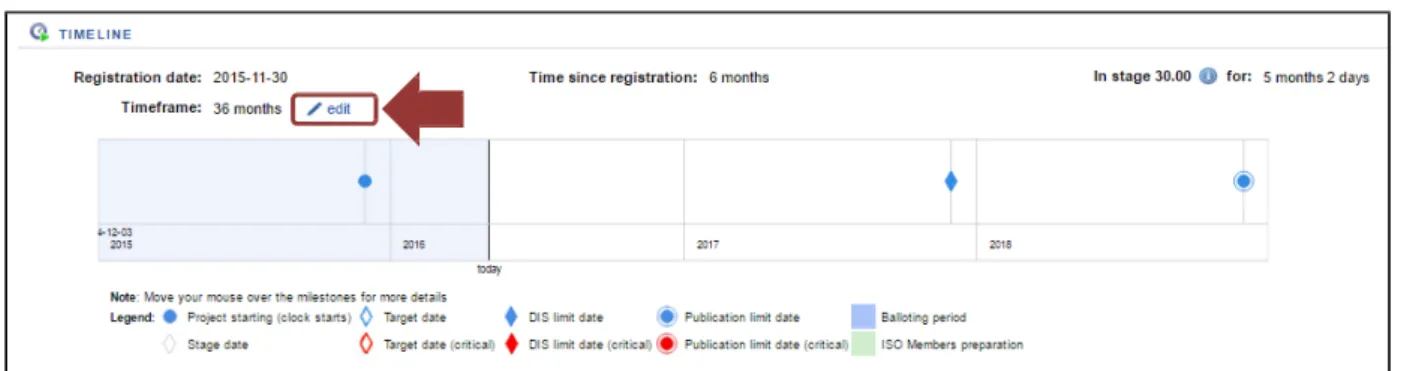
Timeline: Timeline shows life cycle and activity of the project (including balloting period, DIS limit date, target date as well as publication limit date).
Figure 15 – Timeline
Stage History: This section displays all past stages and future plans of a project or a standard, including limit and target dates.
Secretaries as well as their support team can also add a target date (only) for the upcoming stages. (see section 6 , p.15)
図 14-プロジェクト/規格類に関する情報
Timeline: Timeline は、ライフサイクルとプロジェクト活動(投票期間、DIS 期限、目標期日、発行期限)を表示す る。 図 15-Timeline Stage History: このセクションは、プロジェクト又は規格の過去の段階と将来の計画をすべて(期限日と目標期 日を 含む)表示する。 国際幹事とそのサポートチームは、その後の段階(のみ)の目標期日を追加することもできる(P.15 の 6 を参照)。 情報: この情報は、ISO オンライン上の段階一覧表への直接リンクである。
6 Enter target date and time frame:
6.1 Update target date
A secretary (as well as its support team) is able to add target dates on a project for upcoming stages (only).
This action can only be done by a user having the role of Secretary, Secretary Support Team, and Twinned Secretary on the committee owning the project.
The objective is to allow secretaries to set and modify target dates, change tracks among tracks 1-3, and to be notified when a target date is approaching or overdue.
To add a target date on a project, go on the details of this project and then: 1. Click on “Add”:
Figure 16 – Enter target date (1
ststep)
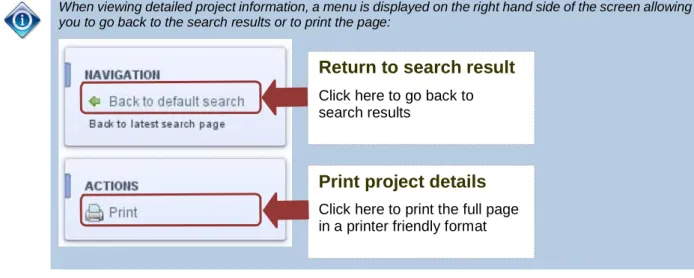
2. Enter your target date (as format YYYY-MM-DD) and then click on “Validate” button. you to go back to the search results or to print the page:
Return to search result
Click here to go back to search results
Print project details
Click here to print the full page in a printer friendly format
6 目標期日を入力する
6.1 目標期日の更新 国際幹事(及びそのサポートチーム)は、プロジェクトのその後の段階(のみ)の目標期日を追加 することができる。 このアクションは、プロジェクトを管理する委員会に関して国際幹事、国際幹事サポートチーム、ツイニングの副国 際 幹事の役割を持つユーザのみ行える。 目的は、国際幹事による目標期日の設定・変更、トラック 1-3 におけるトラック変更を可能にし、目標期日が近づい た 時、又は、過ぎた時に通知されるようにすることである。 プロジェクトに目標期日を追加するには、そのプロジェクトの詳細に移動し、 1.“Add”をクリックする 図 16-目標期日を入力する(第1ステップ) 2. 目標期日を入力し(書式は、YYYY-MM-DD)、“Validate”ボタンをクリックする。 検索結果に戻る ここをクリックして検索結果に戻る プロジェクトの詳細をプリントする こ こをクリックしてプリントしやすい形式 でページ全体をプリントする 詳しいプロジェクト情報を閲覧する際は、画面右側に表示されるメニューで検索結果に戻る、又は、 ページをプリントすることができる。Figure 17 – Enter target date (2
ndstep)
3. Once registered, you can still edit this date or remove it if needed. You just need to click on “Edit” button
Figure 18 – Enter target date (3
rdstep)
Secretaries will be able to set targets (only for upcoming stages) on: - 20.00 WD
- 30.00 CD
- 40.00 DIS – also the subject of a limit date leading to cancellation - 50.00 FDIS
- 60.60 IS (Publication) – also the subject of a limit date leading to cancellation
To add/modify/edit a target date, the following rules are applied: - The target date must be later than the current date
- The target date must not be after the next limit date (40.00 or 60.60)
- Target dates may only be set or modified on stages not yet started (status “WAIT”)
Information: an information icon is displayed once a target date has been added displaying the date as
図 17-目標期日を入力する(第2ステップ) 3. 登録されたら、その日付を編集することもできるし、必要に応じて削除することもできる。“Edit”ボタンをク リックするだけで操作できる。 図 18-目標期日を入力する(第3ステップ) 国際幹事は、以下の段階で目標期日を設定できる(その後の段階についてのみ): - 20.00 WD - 30.00 CD - 40.00 DIS – 取り消しに至った期限の対象も - 50.00 FDIS - 60.60 IS(発行)–取り消しに至った期限の対象も 目標期日の追加/変更/編集には、以下の規則が適用される: - 目標期日は現在の日付より後でなければならない - 目標期日は、次の期限(40.00 又は 60.60)の後にしてはならない - 目標期日は、開始されていない段階(状態“WAIT”)については、設定又は変更のみが可能である 6.2 期間の更新 2016 年 5 月から、国際幹事(+ そのサポートチーム)はプロジェクトの期間を 24 ヵ月、36 ヵ月または 48 ヵ月に変 更 できる。プロジェクトの期間を延長すると、更新が直ちに適用される。期間を短縮すると、更新を適用する前に承 認 を得るため ISOCS TPM に E メールが送信される。 情報: 目標期日を追加すると、情報アイコンが表示され、日付と、その日付を変更した人の名前 が表示される。
Manager for approval before the update is applied.
In order to change a project’s timeframe, the project must be active and not published nor cancelled. Projects registered as Fast-Track are registered with a default timeframe of 24 months and cannot be changed.
To update the timeframe of a project:
1. Open the project in project portal and click “Edit”:
Figure 19 – Update timeframe (step 1)
2. Select the appropriate timeframe and then click the “Save” button:
Figure 20 – Update timeframe (step 2)
7 Submit a new work item proposal (Form4 automation - eForm4)
7.1 Introduction
Since May 2016, ISOCS has automated the submission of Form4 in order to help the secretary review the information once Form4 is received from the proposer.
The goal of this automation is to:
- Assist the secretary in checking the Form4 received to identify if anything is missing and ensure each field is filled out correctly.
- Facilitate the secretary’s work of the process to ensure the following tasks are executed: o A new project number is created in Project Portal at stage 10.00
o The associated ballot is created with all relevant documents that were added during the Decrease of timeframe generates an email to ISOCS. That means this changes needs
プロジェクトの期間を変更するためには、プロジェクトはアクティブでなければならず、発行または取り消されたもの で あってはならない。 迅速法として登録されたプロジェクトはデフォルトで期間は 24 ヵ月で登録され、変更できない。 プロジェクトの期間を更新するには
1. Project Portal でプロジェクトを開き、 “Edit”をクリックする。
図 19 – 期間を更新する(第 1 ステップ) 2. 適切な期間を選択し、その後“Save” ボタンをクリックする。 図 20 –期間を更新する(第 2 ステップ)
7 新業務項目提案を提出する(Form4 自動化 - eForm4)
7.1 序文 2016 年 5 月以降、Form4 を提案者から受け取った後、国際幹事が情報を見直すのを支援するために、ISOCS は Form4 の提出を自動化した。 この自動化の目的は以下のとおりである。 - 国際幹事が受け取った Form4 を調べて、何か抜けているものがないか、各欄が正しく記入されているかを確 認す ることを支援する - 以下の事項が確実に実行されるように、国際幹事の業務手順を簡単にする o 新しいプロジェクト番号が Project Portal の段階 10.00 で作成される o 手順中追加されたすべての関連文書と共に、 関連付けられた投票が作成される o すべての文書(Form4 に加えて、手順中に追加された文書)はフォルダ 04.Projects の下の専用フォルダの N-文書として eCommittees (Committee が外部で運営されている場合を除いて)に保存される 期間を短縮すると、 ISOCS への E メールが作成される。つまり、この変更は、ISOCS によっ て妥当性が確認された後、ISOCS による手動の操作が必要である。revision is created.
7.2 How to access the application
7.2.1 New project:
To create a new project with a NP ballot (using Form4), open the main page of ISO project portal and select “New project”, located on the top-right of your screen.
Figure 21 – Create a new project
7.2.2 Revision and/or amendment
To create a revision or an amendment requiring a NP ballot (Form4), open the relevant project in ISO Project Portal to view the project details and then select the appropriate option under Project Lifecycle.
Figure 22 – Create a revision or an amendment
o 改訂の場合、改訂文書は段階 90.92 まで自動的に更新され、改訂(プロジェクト)が作成される。
7.2 アプリケーションにアクセスする方法 7.2.1 新しいプロジェクト
NP 投票 (Form4 を使用)により新しいプロジェクトを作成するには、ISO Project Portal のメインページを開き、 画 面の右上にある “New project”を選択する。
図 21 – 新しいプロジェクトを作成する
7.2.2 改訂及び/又は追補
NP 投票(Form4)を必要とする改訂または追補(のプロジェクト)を作成するには、ISO Project Portal の関連プロ ジ ェクトを開き、Project details を表示し、その後 Project Lifecycle の下で該当するオプションを選択する。
図 22 – 改訂または追補(のプロジェクト)を作成する
7.3 ユーザインターフェースとナビゲーション
eForm4 の手続きは、ウィザードの指示に従って行い、必要書類の提出へと導かれる。手続き全体を通じて常 に表 示されるウィザードの 3 つの要素は、サマリヘッダー、進捗バー、内容メニューである。
Figure 23 -- Components of the user interface
7.3.1 Summary header
The summary header contains key information about the submission.
For a new project, this section is empty until a committee is selected in step 2 of the wizard. Once your committee has been selected, this section contains the following information:
- Committee reference (+ link to the committee's homepage on ISOTC/eCommittees) - Secretariat
- Secretary name (+ link to send him/her an email directly) - ISO/CS TPM's name (+ link to send him/her an email directly)
Figure 24 – Summary header for a new project
For a revision or an amendment, this section contains the following information:
- Project reference (+ link to the project's page on Project Portal) as you start for an existing project
- Committee reference (+ link to the committee's homepage on ISOTC/eCommittees) - Secretariat
- Secretary name (+ link to send him/her an email directly) - ISO/CS TPM's name (+ link to send him/her an email directly)
Figure 25 – Summary header for a revision or an amendment
7.3.2 Progress bar
The eForm4 process is comprised of twelve steps. A progress bar is displayed on top of every page to indicate where the user stands within the decision process:
Progress bar
図 23 – ユーザインターフェースの構成要素 7.3.1 サマリヘッダー サマリヘッダーには、提出に関する主要な情報が含まれる。 新しいプロジェクトの場合、ウィザードの第 2 ステップで委員会が選択されるまで、このセクションは空欄である。 委員会が選択されると、このセクションには以下の情報が含まれる。 - 委員会の参照(+ ISOTC/eCommittees での委員会のホームページへのリンク) - 幹事国 - 国際幹事名(+その方に E メールを直接送るためのリンク) - ISO/CS TPM の名前(+その方に E メールを直接送るためのリンク) 図 24 – 新しいプロジェクトの場合のサマリヘッダー 改訂または追補の場合、本セク ションには以下の情報が含まれる。 - プロジェクトの参照(+ Project Portal でプロジェクトのページへのリンク) 既存のプロジェクトについて開始する た め。 - 委員会の参照(+ ISOTC/eCommittees での委員会のホームページへのリンク) - 幹事国 - 国際幹事名(+その方に E メールを直接送るためのリンク) - ISO/CS TPM の名前(+その方に E メールを直接送るためのリンク) 図 25 – 改訂または追補の場合のサマリヘッダー 7.3.2 進捗バー eForm4 の手続きは 12 ステップから構成される。進捗バーは各画面上部に表示され、決定手続き内のユーザの 現 在位置を示す。 サマリヘッダ 進捗バ 内容メニュ
Figure 26 – Progression bar
7.3.3 Contextual menu
The contextual menu found on the right side of the screen allows you to preview the Form4 at any time during the process. It also contains a section with useful information related to the form submission such as a user guide and links to other ISO resources.
Figure 27 – Contextual menu
7.4 The Form4 process dissected
7.4.1 Welcome page
The Welcome page is the first page you see when you access the eForm4 wizard, whether it’s for a new project or an amendment/revision, and marks the start of the process.
FORM allows you to preview the generated form at any time during the process
図 26 – 進捗バー 7.3.3 内容メニュー 画面の右側にある内容メニューを使用して、手続き中にいつでも Form4 を閲覧できる。また、ユーザガイドなど の書 類提出に関連する役立つ情報のセクションや、他の ISO 資料へのリンクが含まれる。 図 27 –内容メニュー 7.4 Form4 手続きの詳細 7.4.1 歓迎ページ 歓迎ページは新しいプロジェクトまたは追補/改訂に関わらず、eForm4 ウィザードにアクセスすると最初に表示 され るページで、手続きの開始を示す。 図 28 – 新しいプロジェクトの場合の歓迎ページ FORM を使用して、手続き中いつでも作成された書式を閲覧で きる HELP はアプリケーションに利用可能な支援文書一覧を示す
or amended as well as its originator.
Figure 29 – Welcome page for a revision or an amendment
7.4.2 Committee Selection
If this is a New Project, you must select the committee where the project is to be created. Note: this page will not be displayed if the project is an amendment or revision.
7.4.3 Resume page
If there are existing eForm4 submissions in the selected committee, the resume page is displayed. If there are no existing eForm4 submissions in this committee, this page will be skipped.
The Resume page allows you to: - start a new decision process
- resume an ongoing decision process clicking on the appropriate button:
- clone an existing submission in case of a project contains part: . Note that this option is only
available for closed submissions.
改訂や追補の場合、 “歓迎ページ”では、改訂または追補されるプロジェクト番号及び元の作成機関を表示する。 図 29 – 改訂または修正の場合の歓迎ページ 7.4.2 委員会の選択 新しいプロジェクトの場合は、プロジェクトが設置される委員会を選択しなければならない。注記:プロジェクトが 追 補や改訂の場合には、このページは表示されない。 7.4.3 再開ページ 選択された委員会に既存の eForm4 提出がある場合、再開ページが表示される。この委員会に既存の eForm4 提出がない場合、このページは省略される。 再開ページを使用して、 以下を行うことができる。 - 新しい決定手続きを開始する - 該当するボタンをクリックし、途中状態の決定手続きを再開する - プロジェクトがパートを含む場合、既存の提出を複写する。 このオプションはその提出が完了している場合のみ 利用 可能であることに留意する。 - 既存の途中状態の提出を削除する(誤って作成した場合):
Figure 30 – Resume page
7.4.4 Introduction
By ticking on this box, you are confirming that as secretary, you have ensured the proposer has considered the guidance given in the Annex C of ISO/IEC Directives, Part 1 during the preparation of the NWIP.
Figure 31 -- Introduction
7.4.5 Project selection:
7.4.3.1 Project selection for a new project
If you are creating a new project, you must select the Document number and Part number for the project. By default “Automatic” and “Document does not have parts” are selected.
図 30 – 再開ページ 7.4.4 導入 このボックス(Introduction)にチェックを入れることで、国際幹事として、提案者が NWIP の作成において、 ISO/IEC 専門業務用指針の附属書 C、第 1 部 に規定された指針を考慮したことを確認する。 図 31 –導入 7.4.5 プロジェクトの選択 7.4.3.1 新しいプロジェクトの場合のプロジェクトの選択 新しいプロジェクトを作成している場合、プロジェクトの文書番号とパート番号を選択しなければならない。デフォル トで “Automatic(自動)” と “Document does not have parts(文書はパートを含まない)” が選択される。 すべての利用可能なオプションの詳細を以下に記載する。
Figure 32 – Project selection
Document number:
Automatic (next available): At the end of the process, the new project will be created with the next available number in our database.
Use pre-reserved: This option is only available if a project number in your committee has already been created by ISOCS in our database for a specific reason. If the option is active, the existing project numbers will be available in a drop down list. If you except to find a project number that is not available in this drop-down list, please contact your ISOCS TPM.
Existing document number: This option is available if a project number already exists with several parts and the secretary needs to create a new part. Once this option is selected, the part number field becomes mandatory.
Existing Preliminary Work Item: This option is available if a preliminary work item (stages between 00.00 and 00.99, excluding 00.98) has already been created in your committee.
Re-establishment of a cancelled project: This option is available if a project number has been cancelled (00.98, 10.98, 20.98, 30.98, 40.98 and 50.98) within the past 12 months.
Part number:
The Part Number fields are marked optional or mandatory depending on the Document Number option selected:
o This section is optional if you have selected “Automatic”
o This section is mandatory if you have selected “Existing document number”
o
This section is no longer available if you have selected “Use pre-reserved”, “Existing Preliminary Work Item” or “Re-establishment of a cancelled project”Document does not have parts: This option is selected by default and means that at the end of the process, the project number created will not contain parts.
図 32 – プロジェクトの選択
文書番号:
Automatic (next available):手続きの最後に、データベースに照らし次に利用可能な番号を使用して、新しいプロ ジ ェクトが作成される。
Use pre-reserved:このオプションは委員会のプロジェクト番号が特定の理由でデータベースに ISOCS によって す でに作成された場合のみ、利用可能である。このオプションがアクティブな場合、既存のプロジェクト番号がドロッ プダウンリストで利用可能となる。ドロップダウンリストで利用可能ではないプロジェクト番号を見つけた場合、 ISOCS TPM に連絡すること。
Existing document number:このオプションはプロジェクト番号がすでにいくつかのパートで存在し、国際幹事が 新しいパートを作成する必要がある場合に利用可能である。このオプションが選択されると、パート番号欄記入が 必 須となる。
Existing Preliminary Work Item:このオプションは予備業務項目(00.98 を除く、00.00 と 00.99 の間の段階) が すでに委員会で作成されている場合に利用可能である。
Re-establishment of a cancelled project:このオプションはプロジェクト番号が過去 12 カ月以内に取り消され た場合(00.98、10.98、20.98、30.98、40.98 及び 50.98)に利用可能である。
パート番号:
Part Number 欄は選択された文書番号のオプションによって、任意または必須となる。 o “Automatic(自動)”を選択した場合、このセクションは
任意
となるo “Existing document number(既存の文書番号)”を選択した場合、このセクションは
必須
となるo “Use pre-reserved(事前の取り置き番号を使用)”、“Existing Preliminary Work Item(既存の予備業務項目) また は “Re-establishment of a cancelled project(取り消されたプロジェクトの再設定)”を選択した場合、このセ クションは
利用不可
Document does not have parts:このオプションはデフォルトで選択され、手続きの最後で作成されるプロジェ クト番 号はパートを含まないことになる。
Specify part number:このオプションが選択された場合、このパート番号の欄は必須となる。国際幹事が次の 利 用可能な番号が判らない場合、リンク “Generate next available(次の利用可能な番号を作成)”をクリックす ると、 システムが計算する。
7.4.3.2 Project selection for a revision or an amendment:
If you are creating a project for a revision or amendment, you do not need to select a document number as it is done automatically.
For an amendment, its part is mandatory and by default the system will generate the next available one.
Figure 33 – Project selection for an amendment
7.4.6 Flow:
Each mandatory field is shown by a red asterisk . You cannot proceed to the next step of the wizard until the mandatory fields have been completed. Fields that are not shown by an asterisk are optional.
Text boxes are extendable. If you need to add a large amount of text, you may click the bottom right corner of each text box and drag the box to increase the size. Text boxes are free text areas without a character limit. Each element of the main title shall be separated by "—" (2 dashes).
Figure 34 – Text box
Throughout the process, please review the content found in the document to ensure the information provided by the proposer is correct.
You can return to the previous steps of the wizard by clicking the “Previous” button at any point in the process. Once the button “Next” is selected, all data entered in the screen is validated and registered.
Until the decision has been submitted, it is always possible to return to a previous step in the process and modify your data.
7.4.3.2 改訂や追補の場合のプロジェクトの選択 改訂や追補の場合のプロジェクトを作成している場合、文書番号は自動的に選択されるため、番号を選ぶ必要は な い。 追補の場合、パート番号は必須であり、デフォルトで次に利用可能なものがシステムで作成される。 図 33 –追補の場合のプロジェクト選択 7.4.6 フロー 各必須欄は赤い星印で示される。必須欄を完了するまでウィザードの次のステップへ進むことはできない。星印 で示 されていない欄は任意である。 テキストボックスは拡大可能である。大量のテキストを追加する必要がある場合、各テキストボックスの右下の端 をクリックし、ボックスをドラッグしてサイズを拡大する。テキストボックスは文字制限のない自由なテキスト領域で ある。主要なタイトルの各要素は "—" (2 つのダッシュ)で区別するものとする。 図 34 – テキストボックス 手続き全体を通して、提案者によって提供される情報が正しいことを確実にするために、文書にある内容を見直し す ること。 手続きのどの時点でも“Previous” ボタンをクリックすることで、ウィザードの前のステップに戻ることができ る。 “Next”ボタンが選択されたら、画面で入力されたすべての入力情報が確認されたものとして登録される。 7.4.7 投票日 投票開始日が入力されると、システムが自動的に期間 12 週間として投票終了日を計算する。 決定が提出されるまで、いつでも手続き中の前のステップに戻り、入力情報を修正可能である。
Figure 35 – Example of ballot dates (12 weeks by default)
7.4.8 Extra information
This step allows the secretary to enter additional information or documents relating to this project. All documents added at this stage will be available in the associated ballot as well as in a dedicated folder in eCommittees under folder 04.Projects.
The secretary can browse the documents he/she wishes to add or drop them directly in the dedicated field "Add attached Annex(es)”
Any relevant information or addition information should be added in the “Additional information/question(s)” field.
Figure 36 – Additional information
If the Secretariat is hosted externally (DIN or AFNOR), the added documents will be copied in the associated ballot. However they won’t be automatically pushed in eCommittees. The secretary has to add them manually in his/her committee.
投票開始日は過去の日付では作成できない。 図 35 – 投票日の例(デフォルトで 12 週間) 7.4.8 追加情報 このステップを使用して、国際幹事はこのプロジェクトに関連する追加の情報や文書を入力できる。この段階で 追 加されたすべての文書は関連する投票及び eCommittees のフォルダ 04.Projects の下にある専用フォルダで 利 用可能である。
国際幹事は追加したい文書のアイコンを、専 用 の欄 "Add attached Annex(es)(添付附属書を追加する)”に直 接ドロップすることで、文書を追加することができる。 関連する情報や追加情報は“Additional information/question(s)(追加情報/質問)”欄に追加することが望ましい。 図 36 – 追加情報 幹事国が外部で運営する場合(DIN または AFNOR)、追加文書は関連する投票で複製される。しかしなが ら、これらは eCommittees で自動的には掲載されない。国際幹事は担当委員会において手動で追加しなけ ればならない。
In the Reference document step, the N-Number to be used for the new eForm4 can be selected. If the committee is hosted at ISOCS, you can choose “Use automatic process” that will automatically assign the next available N-Number in the selected committee to this document.
If you wish to use a specific N-Number, you can select the option “Use manual process with the following N-Number” and then enter the desired N-Number. Please make sure that this N-Number is available and/or reserved.
Figure 37 – Reference document for a committee hosted at ISOCS
If the committee is hosted externally, the automatic process will not be available so you must use the manual process. In this case, note that an N-number is required in order to prefix the form’s title with it and stamp it within the Form4.
Make sure the entered N-Number is reserved on the system hosting the committee documents.
Figure 38 – Reference document for a committee hosted externally
Enter the N-Number that should be reserved/available
7.5 文書参照 (N 番号)
文書参照ステップで、新しい eForm4 で使用する N 番号を選択できる。委員会が ISOCS で運営されている場合、 選択された委員会で次に利用可能な N 番号が自動的にこの文書に指定される“Use automatic process(自動 手 続きを使用する)”を選択できる。
特 定 の N 番号を使用したい場合、オ プ シ ョ ン “Use manual process with the following N-Number(次 の N 番号で手動の手続きを使用する)”を選択し、希望する N 番号を入力できる。この N 番号は利用可能及び(ま たは)取り置きされているかを確認すること。 図 37 – ISOCS で運営されている委員会向け文書参照 委員会が外部で主催される場合、自動手続きは利用できないため、手動手続きを使用しなければならない。この 場 合、Form4 内で書式の名称の前に記載するために、N 番号が必要であることに留意すること。 委員会の文書を掲載するシステムに入力された N 番号が取り置きされていることを確認すること。 図 38 – 外部で運営されている委員会向け文書参照 取り置き/利用可能な N 番号を入力する
This is the final step of the process prior to submitting the Form4 to ISO/CS. This step allows you to review and finalize the information. You can generate the final Form4 or save to continue later.
Figure 39 – Last check before confirmation
If you are ready to submit Form4, click “Submit to ISOCS. Once clicked, a review page will appear confirming the submission completed successfully.
This page contains:
-
Project reference (
+ a link to the project's page on Project Portal) - NP Ballot reference (+ a direct link to eBalloting)- A direct link to the generated Form4
- The downloaded documents/annexes. Note: This is only displayed if the committee is hosted
externally. If the committee is hosted at ISOCS, these documents are available on eCommittees
-
A direct link to the committee working area.Select one of this option to either submit the eForm4 or to postpone it.
Press “Submit form to ISOCS” when ready to validate the eForm4
7.6 確認
これは Form4 を ISO/CS に提出する前の手続きの最終ステップである。このステップによって、情報を見直し、 仕上 げることができる。 最終的な Form4 を作成または後で続けるために保存できる。
図 39 – 確認前の最終照査
Form4 を提出する準備ができたら、 “Submit to ISOCS”をクリックする。クリックすると、提出が完了したことを 確認 する、見直しページが表示される。 このページには以下が含まれる。 - プロジェクトの参照(+ Project Portal でのプロジェクトのページへのリンク) - NP 投票の参照(+ eBalloting への直接リンク) - 作成された Form4 への直接のリンク - ダウンロードされた文書/附属文書。