
Operating Instructions
<Operations and Settings>
Remote Camera Controller
Contents
Before use ... 3
Overview ... 3
Trademarks and registered trademarks ... 3
About copyright and licence ... 3
Concerning the ratings display ... 3
Disclaimer of warranty ... 3
Network security... 3
Ho w to turn the power of the remote cameras on
and off ... 4
Setting and operating the preset memories ... 6
Registering data in the preset memories ... 6
Executing the preset data ... 7
Deleting the preset memory data ... 7
Se lecting the settings for a selected remote
camera ... 8
Setting the gain ... 8
Setting the pedestal ... 8
Setting the white balance ... 9
Setting the black balance ... 12
Setting the shutter speed ... 13
Setting the detail ... 13
Setting the shooting mode ... 14
Specifying the color bars ... 14
Op erating the menu items of the selected remote
camera ... 15
Setting the USER buttons ... 16
Tally settings ... 17
How the model’s Operating Instructions manuals are configured
The manual of this Remote Camera Controller (hereafter, “the unit”) is divided into two manuals: one is the <Operations and Settings> (this manual in the CD-ROM), and the other is the <Basics>. Before installing the unit, be sure to read the <Basics> to ensure that the unit is installed correctly. For the purposes of this manual, the model numbers of the units are given as listed in the table below. Model number of unit Model number given in manual Model number of unit Model number given in manual Model number of unit Model number given in manual AW-HS50N AW-HS50 AW-E650P AW-E650 AW-PH650N AW-PH650Setting the functions ... 18
Setting the remote camera operations ... 19
Se tting the speed at which to move to the position set by the preset memory ... 21
Se tting the operations to be performed when a preset operation is executed ... 21
Returning the remote cameras to their home position ... 21
Adjusting the panning, tilting, zooming and focusing speed ... 21
Se tting the movement range of the remote camera (limiter function) ... 22
Co ntrolling the peripheral devices connected to the remote cameras ... 24
Adjusting the minimum lens zoom start speed ... 25
Exercising external control over the preset memory data ... 25
Locking the button operations ... 26
Adjusting the LCD panel backlight ... 26
Setting linkup with the switcher ... 27
Switcher network settings ... 27
Link setting ... 28
Se tting the functions when the unit is linked with
the switcher ... 29
Setting the image output and image input ... 29
Switcher settings ... 30
Setting for the information to be displayed on the OSD ... 33
Checking the equipment alarm information... 35
Returning the unit to its factory status ... 36
Control interface for external devices ... 37
Setup Software ... 38
Installing the software ... 38
IP settings ... 38
Saving and loading data ... 41
Referencing the network environment ... 42
Before use
Overview
This unit is a controller which is designed to control remote cameras (cameras integrated with tilt heads) and pan-tilt head systems (which consist of pan-pan-tilt heads and the cameras which are mounted on them).
By means of an IP connection, an operating environment where the unit is tied in with the AW-HE50 HD integrated camera and AW-HS50 compact live switcher is achieved. When IP connections are used, the unit can be used to control up to 100 remote cameras.
When serial connections are used, up to five remote cameras and pan-tilt head systems can be controlled.
Trademarks and registered
trademarks
Microsoft, Windows, Windows Vista, Windows 7 and Internet Explorer are either registered trademarks or trademarks of Microsoft Corporation in the United States and other countries.
Intel and Intel Core are trademarks or registered trademarks of Intel Corporation in the United States and other countries.
Adobe and Reader are either registered trademarks or trademarks of Adobe Systems Incorporated in the United States and/or other countries.
Other names of companies and products contained in these Operating Instructions may be trademarks or registered trademarks of their respective owners.
About copyright and licence
Distributing, copying, disassembling, reverse compiling, reverse engineering, and also exporting in violation of export laws of the software provided with this unit are expressly prohibited.
Concerning the ratings display
The unit’s name, model number and electrical ratings are indicated on its bottom panel.
Disclaimer of warranty
IN NO EVENT SHALL Panasonic System Networks Co., Ltd. BE LIABLE TO ANY PARTY OR ANY PERSON, EXCEPT FOR REPLACEMENT OR REASONABLE MAINTENANCE OF THE PRODUCT, FOR THE CASES, INCLUDING BUT NOT LIMITED TO BELOW:
ANY DAMAGE AND LOSS, INCLUDING WITHOUT LIMITATION, DIRECT OR INDIRECT, SPECIAL, CONSEQUENTIAL OR EXEMPLARY, ARISING OUT OF OR RELATING TO THE PRODUCT;
PERSONAL INJURY OR ANY DAMAGE CAUSED BY INAPPROPRIATE USE OR NEGLIGENT OPERATION OF THE USER;
UNAUTHORIZED DISASSEMBLE, REPAIR OR MODIFICATION OF THE PRODUCT BY THE USER; INCONVENIENCE OR ANY LOSS ARISING WHEN
IMAGES ARE NOT DISPLAYED, DUE TO ANY REASON OR CAUSE INCLUDING ANY FAILURE OR PROBLEM OF THE PRODUCT;
ANY PROBLEM, CONSEQUENTIAL INCONVENIENCE, OR LOSS OR DAMAGE, ARISING OUT OF THE SYSTEM COMBINED BY THE DEVICES OF THIRD PARTY;
ANY INCONVENIENCE, DAMAGES OR LOSSES RESULTING FROM ACCIDENTS CAUSED BY AN INADEQUATE INSTALLATION METHOD OR ANY FACTORS OTHER THAN A DEFECT IN THE PRODUCT ITSELF;
LOSS OF REGISTERED DATA CAUSED BY ANY FAILURE;
ANY DAMAGES, CLAIMS, ETC. DUE TO LOSS OR LEAKAGE OF THE SETTING DATA SAVED ON THIS UNIT OR IN A PERSONAL COMPUTER.
Network security
As you will use this unit connected to a network, your attention is called to the following security risks.
Leakage or theft of information through this unit Use of this unit for illegal operations by persons with
malicious intent
Interference with or stoppage of this unit by persons with malicious intent
How to turn the power of the remote cameras on and off
How to turn the power of the
remote cameras on
Follow one of the procedures below to turn on the power of the remote cameras.
Turning on the power one camera at a time
Turning on the power of a multiple number of cameras • Turning on the power of all the cameras
• Turning on the power of the selected group of cameras
Each of these procedures is described in turn below.
Turning on the power one camera at a time
1
Select the remote camera.
When the corresponding CAMERA STATUS/ SELECTION button is held down, the name of the remote camera is displayed on the top line of the LCD panel and POWER OFF is displayed on the bottom line.
2
Turn the F2 dial to select “ON”, and press the
F2 dial.
The power of the selected remote camera is turned on.
POWER ALARM F1 CAMERA OSD R/B GAIN R/B PED SYSTEM SETUP CAMERA SCENE/MODE DETAIL DELETE STORE PAGE MENU F2 EXIT USER2 USER1 PT ACTIVE AUTO IRIS
CAMERA STATUS / SELECTION PRESET MEMORY / MENU
GAIN/PED F2 F1 1 2 3 AWB/ABB 4 SHUTTER 5 1 2 3 4 5 6 7 8 9 10 CAM100<AW-HE50 > POWER: ON
1
2
Turning on the power of a multiple number of cameras
1
Set the MENU button to ON.
Press the MENU button to light its indicator.
2
Set PRESET MEMORY/MENU 8 button (CAMERA)
to ON.
When the button is pressed and its indicator is lighted, the [CAMERA] menu is displayed on the LCD panel.
[1]GROUP ▼
3
Turn the F1 dial to display the [POWER] menu,
and press the F1 dial.
[2]POWER
1.CAM POWER ▼ ALL OFF
Press the F1 dial.
Turning on the power of all the cameras
4
Turn the F2 dial to select “ALL ON”, and press
the F2 dial.
1.CAM POWER ▼ ALL ON
The power of all the remote cameras is now turned on.
Turning on the power of the selected group of cameras
4
Turn the F2 dial to select “GROUP ON”, and press
the F2 dial.
1.CAM POWER ▼ GROUP ON
The power of the selected group of remote cameras is turned on.
How to turn the power of the remote cameras on and off
How to turn the power of the
remote cameras off
Follow one of the procedures below to turn off the power of the remote cameras.
Turning off the power one camera at a time
Turning off the power of a multiple number of cameras • Turning off the power of all the cameras
• Turning off the power of the selected group of cameras
Each of these procedures is described in turn below.
Turning off the power one camera at a time
1
Select the remote camera.
When the corresponding CAMERA STATUS/ SELECTION button is held down, the name of the remote camera is displayed on the top line of the LCD panel and POWER ON is displayed on the bottom line.
2
Turn the F2 dial to select “OFF”, and press the
F2 dial.
The power of the selected remote camera is turned off.
POWER ALARM F1 CAMERA OSD R/B GAIN R/B PED SYSTEM SETUP CAMERA SCENE/MODE DETAIL DELETE STORE PAGE MENU F2 EXIT USER2 USER1 PT ACTIVE AUTO IRIS
CAMERA STATUS / SELECTION PRESET MEMORY / MENU
GAIN/PED F2 F1 1 2 3 AWB/ABB 4 SHUTTER 5 1 2 3 4 5 6 7 8 9 10 CAM100<AW-HE50 > POWER:OFF
1
2
Turning off the power of a multiple number of cameras
1
Set the MENU button to ON.
Press the MENU button to light its indicator.
2
Set PRESET MEMORY/MENU 8 button (CAMERA)
to ON.
When the button is pressed and its indicator is lighted, the [CAMERA] menu is displayed on the LCD panel.
[1]GROUP ▼
3
Turn the F1 dial to display the [POWER] menu,
and press the F1 dial.
[2]POWER
1.CAM POWER ▼ ALL OFF
Press the F1 dial.
Turning off the power of all the cameras
4
Turn the F2 dial to select “ALL OFF”, and press
the F2 dial.
1.CAM POWER ▼ ALL OFF
The power of all the remote cameras is now turned off.
Turning off the power of the selected group of cameras
4
Turn the F2 dial to select “GROUP OFF”, and
press the F2 dial.
Setting and operating the preset memories
This unit is provided with a function for registering the positions to be shot by the remote cameras and the settings of the remote cameras in the remote cameras themselves. Up to 100 sets of data (presets) can be registered in these memories.
The positions and settings listed below can be registered.
Pan/tilt positions Zoom positions Focus positions
Lens iris settings (manual iris only)
White balance mode settings
The number of position and setting data which can be registered as preset memory data differ from one remote camera to another.
For further details, check the Operating Instructions of the model concerned.
Note
Registering data in the preset
memories
1
Press one of the CAMERA STATUS/SELECTION
buttons 1 to 5 to select the remote camera to
be operated.
2
Output the images to be shot by the camera to
the monitor.
The camera angle to be registered is determined by operating the PAN/TILT lever and ZOOM button. If necessary, adjust the focus and iris as well.
3
Press the STORE button.
4
After pressing the PAGE button, press the
PRESET MEMORY/MENU button to specify the
“Page number” to be registered.
In this step, the “Page number” to be registered as the preset memory is specified.
For details on the relationship between the “Preset number”, “Page number” and “Number on the page”, refer to the section entitled <Preset numbers and registered pages>.
5
Hold down the PRESET MEMORY/MENU
button to specify the “Number on the page”.
The preset memory data is registered at the same time as the “Number on the page” is specified.
R/B GAIN R/B PED SYSTEM SETUP CAMERA SCENE/MODE DETAIL DELETE STORE PAGE MENU F2 EXIT USER2 USER1 PT ACTIVE AUTO IRIS
CAMERA STATUS / SELECTION PRESET MEMORY / MENU
GAIN/PED 1 2 3 AWB/ABB 4 SHUTTER 5 1 2 3 4 5 6 7 8 9 10
1
4, 5
4
3
To register more data, repeat steps
2
to5
. When specifying a different “Number on the page” on the same “Page number”, it is registered by skipping step
4
and carrying out the operation in step5
only.
The PRESET MEMORY/MENU button corresponding to the preset number lights when preset memory data has been registered in the AW-HE50.
<Preset numbers and registered pages>
Preset number Page number Number on the page
1 to 10 1 1 to 10 11 to 20 2 1 to 10 21 to 30 3 1 to 10 31 to 40 4 1 to 10 41 to 50 5 1 to 10 51 to 60 6 1 to 10 61 to 70 7 1 to 10 71 to 80 8 1 to 10 81 to 90 9 1 to 10 91 to 100 10 1 to 10
Memo
Setting and operating the preset memories
Executing the preset data
1
Press one of the CAMERA STATUS/SELECTION
buttons 1 to 5 to select the remote camera to
be operated.
Select the remote camera which is to be pointed at the camera angle registered in the preset memory.
2
After pressing the PAGE button, press the
PRESET MEMORY/MENU button to specify
the registered “Page number” of the preset
memory.
In this step, specify the registered “Page number” of the preset memory.
For details on the relationship between the “Preset number”, “Page number” and “Number on the page”, refer to the section entitled <Preset numbers and registered pages>.
3
Press the PRESET MEMORY/MENU button to
specify the “Number on the page”.
The preset memory data is executed at the same time as the “Number on the page” are specified.
R/B GAIN R/B PED SYSTEM SETUP CAMERA SCENE/MODE DETAIL DELETE STORE PAGE MENU F2 EXIT USER2 USER1 PT ACTIVE AUTO IRIS
CAMERA STATUS / SELECTION PRESET MEMORY / MENU
GAIN/PED 1 2 3 AWB/ABB 4 SHUTTER 5 1 2 3 4 5 6 7 8 9 10
1
2,3
2
When the preset memory data is executed, the preset number is displayed on the right side of the top level of the LCD panel.
Deleting the preset memory
data
This function does not work with the AW-PH400.
Note
1
Press one of the CAMERA STATUS/SELECTION
buttons 1 to 5 to select the remote camera to
be operated.
Select the remote camera whose preset memory data is to be deleted.
2
Press the DELETE button.
3
After pressing the PAGE button, press the
PRESET MEMORY/MENU button to specify the
“Page number” of the preset memory data to
be deleted.
In this step, specify the “Page number” of the preset memory data to be deleted.
For details on the relationship between the “Preset number”, “Page number” and “Number on the page”, refer to the section entitled <Preset numbers and registered pages>.
4
Hold down the PRESET MEMORY/MENU
button to specify the “Number on the page”.
The preset memory data is deleted at the same time as the “Number on the page” is specified.
When specifying the “Number on the page”, hold down the PRESET MEMORY/MENU button.
Note
R/B GAIN R/B PED
PAGE
MENU GAIN/PED F2 EXIT 1 2 3 AWB/ABB 4 SHUTTER 5 6 7 8 9 10
3, 4
3
Selecting the settings for a selected remote camera
The following settings and adjustments can be performed for a selected remote camera directly from this unit.
• Gain • Pedestal
• R and B gain values • R and B pedestal values • White balance
• Black balance
• Shutter speed • Detail
• Shooting mode selection • Color bar selection
It is not possible to perform operations for those functions which are not supported by the model concerned.
For further details, refer to the “Table of menu items”.
Note
Setting the gain
In places which are too dark, increase the gain level; conversely, in places which are too light, reduce the gain level.
When “Auto” is selected, the light quantity is adjusted automatically.
When the gain is increased, the noise level also increases.
1
Set the MENU button to ON.
Press the MENU button to light its indicator.
2
Set the PRESET MEMORY/MENU 1 button
(GAIN/PED) to ON.
When the button is pressed and its indicator lights, the [GAIN/PED] menu is displayed on the LCD panel.
3
Turn the F1 dial to select the setting.
GAIN : 0dB PED : ±0
GAIN : 3dB PED : ±0
Turn the F1 dial.
The settings will differ depending on the remote camera connected.
For further details, check the Operating Instructions of the model concerned.
Note
Setting the pedestal
Perform the black level (pedestal) adjustment in order to make it easier to see the very dark parts of the images. Adjustment in the “–” direction makes the parts closer to black; conversely, adjustment in the “+” direction makes the parts closer to white.
1
Set the MENU button to ON.
Press the MENU button to light its indicator.
2
Set the PRESET MEMORY/MENU 1 button
(GAIN/PED) to ON.
When the button is pressed and its indicator lights, the [GAIN/PED] menu is displayed on the LCD panel.
3
Turn the F2 dial to select the setting.
GAIN : 0dB PED : ±0
GAIN : 0dB PED : +5
Turn the F2 dial.
The settings will differ depending on the remote camera connected.
For further details, check the Operating Instructions of the model concerned.
Selecting the settings for a selected remote camera
Setting the white balance
The ratio between RGB (three primary colors) is adjusted so that white will be reproduced accurately.
If the white balance is off, not only will white be reproduced poorly but the color tone of the entire picture will also deteriorate.
The white balance must be adjusted when using a remote camera for the first time or when the remote camera has not been used for a prolonged period of time. It must also be adjusted when changes have been made in the lighting conditions or brightness.
The white balance can be adjusted automatically or manually (fine adjustment after automatic adjustment). In addition, preset values or the “auto tracking white adjustment (ATW)” which continues to adjust the white balance automatically all the time can be selected. The results of white balance adjustments can be stored in memory A or memory B when “AWB A” or “AWB B” has been selected for the white balance.
Selecting the white balance mode
Follow the steps below to set the white balance mode.
1
Set the MENU button to ON.
Press the MENU button to light its indicator.
2
Set the PRESET MEMORY/MENU 4 button
(AWB/ABB) to ON.
When the button is pressed and its indicator lights, the [AWB/ABB] menu is displayed on the LCD panel.
3
Turn the F1 dial to select the white balance
mode.
AWB MOD: AWB B SET : AWB
The modes which can be selected differ depending on the remote camera connected.
Remote
camera Mode Remote camera status
AW-HE50
AWB A
The status of the white balance registered in remote camera memory A is established. AWB B
The status of the white balance registered in remote camera memory B is established.
ATW
In this mode, the white balance is automatically adjusted continuously all the time and automatically compensated even when the light source or color temperature has changed. AW-HE100 AW-HE870 AW-E860 AW-E750 AW-E650 AW-E350 AWB A
The status of the white balance registered in remote camera memory A is established. AWB B
The status of the white balance registered in remote camera memory B is established. 3200K
The status of the white balance which was adjusted at a brightness of 3200K is established.
5600K
The status of the white balance which was adjusted at a brightness of 5600K is established.
ATW
In this mode, the white balance is automatically adjusted continuously all the time and automatically compensated even when the light source or color temperature has changed.
AK-HC1500
Selecting the settings for a selected remote camera
Automatically adjusting the white balance
Set the automatic adjustment if the coloring appears unnatural under certain light sources or other conditions. If the white serving as the reference can be recognized, it is possible to shoot with natural coloring.
Memo
When the white balance is adjusted, the R and B GAIN values are set to “±0”.
1
Set the MENU button to ON.
Press the MENU button to light its indicator.
2
Set the PRESET MEMORY/MENU 4 button
(AWB/ABB) to ON.
When the button is pressed and its indicator lights, the [AWB/ABB] menu is displayed on the LCD panel.
3
Turn the F1 dial to select the place where the white balance is to be stored.Select “AWB A” or “AWB B” to select the place where the white balance is stored.
AWB MOD: AWB A SET : AWB
This step need not be taken when the AK-HC1500 or AK-HC1800 is used as the remote camera.
4
Turn the F2 dial to select AWB, and press the F2 dial.The remote camera now automatically adjusts the white balance, and registers it at the place selected in step
3
.When automatic adjustment is performed, the following details are displayed on the LCD panel.
AWB ACTIVE:
This appears while AWB is being executed.
AWB OK:
This appears for 3 seconds after AWB is completed successfully.
AWB NG:
This appears for 3 seconds after AWB is completed unsuccessfully.
(AWB was executed while ATW, 3200K or 5600K was selected.)
If it was not possible to adjust the white balance properly, change the brightness, iris, subject, light source or other aspect, and try adjusting it again.
The settings will differ depending on the remote camera connected.
For further details, check the Operating Instructions of the model concerned.
Selecting the settings for a selected remote camera
Manually adjusting the white balance ( Setting the R and B gain values)
1
As with the automatic adjustment, fill the
screen with a white subject.
2
Connect a waveform monitor or color monitor
to the video output connector on the currently
selected remote camera.
3
Set the MENU button to ON.
Press the MENU button to light its indicator.
4
Set the PRESET MEMORY/MENU 2 button
(R/BGAIN) to ON.
When the button is pressed and its indicator lights, the [R/BGAIN] menu is displayed on the LCD panel.
5
Turn the F1 dial to select the R gain setting;
similarly, turn the F2 dial to select the B gain
setting.
RGAIN : ±0 BGAIN : ±0
F1 dial F2 dial
The settings will differ depending on the remote camera connected.
For further details, check the Operating Instructions of the model concerned.
Note
Auto tracking white adjustment (ATW)
This function provides compensation automatically so that the white balance is adjusted even when the light source or color temperature changes during shooting, so that images that appear the least odd (that is, the most natural looking) are produced.
1
Set the MENU button to ON.
Press the MENU button to light its indicator.
2
Set the PRESET MEMORY/MENU 4 button
(AWB/ABB) to ON.
When the button is pressed and its indicator lights, the [AWB/ABB] menu is displayed on the LCD panel.
3
Turn the F1 dial to select ATW.
AWB MOD: ATW SET : AWB
If there is no white on the screen, it may not be possible to compensate the white balance properly.
Similarly, under certain light source and color temperature conditions, it may not be possible to compensate the white balance properly.
The settings will differ depending on the remote camera connected.
For further details, check the Operating Instructions of the model concerned.
Selecting the settings for a selected remote camera
Setting the black balance
The black balance must be adjusted when using a remote camera for the first time or when the remote camera has not been used for a prolonged period of time.
It must also be adjusted when significant changes have occurred in the ambient temperature or at the change of the seasons.
If the camera is used with the same settings and under the same conditions, the black balance need not be adjusted again.
When the black balance is adjusted again, the previous memory data will be erased and replaced with the new black balance settings.
When the black balance is set, the R and B pedestal adjustment settings are returned to ±0.
Automatically adjusting the black balance
1
Set the MENU button to ON.
Press the MENU button to light its indicator.
2
Set the PRESET MEMORY/MENU 4 button
(AWB/ABB) to ON.
When the button is pressed and its indicator lights, the [AWB/ABB] menu is displayed on the LCD panel.
3
Turn the F2 dial to select ABB, and press the
F2 dial.
AWB MOD: AWB B SET : ABB
The remote camera now automatically adjusts the black balance.
When automatic adjustment is performed, the following details are displayed on the LCD panel.
ABB ACTIVE:
This appears while ABB is being executed.
ABB OK:
This appears for 3 seconds after ABB was completed successfully.
ABB NG:
This appears for 3 seconds after ABB was completed unsuccessfully.
The settings will differ depending on the remote camera
Note
Manually adjusting the black balance ( Setting the R and B pedestal)
1
Connect a waveform monitor or color monitor
to the video output connector on the currently
selected remote camera.
2
Set the MENU button to ON.
Press the MENU button to light its indicator.
3
Set the PRESET MEMORY/MENU 3 button
(R/BPED) to ON.
When the button is pressed and its indicator lights, the [R/BPED] menu is displayed on the LCD panel.
4
Turn the F1 dial to select the R pedestal
setting; similarly, turn the F2 dial to select the
B pedestal setting.
RPED : ±0 BPED : ±0
F1 dial F2 dial
The settings will differ depending on the remote camera connected.
For further details, check the Operating Instructions of the model concerned.
Selecting the settings for a selected remote camera
Setting the shutter speed
The shutter mode and shutter speed of the remote camera can be selected.
1
Set the MENU button to ON.
Press the MENU button to light its indicator.
2
Set the PRESET MEMORY/MENU 5 button
(SHUTTER) to ON.
When the button is pressed and its indicator lights, the [SHUTTER] menu is displayed on the LCD panel.
3
Turn the F1 dial to select the shutter mode. When “Step” has been selected as the shutter mode, the shutter speed can be selected by turning the F2 dial.SHUTTER: Step SPEED : 1/100
F1 dial F2 dial
The settings will differ depending on the remote camera connected.
For further details, check the Operating Instructions of the model concerned.
When a remote camera connected serially is selected and its shutter speed is set, and then a remote camera in another group is assigned to the CAMERA STATUS/SELECTION button, the shutter speed will be set to “1/100” when a menu operation is next performed.
Notes
Setting the detail
The image detail (image sharpness) can be adjusted.
1
Set the MENU button to ON.
Press the MENU button to light its indicator.
2
Set the PRESET MEMORY/MENU 6 button
(DETAIL) to ON.
When the button is pressed and its indicator lights, the [DETAIL] menu is displayed on the LCD panel.
3
Turn the F1 dial to select On or Off.4
Turn the F2 dial to select the detail level.DETAIL : On LEVEL : LOW
F1 dial F2 dial
The settings will differ depending on the remote camera connected.
For further details, check the Operating Instructions of the model concerned.
Selecting the settings for a selected remote camera
Setting the shooting mode
Select the shooting mode that matches the shooting conditions.
Select the mode according to the shooting conditions and your preferences.
1
Set the MENU button to ON.
Press the MENU button to light its indicator.
2
Set the PRESET MEMORY/MENU 7 button
(SCENE/MODE) to ON.
When the button is pressed and its indicator lights, the [SCENE/MODE] menu is displayed on the LCD panel.
3
Turn the F1 dial to select the shooting mode.SCENE : MANU1 MODE : CAM
The settings will differ depending on the remote camera connected.
For further details, check the Operating Instructions of the model concerned.
Note
Specifying the color bars
The images to be output from the remote camera can be switched between the “camera images” and “color bars”.
1
Set the MENU button to ON.
Press the MENU button to light its indicator.
2
Set the PRESET MEMORY/MENU 7 button
(SCENE/MODE) to ON.
When the button is pressed and its indicator lights, the [SCENE/MODE] menu is displayed on the LCD panel.
3
Turn the F2 dial to select “CAM” (camera image) or “BAR” (color bars).SCENE : MANU1 MODE : BAR
Operating the menu items of the selected remote camera
The menu operations of the remote cameras can be operated from the unit for the remote camera which is now selected. The CAMERA OSD button, F1 dial and F2 dial are used to perform the operations.
When the CAMERA OSD button is held down, its indicator lights, and the on-screen menu of the selected remote camera is displayed as the output image of the remote camera.
When the button is held down again while its indicator is lighted, the menu is cleared, and the indicator goes off.
POWER ALARM F1 CAMERA OSD R/B GAIN R/B PED SYSTEM SETUP CAMERA SCENE/MODE DETAIL DELETE STORE PAGE MENU F2 EXIT USER2 USER1 PRESET MEMORY / MENU
GAIN/PED F2 F1 1 2 3 AWB/ABB 4 SHUTTER 5 6 7 8 9 10
Table of operations
Remote camera Menu ON/OFF Dial operation Menu operation
AW-HE50
Hold down the CAMERA OSD button.
Turn the F1 dial. (Turn it clockwise.)
Moves (downward) to an item.
Changes (increments) the setting. Turn the F1 dial.
(Turn it counterclockwise.)
Moves (upward) to an item.
Changes (decrements) the setting. Press the F1 dial. Enters the setting.
AK-HC1500 AK-HC1800 AW-HE870
Hold down the CAMERA OSD button.
Turn the F1 dial. (Turn it clockwise.)
Moves (downward) to an item.
Changes (decrements) the setting. Turn the F1 dial.
(Turn it counterclockwise.)
Moves (upward) to an item.
Changes (increments) the setting. Press the F1 dial. Enters the setting.
AW-E350 AW-E650 AW-E750 AW-E860 AW-HE100
Hold down the CAMERA OSD button.
Turn the F1 dial.
(Turn it clockwise.) Moves (downward) to an item. Turn the F1 dial.
(Turn it counterclockwise.) Moves (upward) to an item. Press the F1 dial. Enters the setting. Turn the F2 dial.
(Turn it clockwise.)
Enters the setting.
Changes (increments) the setting. Turn the F2 dial.
(Turn it counterclockwise.) Changes (decrements) the setting.
The “on” and “off” of the indicator in the CAMERA OSD button may not correspond exactly to the menu display and
Setting the USER buttons
Menu items can be assigned to the two USER buttons (USER1, USER2).
The target function can be activated simply by pressing the USER button (USER1 or USER2).
POWER ALARM F1 CAMERA OSD R/B GAIN R/B PED SYSTEM SETUP CAMERA SCENE/MODE DETAIL DELETE STORE PAGE MENU F2 EXIT USER2 USER1 PRESET MEMORY / MENU
GAIN/PED F2 F1 1 2 3 AWB/ABB 4 SHUTTER 5 6 7 8 9 10
Menu item Details of operation performed
SWLINK This sets the link control between the unit and switcher.
On: Enable Off: Disable
BUSCONT This is the bus switching setting.
On: Enable Off: Disable
FASIST This sets the focus assist function.
On: Enable Off: Disable
CAMSEL This displays icons at the bottom left of the images from the remote camera selected by the unit on the multi view display of the switcher.
On: Display Off: Non-display
TALLY_IP This sends the tally information sent periodically by UDP from the switcher to the remote camera.
On: Enable Off: Disable
CAMINF This sends the camera information of the remote camera selected to the switcher.
On: Enable Off: Disable
AWB AWB is executed when the USER button, in which AWB has been assigned, is pressed.
When AWB is executed successfully, the indicator of the button goes off; conversely, when it is not executed successfully, it blinks.
ABB ABB is executed when the USER button, in which ABB has been assigned, is pressed.
When ABB is executed successfully, the indicator of the button goes off; conversely, when it is not executed successfully, it blinks.
POWER OFF When the USER button in which POWER OFF has been assigned is held down, the indicator of the button lights for an instant, and power OFF is requested for all the remote cameras connected.
Registering functions in the
USER buttons
1
Set the MENU button to ON.
Press the MENU button to light its indicator.
2
Set the PRESET MEMORY/MENU 9 button
(SETUP) to ON.
When the button is pressed and its indicator lights, the [SETUP] menu is displayed on the LCD panel.
[1]USER ▼
3
Press the F1 dial.
4
Turn the F1 dial to display [USER1] or [USER2].1.USER1 ▼ SWLINK
5
Turn the F2 dial to select the item to be
assigned, and press the F2 dial.
1.USER1 ▼ SWLINK
1.USER1 ▼ BUSCONT
Turn the F2 dial, and then press it.
Tally settings
Set enable (On) or disable (Off) for tally ON which provides the tally instructions to the remote camera in response to tally requests received via the GPI and network.
1
Set the MENU button to ON.
Press the MENU button to light its indicator.
2
Set PRESET MEMORY/MENU 8 button (CAMERA)
to ON.
When the button is pressed and its indicator is lighted, the [CAMERA] menu is displayed on the LCD panel.
[1]GROUP ▼
3
Turn the F1 dial to display the [TALLY] menu, and
press the F1 dial.
[3]TALLY ▲
1.TALLY OUT Off
Press the F1 dial.
4
Turn the F2 dial to select On or Off, and then
press the F2 dial to enter the selection.
1.TALLY OUT Off
1.TALLY OUT On
Turn the F2 dial, and then press it.
Setting the functions
This section describes how the unit’s functions are set. The following functions can be set.
Setting of the remote camera operations
Registration of functions in the USER buttons
Setting the speed at which to move to the preset memory setting position
Setting the control items used when preset data is executed
Controlling the peripheral devices connected to the remote cameras • ND filter • AC adapter (AW-PS300A) • Defroster • Wiper • Heater, fan • Halogen lamp
Assignment of preset data when emergency interrupts occur
Locking of button operations
The settings are established using the [SETUP] menu. First, the basic menu operations will be described.
1
Set the MENU button to ON.
Press the MENU button to light its indicator.
2
Set the PRESET MEMORY/MENU 9 button
(SETUP) to ON.
When the button is pressed and its indicator lights, the [SETUP] menu is displayed on the LCD panel.
[1]USER ▼
3
Turn the F1 dial to display the target menu
item, and press the F1 dial.
For details on the [SETUP] menu items, refer to the “Table of menu items”.
[4]OPERATE
1.PAN DIR ▼ NORMAL
Press the F1 dial.
4
Turn the F1 dial to select the target menu item.2.TILT DIR NORMAL 1.PAN DIR ▼ NORMAL
Turn the F1 dial.
5
Turn the F2 dial to select the setting.
Then press the F2 dial to change the setting.
2.TILT DIR NORMAL
2.TILT DIR REVERSE
Turn the F2 dial, and then press it.
Setting the functions
Setting the remote camera
operations
Set these operations by selecting the [SETUP] menu followed by the [OPERATE] menu.
[4]OPERATE
Setting the pan, tilt, zoom and focus
operation directions
Set the directions in which the remote camera is to move when the panning, tilting, zooming or focusing operation has been initiated from the unit.
Setting the panning direction
From the [SETUP] menu, select [OPERATE] and display [PAN DIR]. Then select either “NORMAL” or “REVERSE”.
1.PAN DIR ▼ NORMAL
This sets the operation of the remote camera in the horizontal direction in response to the horizontal manipulation of the PAN/TILT lever.
When “NORMAL” is selected as the setting, the remote camera will move to the left when the PAN/TILT lever is leaned toward the left and, conversely, it will move to the right when the lever is leaned toward the right.
When “REVERSE” is selected, the remote camera will move in the opposite directions.
Setting the tilting direction
From the [SETUP] menu, select [OPERATE] and display [TILT DIR]. Then select either “NORMAL” or “REVERSE”.
2.TILT DIR NORMAL
Setting the zooming direction
From the [SETUP] menu, select [OPERATE] and display [ZOOM DIR].Then select either “NORMAL” or “REVERSE”.
3.ZOOM DIR NORMAL
This sets the zooming operation of the lens in response to the operation of the ZOOM button.
When “NORMAL” is selected as the setting, the lens zooms toward the tele end when the TELE side of the ZOOM button is pressed and, conversely, it will zoom toward the wide end when the WIDE side is pressed.
When “REVERSE” is selected, the lens will move in the opposite directions.
Setting the focusing direction
From the [SETUP] menu, select [OPERATE] and display [FOCUS DIR]. Then select either “NORMAL” or “REVERSE”.
4.FOCUS DIR NORMAL
This sets the focusing operation of the lens in response to the operation of the FOCUS/PUSH OTAF dial.
When “NORMAL” is selected as the setting, the lens focus moves toward the far end when the dial is turned clockwise and, conversely, it will move toward the near end when the dial is turned counterclockwise.
When “REVERSE” is selected, the lens will move in the opposite directions.
Setting the functions
Settings when the remote camera
moves horizontally or vertically during
tele shooting
During tele shooting, the remote camera’s pan/tilt operation are slowed down to make positioning easier.
This function takes effect when the unit is connected to the AW-HE50. It does not work with any other models.
Note
From the [SETUP] menu, select [OPERATE] and display [SPEED WITH Z]. Then set the movement speed.
5.SPEED WITH Z Off
On: The speed at which the remote camera moves is
reduced.
Off: The remote camera moves at the normal speed.
Selecting the control items (pan, tilt,
zoom and focus)
Select the control items for the currently selected remote camera.
From the [SETUP] menu, select [OPERATE] and display [SPEED TARGET]. Then select the control item.
6.SPEED TARGET P/T/Z/F
P/T/Z/F:
The operation speed setting takes effect for panning, tilting, zooming and focusing.
P/T:
The operation speed setting takes effect for panning and tilting.
Switching from focus control to iris
control or vice versa
It is possible to switch the control, which is implemented by dial and button operations, from focus control to iris control (or vice versa).
AUTO IRIS AUTO HI LOW PTZ/FOCUS SPEED PA FOCUS/PUSH OTAF
TELE ZOOM
WIDE
CAMERA STATUS / SELECTION
1 2 3 4 5
From the [SETUP] menu, select [OPERATE] and display [FOCUS/IRIS]. Then select either “STANDARD” or “EXCHANGE”.
7.FOCUS/IRIS STANDARD
When “EXCHANGE” is selected as the setting, focus control and iris control are switched.
When “STANDARD” is selected, the original control is restored.
Setting the PAN/TILT lever inclination
and speed
The correlation between angle and operating speed when the PAN/TILT lever is inclined can be adjusted.
From the [SETUP] menu, select [OPERATE] and display [P/T CURV]. Then set the correlation between the lever angle and its operating speed.
8.P/T CURV ▲ 1
The higher the value selected, the slower the operating speed.
Setting the functions
Setting the speed at which to
move to the position set by the
preset memory
The speed at which to move to the position where the remote camera has been set to be in the preset memory when the preset operation is conducted can be set.
From the [SETUP] menu, select [PRESET] and display [DIAG SPEED]. Then set the speed.
The higher the setting, the faster the operating speed.
1.DIAG SPEED ▼ 1
Setting the operations to be
performed when a preset
operation is executed
The operations which the remote camera is to performed when the preset operation is conducted can be set.
From the [SETUP] menu, select [PRESET] and display [SCOPE]. Then set the operations to be performed.
2.SCOPE
MODE A
The operations that the camera performs when a preset operation is executed differ depending on the mode selected.
Mode Operations performed
MODE A Pan, tilt, zoom, focus, iris, gain, white balance MODE B Pan, tilt, zoom, focus, iris
MODE C Pan, tilt, zoom
This function takes effect when the unit is connected to the AW-HE50. It does not work with any other models.
Note
Returning the remote cameras
to their home position
The remote cameras connected can be returned to their home position.
From the [SETUP] menu, select [PRESET] and display [HOME POSITION]. Then press the F2 dial.
3.HOME POSITION▲ SET
Adjusting the panning, tilting,
zooming and focusing speed
The speed is adjusted uniformly for the panning, tilting, zooming and focusing together.
When the PTZ/FOCUS SPEED dial is turned clockwise, the speed is increased; conversely, when it is turned counterclockwise, it is reduced. PT ACTIVE AUTO IRIS AUTO HI LOW
PTZ/FOCUS SPEED PAN/TILT FOCUS/PUSH OTAF
ZOOM WIDE
CAMERA STATUS / SELECTION
1 2 3 4 5
From the [SETUP] menu, select [OPERATE] and display [SPEED TARGET]. If P/T is selected, the speed adjustment is confined to panning and tilting only.
In this case, the zooming and focusing speed is fixed to the speed which was set immediately before P/T was selected.
Setting the functions
Setting the movement range
of the remote camera (limiter
function)
This unit has a limiter function which is a function that limits the movement range of the remote cameras.
There are four limiter positions: the upper, lower, left and right limits of the movement range.
When the AW-HE50 is used:
Depending on the nature of the AW-HE50’s installation location, there may be some subjects inside its movement range which it is not desirable or necessary to shoot. In cases like this, the shooting range of the AW-HE50 can be limited by setting limiters in front of those subjects which are not to be shot.
When any other remote camera is used:
Depending on the installation position, there may be an obstruction in the movement range, and the remote cameras may come into contact with this obstruction.
If the remote cameras come into contact with an obstruction, trouble or accidents may result.
In cases like this, a limiter can be set in front of the obstruction to prevent contact.
Setting the upper limit
From the [SETUP] menu, select [PTZ ADJ] and display [LIMIT UP]. Then set the upper limit.
The setting that is displayed differs between the AW-HE50 and other remote cameras.
Display that appears with the AW-HE50
The current setting status is displayed in the LIMIT UP item.
2.LIMIT UP Off
2.LIMIT UP On
Turn the F2 dial, and then press it.
Display that appears with other remote cameras
The setting status is displayed after the completion of the setting in the LIMIT UP item.
2.LIMIT UP EXEC
2.LIMIT UP LIMIT ON
Press the F2 dial.
Setting the lower limit
From the [SETUP] menu, select [PTZ ADJ] and display [LIMIT DOWN]. Then set the lower limit.
The setting that is displayed differs between the AW-HE50 and other remote cameras.
Display that appears with the AW-HE50
The current setting status is displayed in the LIMIT DOWN item.
3.LIMIT DOWN Off
3.LIMIT DOWN On
Turn the F2 dial, and then press it.
Display that appears with other remote cameras
The setting status is displayed after the completion of the setting in the LIMIT DOWN item.
3.LIMIT DOWN EXEC
Setting the functions
Setting the left limit
From the [SETUP] menu, select [PTZ ADJ] and display [LIMIT LEFT]. Then set the left limit.
The setting that is displayed differs between the AW-HE50 and other remote cameras.
Display that appears with the AW-HE50
The current setting status is displayed in the LIMIT LEFT item.
4.LIMIT LEFT Off
4.LIMIT LEFT On
Turn the F2 dial, and then press it.
Display that appears with other remote cameras
The setting status is displayed after the completion of the setting in the LIMIT LEFT item.
4.LIMIT LEFT EXEC
4.LIMIT LEFT LIMIT ON
Press the F2 dial.
Setting the right limit
From the [SETUP] menu, select [PTZ ADJ] and display [LIMIT RIGHT]. Then set the right limit.
The setting that is displayed differs between the AW-HE50 and other remote cameras.
Display that appears with the AW-HE50
The current setting status is displayed in the LIMIT RIGHT item.
5.LIMIT RIGHT ▲ Off
5.LIMIT RIGHT ▲ On
Turn the F2 dial, and then press it.
Display that appears with other remote cameras
The setting status is displayed after the completion of the setting in the LIMIT RIGHT item.
5.LIMIT RIGHT ▲ EXEC
5.LIMIT RIGHT ▲ LIMIT ON
Setting the functions
Controlling the peripheral
devices connected to the
remote cameras
When any of the peripheral devices listed below are connected to the remote cameras, they can be controlled.
• ND filter • AC adapter (AW-PS300A) • Defroster • Wiper • Heater, fan • Halogen lamp
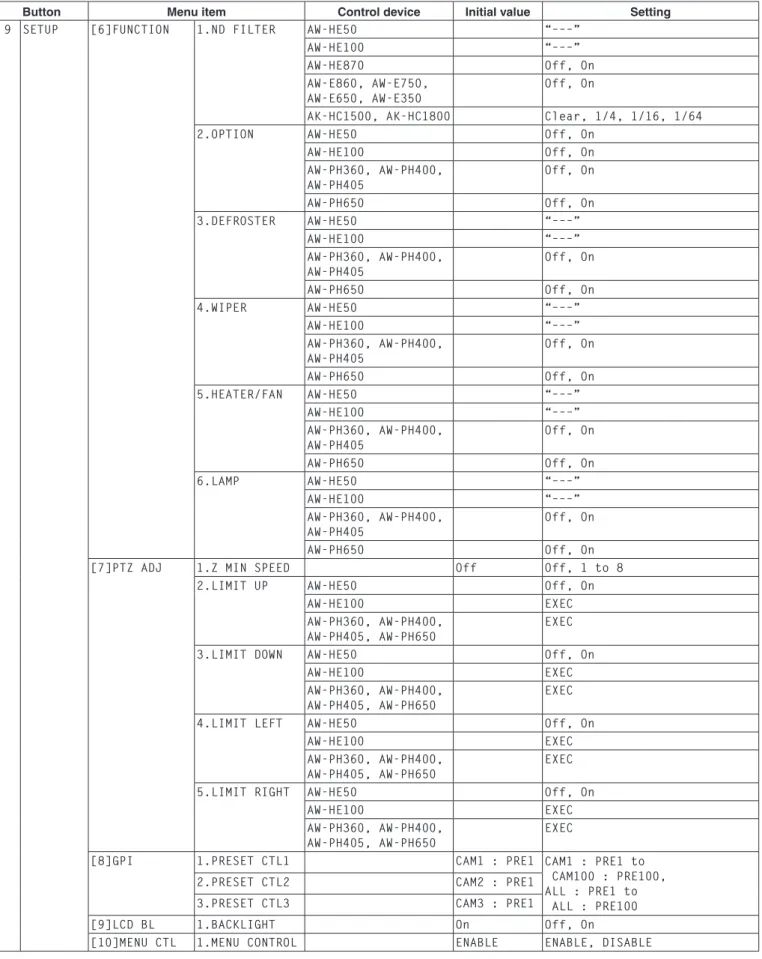
Control is exercised using the FUNCTION item of the [SETUP] menu.
[6]FUNCTION
Controlling an ND filter
This item is used to control the ND filter when using a lens with an ND filter function on the currently selected remote camera.
From the [SETUP] menu, select [FUNCTION] and display [ND FILTER]. Then select ND filter control.
1.ND FILTER Off
Controlling an AC adapter (AW-PS300A)
This item is used to control shorting and releasing of the OPTION SW CONTROL OUT connector when using an AC adapter (AW-PS300A) for the currently selected remote camera.
From the [SETUP] menu, select [FUNCTION] and display [OPTION]. Then select shorting or releasing.
2.OPTION
Off
Controlling a defroster
This item is used to control a defroster when using a remote camera (AW-PH650 + camera) equipped with a defroster function as the currently selected remote camera.
From the [SETUP] menu, select [FUNCTION] and display [DEFROSTER]. Then select defroster On or Off.
3.DEFROSTER Off
Controlling a wiper
This item is used to control a wiper when using a remote camera (AW-PH650 + camera) equipped with a wiper function as the currently selected remote camera.
From the [SETUP] menu, select [FUNCTION] and display [WIPER]. Then select wiper On or Off.
4.WIPER
Off
Controlling a heater/fan
This item is used to control a heater/fan when using a remote camera (AW-PH650 + camera) equipped with a heater or fan function as the currently selected remote camera.
From the [SETUP] menu, select [FUNCTION] and display [HEATER/FAN]. Then select heater/fan On or Off.
5.HEATER/FAN Off
Controlling a halogen lamp
This item is used to control the lighting (On) and extinguishing (Off) of the halogen lamp when a halogen lamp has been connected to the currently selected remote camera.
From the [SETUP] menu, select [FUNCTION] and display [LAMP]. Then select halogen lamp lighting (On) and extinguishing (Off).
6.LAMP ▲ Off
Setting the functions
Adjusting the minimum lens
zoom start speed
This adjustment ensures that the lens zoom will start moving smoothly in line with the inclination of the ZOOM button when operating the lens zoom using the ZOOM button.
From the [SETUP] menu, select [PTZ ADJ] and display [Z MIN SPEED]. Then turn the F2 dial to set the compensation amount.
1.Z MIN SPEED Off
The lowest compensation amount is “1”, and the highest is “8”.
No compensation is provided at the “Off” setting. While observing the images on a monitor, hold down the ZOOM button slowly, and check whether the lens zoom starts moving smoothly.
Exercising external control
over the preset memory data
Preset numbers can be assigned to execute presets for the selected remote cameras when signals have been input to the TALLY/GPI input/output connector.
The presets are assigned using the GPI item on the [SETUP] menu.
[8]GPI
Setting the preset numbers
From the [SETUP] menu, select [GPI], and display [PRESET CTL1], [PRESET CTL2] or [PRESET CTL3]. Then set the camera number and preset number.
1.PRESET CTL1 ▼ CAM100 PRE100
Any camera number from “CAM1” to “CAM100” or “ALL” can be selected.
If “ALL” has been selected, it will not be possible to execute the preset operations for any remote cameras which have been set to “NoAsign” as the connection setting.
Refer to “Settings for connection with the remote cameras” (<Basics> Operating Instructions).
The preset number setting can be established for each GPI input.
Input1: PRESET CTL1 Input2: PRESET CTL2 Input3: PRESET CTL3
Setting the functions
Locking the button operations
This disables the operation of the CAMERA OSD button and PRESET MEMORY/MENU buttons (1 to 7).
The button operations are locked using the MENU CTL item of the [SETUP] menu.
[10]MENU CTL ▲
Setting button operation enable or disable
From the [SETUP] menu, select [MENU CTL] and display [MENU CONTROL]. Then set button operation enable or disable.
1.MENU CONTROL ENABLE
When “DISABLE” is selected, the following button operations are disabled:
CAMERA OSD button
PRESET MEMORY/MENU 1 to 7 buttons
(However, these buttons can still be used to execute preset settings.)
Adjusting the LCD panel
backlight
The backlight of the LCD panel can be adjusted.
Make this adjustment using the LCD BL item on the [SETUP] menu.
[9]LCD BL
Adjusting the backlight
From the [SETUP] menu, select [LCD BL] and display [BACKLIGHT]. Then set whether the backlight is to be turned on or off.
1.BACKLIGHT Off
Setting linkup with the switcher
This setting is used to link the unit with an optional switcher (AW-HS50).
To link the unit with the switcher, the following settings must be established in the unit.
IP address (switcher) setting
[SYSTEM] menu [SW IP ADR]
Assign information setting
[SYSTEM] menu [SW CTL]
Link connection setting
[SETUP] menu [SW LINK] [SWLINK]
Settings at the switcher
For details on the settings selected at the switcher, refer to the Operating Instructions of the switcher.
Switcher network settings
1
Set the MENU button to ON.
Press the MENU button to light its indicator.
2
Set PRESET MEMORY/MENU 10 button
(SYSTEM) to ON.
When the button is pressed and its indicator is lighted, the [SYSTEM] menu is displayed on the LCD panel.
[1]CAMERA CTL ▼
3
Turn the F1 dial, display the SW IP ADR menu,
and press the F1 dial.
1.IP:SW
192 168.000.008 [9]SW IP ADR
Press the F1 dial.
4
Turn the F2 dial, select the IP address, and then press the F2 dial to enter the selection.Set the IP address which has been set in the switcher.
1.IP:SW
192 168.000.020
1.IP:SW
172.168 000.020
Turn the F2 dial, and then press it.
Input the IP address in four blocks of numerals.
When input advances to the last block and the F2 dial is pressed, the IP address is entered.
1.IP:SW
172.168.000.030
5
Press the EXIT button.
Operation now returns to the SW IP ADR menu.
[9]SW IP ADR
6
Turn the F1 dial to display the SW CTL menu,
and press the F1 dial.
1.SW
NoAsign [3]SW CTL
Press the F1 dial.
7
Turn the F2 dial to select “Network”, and then
press the F2 dial to enter the selection.
1.SW
Setting linkup with the switcher
Link setting
1
Set the MENU button to ON.
Press the MENU button to light its indicator.
2
Set PRESET MEMORY/MENU 9 button (SETUP)
to ON.
When the button is pressed and its indicator is lighted, the [SETUP] menu is displayed on the LCD panel.
[1]USER ▼
3
Turn the F1 dial, display the SW LINK menu,
and press the F1 dial.
[2]SW LINK
1.SWLINK ▼ Off
Press the F1 dial.
4
Turn the F2 dial to select On, and then press
the F2 dial to change the setting.
1.SWLINK ▼ On
When “On” is selected as the item setting, the settings mentioned below take effect, and the link with the switcher is established.
Control can also be exercised by assigning this setting to a USER button.
Setting the functions when the unit is linked with the switcher
Set the various functions to be used when the unit is linked with the switcher.
Setting the image output and
image input
This setting establishes the correlation between the image output (remote camera) and image input (switcher). By establishing the setting, the switcher is notified if a remote camera which has been set is selected when the remote cameras have been selected by the unit.
1
Set the MENU button to ON.
Press the MENU button to light its indicator.
2
Set PRESET MEMORY/MENU 10 button (SYSTEM)
to ON.
When the button is pressed and its indicator is lighted, the [SYSTEM] menu is displayed on the LCD panel.
[1]CAMERA CTL ▼
3
Turn the F1 dial, display the SW ASSIGN menu,
and press the F1 dial.
[4]SW ASSIGN
1.INPUT1 ▼ CAM1
Press the F1 dial.
4
Turn the F1 dial to select the input line of the switcher.2.INPUT2
1.INPUT1 ▼ CAM1
Turn the F1 dial.
5
Turn the F2 dial, select the remote camera, and
then press the F2 dial to enter the selection.
2.INPUT2
CAM2 2.INPUT2
CAM1
Turn the F2 dial, and then press it.
The switcher has five input lines: INPUT1 to INPUT5. Take the above steps to set the remote cameras for the input lines, and then operate the remote cameras.
Select “NoAsign” if the switcher is not to be notified of the correlation setting when the remote cameras have been selected.
Setting the functions when the unit is linked with the switcher
Switcher settings
A setting for controlling the switcher linked with the unit is available.
It is established using the [SETUP] menu.
Before taking the steps described here, the steps for “Switcher network settings” and “Setting the image output and image input” must be taken.
First, the basic menu operations will be described.
1
Set the MENU button to ON.
Press the MENU button to light its indicator.
2
Set PRESET MEMORY/MENU 9 button (SETUP)
to ON.
When the button is pressed and its indicator is lighted, the [SETUP] menu is displayed on the LCD panel.
[1]USER ▼
3
Turn the F1 dial, display the SW LINK menu,
and press the F1 dial.
[2]SW LINK
1.SWLINK ▼ Off
Press the F1 dial.
4
Turn the F1 dial to select the menu item to be set.1.SWLINK ▼ Off
2.BUSCONT
Off
Turn the F1 dial.
5
Turn the F2 dial, select the settings, and then
press the F2 dial to change the setting.
2.BUSCONT
Off
2.BUSCONT
On
Turn the F2 dial, and then press it.
Bus switching
From the [SETUP] menu, select [SW LINK] and display [BUSCONT]. Then select On or Off.
2.BUSCONT
On
When “On” is selected as the item setting, the materials set using the BUS item (described later) are sent from the remote camera to the switcher when the remote cameras has been selected using one of the unit’s CAMERA STATUS/SELECTION buttons.
Control can also be exercised by assigning this setting to a USER button.
Setting the functions when the unit is linked with the switcher
Bus setting
From the [SETUP] menu, select [SW LINK] and display [BUS]. Then set the material (AUX, PVW, PinP or KEY) to be sent to the switcher.
3.BUS
AUX
The materials set using this item are sent from the remote camera to the switcher when the remote camera has been selected using one of the unit’s CAMERA STATUS/ SELECTION buttons.
Control can also be exercised by assigning this setting to a USER button (BUSCONT).
Focus assist setting
From the [SETUP] menu, select [SW LINK] and display [FASIST]. Then set On or Off.
4.FASIST
Off
When “On” is selected as this item’s setting, the images of the AUX bus output from the switcher will be switched to the images of the remote camera selected by the unit.
Conversely, when “Off” is selected, the switcher will switch the images of the AUX bus output from the switcher to the images of its multi view display.
Camera information setting
From the [SETUP] menu, select [SW LINK] and display [CAMSEL]. Then set On or Off.
5.CAMSEL
Off
When “On” is selected as the item setting, an icon appears at the bottom left of the image of the remote camera selected by the unit on the switcher’s multi view display. When a remote camera has been selected, its information is sent from the unit to the switcher.
Setting the functions when the unit is linked with the switcher
OA tally setting
From the [SETUP] menu, select [SW LINK] and display [TALLY_IP]. Then set On or Off.
6.TALLY_IP Off
When “On” is selected as the item setting, the unit receives the tally information (tally ON/OFF) sent periodically from the switcher through the network, and it sends the ON or OFF instruction to the remote cameras in which changes have occurred.
[ Concerning the tally information transferred through the network]
After receiving the tally information (Input1 to Input5) from the switcher through the network, the unit sends the ON or OFF instruction to the remote cameras.
Based on the relationship between the image output (remote camera) and image input (switcher) which have been set using the unit’s menu, the remote camera to which the tally instruction is sent in response to the tally information received from the switcher is identified, the tally indicator of that remote camera is lighted in red, and the tally ON instruction is sent to the remote camera.
The Tally ON instruction is also sent to the remote cameras which are not in the selected camera group.
AW-RP50 AW-HS50 Input1 Input3 1 2 3 4 5 1 2 3 4 5 TALLY CAM IP RP50CAMNo Input1 CAM1 Input2 CAM2 Input3 CAM3 Input4 CAM4 Input5 CAM5 GPI Input Group 1 Group 2
In response to inputs 1 to 5 from GPI Input, tally indicators CAM1 to CAM5 are lighted in red, and the tally ON instruction is sent to the remote cameras concerned. Only CAM1 to CAM5 serve as the GPI Input tally. This means that when a camera group other than No.1 is selected, the tally indicators will go off.
The following tally-related settings can be established using the menu.
Enabling/disabling the tally information instructions
sent over the network
If only the tally information from GPI is to be enabled, from the [SETUP] menu select [SW LINK], set [TALLY_IP] to Off, and disable the tally information instructions sent over the network.
Enabling/disabling the tally ON instructions sent to
the remote cameras
From the [CAMERA] menu, select [TALLY] and display [TALLY OUT]. Then set enable or disable for the tally ON instructions to be sent to the remote cameras in response to the tally requests from the GPI and over the network.
PAN/TILT lever control setting
This setting makes it possible to use the unit’s PAN/TILT lever as the switcher’s control lever.
From the [SETUP] menu, select [SW LINK] and display [P/T LEVER]. Then set Self or SW.
7.P/T LEVER ▲ Self
When “Self” has been selected as the setting, the unit’s PAN/TILT lever is used as the lever for operating the pan and tilt functions of the remote cameras.
When “SW” has been selected, the following information is sent to the switcher.
PAN/TILT lever: X, Y ZOOM button: Size

![ABB] メニューが表示されます。](https://thumb-ap.123doks.com/thumbv2/123deta/7787177.803866/57.892.468.829.195.656/ABBメニューが表示されます.webp)
