CasualConc Manual
(Version 2.0.6, 2016/09/18)
Table of Contents
1 Before you begin 1
2 Managing files 2
2.1 Simple - File 2
2.2 Simple - Text 4
2.3 Advanced - File 4
2.4 Advanced - Database 6
3 Basic Tools 8
3.1 Concord 8
3.1.1 Limiting Search Results 9
3.1.2 Setting Span and Sorting Results 10
3.1.3 Working with the Results 10
3.1.3.1 Exporting Results 12
3.1.4 Other misc features 12
3.1.5 Parallel Processing Setting 13
3.2 Word Count 13
3.2.1 Sorting Word Lists 16
3.2.2 Filtering Results 17
3.2.3 Advanced Mode 17
3.2.3.1 Specific Word/Phrase Search 18
3.2.3.2 Bi-grams in Range 20
3.2.3.3 POS Tag Text Analysis 20
3.2.4 Other Features 22
3.2.4.1 Copying and Exporting the Results 22
3.2.4.2 Keyness Statistics 22
3.2.4.3 Open Results in a New Window 23
3.2.4.4 Search in Concord 24
3.2.4.5 Word List Extractor 24
3.3 Collocation/Cooccurrence 26
3.3.1 Collocation Tool 26
3.3.1.1 Collocation Statistics 27
3.3.1.2 Collocation Visualizer 28
3.3.1.3 Experimental Features 30
3.3.1.3.1 File Frequency 30
3.3.1.3.2 Word Chain 31
3.3.1.4 Other features 31
3.3.1.4.1 Treating Keywords as a Single Word 31
3.3.1.4.3 Search in Concord 32
3.3.1.4.4 Exporting Results 32
3.3.2 Cooccurrence 32
3.4 Word Cluster 34
3.4.1 Exporting Results 35
3.5 File Information 35
3.5.1 File Info 36
3.5.2 Word Frequency 37
3.5.2.1 Filtering Results 39
3.5.2.2 Binarizing Results 41
3.5.2.3 Keyness Statistics 42
3.5.2.4 Word List Extractor 43
3.5.2.5 Experimental Keyword Extraction 43
3.5.2.5.1 Rank/Mean Comparison 44
3.5.2.5.2 Random Forest 46
3.5.2.5.3 Keyness Comparison 51
3.5.2.6 Importing Word Frequency Table 51
3.5.3 TF-IDF 51
3.5.4 Key Group Frequency 52
3.5.5 Collocation Frequency 55
3.5.6 XML Item Frequency 57
3.5.7 Tag Filter 59
4 Common Features 61
4.1 Search Mode 61
4.1.1 Wildcard 61
4.1.2 Character 62
4.1.3 RegExp (Regular Expression) 62
4.1.4 Tag 62
4.2 Scope of Context 63
4.3 Number Handling 63
4.4 Character Replacement 63
4.5 Defining a Word 64
4.5.1 Include as a part 64
4.5.2 Treatment of Words 65
4.5.3 Define with Regular Expression 67
4.6 Lemma/Spelling Variation/Keyword Grouping 67
4.6.1 Lemma 68
4.6.2 Spelling Variation 69
4.6.3 Keyword Grouping 70
4.7 Vocab Profiler 71
4.8 Regular Expression Test 74
4.9 Word List Uniter 75
5 Advanced Tools (Graph Drawing) 77
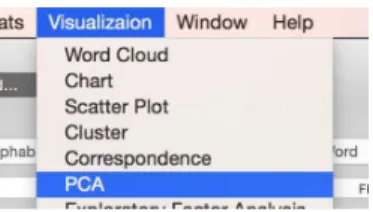
5.1 Word Cloud 77
5.1.1 Options 81
5.1.2 Handling Multiple Files 83
5.2 Chart 86
5.2.1 Line Chart 86
5.2.1.1 Options 87
5.2.2 Bar Chart 92
5.2.2.1 Options 92
5.2.3 Pie Chart 96
5.2.3.1 Options 97
5.2.4 Radar Chart 99
5.2.4.1 Options 100
5.3 Scatter Plot 100
5.3.1 Options 102
5.4 Cluster 106
5.4.1 Options 107
5.5 Correspondence 110
5.5.1 Options 111
5.6 PCA (Principal Component Analysis) 116
5.6.1 Options 117
5.7 EFA (Exploratory Factor Analysis) 121
5.7.1 Options 123
5.8 MDS (Multi-Dimensional Scaling) 125
5.8.1 Options 126
5.9 Network 128
5.9.1 Options 130
5.10 Heat map 138
5.10.1 Options 140
5.11 Item Position 141
5.11.1 From Concord 142
5.11.1.1 Options 143
5.11.2 New Search 145
5.11.2.1 Options 146
5.11.3 Relative Position 149
5.12 Graph Window 151
5.13 R Result Window 152
5.13.2 R Script 153
5.14 Label Coloring 154
6 Preferences 164
6.1 General 164
6.1.1 Corpus Mode 164
6.1.2 Font 164
6.1.3 Search Word History 164
6.1.4 Text Processing 165
6.1.5 Defining a Word 166
6.1.6 Replace Characters 166
6.1.7 Words/Characters Handling in Analysis 166
6.1.8 Lemma/Spelling Variation/Keyword Group 166
6.1.9 Misc 166
6.2 File 166
6.2.1 File Handling 167
6.2.2 Original Text Editing/Application 167
6.2.3 Default Folders 167
6.2.4 Tokenization 167
6.3 Tag 168
6.3.1 Tag Mode 169
6.3.2 Header Section 169
6.3.3 Section Handling 169
6.3.4 Context Tags to Ignore 170
6.3.5 Strings to Ignore 170
6.4 Concord 171
6.4.1 Font 171
6.4.2 Sorting 172
6.4.3 KWIC Result Display 173
6.4.4 Misc 174
6.4.5 Keyword 175
6.4.6 Parallel Processing 175
6.4.7 Copy Results 175
6.4.8 Context View 175
6.4.9 Tagged Text (_TAG) 175
6.4.10 Context View 176
6.5 File Info 176
6.5.1 General 176
6.5.2 Basic File Information 176
6.5.3 Word Frequency 177
6.5.4 Key Group Frequency 177
6.5.5 TF-IDF 177
6.5.6 Export & Copy 178
6.6 Keyword Stats 178
6.7 Visualization 178
6.7.1 R 179
6.7.2 Import Limit 179
6.7.3 POS Check 179
6.7.4 Concordance Plot 180
6.8 Word Count 180
6.8.1 General 180
6.8.2 Advanced 181
6.8.3 TreeTagger 182
6.9 Others 182
6.9.1 Collocation 183
6.9.2 Minimum Frequency 183
6.9.3 Misc 184
6.9.4 Copying 184
6.9.5 Vocab Profiler 184
6.9.6 Keyness Stats 185
6.9.7 Experimental 185
1 Before you begin
CasualConc is an OS X native concordancer. It is designed to analyze text on plain text files with UTF-8 encoding. It can also extract text from MS Word files, Open Office Document files, PDF, HTML, and Web Archive. But the extracting process takes longer with these file types, so if you repeatedly search text on those files, converting them to plain text files would be a good idea. You can use any application of your choice, but CasualTextractor can also do this task.
The basic unit of analysis is a paragraph, which are separated by line break characters (\n, \r\n, \r, etc.), though you can also expand this to the entire text on a single file. This means that the context word search, sort words, clusters, etc. are limited to the ones within the same paragraph as the search word.
If you want to completely remove CasualConc from your HDD/SSD, move the following files/ folders to Trash.
CasualConc.app in the Applications folder
CasualConc folder in ~/Library/Application Support jp.yi.CasualConcRM.plist files in ~/Library/Preferences
The new version of CasualConc is written in another programming language. Unfortunately, since the text processing speed of the newly adopted language is slower in many cases, processing time would be longer in many cases. To address this issue, the new version utilizes parallel processing, which is OS X’s technology. By default, this feature is turned on. If you find results are unreliable, go to Preferences -> General and turn off Parallel Processing.
2 Managing files
You can manage files or text on the File Manager. Select the File on the tab to switch to the File Manager. There are four modes to handle text on CasualConc: Simple - File, Simple - Text, Advanced - File, Advanced - Database. Switching between modes are done by the mode switcher on the top right corner of the main window.
Switching Simple/Advanced are done with the pop-up button and File/Text or File/Database are done with the selector button.
By default, CasualConc can only handle plain text files (.txt). To accept other file types, go to Preferences -> File and change the Corpus File Types to Selected Types and select the file type(s) you want to use or Any Files to accept any file types, though the file types other than CasualConc can recognize are treated as plain text files. The default encoding for plain text files can also be set on Preferences. This is applied when the files are dragged & dropped onto File List table on the File Manager.
2.1 Simple - File
When you run CasualConc for the first time, you are in the Simple File mode. In this mode, you add files to File List table and run analyses. This mode is design to quickly examine the files at hand. By default, you can only add plain text files (.txt). To accept other file types, go to Preferences -> Files (see Section 6.2.1).
To add files to File List table, go to the main menu -> File -> Add File(s).
Select files or folders and a file encoding. On OS X 10.11, click Option button to reveal the file encoding options. If you select a folder, all the files in the folder and sub-folders will be added to the table. You can also add the files to the list by clicking Add button on the File Manager or drag
& drop the files onto File List table.
You can check the added files on File List table on File Manager. If you select a file on File List table and the Preview checkbox is on, the content of the file will be displayed in the text box at the bottom part of the File Manager. You can remove file(s) from the table by clicking Remove or remove all the files by clicking Clear.
If you two-finger click or right click on File List table, you can open the selected file on Finder or with a specified application, or open in the built-in editor (plain text files only). You can make changes and save the file on the editor.
2.2 Simple - Text
In the Text mode, you can simple copy & paste any text onto the text area. This mode is a new feature on CasualConc 2.x.
This mode has two text areas. Concord, Collocation/Cooccurrence, and File Info use the text on the left. Word Count and Cluster use both; the left table uses the text on the left and the right table uses on on the right. This is a quick way to check the text you find on the web or anywhere.
2.3 Advanced - File
In this mode, you can create groups of files, or Corpora, to be used in analyses. To create a corpus, add files to File List table on upper right of the File Manager by going to File -> Add File(s) or clicking Add button or dragging & dropping files.
Then click New button below the Corpus List table on upper left. You are prompted to name the new corpus. Once the name is entered, click Create button. If the specified name is already used as a name of another corpus, you need to assign a different name.
The new corpus will be added to Corpora List table on the top left. If there are multiple corpora on the table, you can move them by simply dragging & dropping them on the table.
To use any corpora, check the box next to the ones you want to use. You can check the content of a selected corpus by selecting the corpus on the table with Show File List checked. The content of an individual file can be checked by selecting a file on the Content Files table with File Preview checked.
To add files to an existing corpus, select a corpus on Corpora List table and add files to File List table. Then click Add Files button. To merge two corpora, select two corpora on Corpora List table and click Merge button. If the numbers of files on the table somehow do not match the actual number of files in corpora, click Refresh button to update the data. You can also delete files from a selected corpus. Select a corpus with Show File List checked, and select the files you want to delete. Then click Delete File(s) button.
Clicking Delete Non-existing Files will remove the files that do not exist at the specified path.
2.4 Advanced - Database
This mode is designed to reduce the amount of time to search text in Concord, Collocation, and Cluster, although it may not always be faster. The text on the files will be divided into paragraphs and stored on a SQLite database file. When you search specific text, the entries that contain the specific text will be selected from the database and then processed. So if you need to use all the data on the database, such as creating a word list or n-gram list, the processing time might be much longer than in the File mode. You can manage database files just like in Advanced - File mode.
To create a new database, add files to File List table on upper right and click New button. You are prompted to name the file to save. The newly created database will be added to the database file list on upper left.
You can add files to existing database files or merge two database file. If you have database files created on the previous versions of CasualConc, you can add them to Database List table, though it may take some time and a lot of memory depending on the size of the database file. If you add a large database file, it would probably be a better idea to restart CasualConc once you finish importing it.
Just like in File mode, to use database files, check the box next to the ones you want to use. You can check the content of a selected database file by selecting the database on the table with Show File List checked. The entries associated with an individual file can be checked by selecting a file on the Content Files table with File Preview checked.
To add files to an existing database file, select a database on Database List table and add files to File List table. Then click Add Files button. To merge two database files, select two databases on Database List table and click Merge button. If the numbers of files and total tokens on the table somehow do not match the actual numbers on the database files, click Refresh button to update the data. You can also delete files from a selected database file. Select a database with Show File List checked, and select the files you want to delete. Then click Delete File(s) button.
If you two-finger or right-click on Database List table, you can reveal the selected databased file (not the checked one) on Finder.
3 Basic Tools
CasualConc has 5 basic text analysis tools: Concord, Word Count, Collocation/Cooccurrence, Cluster, and File Info. Concord is a tool to create a KWIC concordance list. Word Count is to create a word list or n-gram list. Collocation/Cooccurrence is to create a list of words that appear within a specified span. Cluster is to create n-gram list that contains a specified word(s). File Info is to create tables of basic information, or specified words, or calculate TF-IDF, or collocates of specified words.
3.1 Concord
To use Concord, select Concord on the tool tab.
The basic function of Concord is to create a KWIC concordance list.
Simply type any word or phrase in the search text box and click Search button or hit Enter key. You can also select a past search entry from the pop-up menu. The number of items in the search history can be set in Preferences -> General.
(see Section 4.1, Section 4.2). The color of the context words, the font and the font size on the table, are table row heights also set in Preferences -> Concord.
In Advanced–File mode, you can select multiple corpora/databases in File Manager and select one of the checked corpora/databases or use all the checked corpora/databases.
3.1.1 Limiting Search Results
You can limit the search results by words/phrases in the specified context. If you want to limit the results that include specific words/phrases within a certain range, check Context Word and type the words/phrases and the range to the left and the right of the searched string.
In the above example, only the results with ‘as’ appears within 5 words to the left (L5) and to the right (R5) of the searched word indicate? (? is a wildcard character). By default, the specified words are marked with Underline, but this can be changed to Bold or Bold Underline as well as marked with specified colors in Preferences -> Concord -> KWIC results.
If you want to limit the results that do not include specific words/phrases within a certain range, go to Preferences -> Concord -> Misc and check Context Exclude. You can now specify Exclude Word along with the range. You can also combine both to include certain words but not include other specific words.
3.1.2 Setting Span and Sorting Results
You can set the span or the number of characters to appear in the left or right of the keyword on the table. The default is 60 characters to the left and the right. You can change the span even after your result is displayed on the table. Simply change the values in Span. To neatly display the result, click Sort button after you change the values.
To sort the results based on the context words, select a preset from the pop-up button. The default is R1-R2-R3, which means the result will be sorted first by the first right word, followed by the second and the third. You can create your own preset in Preferences -> Concord. See Preferences section for more information. If you want to specify more complex combination, check Sort Choice and specify the order. FN is the file name, POS is the position in the text/paragraph, CDN is the corpus/database name.
If you want to specify words beyond L5 or R5, go to Preferences -> Concord and check Wide Context in Misc. You can select L15 to R15 in span, context words, and sorting.
3.1.3 Working with the Results
If you select a line on the table with the Context checkbox checked, a wider context will be
click will show the context menu. You can copy the selected line with or with out style information. If you select Copy Selected Line(s) with Style Information, the keyword will be in bold. You can specify whether you also want to keep the sort word colors (Context Color) or context word style (Context Style) (underline/bold) in Preferences -> Concord. If you check Insert TAB character around keywords, tab (\t) will be inserted before and after the keyword. This allows you to paste the keywords and context texts into different cells on Numbers or Excel.
You can also delete selected line(s) from the result table. This process can be undone, but the undoing process may be unreliable at times.
The files associated with the selected line can be revealed in Finder or opened with a specified application. If the file is a plain text file, it can also open in an editor on CasualConc. If multiple lines are selected, the file associated with the first selected line will open.
In the Context View, you can look up a word in the built-in Dictionary.app.
You can also search a selected word/phrase in Concord by selecting Search Selected Text in Concord on the context menu.
3.1.3.1 Exporting Results
The results on the table can be exported as a styled text in RTF or tab-delimited text in .txt. Go to File -> Export.
When you save the file, if you check Keep Font Info, the style of the text (font, etc.) will be kept and saved as a Rich Text Format (RTF) file. Select whether you want to keep the sort word coloring (Context Color) and/or context style (Context Style: underline/bold). You can also insert TAB character (\t) before and after the keywords.
If you check Context Words and specify the span, the list of context words within the span will be added to the output divided by TAB characters (\t). You can also include File name and/or Corpus/Database name. In addition, if you export the result as a plain text (Keep Font Info off), you can include the maximum context text stored on CasualConc, which is usually longer than the text displayed on the result table.
3.1.4 Other misc features
As in the previous version of CasualConc, you can replace the keywords with blank brackets or underline. You can set the format in Preferences -> Concord.
You can open the result table on a new window. Go to Window -> Open Concord Result in New Window.
A new window with the results will open. You can save/export the results on the table by clicking Save/Export at the top right corner of the window (not from the menu).
3.1.5 Parallel Processing Setting
Parallel processing in the Database mode may be unstable, so the parallel processing can be limited to File mode. You can enable the parallel processing in the database mode in Preferences -> Concord -> Parallel Process.
3.2 Word Count
To use Word Count, select Word Count on the tool tab.
You can create a word list or a n-gram list on each table.
In Word Count, you can have the following pieces of information.
type: the uniq count of words token: the total count of words Freq: the frequency of each item
Proportion: the proportion of the item count to the total tokens (0.01% or more) In File: the number of files each item appears
File Prop: the proportion of files that each item appears to the total files
The total types and tokens are the numbers before lemmatization or skipping stop words or filtering the results. If you check Counting Items on Lists in Preferences -> Others -> Misc, the number of types and tokens of items on the table are shown.
If you set the Unit in Preferences -> Word Count -> General to Character, you can create a list of letters. If you check Cross Word Boundary, letter n-grams can go across word boundaries. If not, only the letter n-grams within words are counted.
You can specify the minimum frequency of words/n-grams to be included in the list. Go to Preferences -> Others -> Minimum Frequency. If you create an n-gram list with a large corpus (over ten million tokens), creating full n-gram list might use up all the memory on your Mac and might take an unreasonable amount of time. With a one-million-token corpus, there are 256 4-grams which occur 10+ times.
If you check Std. Word Freq Per X words in Preferences -> Word Count -> General, and specify the denominator of proportion values. The following example is with the Std. Freq per 1,000 words.
By default, words in n-grams are separated by a single space, but the separator can be TAB (\t). When you export or copy the results with TAB as a separator, you can have a list of n-grams separated by a tab character. To change the separator, go to Preferences -> Word Count -> n-gram separator.
In Advanced Corpus mode, a pop-up button appears on the header row of the second column (word/n-gram) and you can handle multiple corpora/databases or assign different corpus/database to each table.
Since creating a word/n-gram list access all the text data on files or a database, the processing speed could be slower and much more memory is necessary in the database mode. Also because of the way n-grams are counted in the current version, parallel processing is not enabled when creating n-gram lists.
3.2.1 Sorting Word Lists
To sort a list, either click the header of the column you want to sort by or select a special sorting order from the pop-up button and click Sort. The sorting on the Words/n-grams column is case- insensitive, but it does not recognize any language specific features. This means that capital/small letters of accented characters may not be recognized as the same character. To enable language specific sorting, go to Preferences -> Others -> Misc and check Language Specific Case Sensitivity. By default, only English and Japanese are enabled. Click Add to add more languages.
Special sorting has four options.
Rev Alphabetical - alphabetical from the last letter of each word
Word Length - the number of characters in each word from larger to smaller Rev Word Length - the number of characters in each word from smaller to larger Cap Alphabetical - alphabetical first with capital letters then lower case letters
By sorting by Rev Alphabetical, you can list words by word endings.
3.2.2 Filtering Results
Once you create a list, you can filter the results. Type any characters to use as a filter in the search text box. By clicking the magnifying glass icon in the text box, you can change the options. You can use wildcard characters with Like option, but the wildcard characters are different from CasualConc search wildcard characters. ? matches one character and * matches zero or more characters. The POS option is designed to be used to filter a list with tagged text.
Searching ‘ly’ with Ends with option resulted in the following list.
3.2.3 Advanced Mode
Word Count has its own advanced mode. Go to Preferences -> Word Count -> Advanced and check Advanced.
3.2.3.1 Specific Word/Phrase Search
In the advanced mode, Word option gains the function to search any specific text. In Wildcard search mode, you can use CasualConc wildcard expressions. In the following example, at the ? of returned the following list.
If you put a part of the search word, including wildcard characters, in parentheses, you can create a list of only the specified parts. In the following example, at the (?) of returned the following list. The list contains only the words that are used at (?) position of the search phrase.
The n-gram options gains a gapped n-gram list or p-frames list options. Check Gap when you create a n-gram list. You can switch between these two options in Preferences -> Word Count -> Advanced. The Full option returns specified n-grams with all the positions gapped.
The p-frames option returns specified n-grams with only the middle words gapped.
With Detail checked, the words that appear at the gapped position are counted.
You can check the detail of the gap words by selecting a row and two-finger or right-click and select Show Gap Word List.
A panel with a list appears. You can copy the list by clicking Copy List button.
3.2.3.2 Bi-grams in Range
As an experimental feature, you can create a bi-gram list not just with immediate adjacent word pairs, but two words that appear within a set range or at a specified position. If Prop is checked with a range option, frequency counts will be adjusted based on the distance from the first word. If the second word appears immediately after the first word (R1 position), it is counted as one. If it appears two words after the first word (R2 position), it is counted as 1/2 word, and R3 word is counted as 1/3, R4 is 1/4, and so on.
Regular bi-grams Bi-grams in R1-R2 Bi-grams in R1-R2 (proportion)
3.2.3.3 POS Tag Text Analysis
In Word Count, you can create a word/n-gram list from POS-tagged text. At this moment, the only two types of tagged text are Word_Tag format or the TreeTagger default format.
To use this function, go to Preferences -> Word Count -> Advanced and check Advanced and Tagged Text Analysis. Tag type options are Word_Tag, TreeTagger default and TreeTagger default with no syms. When the TreeTagger default is selected, you can create a list of lemmas by selecting Lemma instead of Word. The following examples are with TreeTagger default (left) and TreeTagger default with lemmas (right).
The following is the 4-grams lists with the same combination.
With this new version, plain text files can be tagged using the OS X’s built-in tagger or TreeTagger (if installed). Check Process Tagging in Preferences -> Word Count -> Advanced and select a tagger. The TreeTagger option can handle whatever the language with the language parameter file. To install TreeTagger onto your Mac, you can use CasualTreeTagger.
The following example has the list with built-in tagger on the left and the one with TreeTagger on the right.
TreeTagger option has an option to exclude Syms (symbols) and other non-word characters.
3.2.4 Other Features
3.2.4.1 Copying and Exporting the Results
You can copy the selected lines or selected words. Select lines on the table and two-finger or right-click to show the context menu.
Copy Selected Lines - all the info of the selected lines on the table Copy Selected Words - only the selected words
Copy Selected Words w/ Freq - the selected words with frequency counts.
You can export the results as a CSV file. Select the table you want to save and the information you want to include in the exported file.
3.2.4.2 Keyness Statistics
statistics. The list on the right table will be treated as a reference corpus.
To calculate Keyness statistics, go to Stats -> WC Keyness and select the one you want to calculate.
The statistics column(s) will appear on the left table. The numbers in red are the ones that are used more in the reference corpus (in relative frequency). You can turn off this marking in Preferences -> Word Count -> General. The following example shows all the Keyness statistics. The list of words from the US presidential addresses is compared with a general American written corpora, FROWN.
3.2.4.3 Open Results in a New Window
You can open the results on the table in a new window. Once you created a word list, go to Window -> Open Word Count Result in New Window and select the table.
On this window, you can sort or filter the results just as on the main window. You can also export or save the results on the table by clicking Save or Export at the top left corner of the window.
3.2.4.4 Search in Concord
You can search selected words/n-grams in Concord. If you search n-grams, the results might be different. To match the results, go to Preferences -> General -> Misc and check Search w/ non- letter chars b/w words. This allows non-word characters between words when you search n-grams.
3.2.4.5 Word List Extractor
You can create a list of common words of the two word/n-gram list or a list of words/n-grams that are only in one of the lists. Go to the main menu -> Window and select Word List Extractor.
The Word List Extractor window appears.
You can select the first three options in Word Count (the fourth option is for File Info).
Both: create a list of words that are on both lists
Left Only: create a list of words that only appear in the list on the left table Right Only: create a list of words that only appear in the list on the right table
Both
Left Only Right Only
The above example is created with FROWN (American English on the left table) and FLOB (British English on the right table). A you can see, the Left Only list includes words in American spellings or words that are related to US. The right only list includes words in British spellings and words that are related to UK.
3.3 Collocation/Cooccurrence
To use Collocation/Cooccurrence, select Collocation on the tool tab.
Switching between Collocation and Cooccurrence tools are done by the switch at the upper right corner of the window.
3.3.1 Collocation Tool
The Collocation tool is to count the context words that occur within the specified range of the keyword. Type the word/phrase you want to search, set the span, and hit Search button.
Values in red denote the most frequent positions. As in Word Count, you can set the minimum number of occurrences to include in the results. Go to Preferences -> Others -> Minimum Frequency.
The list can be sorted by clicking the header of each column. If you want to change the span after creating the collocation list, change the span values and click Rearrange.
Just as in the Word Count, you can filter the results.
If you select n-grams, you can create a list of n-grams as context words (collocates).
When n-grams are counted, the context words at L1 start with nth words from the keyword. With 2-gram selected, items on L1 starts with 2 words to the left of the keyword, items on L2 starts with 3 words to the left of the keyword, and so on. This means the same word is counted at most n times as a part of context n-grams of a single keyword (this is the same as counting n-grams in Word Count).
3.3.1.1 Collocation Statistics
If you have created a collocation list and a word list with the same files/corpus/database, you can calculate collocation statistics. Go to Stats -> Collocation and select the statistic you want to calculate.
A new column will be inserted to the left of LR Total. As you can see, when context words occur very infrequently, collocation statistics are often biased. So you might want to consider setting the minimum frequency to the list.
3.3.1.2 Collocation Visualizer
Just like calculating statistics, if you have created a collocation list and a word list with the same files/corpus/database, you can visualize collocation information based on frequency information and/or collocation statistics by clicking Visualizer button. This is an experimental feature, so the details or representation of values might change in the future.
On the Visualizer window, select a statistic you want to use, and select the information to use. You can select either a specific column or a range. Click the radio button left to the pop-up buttons to select which one to use. If you select a specific column (upper), you can use it as a starting/ ending point of the span to the left or right of the keywords. So if you select L5 and check Span, the information used is between L5 to L1. Then select how many context words on the list to be used. If the number of the context words is smaller than the specified number, all the context words on the list will be used.
context words within L5 ~ R5 are used.
Other options are the following:
Ignore zero occurrence - zero frequency words will be ignored
Include Freq Info - frequency info is used (in gray) in addition to the specified statistic Convert LL val to log - Log-Likelihood values are very large, so convert values to log Use Multiple info - if checked three statistics can be combined; assign colors to them
Frequency information is represented in gray, so lower frequency words appears whiter.
The above settings returns the following visualization. The size of letters represents the main statistic, Log-log. The shade of letters represents the frequency. The color represents the combination of three statistic values.
You can check the statistic values by clicking Stats button. Two-finger or right-click on the table to allow you copy the statistic values.
3.3.1.3 Experimental Features
To use these features, you need to check Experimental Features in Preferences -> Others -> Experiments.
3.3.1.3.1 File Frequency
This feature aggregates the number of files each collocate appears at a certain position. The numbers will be displayed in the brackets except for the LR Total frequencies. To use this feature, you need to check Record File Frequency in Preferences -> Others -> Collocation.
3.3.1.3.2 Word Chain
This feature record the chains of collocates with frequencies. If you click a collocate at L1 or R1 on the table, a list of words that appear before (L2) or after (R2) the selected collocate will be listed. The items on the left (L1-L3) and on the right (R1-R3) are independent, so even when an item on the L1 list is selected, the items on the R1 list are not affected by the selection. To use this feature, you need to check Record File Frequency in Preferences -> Others -> Collocation.
3.3.1.4 Other features
3.3.1.4.1 Treating Keywords as a Single Word
When you use wildcard characters or search two or more different words, collocates are tallied
for each keyword. But if you check Treat Keywords as One Word in Preferences -> Others -> Collocation, all the keywords are treated as one word and frequency counts are combined. This is useful when you search for collocates of different spelling variations of a single word or grammatically inflected forms of a single word.
3.3.1.4.2 Copying Results
If you want to copy the results, two-finger or right-click the table. You can paste the copied results as tab-delimited text.
3.3.1.4.3 Search in Concord
When you select Search in Concord on the context menu, the keyword will be the Search Word and the context word will be the Context Word on Concord.
3.3.1.4.4 Exporting Results
To export the results as a tab-delimited plain text file, go to File -> Export and specify the encoding.
3.3.2 Cooccurrence
The cooccurrence list is created when you run a Collocation search. It is essentially a different form of the same information as Collocation results. By default, context words are listed in frequency order at each position. Unlike the Collocation tool, clicking on the header of a column does nothing.
You can sort the results based on the collocation statistics. Select the one on the pop-up button at the upper left corner of the window and click Sort.
If you want to check the statistic values, check Values at the upper right corner of the window.
Since copying the information by rows does not make sense, you can only export the result. Along with the encoding, you can decide if you want to include the statistic values and how to include them. If you select word (*), the statistic value is put in the parentheses and when you open
the data, the word and the statistic value will be in one cell. If you select Separate Column, statistic values will have its own column or in a separate cell.
3.4 Word Cluster
To use Word Cluster, select Cluster on the tool tab.
Word clusters are simply n-grams that contains the search word(s). You can create a list of 2 to 9 grams.
The Span of the cluster can be set to Left Only and Right Only. With Left Only, n-grams with the search word at the end will be listed and with Right Only, those with the search word at the beginning will be listed.
Also, as in the other tools, you can filter the results but with only limited choices.
3.4.1 Exporting Results
The only choices are encoding and which table to export.
3.5 File Information
To use File Information, select Word Count on the tool tab.
This tool has five functions.
File Info - Types, Tokens, Type Token Ratio, Average Word Length, Freqs of n-letter words Word Frequency - Word and 2 to 5-gram lists of all files/corpora/databases
TF-IDF - Calculating TF-IDF values of files
Key Group Frequency - Frequency counts of specified strings or set of strings
Collocation Frequency - Collocation frequencies of a list of words or a pair of lists of words
In File Information, the number of table columns to be displayed is limited to 200 by default. This is because a large table of data can make the scrolling on the table sluggish. You can change the limit or remove the limit in Preferences -> File Info -> General.
In Simple - File mode, each file is treated as individual entry. In Advanced mode, you can also treat a corpus or a database as an entry or specify which corpora/databases are treated as corpus/ database or individual files in a corpus/database are treated as entries.
If you select Mixed, you can set grouping unit for each corpus or database.
If you select File, you can put labels on each file. This is to bring the uniformity to the labeling. To add labels, select a corpus or database on the grouping table and click Edit at the bottom left of the panel. On the label list panel, click Edit at the bottom left of the panel again. On the text input panel, type or copy & paste the list of labels. The format should be one line per label.
When you run the tool, the filenames will be replaced by the assigned labels.
3.5.1 File Info
Types - the number of types or unique words Tokens - the number of tokens or total words TTR - type token ratio
STDTTR - standardized type token ratio
Ave W Lgth - average word length or the average number of characters per word n letters - the frequency of n letter words
STDTTR is TTR which is a arithmetic average of TTRs in every n words which is specified in Preferences -> File Info -> Basic File Information. Check the Standardized TTR per and specify the number of words to include STDTTR in the results.
By default, the frequencies of 16+ letter words are aggregated, but if you check Count All Lengths in Preferences -> File Info -> Basic File Information, words with all the different number of letters will be counted individually.
You can sort the results by clicking the header of each column.
3.5.2 Word Frequency
In Word Frequency, you can create a list of words/n-grams for all the files/corpora/database individually. You can count raw frequencies or standardized frequencies. Go to Preferences -> File Info -> Word Frequency and check Standardized Word Frequency. You can select either the proportion in each file/corpus/database in percent or frequencies per specified number of words.
To use Word Frequency, select a unit (word/n-gram) and click Process.
Zero frequency cells appear in blank. The numbers to the right of the Search text box is the number of columns displayed on the table. The one in the brackets is the total number, the first number is the number of item columns (excluding the Group and Total columns). By default, only 200 item columns are displayed since a large number of columns require a lot of memory and CPU power to display.
Simply change the option to n-gram to create a frequency table of n-grams.
Just as in Word Count, you can count frequencies of each letter in each file.
If your corpus is tagged with _TAG type, setting the unit of analysis as _TAG will return a frequency table of tags.
Also the order of words in each file can be the order of the total frequencies or frequencies in each file/corpus/database. Go to Preferences -> File Info -> Word Frequency and check Order by frequency info of each file.
When exporting the result, you can exclude the Total row and/or Total column. Also the blank cells will be filled with zero (0).
To search a column with a specific word, type a word in the Search Text box and hit return/enter key. If the word is on the table, it will be highlighted and shown on the table.
3.5.2.1 Filtering Results
If you want to create a list of specific words, you can filter the result using a list of words. You can create a frequency table with specific words with Key Group Frequency, but creating a word
frequency table and filtering the results is a much faster way. Key Group Frequency function is much more flexible, so if you want to count items that cannot be captured in a simple word list, Key Group Frequency function is the one to use.
Once you created a frequency table, click Filter.
You can paste a list of words by clicking Paste or click Import and type the words. If you have prepared lemmatization (see Section 6.1.8), you can lemmatize the words.
You can also prepare your own list using ->. The item to the left of -> is the label and the words to the right are words to include separated by a comma (,). This process is not limited for lemmatization. The item on the left of -> is treated as a label and the frequencies of items on the right are aggregated.
If you check Line Total, the numbers on the Total column are replaced by the total of selected items. If you check Std. the frequencies will be standardized based on the setting in Preferences.
Regular expression can be used in two ways. One is to specify a header and the words that match
Filter the results with Regex option ON. the regular expression, ly\b, returned the following items (and more).
3.5.2.2 Binarizing Results
You can convert frequency results to binary values. Click Binarize.
3.5.2.3 Keyness Statistics
This experimental feature allows you to calculate keyness statistics on File Info. First, you need to create a Word Frequency table. As shown above, in Advanced corpus handling mode, you can handle files as files or group them as corpora/databases or mix them.
Once a word frequency list is created, go to main menu -> Stats -> File Info and select Standard Keyness.
The File Info Keyness Statistics panel appears. On the panel, select one of the Keyness statistics and click Assign.
A sub panel with a list of entries (files/corpora/databases) appears. The entries are the groups on the File Info result table. Select a reference corpus to which the keyness statistic is calculated against. Then click Process.
The following example is created with a general corpus of American English (FROWN), a general corpus of British English (FLOB), and a small corpus of inaugural addresses of American presidents. In Word Count, you can only compare two word lists, but here, you can calculate keyness statistics of multiple corpora against a single reference corpus and compare the results. As in Word Count, the negative kenyess values (marked in red) indicate those words appear more often in the reference corpus. You can turn off this marking in Preferences -> Word Count -> General.
3.5.2.4 Word List Extractor
As in the Word Count tool, you can extract a list of items that are common in all the files or unique items for each file.
Once you create a Word Frequency List with raw counts, go to menu -> Window and select Word List Extractor.
Select either File Info - Common (for common items) or File Info - Unique (for unique items).
You can copy selected lines or export the list as a plain text file.
3.5.2.5 Experimental Keyword Extraction
This is also an experimental feature which uses a statistical environment R. If you have R
installed on your Mac, enable the R associated functions on Preferences -> Visualization -> R. For more detailed information about using R on CasualConc, check Section 5, Advanced Tools (Graph Drawing).
You can extract keywords using Keyness statistics in Word Count or File Info, but more sophisticated approaches have been proposed. There are two experimental approaches: Rank/Mean Comparison and Random Forest.
3.5.2.5.1 Rank/Mean Comparison
This feature is an highly experimental implementation of using Wilcoxon-Mann-Whitney test (Mann-Whitney U; non-parametric) and t-test (Welch test; parametric) to extract key words. Since both tests are to compare medians/means of two groups, you can only assign two groups of files and the relative frequencies should be counted for each files in the compared corpora. For the purpose of keyword extraction, Wilcoxon-Mann-Whitney test is recommended as normal distribution is not usually attainable with corpus data. The t-test (Welch) option is implemented essentially for the comparison of two approaches.
First, create a Word Frequency table in File Info. The above frequency table is created with FROWN and FLOB (15 files each). The Word Frequency table should be create with the relative frequencies since rank-test/t-test compares the median/means of two groups.
Then go to Stats -> File Info and select Rank/Mean Comparison.
On the File Info Keyness window, click Assign.
You can assign files in to two groups. Here, the files of FROWN are assigned to Group A and those of FLOB are assigned to Group B and labels are assigned for each.
Once the assignment is done, click Process. Since this process runs the statistical test for every single item (word) on the list, the process takes a long time. If don’t want to conduct the test on every single item, either filter the results before running this process or create a word frequency table with Key Group Frequency.
For the Wilcoxon-Mann-Whitney test, wilcox.exact function of the exactRankTests package is used. Means (Mean A and Mean B) are the mean values of each group, r is effect size and p is p- value or probability value. The results will be sorted by r, which is the effect size. Normally, the effect size r does not return negative value, but for the purpose of keyword extraction, the values for the items which appears more often in the files of Group B are given negative values and displayed in red. You can sort the results by clicking the header or each column.
In the following example, the results are sorted by r (in decreasing order and in increasing order) and by p (in increasing order). As you can see, words with American spelling are extracted for FROWN and ones with British spelling are extracted for FLOB. Sorting by p-values mixes the order, so the results may not be useful. If you want to avoid extracting spelling variations, use Spelling Variation function (see Section 4.6.2).
For the t-test, t.test function with equal.var = F is used. This mean the test used for this function is the Welch test which corrects p-values for unequal variances of the two groups. By default, the results are sorted by d values or Cohen’s d. Means (Mean A and Mean B) are the mean values of each group, and t is t value. d, r, g are all effect sizes calculated with mes function in compute.es package. p is p-value in the Welch test.
The results of t-test are slightly different from those of Wilcoxon-Mann-Whitney test. Theoretically, the use of Wilcoxon-Mann-Whitney test is more justifiable because it does not assume normal distribution of data, which can be easily violated with corpus data.
3.5.2.5.2 Random Forest
Random Forest is a machine learning technique for classification and other tasks. For detailed information, check stats books or the Wikipedia page. CasualConc uses the Accuracy index (based on out-of-bag (OOB) error estimates) and Gini importance index (Gini) available in the randomForest package in R. This function is available for the result of Word Frequency, TF-IDF, and Collocation Frequency tools.
First, create a frequency table of each files you want to use. In the following example, FROWN (general corpus of American English) and the US Presidents’ inaugural addresses corpus are used.
Once you created a word frequency list, go to menu -> Stats -> File Info and select Random Forest Keyness.
Random Forest Keyness panel opens. When the panel opens, the table is empty. Click Import Data to fill the table. This tool is not designed to handle all the words on the list. So be sure to limit the number of words to use especially when you import the data from Word Frequency and TF-IDF results. The default limit is set to 200 items. You can change the limit in Preferences -> Visualization -> Import Limit.
When the data is imported, the group assign drawer opens. On the group assign table, select the files (Entry) and type the name of the group in the box below. Then, click + button.
You can delete specific columns by clicking the header of the column you want to delete and two-finger or right click the header and select Delete Selected Column.
In the search text box at the top right corner of the window, you can search the entry. If you check the box next to it, you can search a column with the specified header title.
When you are ready, click Process.
On the result table, you can see the Gini indexes and Accuracy values. You can sort the results by clicking the header of a column. You can also filter the results by setting the minimum Gini index and/or Accuracy index. To clear the filter, leave the both box blank and click Filter. To export the results as a tab-delimited plain text file, click Export. You can also select items on the table and copy the Lines, just Items (words), or Item and Key Group (separated by a tab character [\t]).
In addition to the statistic values, you can draw graphs of statistic values. Click Option to reveal the option drawer.
# of samples: the number of samples to be used in each decision making; this is automatically assigned, but you can specify
Exclude Zero: if checked, items with both Gini Index and Accuracy Index are zero (0) will be excluded from the result table
Multiple Analyses: since the result of Random Forest can be unstable depending on the samples, settings, etc., this option run the analysis for the specified times and average the index values; a scatter plot of Gini index and Accuracy index will be presented; specify the alpha value
Plot: check the one you want to draw: Gini, Accuracy, MDS # of vars: how many items to be shown in Gini and Accuracy plots Size: size of the plot and label of Gini and Accuracy plots
MDS Plot: you can specify the set of colors, the range of plot, whether labels are shown, the size of the label, Maker Size, and whether and where the legend is shown.
If any of the plot option is checked, the graph panel will appear.
Gini index Accuracy MDS
MDS plot shows how well the selected items classify the entries (files).
With Multiple Analyses option ON, a scatter plot of average Gini index and Accuracy index will be produced.
To check the R output from the analysis, go to menu -> Window and select R Result Window.
On this window, you can see the result and the R script. You can modify the script and rerun the analysis if you know how to write R script. For more detailed information, check Section 5, Advanced Tools (Graph Drawing).
3.5.2.5.3 Keyness Comparison
Keyness Comparison tool is designed to combine the results of Rank/Mean Comparison and Random Forest for better keyword extraction. To use this tool, the results of Rank/Mean Comparison and Random Forest are necessary. Once you run these two analyses, go to menu -> Stats -> File Info and select Keyness Comparison.
On the File Info Keyness window, click Combine. The combined results will be displayed on the table.
You can import Gini index, Accuracy index, and r to Scatter Plot tool to draw scatter plots (see Section 5.3).
3.5.2.6 Importing Word Frequency Table
You can import a word frequency table created in a tab-delimited format or CSV to the File Info Table. To import a word frequency table, select Word Frequency on File Info and go to menu -> File -> Import Word List.
The file needs to be in a specific format: the first line (row) should be a header of columns and the first items on each line (the first column) needs to be a label of the line (Group). Once you import the word frequency table, you can send the data to visualization tools.
3.5.3 TF-IDF
TF-IDF (Term Frequency - Inverse Document Frequency) is a statistic which reflects the
importance of a word in a document in a set of documents or corpus. To use TF-IDF, select the unit (word/n-gram) and click Process.
By default, the order of words within each file is the total or aggregated value of TF-IDF of all files. You can sort the words by TF-IDF value within a file. Go to Preferences -> File Info -> TF- IDF and change Sort the results by to File.
As an experimental feature, you can create TF-IDF table with n-grams.
As in the Word Frequency, when exporting the result, you can exclude the Tokens column (Total Column) and/or TOTAL row (Total Row) . Also the blank cells will be filled with zero (0).
3.5.4 Key Group Frequency
The Key Group Frequency tool is designed to create a frequency table of specified strings
more complex string (phrases), such as phrases with different word lengths, in this Key Group Frequency tool. Creating a simple frequency table of items with the same word lengths, like the example below, can be done with Word Frequency tool by creating a word frequency table and filtering the result. When the list is shorter Key Group Frequency tool is faster, but if the list is long, Word Frequency tool is usually faster.
To create a list of words/phrases, click Key Group List button.
You can create a list by typing the text or import from a file. If you want to enter the list manually, select Input and click Import.
On the text input area, type or copy & paste the text. The basic format is a key text or a label followed by ‘->’ and the text to include under that the key which is divided by a comma (,) or a slash (/), which is specified in Preferences -> File Info -> Key Group Frequency: KEY->WORD1,WORD2,WORD3,... If you want to include a comma, select / as a divider.
In the above example, the key of the first row is ‘I’ and the words to be included are I, me, my, and mine, so the first line is I->I,me,my,mine. Then click Import. If you check Add, the text will be added to the table. Otherwise, the list on the table will be replaced. If your list only includes keys, they are used as keys as well as the words to count. Instead of a list of words, you can also write a regular expression.
If you prepare a file to import, the format should be the same. If you create a text in the same format or a list on Numbers or Excel, you can paste the text directly on the table by clicking Paste. When you paste the text, it will be added to the existing list. If you check Auto ID when you paste
the text, the keys will be automatically assigned.
If there are words/phrases you don’t want to include, type ##EXCEPT## and list the words you do not want to include. For example,
in addition->in addition ##EXCEPT## in addition to
will count in addition, but exclude in addition to.
In Preferences -> File Info -> Key Group Frequency, you can count raw frequency or relative frequency in percent or per specified number of words.
In the following example, the above list is used to count the included words in the BROWN corpus. The numbers are frequency counts per 1,000 words. A to C are press text, D to H are general text, J is academic text, K to R are fiction. You can see that I and you are used more in fiction and you is also used in book/periodicals on hobbies.
If you create corpora in Advanced mode, you can count frequencies of words in different corpora. Create multiple corpora or databases in File View and check all the corpora/databases you want to include on the list. Then set the search words. The following example is the relative frequency counts of I, you, and they, as specified above. The use of I is more frequent in spoken corpora and essay corpora (ICNALE and NICE). The use of you is more frequent in spoken corpora as well as lower level learner essays (ICNALE A2, B1_1).
3.5.5 Collocation Frequency
The Collocation Frequency tool is designed to create a matrix of collocation statistics with a word list or a pair of word lists.
First, you need to specify a list of words to use. Click Import Lists. The left table is for keywords and the right is for collocates, which means the each word on the right table (collocates) within a specified range of the each word on the left table (keywords) are counted.
You need to create a list of words on a text editor and click Paste or command + P. The format of the list can be a simple one-word-per-line or a format used for Key Group Frequency tool:
KEY->WORD1,WORD2,... If you only fill the left (or Row or Keyword table), the list is used as a Keywords list and as a Collocates list.
There are six options for handling the collocates.
Count in Range (P) - each occurrence is counted within the specified range of a paragraph Exist in Range (P) - counted as one if a collocate exists within the specified range of a paragraph Exist in Paragraph - counted as one if a collocate exists within the same paragraph
Count in Range - each occurrence is counted within the specified range Exist in Range - counted as one if a collocate exists within the specified range
Count in Paragraph - each occurrence is counted within the same paragraph as the key
A paragraph here or in other parts of this manual means a group of text separated by line feed characters (\n, \r, \r\n).
If you check Regexp, you can use regular expressions rather than exact word match.
The following example is to examine the collocation of adverb and adjective. Frequent adjectives from BROWN corpus are pasted on the left table, which are treated as keywords. On the right table, frequent adverbs from BROWN corpus are pasted. And the Count in Range option is selected. So running the tool with this setting will count the frequency of each adverb on the right table within L5-R5 of each adjective on the left table.
The available statistics are as follows.
The raw frequency counts of the above two lists in BROWN corpus are like this.
You can use the data from this table for various collocation analyses.
3.5.6 XML Item Frequency
This is a highly experimental feature, so this may not function as intended. In this mode, all the files on the file list in Simple mode, and all the files in each of the selected corpora are treated as one corpus. To use these features, you need to check Experimental Features in Preferences -> Others -> Experiments.
First, click XML Settings.
The XML Item Frequency Settings panel appears.
Filter XPath: The XPath to filter files/sections to Use or Exclude from the analysis; you can specify a certain Value to be used with the XPath; this function may not work as intended
Group XPath: The values returned by the specified XPath are used as an entry/group of item/ word frequency
Item XPath: The values specified here are used for counting as items or words in the returned text are counted; if Child Nodes is checked, child nodes of the specified XPath nodes are used for the analysis; checking Case Sensitive preserve capitalization of the text
A Friends (TV sitcom) scripts tagged for speakers (<u who='speaker'>~</u>) with the above XPath settings returned the following results (the results are sorted by the total frequencies). Each turn of speakers’ utterances are tagged as a single entry, so when Item is selected as a unit, all the text in one turn is counted as one occurrence. When Word is selected as a unit, each word in the turn is counted as an individual item.
Item:
Word:
3.5.7 Tag Filter
This experimental feature allows you to filter the text using XML-type tags (<*>~</*>). This feature is available in File modes (Simple/Advanced) for File Info, Word Frequency, TF-IDF, and Key Group Frequency. By simply specifying tags, you can use the tagged section(s) or ignore them, but you can also use XPath to used the text in the specified tag(s). When using this function, tag settings specified in Preferences -> Tag -> Section Handling will be ignored. If XPath is selected, all the tag settings will be ignores because the files will be treated as XML files.
If the right mode is selected, Tag Filter checkbox will appear at the top right corner of the window.
Clicking Assign will show File Info Tag Panel.
Click Add and select a tag type and a tag process. Double-click a cell on the Tag/XPath and type the tag you want to use. You can select one of the following three tag types.
<*>: a simple tag type; <*>~</*> part will be used/ignored for the analysis
<* x="a">: a tag with attribute(s); <* x="a">~</*> part will be used/ignored
XPath: if the file is formatted in xml, you can specified a tagged section using XPath; the tagged section will be used for the analysis; to use XML files, enable it in Preferences -> File
If Include No Tag Process is checked, the files are also processed without applying any tags on the panel. But the tag settings in Preferences -> Tag will be applied.
In the following example, the two checked entries on the panel above are used. In the sample text, qt is used to mark dialog parts of the story. Group names are marked with the tag IDs (tf_#) and the specified tags to check which tags are used as well as to group the same tags when sorting.
4 Common Features
4.1 Search Mode
In Concord/Collocation/Cluster or in advanced search in Word Count, you can search a specific string in text. CasualConc has four modes: Wildcard, Character, Regular Expression (RegExp), and Tag. You can switch the mode in Preferences -> General or at the bottom right corner of the main window.
4.1.1 Wildcard
When you search words/phrases in Concord/Collocation/Cluster or in advanced search in Word Count, some characters have special meaning. The following characters are used for wildcard search.
* (asterisk)
* functions as a wildcard of 0 or more character(s). If used independently, it is treated as any one word or zero word. If attached to a string, it is treated as a part of that string (0 or more characters). So
in * context returns in context, in a context, in the context, etc. context* returns context, contexts, contextual, etc.
! (exclamation mark)
! functions as a wildcard of 1 character, so
ma!e returns made, make, male, mate, etc.
? (question mark)
? functions as a wildcard of 1 or more character string. If used independently, it is treated as any one word. If attached to a string, it is treated as a part of that string (1 or more characters). So
in ? context returns in a context, in the context, etc., but not in context context? returns contexts, contextual, etc. but not context
(A|B)
(A|B) functions as A or B, so
it (is|was) interesting returns it is interesting and it was interesting
/ (slash)
/ functions as a separator of search queries, which means search strings separated by / are treated as two different queries, so
result/finding returns result and finding
it is/was interesting returns it is and was interesting
You can combine these wildcard characters to search complex strings:
it (is|was|should be) * * that
returned the following clusters in Brown corpus
it is also found that, it is believed that, it is that, it should be noted that, it should be painfully obvious that, it was a face that, it was evident that, it was that, etc.
4.1.2 Character
The search string in the search box is treated as is. In a regular expression sense, all the metacharacters are escaped.
4.1.3 RegExp (Regular Expression)
You can search any string with Regular Expression. The regular expression engine used in CasualConc is ICU, which is the OS X default. For more information about the syntax, look for information on the web.
4.1.4 Tag
This is an experimental feature. You can search text by the tags attached to each word. At this moment, four tag types are supported (if functional).
If you search V N, it may return search_V word_N, depending on how you annotate your text.
4.2 Scope of Context
The Scope of Context applies to Concord, n-gram list, Collocation/Cooccurrence, and Cluster. When Paragraph is selected, the text in the same paragraph is analyzed. So in Concord, the context words within the same paragraph will be displayed and used for sorting. In n-gram list making, n- grams do not cross the paragraph boundaries. In Collocation/Cooccurrence, the collocates within the same paragraph will be counted. In Cluster, the n-word clusters within the same paragraph will be counted. When File is selected, there is no limitation of paragraph boundaries.
4.3 Number Handling
This is mainly for Word Count, Collocation, and File Info tools. To set how to deal with numbers, go to Preferences -> General.
As is: numbers are treated as is
Num only to #: words only with numbers will be replaced by # All Num to #: words that start with a number will be replaced by #
Ignore Num Only: words only with numbers will not appear in the results
4.4 Character Replacement
This function is to replace specified characters with other characters. To set this go to Preferences -> General and check Replace Characters. To specify the characters to be replaced, click List.
On the Replace Characters panel, check the left most checkbox of the character pair. If the R column is checked, the character in From column is treated as regular expression. Frequent pairs