Introducing
MELSOFT Navigator
Mitsubishi Electric FA Integrated Concept
Navigating to an intuitive engineering environment
Mitsubishi iQ Platform Compatible
Engineering innovations start from
MELSOFT Navigator
Is selecting modules time consuming?
Is setting the parameters for multiple systems bothersome?
Are you manually inputting your device list?
Are you connecting a cable to each device to backup your system?
Is it difficult to search for project data during maintenance?
Here’s a more interactive and visible engineering style.
Revolutionizing everything from the way you design system specifications
and develop programs, to the way you perform field adjustments,
operations, and maintenance.
MELSOFT Navigator
MELSOFT Navigator
MELSOFT iQ Works
Seamless integrated engineering environment to accelerate total cost reduction
MELSOFT Navigator
Redefining engineering with
This is the main
program-ming and maintenance
software for the PLC.
Incorporating legacy support
of programs created with GX
Developer, further improving
its functionality resulting in
reduced engineering costs.
Programmable Controller
Engineering Software
MELSOFT GX Works2
The motion control design
and maintenance software
includes intuitive graphic
based programming together
with a digital oscilloscope
simulator, further helping to
reduce a motion systems
TCO.
Motion Controller
Engineering Software
MELSOFT MT Works2
The GOT (Graphic Operation
Terminal) screen creation
software has been designed
with 3 main features;
Simplicity, Graphic Design,
and Easy Usability, further
helping to create graphic
screens in fewer steps.
HMI/GOT
Screen Design Software
MELSOFT GT Works3
The robot setup software supports
various steps from programming, to
commissioning, evaluation, and
maintenance. In addition to
improving preventative maintenance
by using the integrated 3D evaluation
simulator to visualize
parameteriza-tion and connected devices.
Robot Engineering Software
MELSOFT RT ToolBox2
MELSOFT Navigator, along with GX Works2, MT
Works2, GT Works3, and RT ToolBox2, facilitates
system level design and acts as the interface
between each software. Useful functions include
design of system configuration, parameter batch
setting, system labels, and batch read.
System Management Software
MELSOFT Navigator
MELSOFT iQ Works
Ease-of-use at your fingertips
MELSOFT Navigator
MELSOFT GX Works2 MELSOFT MT Works2 MELSOFT GT Works3 MELSOFT RT ToolBox2
MELSOFT Navigator
Parameter Batch Setting
Batch set parameters for multiple systems.
Sensor Parameter Setting
Set parameters for the iQSS compatible sensor from within the same setup screen.
Parameter Setting
Setup of devices on CC-Link/AnyWireASLink network without needing a manual.
Device Assignment
Graphical based device configuration by automatically assigning of devices.
Label Sharing
Changes are automatically reflected in all related projects.
Multiple Device Data Backup
Read out project data for multiple devices in batch.
Project Data Maintenance
Finding required data is a breeze with the workspace management method.
Maintenance Software Automatic Startup
The right software automatically starts up.
Management of older sequence program
Sequence programs for older equipment can be managed together.
Instruction Manual Management
Find target files instantaneously! Quickly and easily manage data.
05
06
07
08
09
10
11
12
15
14
13
16
18
20
21
23
27
29
28
22
Module Selection
Displays available options in a list. Easily arrange suitable modules in the workspace.
Checking Power Supply Capacity/Number of I/O Points
No need to look up manuals. Automatic check is available in module configuration.
Creating Device List
Use CSV files to easily create lists with Microsoft® Excel®.
Creating System Configuration
Directly apply your system designs in different locations.
Managing reference documentations
Manage files in a similar fashion as in Microsoft® Windows® desktop.
Motion System Templates
Templates with preset parameters and labels are available.
System Specifications Design
Program Development
Field Adjustments
Maintenance
MELSOFT iQ Works products
Compatible Module List
FAQ
Main Specifications
33
POINT
Module Selection
System Specifications Design
Catalogs to read, web sites to check. The first
time-consuming task in designing a system is
selecting the modules. With MELSOFT Navigator,
all of current available modules are listed, and the
specifications of selected modules can be easily
confirmed. This simplifies the module selection
process. Pick the most suitable module and drag
& drop it into the system configuration.
Displays available options in
a list. Easily arrange suitable
modules in the workspace.
Complete the system configuration just by dragging & dropping modules!
The module list shows all modules including special I/O modules.
Available modules are listedSelected module is illustrated
You’ll be amazed at how quickly
you can select the most suitable module.
Convenient!
Until now, referencing the manual was essential
for calculating power supply capacity and looking
up number of I/O points. Since making new
selections in case of a mistake is bothersome,
users often select extra large power supplies and
CPU modules.
With MELSOFT Navigator, power supply capacity
and number of I/O points of the selected module
are automatically checked for the selected
module configuration. This makes it easy to
change the power supply and CPU modules
when necessary.
No need to look up manuals.
Automatic check is available
in module configuration.
POINT
Select the appropriate power supply capacity and number of I/O points!
With automatic check, power supply modules and CPU modules can be re-selected easily.
Automatic check of power supply capacity/Number of I/O points Module configuration drawingChecking Power Supply Capacity/
Number of I/O Points
System Specifications Design
The power supply capacity and number of I/O points are automatically
checked, so you don’t need to rely on the manual!
Time saving!
POINT
Creating Device List
System Specifications Design
Manually inputting data into Microsoft
®Excel
®based on CAD drawings can make it quite
time-consuming to prepare device lists for orders. With
MELSOFT Navigator, the list of devices in your
system configuration drawing can be output as a
CSV file which can be used to easily create and
output device lists with Microsoft
®Excel
®.
Use CSV files to easily create
lists with Microsoft
®Excel
®.
Make it easier to order modules!
No longer create device lists with manual inputs.
Output CSV file from module list
Create device list with Microsoft® Excel®
Document your device lists
without having to manually input data!
Easy!
Print out the device list
Documenting your system configuration takes
time and manpower. Do you still manually input
your network configurations, module
configura-tions and parameters settings with Microsoft
®Visio
®or Microsoft
®Word
®?
Design your system using MELSOFT Navigator
and reuse the design details in other documents.
There is no need to start from scratch each time.
Directly apply your system
designs in different locations.
Edit and print with Microsoft® Word®
POINT
Incorporate design details into other documents!
Reuse everything from network configurations, module configurations and parameter settings.
Creating System Configuration
System Specifications Design
System configuration
Paste into Microsoft® Word®
Effortlessly create system configurations without
using Microsoft
®Visio
®or Microsoft
®Word
®!
Convenient!
POINT
Managing reference
documentations
System Specifications Design
Saving and managing vast amounts of reference
documents used for designing is always a headache.
In MELSOFT Navigator, link files to mechanical
drawings and past design materials can be pasted
into the system configuration. To open the file, just
click on the icon as in a Microsoft
®Windows
®desktop. There is no need to search for each file
individually. With link files to design documents
readily available, MELSOFT Navigator becomes a
convenient portal.
Manage files in a similar
fashion as in Microsoft
®Windows
®desktop.
Click and open target files Paste the link file for reference and design documents
A portal to design documents!
Insert link files to design documentations.
Convenient!
All relevant data are one-click away!
Use templates with preset parameters and labels
Just as settings for a programmable controller
CPU can be complicated, so can settings for a
motion controller. MELSOFT Navigator provides
multiple templates to facilitate setting up
multi-CPU configurations that include a programmable
controller CPU and a motion controller. The
parameters and labels are preset, allowing you to
focus on the programming.
Templates with preset
parameters and labels are
available.
POINT
Set up a multi-CPU configuration in a short time!
No need to configure motion control from scratch!
System Specifications Design
Advanced multi-CPU settings are so easy
when you use templates!
Programmable controller CPU (GX Works2)
Motion controller (MT Works2)
Motion System
Templates
Easy!
POINT
Parameter Batch Setting
Program Development
Apply parameters from the system configuration to
each station’s programmable controller/GOT in one shot!
Parameter setting information in system configuration
Applied in batch onto each development tool’s data
GOT (GT Works3) Programmable
controller (GX Works2)
Motion controller (MT Works2)
Just when you thought you were finished, you
have to set the parameters for the next system...
In the programming stage, setting the parameters
for multiple systems is bothersome.
With MELSOFT Navigator, the information set in
the system configuration is applied in batch onto
each GX Works2, MT Works2 or GT Works3
project. There’s no need to start each software
and check the consistency.
✽Detailed parameters must be set with each tool.
Batch set parameters for multiple
systems.
MELSOFT
collaboration!
Apply parameters onto each software in batch!
Setting parameters for each sensor can be difficult as setting
methods can vary between setup tools. However, by using
MELSOFT Navigator and GX Works2, the parameters for different
iQSS
✽1compatible sensors can be setup all from the same setup
screen. There’s no need to use a dedicated tool for each sensor,
resulting an efficient way of setting various sensors all in one operation.
In addition, sensors supporting CC-Link and AnyWireASLINK
✽2networks, can be detected automatically within the system
configuration diagram.
✽1 Innovative solution for reducing TCO. iQ Sensor Solution
✽2 Sensor network that centrally monitors (visualizes) the sensor statuses from the programmable controller, and contributes to improving operating rates and reducing engineering time.
✽3 Refer to the iQSS catalog for further details. (Sensor Solution iQ Sensor Solution)
✽4 AnyWireASLINK products are not available in some countries. Please consult your local Mitsubishi Electric representative for details.
One Tool to set parameters
even between different
sensor manufacturers
POINT
Reduce sensor setup time!
Automatic detection of connected sensors within the system configuration diagram.
Sensor Parameter Setting
Program Development
No need to individually setup each sensor
using proprietary setup tools
POINT
Parameter Setting
Program Development
MELSOFT Navigator and GX Works2 use drag &
drop and graphic based screens to create a intuitive
setting environment for the CC-Link / AnyWireASLINK
network. Easy operations mean the process from
setting the various parameters to automatic calculation
of the link scan time can be carried out at once. In
addition, the slave station parameters settings can
be confirmed and changed when required. New
modules can be added to CC-Link by installing the
CSP+
✽1released from CLPA
✽2.
✽1 CC-Link Association
✽2 Profile prepared by vendors developing CC-Link family compatible products
✽3 GX Works2 also supports CC-Link IE Field.
Just select the device,
ready for the design stage!
Easily set the master and slave stations without mistakes!
Set each device without a manual.
Can you really set the CC-Link/AnyWireASLINK network
without referring to a manual?!
Select
“Slave station parameter process”
Slave station’s
parameter setting window opens Mitsubishi CC-Link master station
Easy!
PULL POWER
USB PULL
RS-232 MODE RUN ERR. USERBAT. BOOT
USB PULL
RS-232 MODERUN ERR. USER BAT. BOOT
USB PULL
RS-232 MODERUN ERR. USERBAT. BOOT ←
←
←
← ←
←
Automatically calculates link scan time More than 400 types of CC-Link remote I/Os, GOTs, inverters and robots are supported!!
Set slave station’s parameters!
USB, etc. CC-Link
By using the new CC-Link configuration editor as
part of the GX Works 2 package, device assignment
tasks have been made much simpler. Just rearrange
the illustrations on the editor screen using the mouse
to complete the device configuration and finish
programming. The devices are then automatically
assigned and listed in an easy-to-view list.
This feature can be easily utilized for label
programming.
POINT
Making programming easier!
Easily and efficiently complete processes from device configuration to programming.
Device Assignment
Program Development
No need to consider device addresses!
Create the device configuration with the configuration editor
Automatically generate a list of device assignments
Program the ladder diagram while viewing the device assignments.
Easy!
← ←
←
← ←
←
Automatically generate
device assignments from the
configuration screen.
POINT
Program Development
In the past, if the device assignments changed,
the same corrections had to be made for each of
the projects. This problem has been resolved by
using MELSOFT Navigator which can share labels
between the programmable controller, motion
controller and GOT. If, for example, a device
assignment is changed in a programmable
controller project, those changes are automatically
applied on the motion controller and GOT projects.
This greatly reduces setting time and setting
mistakes.
Changes are automatically
reflected in all related projects.
Greatly reduce man-hours spent changing settings!
Use system labels to efficiently apply changes throughout the entire system.
Label Sharing
Assign devices for multiple projects
just by changing one setting!
Define labels from one location
Changes in settings are automatically applied to each project
GOT (GT Works3) Programmable
controller (GX Works2)
Motion controller (MT Works2)
MELSOFT
collaboration!
Field Adjustments
Programmable controller Motion controller GOT
Multiple Device
Data Backup
Programmable controller, motion controller and
GOT... The more equipment you connect to the
system, the longer it takes to read out project data
for backup. With MELSOFT Navigator, if a cable is
connected to the master station’s programmable
controller, to which multiple devices are connected
via bus or network (MELSECNET/CC-Link
IE/Ethernet), the project data for the multiple
devices can be read out in batch. It is unnecessary
to connect cables to each device.
Read out project data for
multiple devices in batch.
Cable connection to programmable controller (master station, etc.)
Read from multiple devices with one single cable!
There is no need to individual connect to each device.
Read project data in batch
MELSOFT
collaboration!
Can you really backup multiple devices
without connecting cables to each one?
POINT
Field Adjustments
Previously, to read out each device's project data,
the operator had to start up each software (GX
Works2, MT Works2, GT Works3), read from the
project file, and then read data from the device.
This process took several minutes per device. As
the number of connected devices increased, the
possibility of operation mistakes and overlooked
backups increased. Now, with MELSOFT
Naviga-tor, after initial connections are defined for each
software, data can be batch read without having to
start up each software. This dramatically improves
the efficiency of periodic backups and prevents
data from being missed.
Read in batch without starting
each software.
POINT
Efficiently backup data periodically with no mistakes!
Batch read project data for multiple devices without complicated procedures.
Start each software GX Works2 MT Works2 GT Works3
Read from project data
Read from each device
MELSOFT
collaboration!
No more operation mistakes
or overdue backups!
Multiple Device
Data Backup
<Conventional>
Maintenance
POINT
Project Data
Maintenance
Have you ever felt that when folders are made for
each process and managed in nests, it’s still hard
to find that project data you want to maintain?
Once you find the folder, there are several files,
and you don’t know which one to open.
With MELSOFT Navigator, the project data for
several devices such as the programmable
controller, motion controller, GOT or robot can be
managed as workspaces for a factory or a line.
The project names are displayed with a tree
struc-ture in the workspace, and you can use Explorer to
quickly find the project you need, etc.
Finding required data is
a breeze with the workspace
management method.
Search for corresponding project
Display project names with tree structure Manage project data with workspaces
No longer manage with project names!
As easy as searching for the project name in the workspace!
Click to read data
GOT (GT Works3) Programmable
controller (GX Works2)
Motion controller (MT Works2)
Find the desired project data at a glance!
MELSOFT
collaboration!
Robot (RT ToolBox2)
Maintenance
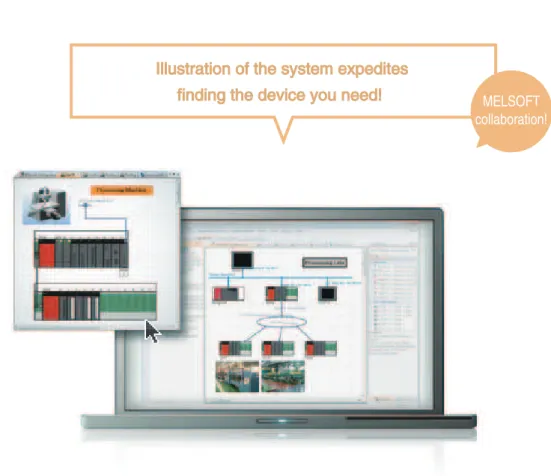
In MELSOFT Navigator, you can insert bitmap
images to facilitate visualization of the system,
and text boxes to write comments. The
illustra-tions make searching for the desired device
intuitive and fast. Reading project data is also
made easy by simply clicking on the illustration.
Click on the illustration
to read its device data.
Paste-able bitmap and text box
Visually search for the desired device
POINT
Perform intuitive searches with illustrations!
Paste bitmaps and text boxes into system configuration.
Project Data
Maintenance
Read data by clicking the device illustration
GOT (GT Works3) Programmable
controller (GX Works2)
Illustration of the system expedites
finding the device you need!
Motion controller (MT Works2)
MELSOFT
collaboration!
Robot (RT ToolBox2)
Maintenance
RT ToolBox2
POINT
Maintenance Software
Automatic Startup
Various software, including GX Developer, GX
Works2, MT Works2, GT Works3 and RT ToolBox2,
are used to edit project data used in a factory or
line. It is often hard to know which software to start
up. With MELSOFT Navigator, clicking on a project
listed in the system configuration or workspace
tree, starts up its corresponding software. The
MELSOFT iQ Works Suite includes the license for
these tools so you no longer need to manage
licenses.
The right software automatically
starts up.
Software forcorresponding device automatically
starts up
Maintain your devices without worrying about software!
The correct software automatically starts up.
Click on a project in the workspace treeClick on a device in the system configuration GX Works2
MT Works2
GT Works3
How easy! Click on the corresponding project
to start up the right software!
MELSOFT
collaboration!
Start GX Developer from workspace tree
Manage data for equipment using older A Series
Maintenance
POINT
Are you having trouble managing your sequence
programs for older equipment? With MELSOFT
Navigator, you can work with GX Developer which
is capable of editing A Series
✽sequence programs.
Even when using systems consisting of older and
newer programmable controllers, the project data
for each programmable controller can be managed
together with MELSOFT Navigator.
✽Excludes some modules.
Sequence programs for older
equipment can be managed
together.
Compatible with GX Developer!
Use GX Developer to edit A Series
✽sequence programs.
Management of older
sequence program
Hassle-free management covers programs
even for older equipment.
MELSOFT
collaboration!
Maintenance
It’s hard to find the equipment’s instruction manual
file when you need it most. MELSOFT Navigator
manages GX Developer, GX Works2, MT Works2,
GT Works3 and RT ToolBox2 project, and allows
document files created with tools such as
Microsoft
®Word
®, Microsoft
®Excel
®or PDF to be
pasted into the system configuration.
This ease-of-use is just like a portal tool for
equip-ment related docuequip-ments. Greatly improve the
efficiency of design document and instruction
manual data management.
Find target files instantaneously!
Quickly and easily manage data.
Click to display the target instruction file
Create a portal site of equipment-related documents Insert link files to documents and data
(Microsoft® Word®, Microsoft® Excel® and PDF, etc.)
POINT
Handy tool for operators!
Equipment related documents including instruction manuals can be easily searched and referred to by anyone.
From now on, find the target
instruction manual at a glance!
Microsoft
®Word
®file
Microsoft
®Excel
®file
file
Instruction Manual
Management
Explanation of argument type
Completely updated user interface improves your design efficiency.
MELSOFT GX Works2
Programmable Controller Engineering Software
Refer to the GX Works2 Catalog <L(NA)08122E> for details.
For special relays and special registers For intelligent function module
Quickly find where the device is being used!
Making it easier to use intelligent function modules through buffer memory and I/O signal comments!
Input options are automatically listed during command and label inputs. When inputting in an inline ST, label and command options are displayed.
Read mode supports quick searches. Perform a continuous search by pressing the Enter key.
Easily perform continuous searches of devices with user-friendly operations!
Reduce operation steps and input mistakes with candidate displays!
In addition to programmable controller program-ming, GX Works2 integrates simulation and various intelligent module setting functions.
[ Integration of simulation function ]
The simulator can be started easily with a single button allowing debugging in the same circumstances as online even without an actual machine.
[ Integration of configuration function ]
By opening the setting screen from the project window, the parameters for each module can be set easily on the screen.
Integrating simulation functions with configuration functions!
Easily apply predefined comments from the right-click menu. <Cross reference>
Double click to jump to where the device is used in another program
Identify similar devices in a glance!
Directly write operations into ladders with inline ST!
Help for the selected command is displayed immediately when the key is pressed.
The intelligent function’s buffer memory and X/Y comments are supported.
One-touch displayable help function!
F1 Enter
Help display
PRESS! Comments can be set for each bit and for word devices.
No need to wire a programmable controller mounted device!
<Analog/Digital converter module> <Positioning module>
Double-click
Continuous search function
When the search option is designated, a continuous search is made each time the key is pressed. Batch replacement of label names is possible
Press keys to search the first “Auto” Press the key to search the next “Auto” (cursor moves)Enter
➋
➋
➊
➌
➌
Automatic display of input options
Explanation of input options
Ctrl F
F1
➊
No need to purchase GX Simulator and GX Configurator separately.
Debugging can be started with a personal computer immediately after designing even without wiring a programmable controller.
Operations can be confirmed while viewing movements on a personal computer so designs can be completed without reworking.
A comment can be set for a bit-specified word device and displayed on the ladder circuit.
Cross reference information for the device pinpointed with the cursor is automatically displayed.
Explanation of label
Operation processes can be written directly in the ladder program. There’s no need to add multiple lines of ladders or function blocks.
MELSOFT iQ Works
MELSOFT Navigator
MELSOFT GX Works2 MELSOFT MT Works2 MELSOFT GT Works3 MELSOFT RT ToolBox2
MELSOFT MT Works2
MELSOFT Navigator
MELSOFT GX Works2 MELSOFT MT Works2 MELSOFT GT Works3 MELSOFT RT ToolBox2MELSOFT GX Works2
MELSOFT Navigator
MELSOFT GX Works2 MELSOFT MT Works2 MELSOFT GT Works3 MELSOFT RT ToolBox2Supporting startup of the servo system with diverse functions.
Programming
MELSOFT MT Works2
Motion Controller Engineering SoftwareSystem Design
Variety of monitor function
A vast array of monitor functions allow the operation status of the motion controller to be confirmed easily.
Startup and Adjustment
Digital oscillation function
Data which is synchronized with the motion operation cycle can be collected and displayed. It is possible to set the requested data simply with specified purpose probe setting. Collected data can be saved in CSV format and analyzed with other tools.
Various test operation functions
In the test mode, basic startup can be confirmed without a program. Using the simulator function, theoretical debugging can be performed without an actual machine. In addition, the debug function is capable of step execution and break point settings.
Collaboration with MR Configurator2
Use the servo setup software “MR Configurator2”, filled with Mitsubishi Electric’s servo knowhow, to adjust your servo system effortlessly. Multi-axes servo system can also be adjusttuned via motion controller from PC.
Intuitive operations on graphical screens. Smoothly set even large-scale programs.
Motion controller programming is supported with various convenient functions.
Graphical motion SFC program and mechanical system program
Label, device comment and cross-reference
Command wizard and Instruction help allow you to program without a manual.
Easily set servo amplifiers and modules on the graphical system setting screen. Parameters also can be set quickly without a manual by checking One-point help.
MELSOFT iQ Works
MELSOFT Navigator
MELSOFT GX Works2 MELSOFT MT Works2 MELSOFT GT Works3 MELSOFT RT ToolBox2
Refer to the GT Works3 Catalog <L(NA)08170ENG> for details.
Such easy steps from “New Screen” to “Transfer to GOT”.
MELSOFT GT Works3
Screen Design Software
Confirm operations with a single click
Screen data movements (alarm confirmations, screen transitions and device monitoring, etc.) can be confirmed on your personal computer. Efficiently debug while correcting your screen.
Simulation
Security Control
“Templates” reduce screen creation steps
Common screens and parts have been prepared as templates. Adjust these templates to quickly and easily create screens to match your target and applications with fewer screen creation steps.
“Help Function” shows the information you need
When the F1 key is pressed, help for the currently active dialog opens immediately! Easily check the information you need.
Screen Creation
M1 SM411
[+ K1 D201]
[MOV K0 D200]
M0
When the screen has been revised, just click “Update”! ➊Start simulator
➋Click with mouse to touch
➌Device values and ON/OFF states can be changed.
Simple simulation with “Screen Preview”
Simple simulations and screen changeovers can be confirmed with screen preview. A specific switch display can be turned ON and OFF, device values can be input, and random screen images can be printed and saved, making it easy to prepare specifications and operation procedures.
<Confirming screen change switch>
Screens can be changed on the screen preview. The editing screen can be opened in sequence with the preview screen so corrections can be made quickly while confirming on the preview screen.
Screen changes when the screen change switch is clicked. <Changing the color> All colors for template attribute “No. 1 color” are changed in batch!
Template attribute “No. 1 color” includes:
Historical trend graph line colors
Numerical display value colors Character colors Change color
<Historical (graph + list)> <Device monitor (bit)>
Table of Contents is displayed Setting method is displayed
Related items are also displayed Search the information you need from the Table of Contents or keyword
The device list for the connected devices being set is displayed. There’s no need to open your manual!
Execute designated program
➊ ➊ ➋ ➋ ➌ ➌
When the key is pressed on the Lamp Setting screen
When the key is pressed on the Lamp Setting screen
“Data Browser” simplifies setting confirmation and revisions
The settings for graphics used in the project are all listed.
Edit directly in the list or edit from a setting dialog.
Double-click
GT Works3 Simulation function GT Works2 Simulator (virtual programmable controller) Communication/Monitor
The User (OEM/End User) Security Function prevents
your valuable data from being leaked or changed!
Protect your project data by setting access authority (availability of displaying and editing a project) with a five-stage access level not only for the project but also for screens. When the several people are involved in designing the screen, a specific screen can be protected by setting different access authority for each screen. The availability of displaying or editing the project can be confirmed with the work tree or the screen image list.
Setting for base screen 2
Setting for base screen 3
2. Login with a user whose access level is Developers (Level 1)
If the access level of the logged-in user is Developers (Level 2), base screens 2 and 3 can be displayed and edited. 1. Set different access
authority for each screen
3. Base screen 2: Display permitted, editing prohibited Base screen 3: Display prohibited, editing prohibited
Display prohibited screen Editing prohibited screen
MELSOFT iQ Works
MELSOFT Navigator
MELSOFT GX Works2 MELSOFT MT Works2 MELSOFT GT Works3 MELSOFT RT ToolBox2
MELSOFT RT ToolBox2
•
•Efficientlyperformworkwithmulti-windowmethod. •With instruction templates and help functions, there’s no
Maintenance
•
•Theentiresystemcanbebackedupinabatchusingthe
MELSOFT Navigator
MELSOFT GX Works2 MELSOFT MT Works2 MELSOFT GT Works3 MELSOFT RT ToolBox2MELSOFT GT Works3
MELSOFT Navigator
MELSOFT GX Works2 MELSOFT MT Works2 MELSOFT GT Works3 MELSOFT RT ToolBox2Programming
MELSOFT RT ToolBox2
Robot Engineering SoftwareSetting
Program editing
•Create programs with MELFABASIC IV, V or Movemaster languages.
•Efficientlyperformworkwithmulti-windowmethod. •With instruction templates and help functions, there’s no
need to refer to manuals.
3D Viewer
Visually confirm the limit values for the user defined areas, etc., with 3D Viewer.
Startup and Adjustment
Debugging function
A variety of convenient functions make it easy to confirm operations such as program step execution, break point setting and direct execution.
Use 3D Viewer to confirm the robot’s posture and motions, and to virtually arrange the peripheral devices with basic objects.
Maintenance
Monitor function
Monitor the program execution state, variables and input/output signals, etc. In addition, monitor the servo statuses such as the axis load status and current value.
Maintenance function
•Various maintenance functions include the maintenance forecast function that notifies operators of the robot grease up timing and battery consumption time, etc., and functions to restore the position in the event of trouble. These functions are effective for preventive maintenance and for shortening the recovery time.
•Theentiresystemcanbebackedupinabatchusingthe
project unit data control.
Total support from program creation, to start up, adjustment and maintenance.
MELSOFT iQ Works
MELSOFT Navigator
MELSOFT GX Works2 MELSOFT MT Works2 MELSOFT GT Works3 MELSOFT RT ToolBox2
FAQ
Who do we consult with to make a purchase?
Q
Contact your nearest Mitsubishi Electric branch office or dealer.
A
Who do we contact for information on the product technology?
Q
Contact your nearest Mitsubishi Electric branch office or dealer.
Please see the back cover for contact information.
A
Our personal computers use DVD. Is MELSOFT iQ Works available on DVD?
Q
MELSOFT iQ Works is available on CD and DVD. Select the medium which works on your system.
A
Contact information
Lineup
Frequency Asked
Questions
Main Specifications
List of Software Functions
Model Outline
iQ Platform compatible FA Integrated Engineering Software
MELSOFT iQ Works
SW1DNC-IQWK-E
Mitsubishi Electric iQ Platform compatible
FA Integrated Engineering Software suite with Additional Integrated Functions, CD-ROM Version Mitsubishi Electric iQ Platform compatible
System Management Software [MELSOFT Navigator] + Mitsubishi Electric iQ Platform compatible
Programmable Controller Engineering Software [MELSOFT GX Works2] + Mitsubishi Electric iQ Platform compatible
Motion Controller Engineering Software [MELSOFT MT Works2] + Mitsubishi Electric iQ Platform compatible
Screen Design Software [MELSOFT GT Works 3] + Mitsubishi Electric iQ Platform compatible
Robot Engineering Software [MELSOFT RT ToolBox2 mini]
SW1DND-IQWK-E
Mitsubishi Electric iQ Platform compatible
FA Integrated Engineering Software suite with Additional Integrated Functions, DVD-ROM Version Mitsubishi Electric iQ Platform compatible
System Management Software [MELSOFT Navigator] + Mitsubishi Electric iQ Platform compatible
Programmable Controller Engineering Software [MELSOFT GX Works2] + Mitsubishi Electric iQ Platform compatible
Motion Controller Engineering Software [MELSOFT MT Works2] + Mitsubishi Electric iQ Platform compatible
Screen Design Software [MELSOFT GT Works 3] + Mitsubishi Electric iQ Platform compatible
Robot Engineering Software [MELSOFT RT ToolBox2 mini]
MELSOFT GX Works2 SW1DNC-GXW2-E MELSEC Programmable Controller Programming SW Programming Function + Intelligent Module Function + Simulator Function MELSOFT MT Works2 SW1DNC-MTW2-E Mitsubishi Electric iQ Platform compatible Motion Controller Engineering Software MELSOFT GT Works3 SW1DNC-GTWK3-E Screen Design Software for GOT
+ Simple Data Conversion Function + GT SoftGOT 1000 Function + Simulator Function MELSOFT RT ToolBox2 3D-11C-WINE Robot Engineering Software with Simulation Function CD-ROM Version
3D-12C-WINE Robot Engineering Software mini Simple Version CD-ROM Version
MELSOFT iQ Works operation environment
Details
OS ✽
Microsoft® Windows® 2000 Professional Service Pack4 Microsoft® Windows® 7 Ultimate Service Pack1
Microsoft® Windows® XP Professional Service Pack2,3 Microsoft® Windows® 7 Enterprise Service Pack1
Microsoft® Windows® XP Home Edition Service Pack2,3 Microsoft® Windows® 7 Professional Service Pack1
Microsoft® Windows® Vista® Home Basic Service Pack1,2 Microsoft® Windows® 7 Home Premium Service Pack1
Microsoft® Windows® Vista® Home Premium Service Pack1,2 Microsoft® Windows® 7 Starter Service Pack1
Microsoft® Windows® Vista® Ultimate Service Pack1,2 Microsoft® Windows® 8
Microsoft® Windows® Vista® Business Service Pack1,2 Microsoft® Windows® 8 Pro
Microsoft® Windows® Vista® Enterprise Service Pack1,2 Microsoft® Windows® 8 Enterprise
CPU Desktop: Celeron 2.8 GHz or more recommended Laptop personal computer: PentiumM 1.7 GHz or more recommended Memory 1 GB or more recommended
Display XGA (1024×768) or more
Free space At installation: HD1GB (+ 390MB when installing manual) During operation: 512 MB of free virtual memory
✽ 32-bit OS supported. Microsoft® Windows® 7 and Microsoft® Windows® 8 supported with 64-bit version.
MELSOFT iQ Works compatible version
Details MELSOFT GX Works2 Version 1.492N and higher
MELSOFT MT Works2 Version 1.62Q and higher MELSOFT GT Works3 Version 1.74C and higher MELSOFT RT ToolBox2 Version 2.50C and higher
MELSOFT Navigator Compatible Module List
Compatible Networks
EthernetMELSECNET/H
CC-Link IE Controller Network CC-Link IE Field Network CC-Link
AnyWire ASLINK
Compatible Programmable Controller (MELSEC-Q Series)
✽ Above listed modules are compatible with MELSOFT Navigator (Ver. 1.62Q).
These modules differ from the MELSOFT GX Works2, MELSOFT MT Works2, MELSOFT GT Works3 and MELSOFT RT ToolBox2 compatible modules.
Category Model
CPU
Basic model QCPU
Q00JCPU Q00CPU Q01CPU
High-performance model QCPU
Q02CPU Q02HCPU Q06HCPU Q12HCPU Q25HCPU
Universal model QCPU
Q00UJCPU Q00UCPU Q01UCPU Q02UCPU Q03UDCPU Q03UDECPU Q03UDVCPU Q04UDHCPU Q04UDEHCPU Q04UDVCPU Q06UDHCPU Q06UDEHCPU Q06UDVCPU Q10UDHCPU Q10UDEHCPU Q13UDHCPU Q13UDEHCPU Q13UDVCPU Q20UDHCPU Q20UDEHCPU Q26UDHCPU Q26UDEHCPU Q26UDVCPU Q50UDEHCPU Q100UDEHCPU Motion CPU Q172CPUN Q172CPUN-T Q173CPUN Q173CPUN-T Q172HCPU Q172HCPU-T Q173HCPU Q173HCPU-T Q172DCPU Q173DCPU Q172DSCPU Q173DSCPU C Controller CPU Q06CCPU-V Q12DCCPU-V
Base module Main base
Q33B Q35B Q38B Q312B Q35DB Category Model Base module
Main base Q38DB Q312DB
Slim type main base
Q32SB Q33SB Q35SB Redundant power supply main base Q38RB
Extension base Q63B Q65B Q68B Q612B Q52B Q55B Redundant power supply extension base Q68RB
Power supply module
Power supply module
MELSOFT Navigator Compatible Module List
✽ Above listed modules are compatible with MELSOFT Navigator (Ver. 1.62Q).
These modules differ from the MELSOFT GX Works2, MELSOFT MT Works2, MELSOFT GT Works3 and MELSOFT RT ToolBox2 compatible modules.
Category Model I/O module Output QY80-TS QY81P QY82P I/O QH42P QX48Y57 QX41Y41P Interrupt input QI60
Analog I/O module Analog input Q68ADV Q62AD-DGH Q68ADI Q64AD Q64ADH Q64AD-GH Q64AD2DA Q68AD-G Q66AD-DG Q61LD Analog output Q68DAVN Q68DAV Q68DAIN Q68DAI Q62DAN Q62DA Q62DA-FG Q64DAN Q64DA Q64DAH Q66DA-G Temperature input Q64RD Q64RD-G Q68RD3-G Q64TD Q64TDV-GH Q68TD-G-H01 Q68TD-G-H02 Temperature control Q64TCRT Q64TCRTBW Q64TCTT Q64TCTTBW Q64TCRTN Q64TCRTBWN Q64TCTTN Q64TCTTBWN Loop control Q62HLC
Q68CT Simple
motion
With SSCNET #/H connectivity QD77MS2 QD77MS4 QD77MS16 Positioning QD72P3C3 QD73A1 QD75P1 QD75P2 QD75P4 QD70P4 QD70P8 QD75D1 QD75D2 QD75D4 QD70D4 QD70D8 QD75M1 QD75MH1 Category Model Positioning QD75M2 QD75MH2 QD75M4 QD75MH4 QD74MH8 QD74MH16 High-speed counter QD62 QD62-H01 QD62-H02 QD62D QD62E QD63P6 QD64D2 QD65PD2 Channel isolated pulse input QD60P8-G
Energy Measuring
QE81WH QE81WH4W QE83WH4W QE84WH Isolation monitoring QE82LG
Web Server QJ71WS96
MES interface QJ71MES96 High-speed data logger QD81DL96 Ethernet QJ71E71-100 QJ71E71-B2 QJ71E71-B5 Serial communication QJ71C24N QJ71C24N-R2 QJ71C24N-R4 Intelligent communication QD51
QD51-R24
MELSECNET/H
Optical loop (SI) QJ71LP21-25 QJ71LP21S-25 Optical loop (GI) QJ71LP21G Coaxial bus QJ71BR11 Twisted bus QJ71NT11B
CC-Link QJ61BT11N CC-Link/LT QJ61CL12 FL-net (OPCN-2) Ver. 2.00 QJ71FL71-T-F01 QJ71FL71-B2-F01 QJ71FL71-B5-F01 Ver. 1.00 QJ71FL71-T QJ71FL71-B2 QJ71FL71-B5 AS-i QJ71AS92
CC-Link IE Controller Network QJ71GP21-SX QJ71GP21S-SX CC-Link IE Field Network QJ71GF11-T2 AnyWireASLINK QJ51AW12AL
Motion module
Servo external signal input Q172LX Q172DLX
Synchronous encoder input (synchronization between master/slave)
Q172EX Q172EX-S1 Q172EX-S2 Q172EX-S3 Q172DEX Manual pulse generator input
Q173PX Q173PX-S1 Q173DPX Partner
products Displacement sensor control UQ1-01 UQ1-02
Compatible Programmable Controller (MELSEC-Q Series)
MELSOFT Navigator Compatible Module List
Category Model
CPU
FX3G Series CPU FX3G-✽✽M FX3U Series CPU FX3U-✽✽M
FX3UC Series CPU FX3UC-✽✽M
Special block Ethernet block FX3U-ENET✽
Category Model
GOT 1000 Series
GT16✽✽-X GT16✽✽-S GT16✽✽-V
GT165✽-V
GT15✽✽-X GT15✽✽-S GT15✽✽-V
GT155✽-V
GT15✽✽-Q GT14✽✽-Q✽BD GT14✽✽-Q✽BDE
(Ethernet built-in) GT12✽✽-V
GT11✽✽-Q
GT11✽✽-Q✽BDQ (Q bus built-in) GT11✽✽-Q✽BDA (A bus built-in)
GT10✽✽-Q
GT1030 GT1020
Compatible Programmable Controller (MELSEC-FX Series)
Compatible display
Compatible Programmable Controller (MELSEC-L Series)
Category Model CPU L02SCPU L02SCPU-P L02CPU L02CPU-P L06CPU L06CPU-P L26CPU L26CPU-P L26CPU-BT L26CPU-PBT Branch / Extension module L6EXB
L6EXE
Power supply L61P
L63P RS-232 adaptor L6ADP-R2
End cover L6EC
With error terminal L6EC-ET
I/O module Input LX10 LX28 LX40C6 LX41C4 LX42C4 Output LY10R2 LY20S6 LY41NT1P LY42NT1P LY40NT5P LY40PT5P LY41PT1P LY42PT1P Analog I/O L60AD4 L60AD4-2GH L60DA4 Temperature Control L60TCRT L60TCRTBW L60TCTT L60TCTTBW
Simple motion LD77MH4
LD77MH16 Positioning LD75P1 LD75P2 LD75P4 LD75D1 LD75D2 LD75D4 High-speed counter LD62
LD62D
Network
CC-Link IE Field Network LJ71GF11-T2 CC-Link LJ61BT11 CC-Link/LT LJ61CL12 Ethernet interface LJ71E71-100 Serial communication LJ71C24
LJ71C24-R2 AnyWireASLINK LJ51AW12AL
✽ Above listed modules are compatible with MELSOFT Navigator (Ver. 1.62Q).
These modules differ from the MELSOFT GX Works2, MELSOFT MT Works2, MELSOFT GT Works3 and MELSOFT RT ToolBox2 compatible modules.
MELSOFT Navigator Compatible Module List
Category Model
ASLINKER
Input
B280SB-02U-C1220 B280SB-02US-C1220 B281SB-02U-CC20 B281SB-02US-CC20 B298SB-02U-M12 B298SB-02US-M12 BL287SB-02F-CC20 BL287SB-02FS-CC20
Output
B280PB-02U-C1220 B280PB-02US-C1220 B281PB-02U-CC20 B281PB-02US-CC20 B298PB-02U-M12 B298PB-02US-M12 BL287PB-02F-CC20 BL287PB-02FS-CC20
I/O
B280XB-02U-C1220 B280XB-02US-C1220 B281XB-02U-CC20 B281XB-02US-CC20 B298XB-02U-M12 B298XB-02US-M12 BL287XB-02F-CC20 BL287XB-02FS-CC20
ASLINKAMP Input
B289SB-01AF-CAM20 B289SB-01AF-CAS B289SB-01AP-CAM20 B289SB-01AP-CAS ASLINKSENSOR Input B283SB-01-1KC
Output B283SB-01-1KP
ASLINKTERMINAL
Input BL296SB-08F-20 BL296SB-08FS-20 Output BL296PB-08F-20
BL296PB-08FS-20 I/O BL296XB-08F-20
BL296XB-08FS-20
✽ AnyWireASLINK products are not available in some countries.
Please consult your local Mitsubishi Electric representative for details.
Category Model
Robot
SD Series
RV-2SD RV-3SD Series RV-6SD Series RV-12SD Series RH-SDH Series
SQ Series
RV-2SQ RV-3SQ Series RV-6SQ Series RV-12SQ Series RH-SQH Series Ceiling mount type RH-3SDHR/3SQHR RP Series RP Series RV-TH/THL Series RV-TH/THL Series
AnyWireASLINK equipment (Anywire Corporation)
Robot
✽ Above listed modules are compatible with MELSOFT Navigator (Ver. 1.62Q).
These modules differ from the MELSOFT GX Works2, MELSOFT MT Works2, MELSOFT GT Works3 and MELSOFT RT ToolBox2 compatible modules.
Product Specifications Program capacity
Number of I/O points [X/Y], number of I/O device points [X/Y] Basic instruction processing speed (LD instruction) External connection interface Function module
Module extension style Network
10k steps to 1000k steps
256 points to 4096 points/8192 points 120ns to 1.9ns
USB (all models equipped), Ethernet, RS-232, memory card, extended SRAM cassette I/O, analog, high-speed counter, positioning, simple motion, temperature input, temperature control, network module Building block type
Ethernet, CC-Link IE controller network, CC-Link IE field network, CC-Link, CC-Link/LT, MELSECNET/H, SSCNETⅢ (/H), AnyWire, RS-232, RS-422
PLC
MELSEC-Q Series Universal Model
◎
Realize high-speed, high-accuracy machine control with various iQ Platform compatible controllers and multiple CPUs.
◎
Easily connect to GOTs and Programming tools using built-in Ethernet port.
◎
25 models from 10 k step small capacity to 1000 k step large capacity, are available.
◎
Seamless communication and flexible integration at any network level.
Introducing the high-speed QCPU (QnUDVCPU) for faster processing of large data volumes.
Product Specifications Screen size Resolution Intensity adjustment Touch panel type Built-in interface Applicable software Input power supply voltage
15", 12.1", 10.4", 8.4", 5.7" XGA, SVGA, VGA 8-step or 4-step adjustment Analog resistive film
RS-232, RS-422/485, Ethernet, USB, CF card GT Works3
100 to 240VAC (+10%, -15%), 24VDC (+25%, -20%)
HMI
Graphic Operation Terminal GOT1000 Series GT16 Model
◎
All models are equipped with Ethernet, RS-422/485 and RS-232 interfaces enabling a diverse range of communications.
◎
A multimedia unit and a video/RGB unit (optional) are supported for smooth recording and playback of moving images.
◎
USB host and device ports are provided as a standard on the front panel. Easily connect to a personal computer for data exchange.
◎
Large 15MB memory capacity allows you to use optional functions and real parts, etc., without worrying about memory space.
Full-flat face body integrating all the functions required of a HMI.
Product specificationsProgram capacity
Number of input/output points [X/Y] Number of input/output device points [X/Y] Basic instruction processing speed (LD instruction) External connection interface Function modules
Unit expansion style Network
20 k steps/60 k steps/260 k steps 1024 points/4096 points 8192 points
60 ns/ 40 ns/ 9.5 ns
USB, Ethernet, RS-232, SD memory card, CC-Link (L26CPU-BT/PBT)
I/O, analog, high-speed counter, positioning, simple motion, temperature control, network module Base-less structure
Ethernet, CC-Link IE Field network, CC-Link, CC-Link/LT, SSCNETIII(/H), RS-232, RS-422
Programmable Controller
MELSEC-L Series
◎
CPU equipped as a standard with various functions including counter, positioning and CC-Link.
◎
The base-less structure with high degree of freedom saves space in the control panel.
◎
Easily confirm the system status and change the settings with the display unit.
◎
Seven models are available in program capacities from 20 k steps to 260 k steps.
“Light & Flexible” condensing various functions easily and flexibly.
Automation related products
Product Specifications Degrees of freedom Installation
Maximum load capacity Maximum reach radius
Vertical:6 Horizontal:4
Vertical:Floor-mount, ceiling mount, wall mount (Range of motion for J1 is limited) Horizontal:Floor-mount
Vertical:2-20kg Horizontal:3-20kg
Vertical:504-1503mm Horizontal:350-1,000mm
Robot
MELFA F Series
◎
Compact body and slim arm design, allowing operating area to be expanded and load capacity increased.
◎
The fastest in its class using high performance motors and unique driver control technology.
◎
Improved flexibility for robot layout design considerations.
◎
Optimal motor control tuning set automatically based on operating position, posture, and load conditions.
High speed, high precision and high reliability industrial robot
Product SpecificationsPower supply specifications Command interface
Control mode
Speed frequency response Tuning function Safety function
Compatible servo motor
1-phase/3-phase 200V AC, 3-phase 400V AC
SSCNET Ⅲ/H, SSCNET Ⅲ (compatible in J3 compatibility mode), CC-Link IE Field Network interface with Motion, pulse train, analog
Position/Speed/Torque/Fully closed loop 2.5kHz
Advanced one-touch tuning, advanced vibration suppression control Ⅱ, robust filter, etc. STO, SS1
SS2, SOS, SLS, SBC, SSM (compatible when combined with motion controller) Rotary servo motor (rated output: 0.05 to 22kW), linear servo motor (continuous thrust 50 to 3000N), direct drive motor (rated torque: 2 to 240N •m)
AC Servo
Mitsubishi General-Purpose AC Servo MELSERVO-J4 Series
Industry-leading level of high performance servo
◎
Industry-leading level of basic performance: Speed frequency response (2.5kHz), 4,000,000 (4,194,304p/rev) encoder
◎
Advanced one-touch tuning function achieves the one-touch adjustment of advanced vibration suppression control
Ⅱ
, etc.
◎
Equipped with large capacity drive recorder and machine diagnosis function for easy maintenance.
◎
2-axis and 3-axis servo amplifiers are available for energy-conservative, space-saving, and low-cost machines.
Product Specifications Inverter capacity Control method Output frequency range PM offline auto tuning
Starting torque
200V class: 0.4kW to 90kW, 400V class: 0.4kW to 500kW
IPM control, Soft-PWM control, high-carrier frequency PWM control (Select from V/F, advanced flux vector, or real sensor-less vector), vector control (when using options) 0.2 to 400Hz (real sensor-less vector, upper frequency during vector control is 120Hz) When using the MM-CF Series, the motor constants, etc., are automatically measured for operation with the optimum motor characteristics (IPM motors other than the MM-CF Series, and other IPM motor brands are also supported) 200% 0.3Hz (3.7K or less), 150% 0.3Hz (5.5K or more)
(when using real sensor-less vector, vector control)
Inverter
FR-A700 Series
◎High-accuracy, high-response speed control using real sensor-less vector control is possible
with a general-purpose inverter having no PLG (encoder) (200% torque/0.3 Hz (3.7 K or less)).
◎Full-scale vector control is possible when used in combination with a motor with PLG (when using option).
◎The built-in noise filter (EMC filter) helps reduce noise generated from the inverter.
◎This series supports IPM motor operation. Use auto tuning to operate with the optimum motor characteristics.
High-function, high-performance inverter
MEMO
MEMO
30
EC97J1234 EC97J1113
Country/Region Sales office Tel/Fax
USA Mitsubishi Electric Automation lnc.
500 Corporate Woods Parkway, Vernon Hills, IL 60061, USA
Tel : +1-847-478-2100 Fax : +1-847-478-2253
Brazil Mitsubishi Electric do Brasil Comércio e Serviços Ltda.
Rua Jussara, 1750- Bloco B Anexo, Jardim Santa Cecilia, CEP 06465-070, Barueri, San Paulo, Brazil
Tel : +55-11-4689-3000 Fax : +55-11-4689-3016
Germany Mitsubishi Electric Europe B.V. German Branch Gothaer Strasse 8, D-40880 Ratingen, Germany
Tel : +49-2102-486-0 Fax : +49-2102-486-1120
UK Mitsubishi Electric Europe B.V. UK Branch
Travellers Lane, Hatfield, Hertfordshire, AL10 8XB, U.K.
Tel : +44-1707-28-8780 Fax : +44-1707-27-8695
Italy Mitsubishi Electric Europe B.V. Italian Branch
Centro Direzionale Colleoni - Palazzo Sirio Viale Colleoni 7, 20864 Agrate Brianza(Milano) Italy
Tel : +39-039-60531 Fax : +39-039-6053-312
Spain Mitsubishi Electric Europe B.V. Spanish Branch
Carretera de Rubí 76-80-AC.420, E-08190 Sant Cugat del Vallés (Barcelona), Spain
Tel : +34-93-565-3131 Fax : +34-93-589-1579
France Mitsubishi Electric Europe B.V. French Branch
25, Boulevard des Bouvets, F-92741 Nanterre Cedex, France
Tel : +33-1-5568-5568 Fax : +33-1-5568-5757
Czech Republic Mitsubishi Electric Europe B.V. Czech Branch
Avenir Business Park, Radicka 751/113e, 158 00 Praha5, Czech Republic
Tel : +420-251-551-470 Fax : +420-251-551-471
Poland Mitsubishi Electric Europe B.V. Polish Branch 32-083 Balice ul. Krakowska 50, Poland
Tel : +48-12-630-47-00 Fax : +48-12-630-47-01
Russia Mitsubishi Electric Europe B.V. Russian Branch St. Petersburg office Piskarevsky pr. 2, bld 2, lit “Sch”, BC “Benua”, office 720; 195027, St. Petersburg, Russia
Tel : +7-812-633-3497 Fax : +7-812-633-3499
South Africa CBI-Electric.
Private Bag 2016, ZA-1600 Isando, South Africa
Tel : +27-11-977-0770 Fax : +27-11-977-0761
China Mitsubishi Electric Automaiton (China) Ltd.
No.1386 Hongqiao Road, Mitsubishi Electric Automation Center, Changning District, Shanghai, China
Tel : +86-21-2322-3030 Fax : +86-21-2322-3000
Taiwan SETSUYO ENTERPRISE CO., LTD.
6F., No.105, Wugong 3rd Road, Wugu District, New Taipei City 24889, Taiwan, R.O.C.
Tel : +886-2-2299-2499 Fax : +886-2-2299-2509
Korea Mitsubishi Electric Automation Korea Co., Ltd.
1480-6, Gayang-Dong, Gangseo-Gu, Seoul, 157-200, Korea
Tel : +82-2-3660-9530 Fax : +82-2-3664-8372
Singapore Mitsubishi Electric Asia Pte. Ltd.
307, Alexandra Road, Mitsubishi Electric Building, Singapore, 159943
Tel : +65-6470-2308 Fax : +65-6476-7439
Thailand Mitsubishi Electric Automation (Thailand) Co., Ltd.
Bang-Chan Industrial Estate No.111 Soi Serithai 54, T.Kannayao, A.Kannayao, Bangkok 10230, Thailand
Tel : +66-2906-3238 Fax : +66-2906-3239
Vietnam Mitsubishi Electric Vietnam Company Limited Hanoi Branch
Suite 9-05, 9th Floor, Hanoi Central Office Building 44B Ly Thuong Kiet District, Hanoi City, Vietnam
Tel : +84-4-3937-8075 Fax : +84-4-3937-8076
Indonesia PT. Mitsubishi Electric Indonesia
Gedung Jaya 11th Floor, JL. MH. Thamrin No.12, Jakarta Pusat 10340, Indonesia
Tel : +62-21-3192-6461 Fax : +62-21-3192-3942
India Mitsubishi Electric India Pvt. Ltd.
Emerald House, EL-3, J Block, M.I.D.C., Bhosari, Pune, 411026, Maharashtra State, India
Tel : +91-20-2710-2000 Fax : +91-20-2710-2100
Australia Mitsubishi Electric Australia Pty.Ltd.
348 Victoria Road, P.O. Box 11, Rydalmere, N.S.W 2116, Australia
Tel : +61-2-9684-7777 Fax : +61-2-9684-7245
HEAD OFFICE: TOKYO BUILDING, 2-7-3, MARUNOUCHI, CHIYODA-KU, TOKYO 100-8310, JAPAN NAGOYA WORKS: 1-14, YADA-MINAMI 5, HIGASHI-KU, NAGOYA, JAPAN
Precautions before use
This publication explains the typical features and functions of the products herein and does not provide restrictions and other information related to usage and module combinations. Before using the products, always read the product user manuals. Mitsubishi Electric will not be held liable for damage caused by factors found not to be the cause of Mitsubishi Electric; opportunity loss or lost profits caused by faults in Mitsubishi Electric products; damage, secondary damage, or accident compensation, whether foreseeable or not, caused by special factors; damage to products other than Mitsubishi Electric products; and to other duties.
For safe use
•To use the products given in this publication properly, always read the relevant manuals before use.
•The products have been manufactured as general-purpose parts for general industries, and have not been designed or manufactured to be incorporated in a device or system used in purposes related to human life.
•Before using the products for special purposes such as nuclear power, electric power, aerospace, medicine or passenger movement vehicles, consult with Mitsubishi Electric.
•The products have been manufactured under strict quality control. However, when installing the products where major accidents or losses could occur if the products fail, install appropriate backup or fail-safe functions in the system.
L(NA)08232ENG-B 1309(MDOC)
New publication, effective Sep. 2013. Specifications are subject to change without notice.