2
SAFETY PRECAUTIONS
(Be sure to read these instructions before using this product.)
When designing the system, always read the relevant manuals, pay full attention to safety, and handle the
product correctly.
[Precautions for Training with this Manual]
WARNING
●
Do not touch the terminals when the power is ON. There is a risk of electric shock.
●
Before opening the safety cover, always turn the power OFF or confirm that safety is sufficiently
ensured.
●
If GOT Mobile functions are used to perform remote control of control equipment, the field operator may
not notice the remote control, possibly leading to an accident.
In addition, a communication delay or interruption may occur depending on the network environment,
and remote control of control equipment cannot be performed normally in some cases.
Before using GOT Mobile functions to perform remote control, fully grasp the circumstances of the field
site and ensure safety.
CAUTION
●
Always turn the power OFF before mounting or removing the unit.
Failure to do so can cause the unit to fail or malfunction.
●
Stop use immediately if an abnormality occurs.
INDEX 3
1
2
3
4
5
6
7
8
9
10
11
12
HOW TO READ MARKS
Refers to information required for operation and precautions.
Refers to useful information.
Introduces reference manuals and pages that describe details.
INDEX
Features
4
Features of GOT Mobile function and examples of use . . . 4
Screens used with the GOT Mobile function. . . 6
Preparing the Devices
7
System configuration for GOT Mobile function . . . 7Preparing the devices required for the GOT Mobile function . . . 8
Using the GOT Mobile Function
9
STEP1 Creating a new project. . . 9STEP2 Setting the GOT Mobile function . . . 10
STEP3 Creating a mobile screen. . . 13
STEP4 Setting the GOT wireless LAN. . . 15
STEP5 Mounting the wireless LAN communication unit into the GOT . . . 17
STEP6 Transferring project data . . . 18
STEP7 Register the GOT Mobile function license number in the GOT. . . . 20
STEP8 Displaying the mobile screen with the tablet . . . 21
Precautions
25
Appendices
26
Appendix1 Operation environment of information device, such as tablet . . . 26Appendix2 Functions, images and objects usable with mobile screen . . . 27
Appendix3 Mobile screen object sizes and layout . . . 31
Appendix4 Differences between GOT Mobile function and VNC server function . . . 33
Features of GOT Mobile function and examples of use
4 Features of GOT Mobile function and examples of use
Monitor production remotely
The status of equipment can be monitored remotely with your smartphone. In addition, you can view maintenance manuals to quickly check error details and find solutions.
Monitor production from
outside of the clean room
The status of equipment can be monitored using tablets from outside of the clean room.
Monitor production by multiple
operators
When the equipment is large, up to five operators can efficiently work at the same time to check and make settings.
Alarm monitoring screen
Monitoring connected devices on a tablet via GOT
Monitoring connected devices on a tablet via GOT
The GOT Mobile function improves visualization accessibility and reduces total cost of ownership.
Process 1 Process 2
Production site Production site Production site
An error is occurring in
process 2 .
How do I deal with it?
Improve productivity
Reduce downtime
Improve setup procedure
Each operator can efficiently check a different screen. Each operator can efficiently check a different screen.
Process 3
Process 4
Process 5 Process 2
Check the equipment status
using a web browser.
Monitor your worksite anytime, anywhere.
Features1
F
e
a
tu
re
s
Features of GOT Mobile function and examples of use
Features of GOT Mobile function and examples of use 5
Monitor production on a large
screen
Monitor production from your
office
Monitor production with one
PC
The status of equipment can be monitored on your PC via GOT on the production site.
One PC can be connected to several GOTs to check the condition of
equipment. Even large-scale systems can be easily monitored.
The function visualizes your production site by showing the production targets and results on a large Andon screen.
What is the problem cause?
What’s the p rogress?
Mitsubishi FA Integrated Solution
Equipment A Equipment B
Equipment C Equipment D
Production site Production
site Production site
Office Office
Equipment B
has an error A
B
C D
Increase production rate
Improve maintenance
Improve maintenance
Do you see any problems?
Five information devices can access a GOT at the same time.
*1Easily change screen sizes depending on used devise.
GOT Mobile Features
2 3
4
1 5
Smartphone Each information device can display and operate a different screen.*2
You can design screens easily using the GOT screen design software, GT Works3.
Tablet Tablet
GOT
PC PC and large screen monitor
Tablet size PC size
Smartphone size Full HD size
Production site
Office
*1: Up to five devices can be connected simultaneously. (Screens displayed with different browsers or tabs are included in the connection count.)
*2: You can prevent simultaneous operation on the same network. For details, please see appropriate manual.
Remote location or office
6 Screens used with the GOT Mobile function
Screens used with the GOT Mobile function
Screens used with the GOT Mobile function
The screen displayed on the information devices with the GOT Mobile function is called the "Mobile Screen". To use the GOT Mobile function, the screen to be displayed (mobile screen) must be created with the HMI/GOT screen design software GT Designer3. Created mobile screens are displayed on the browser of the information device, such as a tablet and smartphone.
Superimpose window
Key window Dialog window
Overlap window Screens created with GT Designer3
Screen displayed on the GOT
348 B A1254
Production status screen 1 Base screen
348 B A1254
Production status screen 1
Base screen Window screen
This screen is displayed on the browser of the information device, such as a tablet.
Mobile screen
Mobile screen
Production quantity screen 1
C1100 D1200
192.168.4.20
Production quantity screen 1
System configuration for GOT Mobile function 7
1
2
Pre
p
a
ri
n
g
th
e
D
e
vi
ce
s
System configuration for GOT Mobile function
Preparing the Devices
System configuration for GOT Mobile function
Explanations in this manual use the following system configuration with a wireless LAN communication unit.
*1 In this system, the wireless LAN communication unit is used as an access point.
*2 The wireless LAN communication unit can also be used as a station to configure a system that uses a wireless LAN access point separate from the GOT.
Equipment IP Address Subnet Mask
Wireless LAN communication unit 192.168.4.20 255.255.255.0
Tablet 192.168.4.21 255.255.255.0
Information device
such as a tablet
GOT
(GT27/GT25)
GOT Mobile function license GT25-WEBSKEY
8 Preparing the devices required for the GOT Mobile function
Preparing the devices required for the GOT Mobile function
Preparing the devices required for the GOT Mobile function
The following devices are required to use the GOT Mobile function with the GOT wireless LAN.
The information device, such as a tablet, must have a browser installed. The browser must satisfy the following conditions.
• Google Chrome for Android (version 43 or later) • Google Chrome for Windows (version 43 or later) • Safari 8.0 or later
Refer to the following section for details on the operation environment of the information device, such as tablet.
➠ Appendix1 Operation environment of information device, such as tablet
Refer to the following section for details on installing GT Designer3 (GOT2000) and GT Designer3 (GOT2000) Help.
• GT Works3 Version1 Installation Procedure Manual (BCN-P5999-0065)
Refer to the following section for details on connecting the GOT and controllers.
• GOT2000 Series Connection Manual (Mitsubishi Products) For GT Works3 Version1 (SH081197ENG)
GOT2000
(GT27/GT25)
Wireless LAN
communication unit
(GT25-WLAN)
Personal computer
GT Designer3 (GOT2000)
Ver. 1.144A or higherGT Designer3 (GOT2000) Help
GOT Mobile
function license
GT25-WEBSKEY
Information device such as a tablet
Controller
Ethernet cable
Creating a new project 9
3
U
si
n
g
th
e
G
O
T
Mo
b
ile
F
u
n
ct
io
n
ST
EP1
STEP1
Creating a new project
Using the GOT Mobile Function
STEP1 Creating a new project
This manual explains how to access the GOT from a tablet using the GOT Mobile function and display the mobile screen.
Only the basic operations are covered in this manual. Refer to the following manuals for details on other functions and settings.
GT Designer3 (GOT2000) Help
1. Creating a new project
Start up GT Designer3 (GOT2000), and follow the wizard to complete the settings. The setting details and setting values are listed below.
Check the details set with the wizard, and then click the [Finish] button.
The GT Designer3 (GOT2000) edit screen will open, and the base screen 1 will be created.
Setting screen or setting item Setting contents Setting value Remarks
Selecting project [New], [Open] [New]
-System settings
[Series] GOT2000
-[Type] GT27**-V(640×480) Select GT27 or GT25. [Use the gesture function] Selected GT27 only
[Standard Language] [English]
-[Outline Font]
[Alphanumeric/Kana]: Selected
-[Kanji]: Selected
-[Hangul]: Not selected
-Controller settings
[Manufacturer] [MITSUBISHI] Set according to the connected device.
[Controller Type] [MELSEC iQ-R, RnMT]
[I/F] [Standard I/F (Ethernet): Multi]
-[Driver] [Ethernet (MELSEC), Q17nNC,
CRnD-700, Gateway]
-[Detail Setting] Set according to the GOT and PLC
-STEP2
Setting the GOT Mobile function
10 Setting the GOT Mobile function
STEP2 Setting the GOT Mobile function
With the GOT Mobile function, the GOT acts as the server and the information device such as a tablet acts as a client.
The connected device can be monitored from the client via the server (GOT).
1. Enable the GOT Mobile function
2. Items to check before setting the authentication setting
(1) Check the GOT unit's CoreOS version.
Check that the GOT unit's CoreOS version is Version L or later. For the procedure to check the version, refer to the following manual.
GOT2000 Series User's Manual (Utility) (SH-081195ENG)
(2) If the GOT unit's CoreOS version is not Version L or later
The CoreOS Version L or later must be written to the GOT using GT Designer3 Ver. 1.144A or later. For the CoreOS writing methods, refer to the following manual.
GT Designer3 (GOT2000) Help
(To display a Help page corresponding to the operation status of GT Designer3, press [F1] key while operating GT Designer3.)
Click [Common] → [GOT Mobile Setting]. Select [Use GOT Mobile function].
Set [Simultaneous Client Connection] to the default value [2].
Do not check [Use any port No. other than the standard port No. (80)]. Use the port No. [80].
Simultaneous client connection Set the number of information devices (clients) such as tablets to connect. Up to five units can be set for one GOT. 2
3
4
1
2
3
Setting the GOT Mobile function
Setting the GOT Mobile function 11
1
2
3
4
U
si
n
g
th
e
G
O
T
Mo
b
ile
F
u
n
ct
io
n
ST
EP2
3. Set the authentication setting
Set the [Operator] and [Password] required when accessing the GOT from an information device, such as a tablet.
4. Set the device allocation setting
Assign GOT Mobile devices (VGD, VGB) that are used with mobile screens to GOT internal devices. The GOT Mobile devices (VGB and VGD) are virtual devices usable for clients.
Multiple clients can be controlled individually since different GOT internal devices are assigned for each client.
■Relation of GOT Mobile devices and GOT internal devices (for word device) Click [Authentication Setting].
Confirm that [GOT Mobile exclusive] is selected.
Select [Use an administrative operator].
Input any characters for [Operator] and [Password]. In this example, input the following name and password. [Operator] : Admin
[Password] : 1234
Administrative operator and guest operator Operation rights must be acquired before operating a mobile screen for which [Target for exclusive control of operational authority] is valid. An administrative operator can acquire the operation rights, but a guest operator cannot.
Click [Device Allocation Setting].
Set the [Device (VGD, VGB) Allocation]. Setting the [Word Device (GD)]
Points: 1000
First Device: GD10000 Setting the [Bit Device (GB)]
Points: 1024
First Device: GB10000
With this setting, the following relation is established between the devices (VGD, VGB) used with mobile screens and the GOT internal devices.
GOT Mobile device (VGD) Client 1 Client 2
VGD0 GD10000 GD11000
VGD1 GD10001 GD11001
VGD2 GD10002 GD11002
VGD3 GD10003 GD11003
• • •
• • •
• • •
VGD999 GD10999 GD11999
STEP2
Setting the GOT Mobile function
12 Setting the GOT Mobile function
5. Setting a screen switching device
Set the screen switching device of mobile screens that are displayed on an information device such as a tablet.
Precautions for using GOT Mobile function Refer to the Technical Bulletin No. GOT-A-0090.
Click [Screen Switching].
Set [Screen Switching Device].
Use the default value [VGD0] in this example.
With these settings, an individual screen can be displayed for each client as shown below. 1
2
1
2
Screen switching GOT Mobile device (VGD)
Client 1 Client 2
Creating a mobile screen 13
1
2
3
4
5
U
si
n
g
th
e
G
O
T
Mo
b
ile
F
u
n
ct
io
n
ST
EP3
STEP3
Creating a mobile screen
STEP3 Creating a mobile screen
1. Creating a mobile screen
Create a mobile screen displayed on a browser of an information device such as a tablet.
Click [Screen] → [New] → [Mobile Screen]. The [Screen Property] of the mobile screen will open.
Set [Screen Size] according to the size of the screen of the information device, such as tablet. Set the screen size by inputting the screen size, or by selecting the following screen size. • [VGA (640x480) [4:3]]
• [SVGA (800x600) [4:3]] • [XGA (1024x768) [4:3]] • [QXGA (2048x1536) [4:3]] • [WXGA (1280x800) [16:10]] • [HD (1280x720) [16:9]] • [FWXGA (1366x768) [16:9]] • [Full HD (1920x1080) [16:9]] • [iPhone4 (960x640) [ - ]] • [iPhone5 (1136x640) [ - ]] • [iPhone6 (1334x750) [ - ]]
In this example, select [Full HD (1920x1080) [16:9]].
The screen number [M-1] mobile screen has been prepared.
The mobile screens are created in the same manner as the base screen.
For details on creating the screen, refer to the following manual.
Mitsubishi Graphic Operation Terminal GOT2000 Series Quick Start Guide (L(NA) 08311ENG)
GT Designer3 (GOT2000) Help 1
2
3
3
STEP3
Creating a mobile screen
14 Creating a mobile screen
In this example, create the mobile screen shown on the left.
There are restrictions to the objects and functions created on the mobile screen. For details, refer to the following.
➠ Appendix2 Functions, images and objects usable with mobile screen
Appendix3 Mobile screen object sizes and layout
The mobile screen has a higher resolution than the base screen, so it may be difficult to see the entire mobile screen. It is recommended to select a screen scale of 50% using the [Zoom out] button.
5
Lamp name Device No. Device operation
Lamp1 GS7.b0 This is the GOT's binary counter. Turns ON/OFF at a 1-second cycle.
Setting the GOT wireless LAN 15
1
2
3
4
5
6
U
si
n
g
th
e
G
O
T
Mo
b
ile
F
u
n
ct
io
n
ST
EP4
STEP4
Setting the GOT wireless LAN
STEP4 Setting the GOT wireless LAN
1. Set the IP address of the wireless LAN communication unit
Mount a wireless LAN communication unit on the GOT to connect the GOT to an information device, such as a tablet. Set the IP address of the connected wireless LAN communication unit.
Click [Common] → [GOT Setup] → [Advanced Setting] → [Wireless LAN Setting].
Select [Update the wireless LAN setting].
Select [Access Point] to use the wireless LAN communication unit as an access point.
Input an arbitrary name in [SSID].
This name will be the name of the wireless LAN network controlled by GOT.
Input [GOT_LAN] in this example.
Click [I/F Communication Setting].
Set the [Wireless LAN] [CHNo.] to [A].
Click [Detail Setting].
Set the IP address of the wireless LAN communication unit. Click [GOT Wireless LAN I/F Setting].
2 1
3
4
1
2
3
4
5 6
5
6
7
STEP4
Setting the GOT wireless LAN
16 Setting the GOT wireless LAN
Number of connected information devices, such as tablets
If the wireless LAN communication unit is set as an access point, up to five information devices, such as tablets, can be connected simultaneously to one GOT.
Wireless LAN security authentication
This manual explains only the basic usage methods, so the security authentication method is not set. When the security authentication method is not used, anyone can access the GOT. Setting the security authentication method is recommended when using the wireless LAN function.
Use the default value [192.168.4.20] for the [GOT IP Address].
Select [Reflect GOT wireless LAN I/F setting in the GOT].
Click the [OK]. 8
9
10
8
9
Mounting the wireless LAN communication unit into the GOT 17
1
2
3
4
5
6
7
U
si
n
g
th
e
G
O
T
Mo
b
ile
F
u
n
ct
io
n
ST
EP5
STEP5
Mounting the wireless LAN communication unit into the GOT
STEP5 Mounting the wireless LAN communication unit into the GOT
Mount the wireless LAN communication unit into the GOT unit.
For details on the wireless LAN communication unit, refer to the following manual. GOT2000 Series Wireless LAN Communication Unit User's Manual (IB-0800522)
Turn OFF the GOT power.
Remove the side interface cover from the GOT.
Align the positioning projection on the wireless LAN communication unit with the positioning groove on the GOT, and mount into the connector.
Tighten the two mounting screws provided on the wireless LAN communication unit with a No.1 Phillips screwdriver to a torque of 0.10 N•m to 0.14 N•m.
Mount the side interface cover onto the GOT. 1
2
STEP6
Transferring project data
18 Transferring project data
STEP6 Transferring project data
1. Connecting the personal computer to the GOT
Connect the personal computer to the GOT with a USB cable.
* The USB driver must be installed to enable USB communication with the GOT.
The USB driver is automatically installed in the personal computer at the first connection.
Data can also be transferred with connection methods other than a USB cable or by using an SD memory card.
Refer to the GT Designer3 (GOT2000) Help for details on connection methods other than a USB cable and for transferring data by using an SD memory card.
Connect to a
USB interface
Personal computer
GOT
Open the front cover and
connect the cable to the
USB interface.
Transferring project data
Transferring project data 19
1
2
3
4
5
6
7
8
U
si
n
g
th
e
G
O
T
Mo
b
ile
F
u
n
ct
io
n
ST
EP6
2. Communication setting
Set the personal computer and GOT for communication. Turn on the GOT power before starting the settings.
Click [Communication] → [Write to GOT].
[Test] button
Click the [Test] button, and confirm that the personal computer and GOT communicate correctly.
3. Transferring project data
Transfer the project data from the personal computer to the GOT.
Confirm that the settings are as shown below. Connection to GOT : Direct
PC side I/F : USB
Click the [OK] button.
Confirm that the settings are as shown below.
Write data : Package Data
Destination Drive : C: Built-in Flash Memory
Click the [GOT Write] button.
A dialog will appear when the writing is completed.
Click the [OK] button. 1
2
1
2
3
4
3
4
5
STEP7
Register the GOT Mobile function license number in the GOT
20 Register the GOT Mobile function license number in the GOT.
1
2
3
4
5
6
7
8
9
U
si
n
g
th
e
G
O
T
Mo
b
ile
F
u
n
ct
io
n
ST
EP7
STEP7 Register the GOT Mobile function license number in the GOT.
Register the GOT Mobile function license number required for using the GOT Mobile function in the GOT unit.
Trial period
If the license number is not registered, the following message will appear on the tablet's mobile screen and display of the mobile screen in this state will be limited to 30 minutes. When the GOT is restarted, the screen can be displayed in the trial state again.
When [GOT Mobile Function] does not appear Check the settings in STEP 2.
Hold down the point at the upper left corner of the GOT screen for 2 seconds or more.
(The touch position and touch length can be changed from the GOT Setup screen.)
Touch [Ext. func. set] → [License management].
At [GOT Mobile function] → [License number], input the number given on the license certificate for the GOT Mobile function and touch the [Regist] button.
Utility call key
Touch point at upper left corner
1
2
2
3
Displaying the mobile screen with the tablet 21
1
2
3
4
5
6
7
8
9
10
U
si
n
g
th
e
G
O
T
Mo
b
ile
F
u
n
ct
io
n
ST
EP8
STEP8
Displaying the mobile screen with the tablet
STEP8 Displaying the mobile screen with the tablet
1. Setting the tablet's Wi-Fi
2. Accessing GOT from the tablet
Activate the tablet's Wi-Fi.
Confirm that the network name [GOT_LAN] set in STEP 4 is displayed in the network names of the tablet's Wi-Fi settings and tap [GOT_LAN]. If [GOT_LAN] is not displayed in the network names, check the STEP 4 settings.
Set the IP address and the subnet mask.
IP address*1 : 192.168.4.21 Subnet Mask : 255.255.255.0
*1 Make sure that the IP address is not duplicated with the [GOT Wireless LAN Setting] IP address set in STEP 4.
Open the tablet's browser.
Enter the following URL in the browser's address bar.
If the Login screen does not appear, check the STEP 2 and STEP 4 settings.
Input the following values for [Operator] and [Password].
[Operator]*1 : Admin
[Password]*1 : 1234
*1 Input the information set in STEP 2.
Tap [Login]. Settings Wi-Fi Wi-Fi GOT_LAN 2 1 2 1 3 2 Settings Wi-Fi DHCP IP ADDRESS BootP GOT_LAN IP Address Forget This Network
Subnet Mask 192.168.4.21 255.255.255.0 GOT_LAN Wi-Fi 3 3 http://192.168.4.20 2 1 2
h t t p : / / 1 9 2 . 1 6 8 . 4 . 2 0
[GOT Wireless LAN Setting] IP address set in STEP 4
3
4
3
STEP8
Displaying the mobile screen with the tablet
22 Displaying the mobile screen with the tablet
3. Operation menu bar on the mobile screen
When the arrow at the upper left of the mobile screen is tapped, the operation menu used for adjusting the display will open.
(1) Expand/collapse button
Expands or collapses the operation menu bar.
On a tablet or smartphone, you can scroll the screen by a swipe or flick operation.
Screen operations
The screen cannot be operated (switches turned ON/OFF, values input, etc.) while the
operation menu is displayed. Tap , and minimize the operation menu.
(2) Button to move the operation menu bar
Moves the operation menu bar from side to side.
(3) Zoom slider
Zooms in or out the mobile screen display.
Move the slider control to the right to zoom in the display, and move the slider control to the left to zoom out the display.
The setting range is 10 to 500%.
(4) [Fit Width] button
Adjusts the mobile screen display to fit on the width of the browser window.
(5) [100%] button
Displays the mobile screen display at its original magnification (100%).
The mobile screen will appear.
The mobile screens can be operated in the same manner as the GOT screens.
5
Displaying the mobile screen with the tablet
Displaying the mobile screen with the tablet 23
1
2
3
4
5
6
7
8
9
10
U
si
n
g
th
e
G
O
T
Mo
b
ile
F
u
n
ct
io
n
ST
EP8
4. Useful functions
(1) Hyperlink function
This object is dedicated for the mobile screen. The following operation can be set. (a) Opening a website
You can access a website by specifying the URL.
For the setting method, refer to the following manual.
GT Designer3 (GOT2000) Help
(b) Opening a file in the public folder
You can access or download a file in the GOT public folder through a browser.
For the setting method, refer to the following manual.
GT Designer3 (GOT2000) Help
(c) Making a phone call
The specified phone number can be called only when the information device in use is equipped with a telephone function.
For the setting method, refer to the following manual.
GT Designer3 (GOT2000) Help
Client
Website
Client
Client Client
PDF file
Client
XXX-XXX-XXXX
Call
STEP8
Displaying the mobile screen with the tablet
24 Displaying the mobile screen with the tablet
(2) Exclusive control of operational authority
This prevents simultaneous operation from several information devices, such as tablets, and the GOT.
For the setting method, refer to the following manual.
GT Designer3 (GOT2000) Help
(3) Public folder
Files (various manuals, work instructions, etc.) stored in the GOT can be viewed from an
information device, such as a tablet. Note that the files in the public folder can be accessed without authentication. Once the device is connected to the GOT by Ethernet, anyone can obtain the files in the public folder. Therefore, do not store your important data in the folder. For the setting method, refer to the following manual.
GT Designer3 (GOT2000) Help
Tablet Ethernet
PLC
GOT (server)
Personal computer
Precautions 25
1
2
3
4
5
6
7
8
9
10
11
Pre
ca
u
tio
n
s
Precautions1. User memory area required for each client
2 MB of user memory area is required for each client that is connected.
Consider the available space in the user memory area when setting [Simultaneous Client Connection].
2. Mobile screen size
To determine the mobile screen size, consider the screen resolution and OS of the information device, and the browser characteristics.
If you set the mobile screen size the same as the resolution of the information device, a portion of the screen may not be displayed depending on the location of the OS status bar, browser tabs, or other conditions.
3. Mobile screen switching device
When you use multiple clients simultaneously, specify a GOT Mobile device as the mobile screen switching device. If any device other than GOT Mobile devices is specified as the screen switching device, all clients display the same screen upon screen switching.
4. Values of the GOT Mobile devices at the start of accessing the GOT
When a client starts accessing the GOT or becomes disconnected from the GOT, the values of the GOT Mobile devices (the assigned GOT internal devices) are not cleared automatically.
(The values stored before the access are retained.)
Configure the settings so that the values of the GOT mobile devices (VGB and VGD) are cleared when a client starts accessing the GOT or becomes disconnected from the GOT.
Note that client numbers are assigned to clients in the order in which the clients access to the GOT. When a client accesses the GOT for a second time, the GOT internal devices assigned for the client may differ if the client number of the client is changed.
Therefore, the GOT Mobile devices may store different values at the second connection.
5. Placing an object in the location of the operation menu bar on a mobile screen
When you place an object, make sure that the object and the operation menu bar do not overlap each other. Otherwise, the object is hidden under the menu bar and you cannot touch the object.
6. Data size of the project containing a BMP image
When the GOT Mobile function is enabled, if a BMP image is used in a mobile screen or is registered as a part, the image is automatically converted to the PNG format and saved as a new file.
(Even if you do not use the BMP image registered as a part in a mobile screen, the image is converted to the PNG format and saved as a new file.)
Since the project contains both the BMP image and the PNG image, the project size becomes larger.
7. Using the GOT Mobile devices (VGB and VGD) for the GOT
Use the GOT Mobile devices (VGB and VGD) in the following settings only. • Setting for an object on a mobile screen
• Setting in the [GOT Mobile Setting] window
• Setting in the [Alarm Popup Display (GOT Mobile Setting)] dialog
If you set the GOT Mobile devices for objects on screens other than mobile screens and for functions configured in the project, these objects and functions do not operate properly.
8. Precautions for the license
When you incorporate the GOT into your product, if the GOT Mobile function is enabled in the GOT, make sure to register the license to the GOT.
If the license is unregistered, the GOT Mobile function is usable for 30 minutes only.
Upon the lapse of a cumulative amount of 30 minutes, the GOT forcibly disconnects the client.
The disconnection is performed even while you are operating the client. Therefore, the target controller may exhibit unintended behavior.
9. Using the browser's [Back], [Forward], and [Refresh] buttons
Do not use the browser's [Back], [Forward] or [Refresh] buttons while the mobile screen is displayed. The connection with the GOT will be cut off, and the screen will return to the Login screen.
10.Browser's Zoom In/Zoom Out display
Do not enlarge or reduce the browser. Doing so may cause an unintended display.
11.GOT Mobile device information indicated by the system alarm
If a system alarm occurs in the process using GOT Mobile device data, the system alarm indicates the relevant GOT Mobile device as supplementary information.
The GOT internal device assigned to the GOT Mobile device is not indicated.
12.Displaying the mobile screens in multiple languages
The display language of the mobile screens depends on the client OS.
To display the mobile screens in multiple languages, check that the client OS supports relevant languages.
13.Long time use of the browser
26 Operation environment of information device, such as tablet Appendices
Appendix1 Operation environment of information device, such as tablet
1. Operation environment of information device, such as tablet
*1 Make sure to validate the operations of your browser. *2 Internet Explorer is not supported.
Precautions for using GOT Mobile function Refer to the Technical Bulletin No. GOT-A-0090.
Item Description
OS
Tablet, smartphone Android 4.0 or later iOS 8 or later
Personal computer
• Microsoft Windows 8.1 • Microsoft Windows 8
• Microsoft Windows 7 Service Pack 1 or later
Browser
Tablet, smartphone
Browser that supports HTML5, CSS3, JavaScript, and WebSocket Protocol (RFC 6455)
The following shows the recommended browsers.*1
• Google Chrome for Android (version 43 or later) • Safari 8.0 or later
Personal computer
Browser that supports HTML5, CSS3, JavaScript, and WebSocket Protocol (RFC 6455)
The following shows the recommended browsers.*1*2 • Google Chrome for Windows (version 43 or later)
Functions, images and objects usable with mobile screen 27
1
2
3
4
5
6
7
8
9
10
11
12
Ap
p
e
n
d
ice
s
Appendix2 Functions, images and objects usable with mobile screen
The functions, images and objects usable with the mobile screen are explained below.
Images and objects that cannot be used with the mobile screen are displayed in gray on the GT Designer3 menu, and cannot be arranged on the mobile screen.
When copying images and objects arranged on the base screen onto the mobile screen, they will not be copied if they cannot be used on the mobile screen.
For details, refer to the following manual.
GT Designer3 (GOT2000) Help
1. Usable functions
The functions usable with the mobile screen are listed below.
(1) Common functions
○: Available, ×: Not available
Function Availability Remarks
System font display × • The standard font of each client is used.
Option font display ×
-Superimposition of objects ○
-Base screen display ○ • A mobile screen is used as a base screen on a client.
Overlap window display ×
-Superimpose window display ×
-Key window display ○ • The standard key window for mobile screens is used.
Screen switching ○ • The screen switching setting for mobile screens is used.
Station No. switching ×
• The GOT monitoring target cannot be switched for each mobile screen independently. Although the station No. switching can be performed on a client, the change is applied to all the clients.
Buffer memory unit No.
switching ×
• The GOT monitoring target cannot be switched for each mobile screen independently. Although the buffer memory unit No. switching can be performed on a client, the change is applied to all the clients.
Language switching ○ • The language switching setting for mobile screens is used.
System information ○ • The GOT system information can be used on a client.
Security authentication ○
-Alarm observation ○ • The operation results of the function on the GOT can be used on a client.
Alarm popup display ○ • The alarm popup display setting for mobile screens is used.
Trigger action (project) ○ • The operation results of the function on the GOT can be used on a client.
Trigger action (screen) × • The operation results of the trigger action (screen) on the GOT can be used on a client.
Time action ○ • The operation results of the function on the GOT can be used on a client.
Hard copy function ×
-Comment ○
-Figure ○ ➠ 2. Figures that can be placed
Object ○ ➠ 3. Objects that can be placed
GOT internal device ○
• The GOT internal devices can be used for clients through the GOT Mobile devices (VGB and VGD).
• The GOT internal devices (GB and GD) can also be specified for clients without using the GOT Mobile devices (VGB and VGD).
Move the cursor ×
-Operation log ○
• The operation results of the function on the GOT can be used on a client.
Logging ○
Recipe ○
28 Functions, images and objects usable with mobile screen
(2) Utility function
The utility function cannot be used.
(3) Extended functions
The following extended functions are usable. • GOT network interaction
• Operator authentication
2. Figures that can be placed
The figures that can be arranged on the mobile screen are shown below.
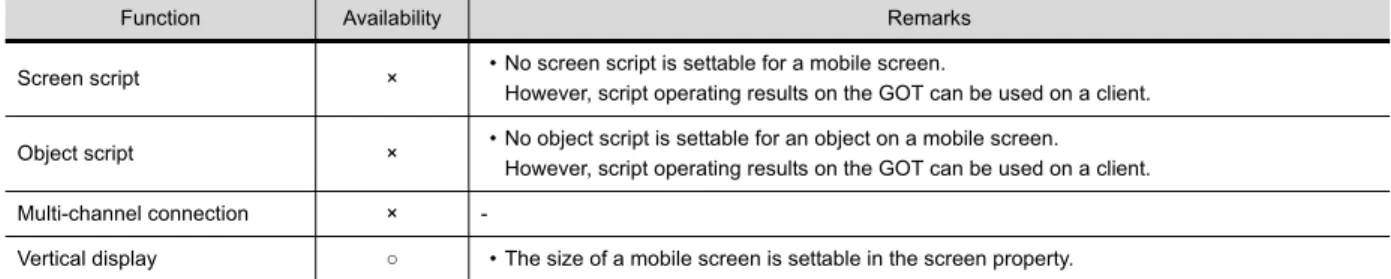
○: Available, ×: Not available Screen script × • No screen script is settable for a mobile screen.
However, script operating results on the GOT can be used on a client.
Object script × • No object script is settable for an object on a mobile screen. However, script operating results on the GOT can be used on a client.
Multi-channel connection ×
-Vertical display ○ • The size of a mobile screen is settable in the screen property.
Figure Availability Restrictions
Text ○ • [Font], [Direction], and [KANJI Region] are not settable.
Logo text ○
-Line ○
• The [Lamp Feature] and [Trigger] tabs are not settable.
Line freeform ○
Rectangle ○
Polygon ○
Circle ○
Arc, sector ○
-Table ○
-Scale ○
-Piping ○ • The [Lamp Feature] and [Trigger] tabs are not settable.
• [Layer] is not settable.
Paint ×
-Import image data ○
-Import DXF data ○
-Import IGES data ○
Functions, images and objects usable with mobile screen 29
1
2
3
4
5
6
7
8
9
10
11
12
Ap
p
e
n
d
ice
s
3. Objects that can be placed
The following shows the objects that can be placed on mobile screens.
○: Available, ×: Not available
Object Availability Restrictions
Touch switch
Switch ○
• In [Action List] of the [Action] tab, [Station No. Switching] and [Key Window Display] are not selectable.
• In the [Style] tab, [Reverse switch area] is not settable. • In the [Text] tab, [Font] is not settable.
• The [Script] tab is not settable.
• In the [Extended] tab, [Buzzer], [KANJI Region], and [Layer] are not settable.
Bit switch ○ • In the [Text] tab, [Font] is not settable.
• In the [Extended] tab, [KANJI Region] and [Layer] are not settable.
Word switch ○
Special function switch ○
• In the [Action] tab, items other than the following ones are not selectable for [Action].
[Password (Security Level)]
[Login/Logout (Operator Authentication)] [Password Change (Operator Authentication)] • In the [Text] tab, [Font] is not settable.
• In the [Extended] tab, [Buzzer], [KANJI Region], and [Layer] are not settable.
Go to screen switch ○
• In the [Next Station] tab, [Screen Type] is fixed to [Mobile]. • In the [Text] tab, [Font] is not settable.
• In the [Extended] tab, [Buzzer], [KANJI Region], and [Layer] are not settable.
Change station No. switch ×
-Key window display switch ×
-Key code switch ○
• In the [Key Code] tab, items other than the following ones are not selectable for [Key Code Type].
[Numerical/Text Input] [Alarm]
[Historical Trend Graph/Historical Data List] • In the [Text] tab, [Font] is not settable.
• In the [Extended] tab, [Buzzer], [KANJI Region], and [Layer] are not settable.
Lamp
Bit lamp ○
• In the [Text] tab, [Font] is not settable.
• In the [Extended] tab, [KANJI Region] and [Layer] are not settable. • The [Script] tab is not settable.
Word lamp ○
• In the [Text] tab, [Font] is not settable.
• In the [Extended] tab, [KANJI Region] and [Layer] are not settable. • The [Operation] tab is displayed instead of the [Operation/Script] tab.
The object script settings are not available.
Lamp area ×
-Numerical display ○
• In the [Device] tab, [Font] is not settable.
• In the [Extended] tab, [Display Mode], [KANJI Region], and [Layer] are not settable.
• The [Operation] tab is displayed instead of the [Operation/Script] tab. The object script settings are not available.
Numerical input ○
• In the [Device] tab, [Font] is not settable.
• In the [Extended] tab, the following items are not settable.
[Display Mode], [Move Destination ID], [Display input value on destination object location], [Input data using Bar Code/RFID], [KANJI Region], and [Layer]
• The [Operation] tab is displayed instead of the [Operation/Script] tab. The object script settings are not available.
Text display ○
• In the [Device/Style] tab, [Font] and [Reverse] are not settable.
• In the [Extended] tab, [Display Mode], [KANJI Region], and [Layer] are not settable.
30 Functions, images and objects usable with mobile screen
Text input ○
• In the [Device/Style] tab, [Font] and [Reverse] are not settable. • In the [Extended] tab, the following items are not settable.
[Display Mode], [Move Destination ID], [Display input value on destination object location], [KANA KANJI Conversion], [Input data using Bar Code/ RFID], [KANJI Region], and [Layer]
• The [Operation] tab is displayed instead of the [Operation/Script] tab. The object script settings are not available.
Date/Time display ×
-Comment display
Bit comment ○ • In the [Comment] tab, [Font] and [Reverse] are not settable.
• In the [Extended] tab, [Display Mode], [KANJI Region], and [Layer] are not settable.
• The [Script] tab is not settable.
Word comment ○
Simple comment ○ • [Font], [Reverse], and [Layer] are not settable.
Parts display ×
-Parts movement ×
-Historical data list display ×
-Alarm display (user) ○ • In the [Alarm Setting] tab, [Operation] is not selectable for [Touch Mode]. • In the [Text] tab, [Font] and [KANJI Region] are not settable.
• In the [Style] tab, [Text color on cursor display] is not settable. • In the [Extended] tab, [Layer] is not settable.
Alarm display (system) ○
Simple alarm display ×
-System alarm display ○ • [Font] and [Layer] are not settable.
Panel meter display ×
-Historical trend graph ○
• In the [Style] tab, [Font] is not settable. • In the [Extended] tab, [Layer] is not settable.
• The [Operation] tab is displayed instead of the [Operation/Script] tab. The object script settings are not available.
Line graph ×
-Trend graph ×
-Bar graph ×
-Scatter graph ×
-Statistics graph ×
-Level display ×
-Slider ×
-Video/RGB display object ×
-Set overlay screen ○
• In the [Set Overlay Screen] window, only mobile screens are listed in the [Screen Selection] tree.
• In the [Number Specification] window, [Screen Type] is fixed to [Mobile Screen].
Window position ×
-Key window object ×
-Hyperlink ○
Mobile screen object sizes and layout 31
1
2
3
4
5
6
7
8
9
10
11
12
Ap
p
e
n
d
ice
s
Appendix3 Mobile screen object sizes and layout
Objects (switches, lamps, etc.) created with the mobile screen must have a sufficient operability and recognizability with the browser of the information device, such as a tablet.
The guidelines shown below should be taken into consideration when creating objects with the mobile screen.
1. Button size, lamp size, key pitch, text size
The optimum size may differ depending on the model of information device, such as tablet.
(1) Button size (touchable object)
(2) Lamp size
(3) Key pitch (distance between centers of buttons)
(4) Text size
Select from the following four types.
•Standard size . . . .32 dots
•Title . . . .48 dots (Screen size: 2048 x 1536 dots) 36 dots (Screen size: 640 x 1136 dots) •Icon with main menu name, etc. . . .28 dots
•Numerical notation in graph, etc. . . . . .24 dots
Screen size: 2048 x 1536 dots Screen size: 640 x 1136 dots
88 dots or more
64 dots or more
Screen size: 2048 x 1536 dots 28 dots or more
Screen size: 640 x 1136 dots
Screen size: 2048 x 1536 dots Screen size: 640 x 1136 dots
115 dots or more
32 Mobile screen object sizes and layout
2. Arranging objects using grid display
The following example shows the case to set the switch size to 64 dots and the key pitch to 88 dots or more when using the 640 x 1136-dot screen size.
Set the [Grid Pitch] vertical and horizontal settings both to [64]. Adjust the size of the switch so it fits into the grid.
Leave one grid open, and arrange the switches.
For details on setting the [Grid Pitch], refer to the following manual.
GT Designer3 (GOT2000) Help
3. Arranging objects (switches, lamps, etc.) and figures
The operation menu to adjust the display is shown in the browser of the information device, such as a tablet.
It is recommended to provide a blank space at the top of the mobile screen and arrange objects (switches, lamps, etc.) and figures under the blank space.
Use the following example as a guide for the blank space.
The required blank space may differ according to the type of information device, such as tablet. 1
2
3
64
64 1
2 3
Operation menu bar on the mobile screen
Screen size: 2048 x 1536 dots Screen size: 640 x 1136 dots
Blank space Approx. 80 dots
Differences between GOT Mobile function and VNC server function 33
1
2
3
4
5
6
7
8
9
10
11
12
Ap
p
e
n
d
ice
s
Appendix4 Differences between GOT Mobile function and VNC server function
The difference between the GOT Mobile function and VNC server function is explained below.
Item GOT Mobile function VNC server function
Simultaneous client connection ○ Available (up to 5) × Not available Switching of independent screens for each
terminal ○ Available × Not available
Browsing application ○ Web browser (Google Chrome, Safari) VNC Viewer application (free software) Authorization management control (exclusive
control)
○ (Exclusive control is possible for each
screen) ○ (Exclusive control between GOT and client)
Screen display Some functions differ from the GOT screen ○ Equivalent to GOT Various monitor functions (ladder monitor,
34 List of related manuals
Appendix5 List of related manuals
GOT2000 Series related manuals
* The above manual (PDF) can be installed together with the screen design software.
Manual name Included/Sold Separately Manual number
GOT2000 Series User's Manual (Hardware) Included in DVD-ROM SH-081194ENG GOT2000 Series User's Manual (Utility) Included in DVD-ROM SH-081195ENG
The actual color may differ slightly from the pictures in this catalog. The actual display may differ from what are shown on GOT screen images.
Product and company names used herein are either trademarks or registered trademarks of their respective owners.
Precautions before use For safe use
This publication explains the typical features and functions of the products herein and does not provide restrictions or other information related to usage and module combinations. Before using the products, always read the product user manuals. Mitsubishi Electric will not be held liable for damage caused by factors found not to be the cause of Mitsubishi Electric; opportunity loss or lost profits caused by faults in Mitsubishi Electric products; damage, secondary damage, or accident compensation, whether foreseeable or not, caused by special factors; damage to products other than Mitsubishi Electric products; or any other duties.
●To use the products given in this publication properly, always read the relevant manuals before beginning operation.
●The products have been manufactured as general-purpose parts for general industries, and are not designed or manufactured to be incorporated in a device or system used in purposes related to human life.
●Before using the products for special purposes such as nuclear power, electric power, aerospace, medicine or passenger-carrying vehicles, consult with Mitsubishi Electric.