
Development and Evaluation of Software Using Mobile Device for Interactive Presentations
8
0
0
全文
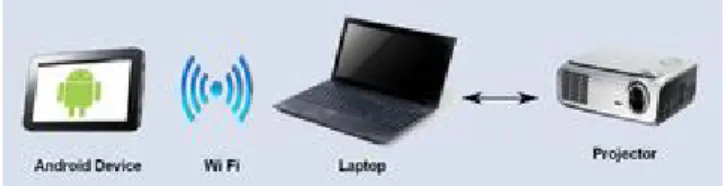
(2) Vol.2013-CE-119 No.9 2013/3/15. IPSJ SIG Technical Report. • Design of a Smart Remote Controlled Framework based on Android Mobile Devices[4] In this research, a smart remote controller (SRC) framework for An- droid is presented. The Android device acts as the client side of the proposed SRC software. The software uses intuitive dynamic user op- eration modes to send remote control commands to the controlled side by leveraging the multi-touch events, gesture recognition and hand gestures features of the Android device. The remote controlled server side is based on a Java framework. It proposes several functions, such as: basic presenter pen mode, point and multi-touch pen modes, mouse mode, gesture control, etc. • Pebbles Project[5] In this project, handheld devices such as Personal Digital Assistants (PDAs) including devices running PalmOS or Pocket PCs, and mobile phones, can be used to communicate with a regular personal com- puter (PC). It uses the wireless network to connect to the PC and has features like annotations, access to notes and jumping to a random slide. However, it does not have features like saving the figures drawn on the slides in PowerPoint format. • Pebbles Project[6] Afterglow is a system that creates an interactive environment with a laser pointer on a projection screen. The laser pointer can be used as a drawing tool to emphasize items on the screen and can also be used to control the cursor like a mouse. Afterglow also has built in slide controls for PowerPoint allowing the user to control their presentation using the laser pointer. • Pebbles Project[7] Kotodama is a software that allows to prepare the contents of a presen- tation using an electronic pen. According to the results of experiments conducted on junior, middle and high school students, user interfaces based on digital pens are intuitive to an IT novice as well as a pro- fessional. It also states the significance of being able to edit the slides during the presentation. • System to draw underline in lecture slides on the screen using a mobile phone[8] There are ongoing researches related to functions that allow drawing underline on PowerPoint slides using a mobile device. The system divides the slides into lattice points, designating the x-coordinates and y-coordinates. The user uses the number key of the mobile phone to determine the scope for drawing the line. This system does not require touch panel, it lacks the intuitive feature of using the digital pen to draw letters and symbols. Also the scope is confined to the shape of a rectangular box. 2.3 Objective of the Research Based on the related works and mainly on the results of a survey[3], three areas for improvement were found in the existing presentation software. In this research, ww focus on the follow-. c 2013 Information Processing Society of Japan. ing three new features: • Display preview of the next slide • Upload pictures from the local memory of the mobile device • Use a pointer to emphasize a specific part of the slide The objective is of the research is to focus on the three features stated above in order to increase the user-interactivity of the software. • Display preview of the next slide This feature helps the lecturer to view the preview of the next slide at the bottom right of the screen. It helps him/her to have an idea about the next slide and prepare beforehand accordingly. • Upload pictures from the local memory of the mobile device This feature helps the user to take pictures beforehand (including outside the classroom) and upload them to the slides during the presentation. • Use a pointer to emphasize a specific part of the slide This feature enables the lecturer to point at a certain area in the slide. In pointer mode, when the user presses the screen of the mobile device, a pointer is displayed on the screen of the mobile device. The co-ordinates of the point in contact are used to draw the pointer on the server side using a standard PowerPoint feature called Freeform[9].. 3.. Design and Development of the Software. 3.1 Summary of the Software 3.1.1 Composition The software is composed of server and client components. The server side is an add-in for PowerPoint 2007 and 2010. It is implemented in C#, and runs on .NET Framework 3.5 or later. The client software runs on mobile devices running Android platform 1.5[10] or later. They communicate with each other over TCP/IP on a wireless network. 3.1.2 Client-Server Communication Local Area Network (LAN) is used for the communication between the server and the client. The IP address of the server is entered in the client, and connection is established via HTTP over TCP. The port number used is 13621 and all the sessions are independent. 3.1.3 Implementation The software of the client side is implemented using Java, and works on Android 1.5 or later. The ApacheHttpClient is used as the HTTP Client Library. The server side software works as an Add-in in PowerPoint for Windows with .NET Framework 3.5 or later installed in it. C# is used to implement the server and Microsoft HTTPAPI[11] is used as the HTTPServer Library. 3.2 Requests When the slideshow is started, the different user actions that are performed are called Requests. They are commands sent by the client to the server, waiting for the server to send a response. The request sent by a client (string of letters) is equivalent to the URL pass. Additional information is sent as parameter included in the URL. There are some requests that send the additional information in the entity body. The description of each request including 2.
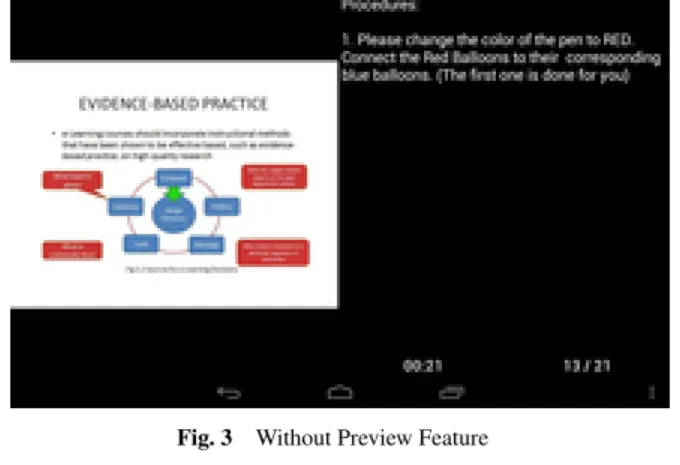
(3) IPSJ SIG Technical Report. parameter s, the server-side process, and response is written below. http://hostname:13621/request/?param1=value1 ¶m2=value2 ( 1 ) Connect Request It is used to establish a connection with the server. ( 2 ) Count Request This request counts the total number of pages of the slide. ( 3 ) Start Request This request starts the slideshow. ( 4 ) Go Request This request is responsible for the navigation between pages. ( 5 ) Capture Request A request that acquires the screen capture of the slide currently being displayed. ( 6 ) Image Request This request gets a thumbnail version of the image. ( 7 ) Draw Request This request draws annotations in the slide. The annotation is drawn by joining coordinates to form a line. The coordinates of the width and height are magnified in the image displayed at the client side and are calculated in unit of pixels from the top left hand corner of the screen. ( 8 ) Erase Request When an annotation needs to be erased, this request is called. It is used in the Undo feature and Clear feature. The shapes used to denote annotations created by the draw request are tagged in order to differentiate from other figures. ( 9 ) Notes Request This request gets the note of the slide. ( 10 )Pointer Request This request draws the pointer on the server side.. Vol.2013-CE-119 No.9 2013/3/15. 3.4 Client Interface 3.4.1 Current Slide Screen This screen displays the contents of the current slide. In addition to the PowerPoint slide, the pen feature can be used for annotation and the pointer feature can be used to emphasize a specific area of the slide.The client sends a capture request periodically to the server in order to get a smaller version of the image of the slide being presented in the screen of the PC and displays it on the screen of the tablet. The image displayed at the screen of the tablet is synchronized with the image at the screen of the PC so the screen of the tablet automatically changes the when the user goes forward to the next screen or regresses to the previous screen. The Notes screen and the preview for next slide screen are also synchronized accordingly. A drawing pen or finger can be used to draw a shape or figure in the screen.The figure is drawn and displayed instantly on the presentation slide. The annotation is added as a shape on top of the slide, so it is possible to edit, delete or save them after the presentation. This feature is realized by storing the co-ordinates of the touched points on the draw request and sending it to the server. 3.4.2 Note Display The note attached to the current slide at the top right hand side of the screen. 3.4.3 Display preview of the next slide This feature helps the lecturer to view the preview of the next slide at the bottom right of the screen. It helps him/her to have an idea about the next slide and prepare beforehand accordingly.. 3.3 Server Interface The server works as an add-in that increases the function in Microsoft PowerPoint. The ribbon has 2 buttons. The button [Enable Server] is clicked to start the add-in. When the add-in is enabled, the remote connection starts and the server opens one of its ports to receive requests from the client. The incoming requests are processed and response is sent to the client. Fig. 3 Without Preview Feature. Fig. 2 Ribbon on the software running in PowerPoint Fig. 4 With Preview Feature. c 2013 Information Processing Society of Japan. 3.
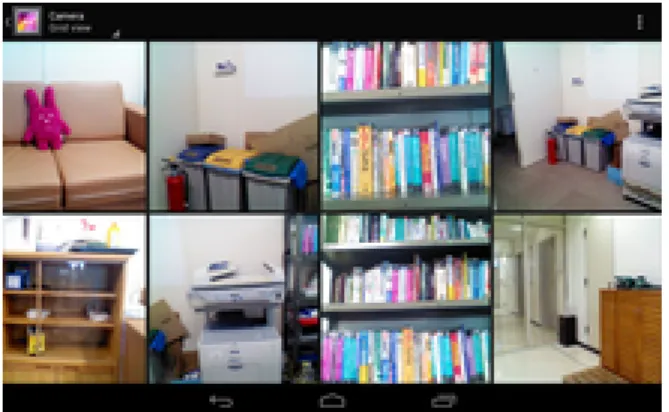
(4) IPSJ SIG Technical Report. 3.4.4 Drawing Annotations Users can draw annotations over the slide during the presentation which helps to increase the interactivity of the lectures. The drawing on the screen of the tablet can be observed instantly on the screen of the computer.. Vol.2013-CE-119 No.9 2013/3/15. 3.4.5 Slide Thumbnail Preview This feature allows viewing the thumbnail preview of all the slides in the presentation in the screen of the Android terminal. It helps the user to easily jump to a random slide in the presentation. This feature also displays the page number and the topic of the slide. Drawing pen or finger can be used to scroll between the thumbnails of the slides. A thumbnail is touched to go to that particular slide. It sends the image request to the server in order to receive a smaller version of the image of the slide. Upon clicking the thumbnail, the user is directed to the presentation mode.. Fig. 5 Drawing Annotations on the tablet screen. Pen Color The user can choose color of the drawing pen when writing annotations on the slide. Fig. 8 Slide Thumbnail Preview. 3.4.6 Uploading pictures This feature enables the lecturer to upload pictures to the slide during the presentation. There are two ways of uploading pictures: ( 1 ) Using the built-in camera of the device This features the user to take pictures during the presentation and upload them to the slides. This feature is especially useful in the situation of a classroom where the teacher wants to share the best answer to a subjective question with the whole class. Fig. 6 Selecting the Color. Pen Weight The user can choose the thickness of the pen to make the annotation easy to be visible.. Fig. 9 Taking pictures and uploading on the spot. Fig. 7 Selecting the thickness of the pen. c 2013 Information Processing Society of Japan. ( 2 ) Using the internal memory of the Android device This feature helps the user to take pictures beforehand (including outside the classroom) and upload them to the slides during the presentation.. 4.
(5) Vol.2013-CE-119 No.9 2013/3/15. IPSJ SIG Technical Report. Fig. 10 Uploading pictures from the internal memory of the device. 3.4.7 Pointer Feature This feature enables the lecturer to point at a certain area in the slide. In pointer mode, when the user presses the screen of the mobile device, a thumb icon is displayed. The co-ordinates of the point in contact are used to draw the pointer on the server side.. 4.1 Method of Evaluation The server side consisted of Windows XP with MicrosoftPowerPoint 2007. The mobile device used was a Google Nexus 7 with Android 4.2. The questions were classified on a Likert scale from 1 to 5, with 5 being strongly agree and 1 being strongly disagree. 4.1.1 Experiment Process The experiment consisted of approximately 19 slides. Each experiment took roughly 20 minutes to be completed. It was carried out based on the following procedures. ( 1 ) A pre-experiment questionnaire is conducted to get an idea about the users exposure to smart phones and whether they used the PowerPoint presenter tools while making a presentation. ( 2 ) A PowerPoint presentation is prepared and the directions are mentioned in the slides or in the notes section. ( 3 ) After the user has completed the directions mentioned in Step 2, a post-experiment questionnaire is conducted. ( 4 ) The effectiveness of the software is determined by the results of the post questionnaire. 4.1.2 Terminals used in the experiment The client and the server used in the experiment are stated below Table 1 Android Device Used in the Experiment Type OS CPU RAM Screen Resolution Size Weight. Nexus 7 Android 4.2 R R quad-core processor NVIDIA Tegra 3 1 GB 7 inch 1280 X 800 198.5 X 120 X 10.45mm 340g. Fig. 11 Pointer Table 2 PC used in the experiment. 3.4.8 Timer In this feature, the user can set display either the elapsed time or the remaining time during the presentation.. Fig. 12 Timer. 4.. Evaluation. An experiment was performed to evaluate the features of the software. The usefulness of the software was decided on the basis of this evaluation.. c 2013 Information Processing Society of Japan. Type OS CPU RAM Screen Resolution. Galeria Windows XP Service Pack3 Intel CoreDuo 2.8 Ghz 3 GB 15 inch 1600 X 1024. 4.1.3 Presentation Slides used in the Experiment 14 Students from Tokyo Institute of Technology were invited to participate in the experiment. The presentation slides were divided into 2 parts, the practice slide and the actual experiment slide. Each presentation was 10 pages each and it took around 20 minutes to complete the experiment. PRACTICE SLIDES The practice slides are placed in order to give the user an idea about the features of the software. The following features were tested using the slides. • Sliding forward and backward. • Drawing lines beneath the sentences, encircling words or images • Clearing the annotation using the undo feature. • Drawing letters on the slide. • Change the color of the pen. • Display the thumbnail version of the slide. 5.
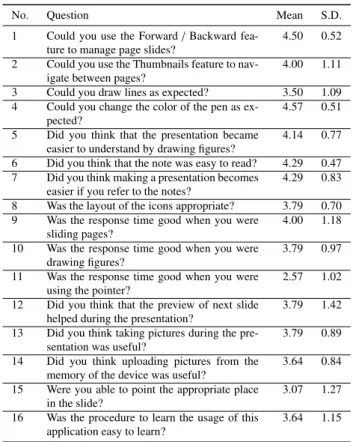
(6) Vol.2013-CE-119 No.9 2013/3/15. IPSJ SIG Technical Report. Table 4 Results: Post Experiment Questionnaire. • Taking a picture and uploading it to the slide. • Uploading a picture from the memory of the device. EXPERIMENT SLIDES These are the slides used for performing the presentation. The procedures were explained in the slides or in the notes sections. The features introduced in the practice slides were tested in the presentation.. No.. Question. 1. Do you use smartphones like iPhone, 4.00 Android-based phones quite often? Do you use touch panel or stylus pen quite of3.86 ten? Do you do give presentation quite often? 3.64 Do you use powerpoint quite often? 4.00 Do you use powerpoint’s presentors tool ? 2.50 Do you use powerpoint’s pen tool? 1.50 Do you use remote of wireless device to move 2.43 slides during a presentation? Table 3 Results for the Pre-Experiment Questionnaire. 3 4 5 6 7. Question. 1. Could you use the Forward / Backward feature to manage page slides? Could you use the Thumbnails feature to navigate between pages? Could you draw lines as expected? Could you change the color of the pen as expected? Did you think that the presentation became easier to understand by drawing figures? Did you think that the note was easy to read? Did you think making a presentation becomes easier if you refer to the notes? Was the layout of the icons appropriate? Was the response time good when you were sliding pages? Was the response time good when you were drawing figures? Was the response time good when you were using the pointer? Did you think that the preview of next slide helped during the presentation? Did you think taking pictures during the presentation was useful? Did you think uploading pictures from the memory of the device was useful? Were you able to point the appropriate place in the slide? Was the procedure to learn the usage of this application easy to learn?. 2 3 4 5 6 7. 4.2 Results of Evaluation 4.2.1 Pre-Experiment Questionnaire. 2. No.. Mean. S.D.. 8 9. 1.57. 10. 1.29. 11. 0.93 1.18 1.51 1.09 1.34. 12 13 14 15 16. From the table, we observed that the frequency of use of smartphones like iPhone or Android as well as the frequency of giving presentations among the participants were quite high, with both being evaluated to be 4, with Standard Deviations of 1.57 and 1.51 respectively. On the other hand, the frequency of use of PowerPoints presenter tool and pen tool were low, at 2.5 and 1.5 respectively. 4.2.2 Post-Experiment Questionnaire Features such as using the forward/backward feature to manage the page slides received high evalutation, with an average of 4.5 and S.D. of 0.52. Users found preview of next slide to be fairly helpful, which was evaluated at an average of 3.79 with an S.D. of 0.89. The average for the the feature of uploading pictures from the memory of the device was a little lower, being 3.64 with S.D. of 0.84. The questions related to the pointer feature, i.e., the reponse time while using the pointer and the easiness to point to an appropriate place in the slide received fairly poor results, with averages of 2.57 and 3.07 respectively. A multiple linear regression analysis of the results of the questionnaire was performed. The table below shows the relationship between some of the questions from the pre-experiment questionnaire, namely ( 1 ) use of smartphones ( 2 ) frequency of presentation ( 3 ) use of PowerPoint in presentation ( 4 ) use of remote devices during presentation with the combined evaluation of two pointer related questions from the post-experiment questionnaire, namely ( 1 ) the response time of pointer ( 2 ) the easiness of pointing to a specific place in the slide.. The result of the analysis is shown in the table below.. c 2013 Information Processing Society of Japan. Mean. S.D.. 4.50. 0.52. 4.00. 1.11. 3.50 4.57. 1.09 0.51. 4.14. 0.77. 4.29 4.29. 0.47 0.83. 3.79 4.00. 0.70 1.18. 3.79. 0.97. 2.57. 1.02. 3.79. 1.42. 3.79. 0.89. 3.64. 0.84. 3.07. 1.27. 3.64. 1.15. Table 5 Multiple linear regression (Pointer Features: Easy to Use + Response Time). (Intercept) Smartphone Presentation Frequency PPTuse RemoteDevice. Estimate. Std. Error. t value. Pr(>|t|). 7.4966 -0.9663 1.0112 0.4109 -1.3653. 1.5933 0.1780 0.4139 0.2897 0.3291. 4.71 -5.43 2.44 1.42 -4.15. 0.0011 0.0004 0.0372 0.1899 0.0025. It was observed that there was a negative correlation between the usability of pointer features and people with prior smartphone experience. From this, it can be inferred that the slow response speed of the pointer got low evaluation from them as they were used to a responsive smartphone interface. On the other hand, participants who did presentations more frequently or used PowerPoint found the pointer feature more useful than the others. Table 6 Multiple linear regression (Uploading Picture Using Memory of Android Device). (Intercept) Presentation Frequency PPTPresenterTool RemoteDevice Age. Estimate. Std. Error. t value. Pr(>|t|). 8.0665 1.1827 0.1823 -0.7433 -0.2903. 2.2190 0.3292 0.1227 0.2371 0.0961. 3.64 3.59 1.49 -3.14 -3.02. 0.0054 0.0058 0.1717 0.0120 0.0145. The second table shows the relationship between some of the questions from the pre-experiment, namely ( 1 ) Frequency of doing presentations ( 2 ) Frequency of PowerPoint presenter tool usage ( 3 ) Frequency of using remote devices during presentation ( 4 ) Age of the participant with the feature of using upload pictures using memory of Android device. The results show that people who did presentations 6.
(7) Vol.2013-CE-119 No.9 2013/3/15. IPSJ SIG Technical Report. frequently found the feature to be helpful. On the other hand, people who use remote devices for presentations did not find it to be helpful, possibly because they prefer to have a smooth and fluid presentation rather than having a presentation that is interactive but is interrupted several times due to the insertion of images on the slides. 4.3 Feedback Several opinions and comments about the improvement of the software were received. The major ones are listed below: ( 1 ) The pointer function is too slow ( 2 ) Drawing texts is too hard, a text input function would be better ( 3 ) A zoom-in feature might be nice ( 4 ) Multi-finger swipe that lets you jump between slides (filmreal-like) ( 5 ) The tip of the pointer should come to the tip of the finger (to make it more intuitive) ( 6 ) Introducing a straight line function would be better ( 7 ) Add Black to the existing pen colors ( 8 ) Save the picture to the memory of the mobile device when uploading pictures (when the picture is taken on-the-spot). 5.. Future Work. 5.1 Results of this Research In this way, we added the following new features to increase the interactivity of an existing software. 5.1.1 Display preview of the next slide This feature helps the lecturer to view the preview of the next slide at the bottom right of the screen. It helps him/her to have an idea about the next slide and prepare beforehand accordingly. Since it is displayed at the bottom right hand side of the same screen, it helps the presenter to avoid having to press a button or do extra action to see the preview. 5.1.2 Upload pictures from the local memory of the mobile device The on-the-spot camera feature lets the users take a picture and upload it to the slide on the spot. Uploading pictures from the local memory of the mobile device is complementary to the existing upload feature of taking the pictures within the classroom. It allows the user to take pictures outside the classroom which are related to the contents of the lecture and upload them to the slides during the presentation. 5.1.3 Use a pointer to emphasize a specific part of the slide This feature enables the lecturer to point at a certain area in the slide. In pointer mode, when the user presses the screen of the mobile device, a pointer is displayed on the screen of the mobile device. The co-ordinates of the point in contact are used to draw the pointer on the server side. In the case of using a laser-pointer, the teacher would have to look at the slide on the projector every time he or she wants to emphasize a specific thing on the slide. This feature helps the teacher to avoid such a situation by displaying the pointer in the screen itself.. c 2013 Information Processing Society of Japan. 5.2 Future Work Presently, the server and the client communicate with each other using TCP/IP by entering the servers IP address via the client. A client that can respond to an ad-hoc network network and a PC is need to make a connection. In the future, we hope to make the connection simpler by using Bluetooth technology. The pointer feature received poor evaluation because of its slow response. Currently, we are storing the x and y coordinates of the point of contact of the screen into a request which is added to the queue of requests to be sent to the server. When the user drags his finger on the screen, every point is stored in the queue which decreases the reponse speed of the pointer. One possible way to reduce the number the number of points sent to the server is by putting the coordinates in the queue only after the distance between the new pointer and the old point is greater than a fixed number (Although this would reduce the fluidity of the animation in the server side). Also, since the objective of the software is to increase the interactivity of presentations, we hope to test the software during real presentations in schools and universities. Acknowledgments This work was supported by JSPS KAKENHI Grant Number 24501130. References [1] [2]. [3]. [4]. [5] [6] [7] [8]. [9]. [10] [11]. Micosoft PowerPoint, available from hhttp://office.microsoft.com/en-us/powerpoint/i (accessed 2013-02-13). PowerPoint Presenter Tools, available from hhttp://office.microsoft.com/en-us/powerpointhelp/presenter-view-tools-for-running-a-powerpoint-presentationHA001056547.aspxi (accessed 2013-02-13). Kentaro Ueda and Masao Murota: Presentation Support Software Using Mobile Device For Interactive Lectures, Joint Proc. of the 18th Work-in-Progress Poster and Invited Young Researcher Symposium at the 18th ICCE, pp. 28-30(2010). Hung-Ming Chen, Po-Hung Chen, Yong-Zan Liou, Zhi-Xiong Xu, Yeni Ouyang: Design of a Smart Remote Controlled Framework based on Android Mobile Devices, Advanced Materials Research, Vol. 268270, pp. 1607-1612(2011). Brad A. Myers: Using hand-held devices and pcs together, In Communications of the ACM, Vol. 44, pp. 34-41 (2001). Lunascape, Afterglow, available from hhttp://www.afterglow.biz/index en.htmli (accessed 2013-02-13) Kazutaka Kurihara: A Study on Software Tools for Flexible Presentations, ACM Symposium on User Interface Software and Technology Doctoral Symposium, pp. 31-34 (2006). Hiroki Horiuchi and Hideyuki Kusano and Kazuto Hirai and Nobuyoshi Yonezawa: A System for Underlining Projected Materials on Screen from Cell-phone, Institute of Electronics, Information and Communications Engineers, IEICE, Vol. 109, pp. 25-30 (2010). Microsoft PowerPoint Freeform, available from hhttp://office.microsoft.com/en-us/powerpointhelp/draw-a-freeform-shape-HP005192222.aspxi (accessed 2013-0213). Android Developers Official website, available from hhttp://developer.android.com/index.htmli (accessed 2013-02-13). Microsoft HTTPAPI, available from hhttp://msdn.microsoft.com/enus/library/windows/desktop/aa364510(v=vs.85).aspxi (accessed 2013-02-13).. 7.
(8) CE-119-9 【正誤表】 二枚目、左の段 誤:Pebbles Project[6] 正:Afterglow[6] 二枚目、左の段 誤:Pebbles Project[7] 正:Kotodama[7].
(9)
図

+2
関連したドキュメント
Instead an elementary random occurrence will be denoted by the variable (though unpredictable) element x of the (now Cartesian) sample space, and a general random variable will
Keywords: continuous time random walk, Brownian motion, collision time, skew Young tableaux, tandem queue.. AMS 2000 Subject Classification: Primary:
A wave bifurcation is a supercritical Hopf bifurcation from a stable steady constant solution to a stable periodic and nonconstant solution.. The bifurcating solution in the case
, 6, then L(7) 6= 0; the origin is a fine focus of maximum order seven, at most seven small amplitude limit cycles can be bifurcated from the origin.. Sufficient
This paper develops a recursion formula for the conditional moments of the area under the absolute value of Brownian bridge given the local time at 0.. The method of power series
To derive a weak formulation of (1.1)–(1.8), we first assume that the functions v, p, θ and c are a classical solution of our problem. 33]) and substitute the Neumann boundary
After proving the existence of non-negative solutions for the system with Dirichlet and Neumann boundary conditions, we demonstrate the possible extinction in finite time and the
This problem becomes more interesting in the case of a fractional differential equation where it closely resembles a boundary value problem, in the sense that the initial value
