[Issue No.]
FA-A-0051-C
[Page]
1/23
[Title]
Restrictions related to the Data Execution Prevention (DEP)
[Date of Issue]
December 2008 (Ver. C: August 2012)
[Relevant Models]
Communication support tool MELSOFT MX series MX Component
TECHNICAL BULLETIN
Thank you for your continued support of Mitsubishi Integrated FA Software MELSOFT Series.
Using ACT controls provided by MX Component may cause problems due to the effect of Data Execution Prevention (DEP) in Windows XP (SP2 or later), Windows Vista and 32-bit/64-bit Windows 7.
This bulletin explains the problems that may occur and the workaround for them.
Contents
1. Data Execution Prevention (DEP) ...2
2. Symptoms...2
3. DEP Configurations that May Cause Problems ...3
4. Configurations for Avoiding Problems due to the Effect of DEP ...4
4.1 Flow Chart for Avoiding Problems ...4
4.2 Confirming DEP Configuration...6
4.3 DEP Configuration...8
4.4 Changing DEP Configuration...9
4.5 Linker Option Setting...11
5. Workarounds for Problems ...12
5.1 An ACT Control Added on a Form May not be Displayed...12
5.2 Adding an ACT Control to a Form Ends Visual Studio in Error...14
5.3 Designer Display May be Failed ...15
5.4 Displaying a Designer Fails to Display an ACT Control ...16
5.5 Displaying a Designer Ends Visual Studio in Error ...17
5.6 Testing a Dialog Box May End Visual Studio in Error...18
5.7 Executing an MFC Project Program May Cause an Error...20
[Issue No.]
FA-A-0051-C
[Page]
2/23
[Title]
Restrictions related to the Data Execution Prevention (DEP)
[Date of Issue]
December 2008 (Ver. C: August 2012)
[Relevant Models]
Communication support tool MELSOFT MX series MX Component
TECHNICAL BULLETIN
1. Data Execution Prevention (DEP)
Beginning with Windows XP SP2, Microsoft Corporation implements DEP for security enhancement. For details of DEP, refer to the following documents provided by Microsoft Corporation.
1) “How to Configure Memory Protection in Windows XP SP2” available at TechNet Security ThechCenter http://technet.microsoft.com/en-us/library/cc700810.aspx
2) Microsoft Help and Support Article ID: 875352 http://support.microsoft.com/kb/875352/en-us (URLs as of April 28, 2010)
2. Symptoms
Point
This symptom occurs when MX Component Version 3 or earlier is used. To avoid the problems, follow the instructions below.
The effect of DEP may cause problems as the creation of a user application using an ACT control or the execution of them.
We have confirmed the occurrence of the following problems due to the effect of DEP.
Table 2-1 Symptoms caused by the effect of DEP
Situation No Symptom Description Reference
1 An ACT control added on a form may not be displayed.
An ACT control may not be displayed if it is added on a form in a Visual Studio .NET project.
Section 5.1
2 Adding an ACT control to a form ends Visual Studio in error.
When a Visual Studio .NET project is created and an ACT control is added to a form, Visual Studio ends in error.
Section 5.2
3 The designer display may be failed.
An error may occur if a form on which an ACT control is added is opened in a Visual Studio .NET project.
Section 5.3
4 Displaying a designer fails to display an ACT control.
If a form on which an ACT control is added is opened in a Visual Studio .NET project, the ACT control is not displayed.
Section 5.4
5 Displaying a designer ends Visual Studio in error.
If a form on which an ACT control is added is opened in a Visual Studio .NET project, Visual Studio ends in error.
Section 5.5 Creation of a user application
6 Testing a dialog box may end Visual Studio in error.
Adding an ACT control and testing a dialog box in an MFC project may end Visual Studio in error.
Section 5.6
Execution of a user application
7 Executing an MFC project program may cause an error.
An error may occur if an MFC project program including a form with an ACT control is created and executed.
[Issue No.]
FA-A-0051-C
[Page]
3/23
[Title]
Restrictions related to the Data Execution Prevention (DEP)
[Date of Issue]
December 2008 (Ver. C: August 2012)
[Relevant Models]
Communication support tool MELSOFT MX series MX Component
TECHNICAL BULLETIN
3. DEP Configurations that May Cause Problems
In the creation environment and execution environment of user applications, problems may occur due to the combination of the versions of the OS/Visual Studio being used and the DEP configurations. The following shows the combinations that may cause problems.
If your environment corresponds to any of the following combinations, make settings in accordance with the ‘Flow chart for avoiding problems’ (Refer to “Chapter 4 Configurations for Avoiding Problems due to the Effect of DEP”).
Point
In Windows XP, Windows Vista and 32-bit/64-bit Windows 7alike, the DEP configuration is “OptIn” by default.
If the configuration is uncertain, confirm it.
(For the method for confirming, refer to “Section 4.2 Confirming DEP Configuration”.)
(1) Creation environment of user applications
The following shows the DEP configurations that may cause problems in the creation environment of user applications. Table 3-1 DEP configurations that may cause problems in creation environment
Creation environment DEP configurations that may cause
problems
Visual Studio 2010
Visual Studio 2008 OptIn, OptOut, AlwaysOn Windows Vista,
32-bit/64-bit Windows 7
Visual Studio 2005 Visual Studio 2010 Visual Studio 2008 Windows XP
Visual Studio 2005
AlwaysOn
(2) Execution environment of user applications
Problem may occur depending on the execution environment when an MFC project user application is created with Visual Studio 2008 and Visual Studio 2010. (For distinguishing MFC projects, refer to “Chapter 6 Distinguishing Types of Projects”.)
The following shows the DEP configurations that may cause problems in the execution environment of user applications.
Table 3-2 DEP configurations that may cause problems in execution environment
Execution environment DEP configurations that may cause
problems
Windows Vista,
[Issue No.]
FA-A-0051-C
[Page]
4/23
[Title]
Restrictions related to the Data Execution Prevention (DEP)
[Date of Issue]
December 2008 (Ver. C: August 2012)
[Relevant Models]
Communication support tool MELSOFT MX series MX Component
TECHNICAL BULLETIN
4. Configurations for Avoiding Problems due to the Effect of DEP 4.1 Flow Chart for Avoiding Problems
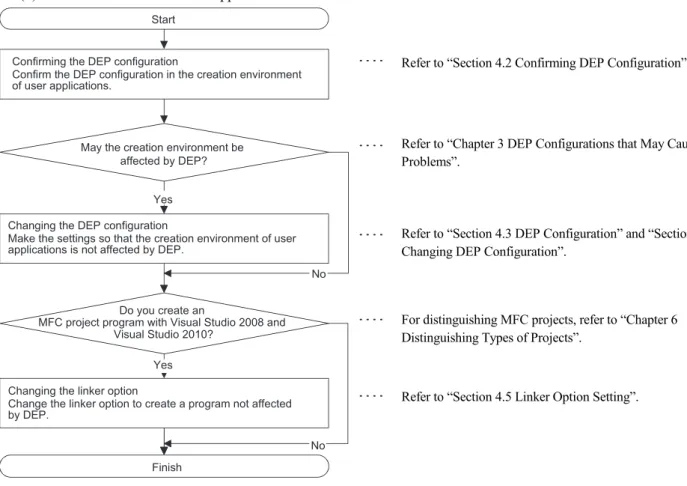
Make settings in accordance with the following flow chart to avoid problems caused by the effect of DEP. (1) Creation environment of user applications
Figure 4-1 Flow chart for avoiding problems in the creation environment
Refer to “Section 4.2 Confirming DEP Configuration”.
Refer to “Chapter 3 DEP Configurations that May Cause Problems”.
Refer to “Section 4.3 DEP Configuration” and “Section 4.4 Changing DEP Configuration”.
For distinguishing MFC projects, refer to “Chapter 6 Distinguishing Types of Projects”.
[Issue No.]
FA-A-0051-C
[Page]
5/23
[Title]
Restrictions related to the Data Execution Prevention (DEP)
[Date of Issue]
December 2008 (Ver. C: August 2012)
[Relevant Models]
Communication support tool MELSOFT MX series MX Component
TECHNICAL BULLETIN
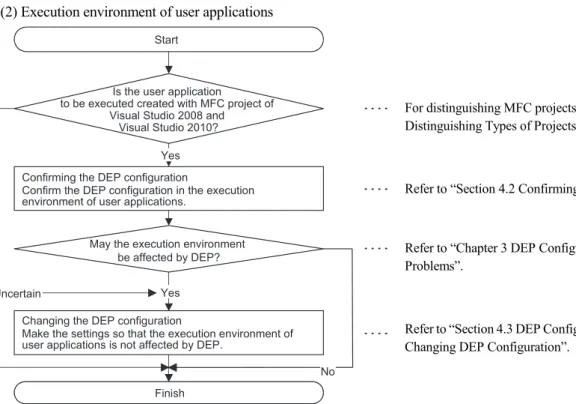
(2) Execution environment of user applications
Figure 4-2 Flow chart for avoiding problems in the execution environment
For distinguishing MFC projects, refer to “Chapter 6 Distinguishing Types of Projects”.
Refer to “Section 4.2 Confirming DEP Configuration”.
Refer to “Chapter 3 DEP Configurations that May Cause Problems”.
[Issue No.]
FA-A-0051-C
[Page]
6/23
[Title]
Restrictions related to the Data Execution Prevention (DEP)
[Date of Issue]
December 2008 (Ver. C: August 2012)
[Relevant Models]
Communication support tool MELSOFT MX series MX Component
TECHNICAL BULLETIN
4.2 Confirming DEP Configuration
In Windows XP, Windows Vista and 32-bit/64-bit Windows 7 alike, the DEP configuration is “OptIn” by default. If the configuration is uncertain, confirm it in the following way.
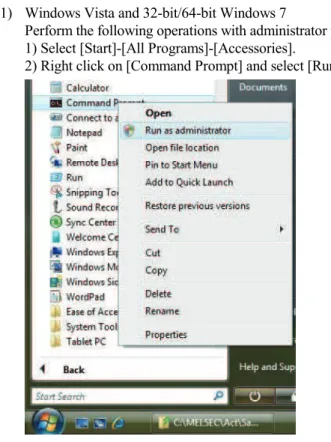
(1) Windows Vista and 32-bit/64-bit Windows 7
Perform the following operations with administrator privileges. 1) Select [Start]-[All Programs]-[Accessories].
2) Right click on [Command Prompt] and select [Run as administrator].
3) Input the following command. BCDEDIT
[Issue No.]
FA-A-0051-C
[Page]
7/23
[Title]
Restrictions related to the Data Execution Prevention (DEP)
[Date of Issue]
December 2008 (Ver. C: August 2012)
[Relevant Models]
Communication support tool MELSOFT MX series MX Component
TECHNICAL BULLETIN
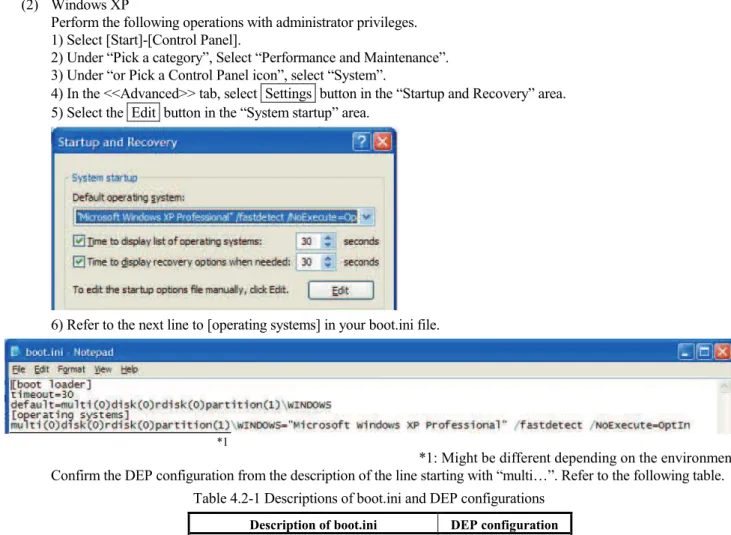
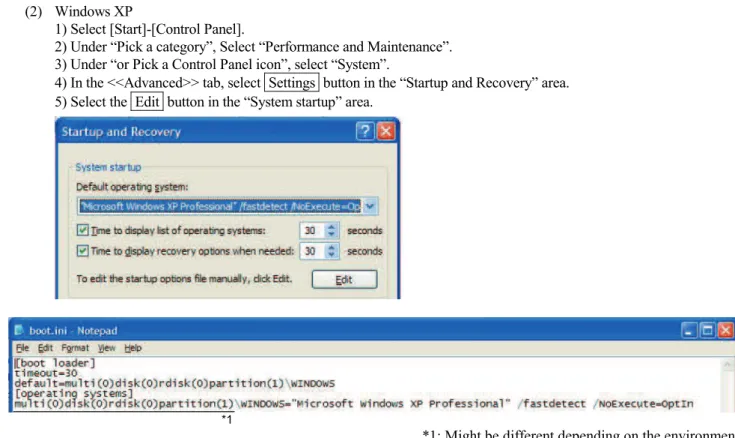
(2) Windows XP
Perform the following operations with administrator privileges. 1) Select [Start]-[Control Panel].
2) Under “Pick a category”, Select “Performance and Maintenance”. 3) Under “or Pick a Control Panel icon”, select “System”.
4) In the <<Advanced>> tab, select Settings button in the “Startup and Recovery” area. 5) Select the Edit button in the “System startup” area.
6) Refer to the next line to [operating systems] in your boot.ini file.
*1
*1: Might be different depending on the environment. Confirm the DEP configuration from the description of the line starting with “multi…”. Refer to the following table.
Table 4.2-1 Descriptions of boot.ini and DEP configurations
Description of boot.ini DEP configuration
Not including “/noexecute=” OptIn
[Issue No.]
FA-A-0051-C
[Page]
8/23
[Title]
Restrictions related to the Data Execution Prevention (DEP)
[Date of Issue]
December 2008 (Ver. C: August 2012)
[Relevant Models]
Communication support tool MELSOFT MX series MX Component
TECHNICAL BULLETIN
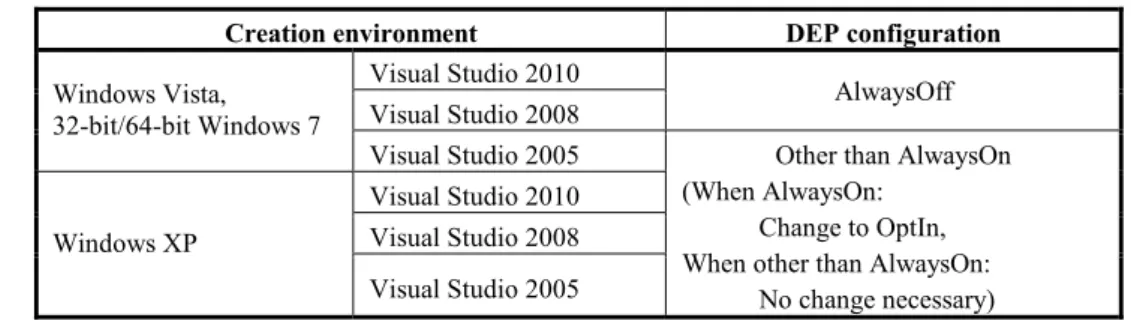
4.3 DEP Configuration
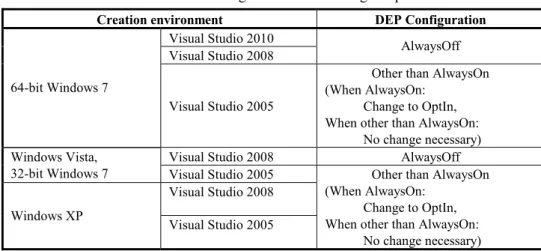
The following shows the configurations for avoiding problems due to the effect of the DEP. (1) Creation environment of user applications
In the environment where user applications are created, configure DEP as follows. Table 4.3-1 DEP configurations in the creation environment
Creation environment DEP configuration
Visual Studio 2010
Visual Studio 2008 AlwaysOff Windows Vista,
32-bit/64-bit Windows 7
Visual Studio 2005
Visual Studio 2010 Visual Studio 2008 Windows XP
Visual Studio 2005
Other than AlwaysOn (When AlwaysOn:
Change to OptIn, When other than AlwaysOn:
No change necessary)
(2) Execution environment of user applications
When user applications are created with MFC projects of Visual Studio 2008 and Visual Studio 2010, configure DEP in the execution environment as follows. Problems can be avoided by changing the DEP configuration and linker option (recreating programs).
(a) Possible to change the linker option and create user applications
Select “Image is not compatible with DEP (/NXCOMPAT:NO)” in [Linker]-[Advanced]-[Data Execution Prevention (DEP)] in the MFC project Property Pages, and create user applications.
Configure DEP as follows.
Table 4.3-2 DEP configuration when the linker option is changeable
Execution environment DEP configuration
Windows Vista, 32-bit Windows 7
Windows XP
Other than AlwaysOn (When AlwaysOn:
Change to OptIn, When other than AlwaysOn:
No change necessary)
(b) Impossible to change the linker option
When the linker option cannot be changed (when programs cannot be recreated), configure DEP to “AlwaysOFF”. Table 4.3-3 DEP configuration when the linker option is not changeable
Execution environment DEP configuration
Windows Vista, 32-bit Windows 7
Windows XP
[Issue No.]
FA-A-0051-C
[Page]
9/23
[Title]
Restrictions related to the Data Execution Prevention (DEP)
[Date of Issue]
December 2008 (Ver. C: August 2012)
[Relevant Models]
Communication support tool MELSOFT MX series MX Component
TECHNICAL BULLETIN
4.4 Changing DEP Configuration
(1) Windows Vista and 32-bit/64-bit Windows 7
Perform the following operations with administrator privileges. 1) Select [Start]-[All Programs]-[Accessories].
2) Right click on [Command Prompt] and select [Run as administrator].
3) Execute the following command.
Table 4.4-1 Command that should be executed
DEP to be configured Command that should be executed
OptIn BCDEDIT /SET nx OptIn
OptOut BCDEDIT /SET nx OptOut
AlwaysOff BCDEDIT /SET nx AlwaysOff
[Issue No.]
FA-A-0051-C
[Page]
10/23
[Title]
Restrictions related to the Data Execution Prevention (DEP)
[Date of Issue]
December 2008 (Ver. C: August 2012)
[Relevant Models]
Communication support tool MELSOFT MX series MX Component
TECHNICAL BULLETIN
(2) Windows XP
1) Select [Start]-[Control Panel].
2) Under “Pick a category”, Select “Performance and Maintenance”. 3) Under “or Pick a Control Panel icon”, select “System”.
4) In the <<Advanced>> tab, select Settings button in the “Startup and Recovery” area. 5) Select the Edit button in the “System startup” area.
*1
*1: Might be different depending on the environment. 6) Edit the boot.ini file as follows.
Table 4.4-2 Description of boot.ini and modification method
Description of boot.ini Modification method
Not including “/noexecute=” Add the following description at the end of the line starting with “multi…”, which is the next to the line [operation systems]. When changing to OptOut: “/noexecute=OptOut”
When changing to AlwaysOff: “/noexecute=AlwaysOff” Including “/noexecute=” Replace a description following “/noexecute=” to the DEP
configuration to be.
When changing to Optin: “/noexecute=OptIn” When changing to OptOut: “/noexecute=OptOut” When changing to AlwaysOff: “/noexecute=AlwaysOff”
Point
Be sure to edit the boot.ini carefully. The default configuration (OptIn) may be taken for incorrect settings. Changing settings not explained above may result in Windows XP not being able to start up.
7) In Notepad, select [File]-[Save]. 8) Exit Notepad.
[Issue No.]
FA-A-0051-C
[Page]
11/23
[Title]
Restrictions related to the Data Execution Prevention (DEP)
[Date of Issue]
December 2008 (Ver. C: August 2012)
[Relevant Models]
Communication support tool MELSOFT MX series MX Component
TECHNICAL BULLETIN
4.5 Linker Option Setting
When creating an MFC project program with Visual Studio 2008 and Visual Studio 2010, build the program after making the following setting. (For distinguishing MFC projects, refer to “Chapter 6 Distinguishing Types of Projects”.)
(1) Select “Image is not compatible with DEP (/NXCOMPAT:NO)” in [Linker]-[Advanced]-[Data Execution Prevention (DEP)] in the MFC project Property Pages.
<In case of Visual Studio 2008>
[Issue No.]
FA-A-0051-C
[Page]
12/23
[Title]
Restrictions related to the Data Execution Prevention (DEP)
[Date of Issue]
December 2008 (Ver. C: August 2012)
[Relevant Models]
Communication support tool MELSOFT MX series MX Component
TECHNICAL BULLETIN
5. Workarounds for Problems
This chapter explains the occurrence cause and workaround for each symptom caused due to the effect of DEP. 5.1 An ACT Control Added on a Form May not be Displayed
(1) Symptom
As a Visual Studio .NET project program is created, an ACT control added on a form is not displayed. Only its solid border is shown as selected. (For distinguishing Visual Studio .NET projects, refer to “Chapter 6 Distinguishing Types of Projects”.)
(2) Occurrence Cause
This problem occurs if an ACT control is added on a form in a Visual Studio .NET project when DEP is enabled to ACT controls. The following shows the cases that problems occur for DEP is enabled.
Table 5.1-1 DEP configurations that may cause this problem
DEP Configuration Creation environment
OptIn, OptOut AlwaysOn
Visual Studio 2010 Visual Studio 2008 64-bit Windows 7
Visual Studio 2005 -
Visual Studio 2008 Windows Vista,
32-bit Windows 7 Visual Studio 2005
Visual Studio 2008 Windows XP
Visual Studio 2005
-
[Issue No.]
FA-A-0051-C
[Page]
13/23
[Title]
Restrictions related to the Data Execution Prevention (DEP)
[Date of Issue]
December 2008 (Ver. C: August 2012)
[Relevant Models]
Communication support tool MELSOFT MX series MX Component
TECHNICAL BULLETIN
(3) Workaround
To workaround this problem, change the DEP configuration as follows.
Table 5.1-2 DEP Configurations for avoiding this problem
Creation environment DEP Configuration
Visual Studio 2010
Visual Studio 2008 AlwaysOff
64-bit Windows 7
Visual Studio 2005
Other than AlwaysOn (When AlwaysOn:
Change to OptIn, When other than AlwaysOn:
No change necessary) Visual Studio 2008 AlwaysOff Windows Vista,
32-bit Windows 7 Visual Studio 2005 Visual Studio 2008
Windows XP
Visual Studio 2005
Other than AlwaysOn (When AlwaysOn:
Change to OptIn, When other than AlwaysOn:
No change necessary)
[Issue No.]
FA-A-0051-C
[Page]
14/23
[Title]
Restrictions related to the Data Execution Prevention (DEP)
[Date of Issue]
December 2008 (Ver. C: August 2012)
[Relevant Models]
Communication support tool MELSOFT MX series MX Component
TECHNICAL BULLETIN
5.2 Adding an ACT Control to a Form Ends Visual Studio in Error (1) Symptom
When a Visual Studio .NET project program is created, adding an ACT control to a form with the designer displays the following dialog box and ends Visual Studio in error.
If a Visual Studio .NET project program including a form with an ACT control is debugged, an exception may occur (0xC0000005:Access violation) and the program may be closed. (For distinguishing Visual Studio .NET projects, refer to “Chapter 6 Distinguishing Types of Projects”.)
(2) Occurrence Cause
The problem occurs if an ACT control is added to a form in a Visual Studio .NET project while DEP is enabled to ACT controls.
The following table lists whether a problem occurs with DEP enabled.
Table 5.2-1 DEP configurations that may cause this problem
DEP Configuration Creation environment
OptIn, OptOut AlwaysOn
Windows Vista,
32-bit Windows 7 Visual Studio 2010
Windows XP Visual Studio 2010 -
: Causes problems -: Does not cause problems (3) Workaround
To workaround this problem, change the DEP configuration as follows.
Table 5.2-2 DEP Configurations for avoiding this problem
Creation environment DEP Configuration
Windows Vista,
32-bit Windows 7 Visual Studio 2010 AlwaysOff
Windows XP Visual Studio 2010
Other than AlwaysOn (When AlwaysOn:
Change to OptIn, When other than AlwaysOn:
No change necessary)
[Issue No.]
FA-A-0051-C
[Page]
15/23
[Title]
Restrictions related to the Data Execution Prevention (DEP)
[Date of Issue]
December 2008 (Ver. C: August 2012)
[Relevant Models]
Communication support tool MELSOFT MX series MX Component
TECHNICAL BULLETIN
5.3 Designer Display May be Failed (1) Symptom
When a Visual Studio .NET project program is created, opening a form including an ACT control with the designer may cause an error. (For distinguishing Visual Studio .NET projects, refer to “Chapter 6 Distinguishing Types of Projects”.)
(2) Occurrence Cause
This problem occurs if a form including an ACT control is opened with the designer in a Visual Studio .NET project when DEP is enabled to ACT controls.
The following shows the cases that problems occur for DEP is enabled.
Table 5.3-1 DEP configurations that may cause this problem
DEP Configuration Creation environment
OptIn, OptOut AlwaysOn
Visual Studio 2008 Windows Vista,
32-bit Windows 7 Visual Studio 2005
Visual Studio 2008 Windows XP
Visual Studio 2005
-
: Causes problems -: Does not cause problems (3) Workaround
To workaround this problem, change the DEP configuration as follows.
[Issue No.]
FA-A-0051-C
[Page]
16/23
[Title]
Restrictions related to the Data Execution Prevention (DEP)
[Date of Issue]
December 2008 (Ver. C: August 2012)
[Relevant Models]
Communication support tool MELSOFT MX series MX Component
TECHNICAL BULLETIN
5.4 Displaying a Designer Fails to Display an ACT Control (1) Symptom
If a form including an ACT control is opened with the designer when a Visual Studio .NET project program is created, the ACT control is not displayed. Only its solid border is shown as selected. (For distinguishing Visual Studio .NET projects, refer to “Chapter 6 Distinguishing Types of Projects”.)
(2) Occurrence Cause
This problem occurs if a form including an ACT control is opened with the designer in a Visual Studio .NET project when DEP is enabled to ACT controls.
The following shows the cases that problems occur for DEP is enabled.
Table 5.4-1 DEP configurations that may cause this problem
DEP Configuration Creation environment
OptIn, OptOut AlwaysOn
Visual Studio 2010
Visual Studio 2008 64-bit Windows 7
Visual Studio 2005 -
: Causes problems -: Does not cause problems (3) Workaround
To workaround this problem, change the DEP configuration as follows.
Table 5.4-2 DEP Configurations for avoiding this problem
Creation environment DEP Configuration
Visual Studio 2010
Visual Studio 2008 AlwaysOff
64-bit Windows 7
Visual Studio 2005
Other than AlwaysOn (When AlwaysOn:
Change to OptIn, When other than AlwaysOn:
No change necessary)
[Issue No.]
FA-A-0051-C
[Page]
17/23
[Title]
Restrictions related to the Data Execution Prevention (DEP)
[Date of Issue]
December 2008 (Ver. C: August 2012)
[Relevant Models]
Communication support tool MELSOFT MX series MX Component
TECHNICAL BULLETIN
5.5 Displaying a Designer Ends Visual Studio in Error (1) Symptom
If a form including an ACT control is opened with the designer when a Visual Studio .NET project program is created, the following dialog box appears and Visual Studio ends in error.
If a Visual Studio .NET project program including a form with an ACT control is debugged, an exception may occur (0xC0000005:Access violation) and the program may be closed. (For distinguishing Visual Studio .NET projects, refer to “Chapter 6 Distinguishing Types of Projects”.)
(2) Occurrence Cause
The problem occurs if a form including an ACT control is opened with the designer in a Visual Studio .NET project while DEP is enabled to ACT controls.
The following shows the cases that problems occur for DEP is enabled.
Table 5.5-1 DEP configurations that may cause this problem
DEP Configuration Creation environment
OptIn, OptOut AlwaysOn
Windows Vista,
32-bit Windows 7 Visual Studio 2010
Windows XP Visual Studio 2010 -
: Causes problems -: Does not cause problems (3) Workaround
To workaround this problem, change the DEP configuration as follows.
[Issue No.]
FA-A-0051-C
[Page]
18/23
[Title]
Restrictions related to the Data Execution Prevention (DEP)
[Date of Issue]
December 2008 (Ver. C: August 2012)
[Relevant Models]
Communication support tool MELSOFT MX series MX Component
TECHNICAL BULLETIN
5.6 Testing a Dialog Box May End Visual Studio in Error (1) Symptom
When an MFC project program is created, testing a dialog box may end Visual Studio in error. (For distinguishing MFC projects, refer to “Chapter 6 Distinguishing Types of Projects”.)
(2) Occurrence Cause
This problem occurs if an ACT control is added on a form and then “Test Dialog” is performed in an MFC project when DEP is enabled to ACT controls.
The following shows the cases that problems occur for DEP is enabled.
Table 5.6-1 DEP configurations that may cause this problem
DEP Configuration Creation environment
OptIn, OptOut AlwaysOn
Visual Studio 2010 Visual Studio 2008 Windows Vista,
32-bit Windows 7
Visual Studio 2005 Visual Studio 2010 Visual Studio 2008 Windows XP
Visual Studio 2005
-
[Issue No.]
FA-A-0051-C
[Page]
19/23
[Title]
Restrictions related to the Data Execution Prevention (DEP)
[Date of Issue]
December 2008 (Ver. C: August 2012)
[Relevant Models]
Communication support tool MELSOFT MX series MX Component
TECHNICAL BULLETIN
(3) Workaround
To workaround this problem, change the DEP configuration as follows.
Table 5.6-2 DEP Configurations for avoiding this problem
Creation environment DEP Configuration
Visual Studio 2010
Visual Studio 2008
AlwaysOff Windows Vista,
32-bit Windows 7
Visual Studio 2005
Visual Studio 2010
Visual Studio 2008 Windows XP
Visual Studio 2005
Other than AlwaysOn (When AlwaysOn:
Change to OptIn, When other than AlwaysOn:
No change necessary)
[Issue No.]
FA-A-0051-C
[Page]
20/23
[Title]
Restrictions related to the Data Execution Prevention (DEP)
[Date of Issue]
December 2008 (Ver. C: August 2012)
[Relevant Models]
Communication support tool MELSOFT MX series MX Component
TECHNICAL BULLETIN
5.7 Executing an MFC Project Program May Cause an Error (1) Symptom
When an MFC project program including a form with an ACT control is created and executed, the following dialog box may be displayed and the program may be closed. When an MFC project program including a form with an ACT control is debugged with Visual Studio 2008 and Visual Studio 2010, an exception may occur (0xC0000005:Access violation) and the program may be closed. (For distinguishing MFC projects, refer to “Chapter 6 Distinguishing Types of Projects”.)
*1
*1: The character string specified in “FileDescription” of “VS_VERSION_INFO” in the resource is displayed as the program name.
When the Close the program button is clicked, the message “To help protect your computer, Data Execution Prevention has closed the program*1.” is displayed on the task bar.
*1
*1
[Issue No.]
FA-A-0051-C
[Page]
21/23
[Title]
Restrictions related to the Data Execution Prevention (DEP)
[Date of Issue]
December 2008 (Ver. C: August 2012)
[Relevant Models]
Communication support tool MELSOFT MX series MX Component
TECHNICAL BULLETIN
(2) Occurrence Cause
This problem occurs if any of the following conditions is true when a program including a form with an ACT control is created.
Table 5.7-1 DEP configurations that may cause this problem
DEP configuration Execution
environment OptIn, OptOut AlwaysOn
Windows Vista, 32-bit Windows 7
Causes problems only if “Image is compatible with DEP” is selected in [Linker]-[Advanced]-[Data Execution
Prevention (DEP)] in the Property Pages when the program is created (built).
Windows XP -
: Causes problems -: Does not cause problems (3) Workaround
To workaround this problem, change the DEP configuration and the linker option (recreate the program). (a) Possible to change the linker option and create user applications
Select “Image is not compatible with DEP (/NXCOMPAT:NO)” in [Linker]-[Advanced]-[Data Execution Prevention (DEP)] in the MFC project Property Pages, and create user applications.
Configure DEP as follows.
Table 5.7-2 DEP configuration when the linker option is changeable
Execution environment DEP configuration
Windows Vista, 32-bit Windows 7
Windows XP
Other than AlwaysOn (When AlwaysOn:
Change to OptIn, When other than AlwaysOn:
No change necessary)
(b) Impossible to change the linker option
When the linker option cannot be changed (when programs cannot be recreated), configure DEP to “AlwaysOFF”. Table 5.7-3 DEP configuration when the linker option is not changeable
Execution environment DEP configuration
Windows Vista, 32-bit Windows 7 Windows XP
[Issue No.]
FA-A-0051-C
[Page]
22/23
[Title]
Restrictions related to the Data Execution Prevention (DEP)
[Date of Issue]
December 2008 (Ver. C: August 2012)
[Relevant Models]
Communication support tool MELSOFT MX series MX Component
TECHNICAL BULLETIN
6. Distinguishing Types of Projects
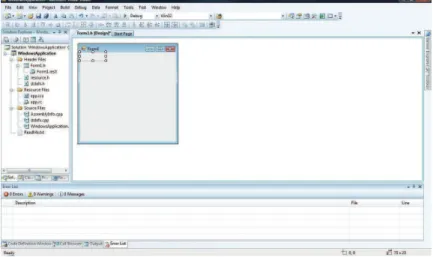
Types of projects can be distinguished based on the way of opening its form in the designer. The following shows the both cases of a Visual Studio .NET project and MFC project.
(1) Visual Studio .Net project
In the “Solution Explorer”, double click a form (*.h file or *.vb file).
When a form is opened in this way, its project type is the Visual Studio .NET project.
(2) MFC project
[Issue No.]
FA-A-0051-C
[Page]
23/23
[Title]
Restrictions related to the Data Execution Prevention (DEP)
[Date of Issue]
December 2008 (Ver. C: August 2012)
[Relevant Models]
Communication support tool MELSOFT MX series MX Component
TECHNICAL BULLETIN
REVISIONS
Version Print Date Revision
- December 2008 First edition
A May 2010 Compatibility with Windows 7 is added.
B June 2011 Compatibility with 64-bit Windows 7 is added. Compatibility with Visual Studio 2010 is added.