[Issue No.]
GOT-A-0018-G
[Page]
1/27
[Title]
Precautions when Replacing GOTA800, A77GOT, A64GOT Series with GOT1000 Series
[Date of Issue]
Ver.G: September 2011 (First Edition: September 2005)
[Relevant Models]
GOT800, A77GOT, and A64GOT Series
TECHNICAL BULLETIN
Thank you for your continued support of Mitsubishi Graphic Operation Terminal (GOT).
In TECHNICAL BULLETIN PLC-D-358 issued in July, 1999 and TECHNICAL BULLETIN PLC-D-406 issued in
July, 2001, we have already announced discontinuation of the GOT old series, which includes the GOT800,
A77GOT, and A64GOT series. For the GOT800, A77GOT, and A64GOT series, the repair acceptance period has
already ended. Therefore, we recommend that you replace the old series with the GOT1000 series with excellent
functions and performance.
Table of Contents
1. Requests for customers ···2
2. Selection of GOT ···2
2.1 Precautions when replacing A851GOT with GOT1000 series···3
3. Communication units and options···5
3.1 List of replacement models···5
3.2 Units that require new setting method ···6
3.3 Communication modules and options without replaceable models ··· 7
3.4 Replacing the GOT800, A77GOT, or A64GOT series connected to
the MELSECNET(
Ⅱ
) or MELSECNET/B network system with the GOT1000 series ··· 7
3.4.1 Replacing the network in the entire system with the MELSECNET/H
network system··· 7
3.4.2 Changing the connection type between the programmable controller and
the GOT without change of the network in the entire system ··· 7
3.5 Replacing the GOT800 or A77GOT series connected to
the MELSECNET/10 (programmable controller to programmable controller
optical loop/coaxial bus) network system with the GOT1000 series··· 9
4. Cables ··· 10
4.1 Bus connection cables··· 10
4.1.1 Utilization of cables in present use··· 10
4.1.2 Replacing GOT when using multiple units of bus connection··· 10
4.2 RS-232 cable··· 11
4.3 RS-422 cable··· 11
4.4 Network cable (MELSECNET/10 and CC-Link) ···11
4.5 Other cables ··· 11
5. Mounting intervals ··· 12
5.1 GOT800 and A77GOT series ··· 12
5.2 A64GOT series··· 12
6. Cable connection direction and PC (CF) card insertion direction··· 13
6.1 Cable connection direction and position··· 13
6.2 CF card insertion direction ··· 14
7. Monitor screen data ··· 16
7.1 Using existing monitor screen data ··· 16
7.1.1 How to convert monitor screen data from GOT800 series to GOT1000 series ··· 17
7.1.2 How to convert monitor screen data from A77GOT series to GOT1000 series ··· 20
7.1.3 How to convert monitor screen data from A64GOT series to GOT1000 series ··· 21
7.1.4 Precautions for data conversion···21
7.1.5 USB serial adapter available for communication between
the data transfer tool and the GOT800 series ···21
7.2 Compatibility of monitor screen data ···22
7.2.1 Data compatibility list ···22
7.2.2 Monitor screen data compatibility between GOT800 series and GOT1000 series ··· 24
7.2.3 Monitor screen data compatibility between A77GOT or A64GOT series
and GOT1000 series··· 25
7.3 Functions that require new settings ··· 26
[Issue No.]
GOT-A-0018-G
[Page]
2/27
[Title]
Precautions when Replacing GOTA800, A77GOT, A64GOT Series with GOT1000 Series
[Date of Issue]
Ver.G: September 2011 (First Edition: September 2005)
[Relevant Models]
GOT800, A77GOT, and A64GOT Series
TECHNICAL BULLETIN
1. Requests for customers
The GOT model selection list (Table 2-1) shows the recommended GOT1000 series models that have no or
less restrictions on the specifications when replacing each old series with the GOT1000 series. There may be
some other models that you can select depending on their system environment. Therefore, we recommend you
to select appropriate models by carefully considering the range of performance in current systems.
2. Selection of GOT
Select a GOT model.
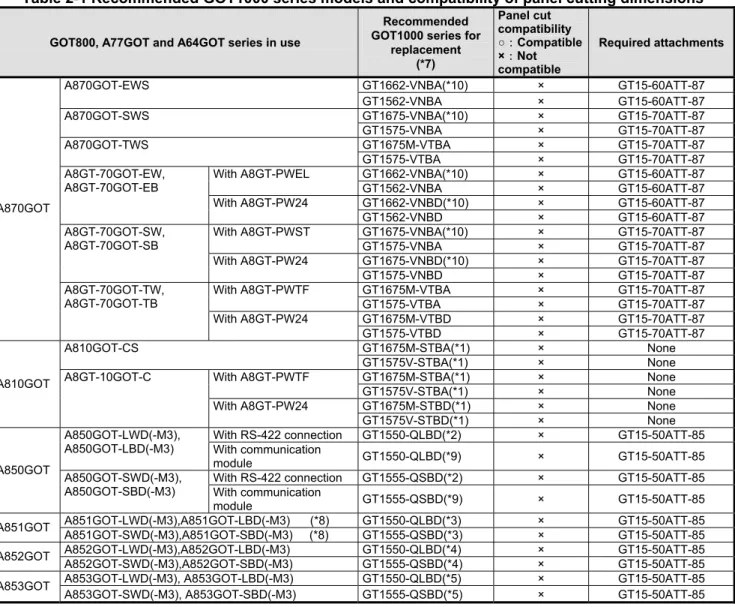
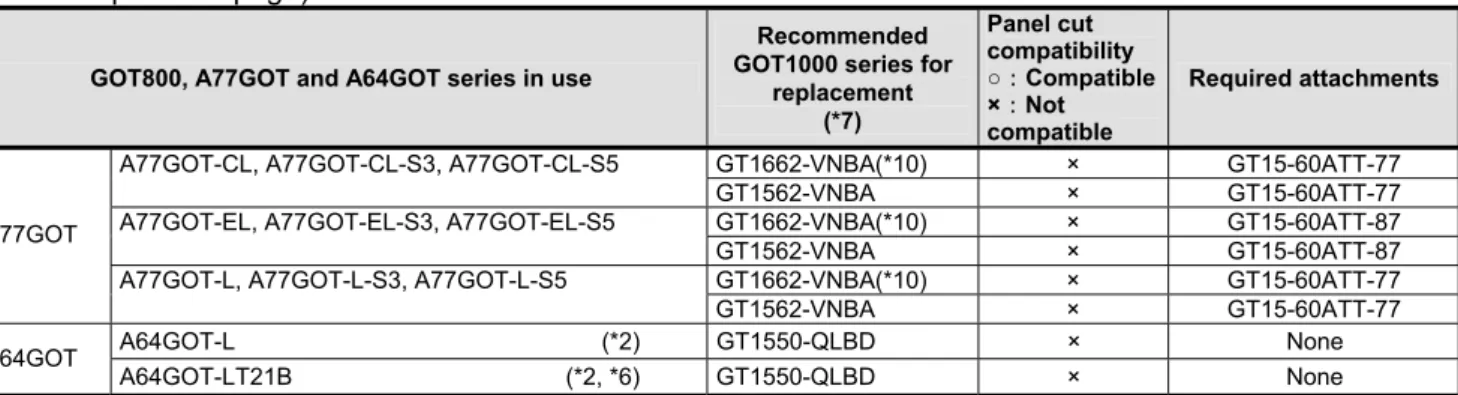
When replacing each old series with the GOT1000 series, the GOTs have different panel cutting dimensions.
Therefore, use an attachment. For some GOT models, no compatible attachment is available. The following
table shows the recommended GOT1000 series models and the compatibility of the panel cutting dimensions.
Table 2-1 Recommended GOT1000 series models and compatibility of panel cutting dimensions
GOT800, A77GOT and A64GOT series in use
Recommended GOT1000 series for
replacement (*7)
Panel cut compatibility
○:Compatible
×:Not
compatible
Required attachments
GT1662-VNBA(*10) × GT15-60ATT-87 A870GOT-EWS
GT1562-VNBA × GT15-60ATT-87
GT1675-VNBA(*10) × GT15-70ATT-87 A870GOT-SWS
GT1575-VNBA × GT15-70ATT-87
GT1675M-VTBA × GT15-70ATT-87
A870GOT-TWS
GT1575-VTBA × GT15-70ATT-87
GT1662-VNBA(*10) × GT15-60ATT-87 With A8GT-PWEL
GT1562-VNBA × GT15-60ATT-87
GT1662-VNBD(*10) × GT15-60ATT-87 A8GT-70GOT-EW,
A8GT-70GOT-EB
With A8GT-PW24
GT1562-VNBD × GT15-60ATT-87
GT1675-VNBA(*10) × GT15-70ATT-87 With A8GT-PWST
GT1575-VNBA × GT15-70ATT-87
GT1675-VNBD(*10) × GT15-70ATT-87 A8GT-70GOT-SW,
A8GT-70GOT-SB
With A8GT-PW24
GT1575-VNBD × GT15-70ATT-87
GT1675M-VTBA × GT15-70ATT-87
With A8GT-PWTF
GT1575-VTBA × GT15-70ATT-87
GT1675M-VTBD × GT15-70ATT-87
A870GOT
A8GT-70GOT-TW, A8GT-70GOT-TB
With A8GT-PW24
GT1575-VTBD × GT15-70ATT-87
GT1675M-STBA(*1) × None
A810GOT-CS
GT1575V-STBA(*1) × None
GT1675M-STBA(*1) × None
With A8GT-PWTF
GT1575V-STBA(*1) × None
GT1675M-STBD(*1) × None
A810GOT A8GT-10GOT-C
With A8GT-PW24
GT1575V-STBD(*1) × None
With RS-422 connection GT1550-QLBD(*2) × GT15-50ATT-85 A850GOT-LWD(-M3),
A850GOT-LBD(-M3) With communication
module GT1550-QLBD(*9) × GT15-50ATT-85
With RS-422 connection GT1555-QSBD(*2) × GT15-50ATT-85 A850GOT
A850GOT-SWD(-M3),
A850GOT-SBD(-M3) With communication
module GT1555-QSBD(*9) × GT15-50ATT-85
A851GOT-LWD(-M3),A851GOT-LBD(-M3) (*8) GT1550-QLBD(*3) × GT15-50ATT-85 A851GOT
A851GOT-SWD(-M3),A851GOT-SBD(-M3) (*8) GT1555-QSBD(*3) × GT15-50ATT-85
A852GOT-LWD(-M3),A852GOT-LBD(-M3) GT1550-QLBD(*4) × GT15-50ATT-85 A852GOT
A852GOT-SWD(-M3),A852GOT-SBD(-M3) GT1555-QSBD(*4) × GT15-50ATT-85 A853GOT-LWD(-M3), A853GOT-LBD(-M3) GT1550-QLBD(*5) × GT15-50ATT-85
A853GOT
[Issue No.]
GOT-A-0018-G
[Page]
3/27
[Title]
Precautions when Replacing GOTA800, A77GOT, A64GOT Series with GOT1000 Series
[Date of Issue]
Ver.G: September 2011 (First Edition: September 2005)
[Relevant Models]
GOT800, A77GOT, and A64GOT Series
TECHNICAL BULLETIN
(from the previous page)
GOT800, A77GOT and A64GOT series in use
Recommended GOT1000 series for
replacement (*7)
Panel cut compatibility
○:Compatible
×:Not
compatible
Required attachments
GT1662-VNBA(*10) × GT15-60ATT-77 A77GOT-CL, A77GOT-CL-S3, A77GOT-CL-S5
GT1562-VNBA × GT15-60ATT-77
GT1662-VNBA(*10) × GT15-60ATT-87 A77GOT-EL, A77GOT-EL-S3, A77GOT-EL-S5
GT1562-VNBA × GT15-60ATT-87
GT1662-VNBA(*10) × GT15-60ATT-77 A77GOT
A77GOT-L, A77GOT-L-S3, A77GOT-L-S5
GT1562-VNBA × GT15-60ATT-77
A64GOT-L (*2) GT1550-QLBD × None A64GOT
A64GOT-LT21B (*2, *6) GT1550-QLBD × None
*1 The A810GOT is a GOT that is dedicated to output of the CRT display and others. The GOT1000 series has no GOT that
is dedicated to the output of the CRT display and others. When replacing with GOT1000 series, use the GOT1000 series
that supports the video/RGB function, and connect an RGB output unit to the GOT.
GOT1000 series that supports video/RGB function RGB output unit for GOT1000 series
GT1675M-VTBA GT1675M-VTBD GT1675M-STBA GT1675M-STBD
GT16M-ROUT
GT1575V-STBA GT1575V-STBD
GT15V-75ROUT
*2 When replacing, use an RS-422 serial communication unit (GT15-RS4-9S) depending on the situation.
*3 When replacing, use an A bus connection unit (GT15-ABUS (2) or GT15-75ABUS (2)L).
*4 When replacing, use a CC-Link communication unit (GT15-J61BT13).
*5 When replacing, communicate with RS-232 port of GOT or use RS-232 serial communication unit (GT15-RS2-9P).
*6 The GOT1000 series does not support the MELSECNET/B network system. Refer to Section 3.4.
*7 The front face of all the GOT1000 series models is black. No models with the ivory front face are available.
*8 For a replacement model, the GT11 dedicated to the bus connection is also available. For details, refer to Section 2.1.
*9 For the A bus connection, use an A bus connection unit (GT15-ABUS(2) or GT15-75ABUS(2)L). For connecting any
communication unit for MELSECNET network systems, refer to Section 3.1 and select the communication unit.
*10 The drawing software GT Designer2 Version
□
is not supported. Use GT Works3 Version1 (Ver1.15R or later).
2.1 Precautions when replacing A851GOT with GOT1000 series
When replacing the A851GOT with the GOT1000 series, the GOT1000 series dedicated to the bus connection
(GT11 dedicated to bus connection (GT1155-Q
□
BDA or GT1150-Q
□
BDA) is recommended.
Table 2-2 Recommended replacement models when replacing with GT11 dedicated to bus connection
(GT1150-QLBDA and GT1155-QSBDA)
GOTA800 series in use
Recommended GT11 dedicated to bus connection with limited functions
shown in Table 2-3
Remarks
[Issue No.]
GOT-A-0018-G
[Page]
4/27
[Title]
Precautions when Replacing GOTA800, A77GOT, A64GOT Series with GOT1000 Series
[Date of Issue]
Ver.G: September 2011 (First Edition: September 2005)
[Relevant Models]
GOT800, A77GOT, and A64GOT Series
TECHNICAL BULLETIN
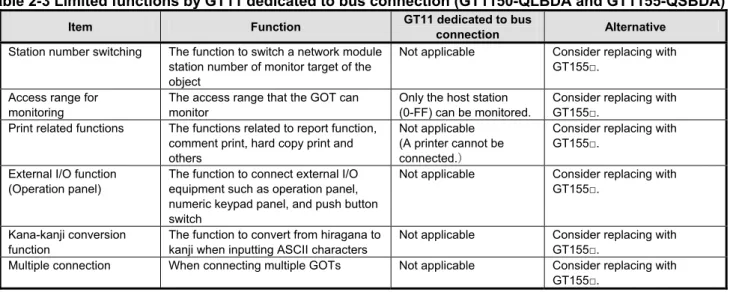
Since the GT11 dedicated to the bus connection does not support the following functions, replacing the model
with the GT155
□
(communication unit mounted) is recommended to use the functions.
Table 2-3 Limited functions by GT11 dedicated to bus connection (GT1150-QLBDA and GT1155-QSBDA)
Item Function GT11 dedicated to bus
connection Alternative
Station number switching The function to switch a network module station number of monitor target of the object
Not applicable Consider replacing with GT155□.
Access range for monitoring
The access range that the GOT can monitor
Only the host station (0-FF) can be monitored.
Consider replacing with GT155□.
Print related functions The functions related to report function, comment print, hard copy print and others
Not applicable (A printer cannot be connected.)
Consider replacing with GT155□.
External I/O function (Operation panel)
The function to connect external I/O equipment such as operation panel, numeric keypad panel, and push button switch
Not applicable Consider replacing with GT155□.
Kana-kanji conversion function
The function to convert from hiragana to kanji when inputting ASCII characters
Not applicable Consider replacing with GT155□.
[Issue No.]
GOT-A-0018-G
[Page]
5/27
[Title]
Precautions when Replacing GOTA800, A77GOT, A64GOT Series with GOT1000 Series
[Date of Issue]
Ver.G: September 2011 (First Edition: September 2005)
[Relevant Models]
GOT800, A77GOT, and A64GOT Series
TECHNICAL BULLETIN
3. Communication units and options
3.1 List of replacement models
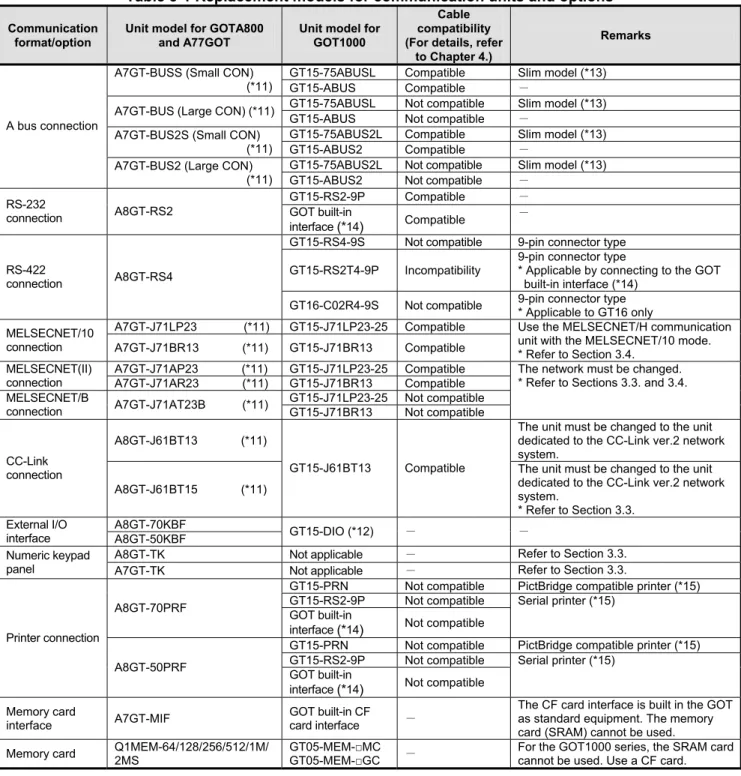
The communication units and options for the old series are not applicable to the GOT1000 series. When
replacing with the GOT1000 series, use the units for the GOT1000 series.
Table 3-1 Replacement models for communication units and options
Communication format/option
Unit model for GOTA800 and A77GOT
Unit model for GOT1000
Cable compatibility (For details, refer
to Chapter 4.)
Remarks
GT15-75ABUSL Compatible Slim model (*13) A7GT-BUSS (Small CON)
(*11) GT15-ABUS Compatible -
GT15-75ABUSL Not compatible Slim model (*13) A7GT-BUS (Large CON) (*11)
GT15-ABUS Not compatible -
GT15-75ABUS2L Compatible Slim model (*13) A7GT-BUS2S (Small CON)
(*11) GT15-ABUS2 Compatible -
GT15-75ABUS2L Not compatible Slim model (*13) A bus connection
A7GT-BUS2 (Large CON)
(*11) GT15-ABUS2 Not compatible -
GT15-RS2-9P Compatible -
RS-232
connection A8GT-RS2 GOT built-in
interface
(*
14)
Compatible-
GT15-RS4-9S Not compatible 9-pin connector type GT15-RS2T4-9P Incompatibility
9-pin connector type
* Applicable by connecting to the GOT built-in interface (*14)
RS-422
connection A8GT-RS4
GT16-C02R4-9S Not compatible 9-pin connector type* Applicable to GT16 only A7GT-J71LP23 (*11) GT15-J71LP23-25 Compatible
MELSECNET/10
connection A7GT-J71BR13 (*11) GT15-J71BR13 Compatible
Use the MELSECNET/H communication unit with the MELSECNET/10 mode. * Refer to Section 3.4.
A7GT-J71AP23 (*11) GT15-J71LP23-25 Compatible MELSECNET(II)
connection A7GT-J71AR23 (*11) GT15-J71BR13 Compatible GT15-J71LP23-25 Not compatible MELSECNET/B
connection A7GT-J71AT23B (*11) GT15-J71BR13 Not compatible
The network must be changed. * Refer to Sections 3.3. and 3.4.
A8GT-J61BT13 (*11)
The unit must be changed to the unit dedicated to the CC-Link ver.2 network system.
CC-Link connection
A8GT-J61BT15 (*11)
GT15-J61BT13 Compatible The unit must be changed to the unit dedicated to the CC-Link ver.2 network system.
* Refer to Section 3.3. A8GT-70KBF
External I/O
interface A8GT-50KBF GT15-DIO (*12) - -
A8GT-TK Not applicable - Refer to Section 3.3.
Numeric keypad
panel A7GT-TK Not applicable - Refer to Section 3.3.
GT15-PRN Not compatible PictBridge compatible printer (*15) GT15-RS2-9P Not compatible
A8GT-70PRF
GOT built-in
interface
(*
14)
Not compatibleSerial printer (*15)
GT15-PRN Not compatible PictBridge compatible printer (*15) GT15-RS2-9P Not compatible
Printer connection
A8GT-50PRF
GOT built-in
interface
(*
14)
Not compatibleSerial printer (*15)
Memory card
interface A7GT-MIF
GOT built-in CF card interface -
The CF card interface is built in the GOT as standard equipment. The memory card (SRAM) cannot be used. Memory card Q1MEM-64/128/256/512/1M/
2MS
GT05-MEM-□MC GT05-MEM-□GC -
[Issue No.]
GOT-A-0018-G
[Page]
6/27
[Title]
Precautions when Replacing GOTA800, A77GOT, A64GOT Series with GOT1000 Series
[Date of Issue]
Ver.G: September 2011 (First Edition: September 2005)
[Relevant Models]
GOT800, A77GOT, and A64GOT Series
TECHNICAL BULLETIN
*11 The communication units for the GOT800 series and A77GOT series have setting switches, including rotary switches.
Though the GOT1000 series communication unit does not have rotary switches and others, setting switches is required
with software. Therefore, set the switches with the drawing software or the utility. For details, refer to Section 3.2. for an
A bus connection unit, Section 3.4.2 (2) for a MELSECNET/10 communication module, and Section 3.4.2 (1) for
MELSECNET(
Ⅱ
) and MELSECNET/B communication modules.
*12 Specifications of external power supply voltage, external connection connector shape and others are changed. For
details, refer to the GT15 External I/O Unit (Positive Common Input/Sink Type Output) User's Manual (IB-0800382).
*13 When using the units for functions, including the external I/O function, sound output function, printer function, video/RGB
display function, and RGB output function, at the same time, use the following units. The slim model has limitation for
combination with other units.
GT15-ABUS (A bus connection 1ch), GT15-ABUS2 (A bus connection 2ch)
*14 To download monitor screen data and others from a personal computer to the GOT via the GOT built-in RS-232
interface, the cable must be replaced.
When the cable is not replaced, use the GT15-RS4-9S.
However, consider 1) as shown below.
1) The thickness of the GOT with the communication unit (E dimension shown in Chapter 5) increases by 13mm.
*15 Since the Centronics interface (A8GT-70PRF and A8GT-50PRF) is replaced with the USB interface (GT15-PRN) or the
RS-232 interface (GT15-RS2-9P or GOT built-in interface), change the printer model. For the printer models applicable
to the GOT1000 series (validated models), refer to TECHNICAL BULLETIN GOT-A-0010 “List of Valid Devices
Applicable for GOT1000 Series” on the MELFANSweb website.
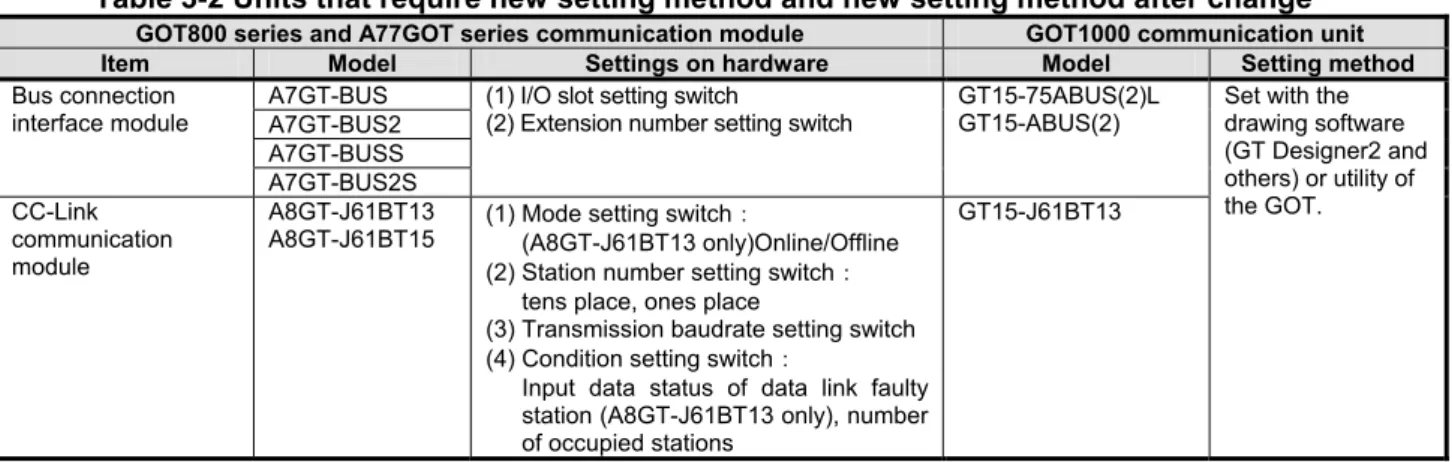
3.2 Units that require new setting method
The communication units for the GOT800 series and A77GOT series listed below require settings with rotary
switches and others on the hardware. However, the communication units for the GOT1000 series do not have
rotary switches and others, and settings with the drawing software or the utility are required. For the GOT1000
series, refer to the following table.
Table 3-2 Units that require new setting method and new setting method after change
GOT800 series and A77GOT series communication module GOT1000 communication unit
Item Model Settings on hardware Model Setting method
A7GT-BUS A7GT-BUS2 A7GT-BUSS Bus connection
interface module
A7GT-BUS2S
(1) I/O slot setting switch
(2) Extension number setting switch
GT15-75ABUS(2)L GT15-ABUS(2)
CC-Link communication module
A8GT-J61BT13 A8GT-J61BT15
(1) Mode setting switch:
(A8GT-J61BT13 only)Online/Offline (2) Station number setting switch:
tens place, ones place
(3) Transmission baudrate setting switch (4) Condition setting switch:
Input data status of data link faulty station (A8GT-J61BT13 only), number of occupied stations
GT15-J61BT13
[Issue No.]
GOT-A-0018-G
[Page]
7/27
[Title]
Precautions when Replacing GOTA800, A77GOT, A64GOT Series with GOT1000 Series
[Date of Issue]
Ver.G: September 2011 (First Edition: September 2005)
[Relevant Models]
GOT800, A77GOT, and A64GOT Series
TECHNICAL BULLETIN
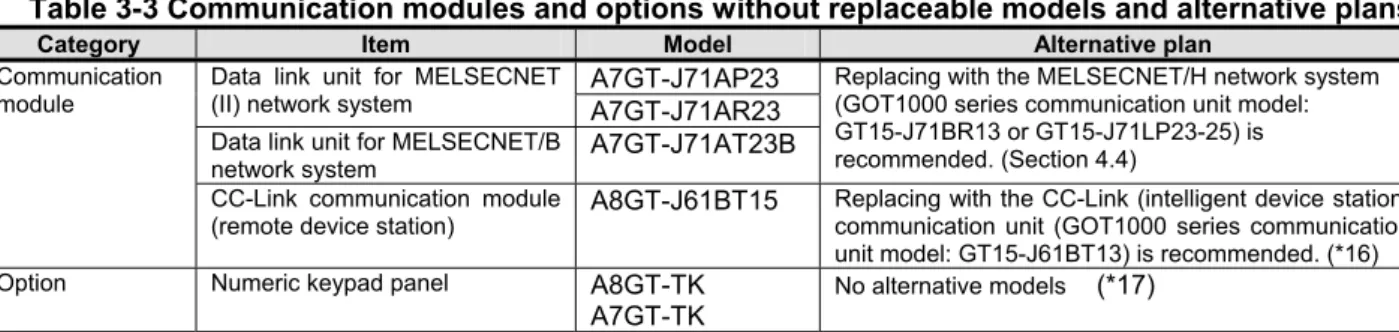
3.3 Communication modules and options without replaceable models
The communication modules and options for the GOT800 series and A77GOT series shown in the following list
have no alternative GOT1000 series models. If you have difficulty to replace the modules and options with the
GOT1000 series, keep enough spares.
Table 3-3 Communication modules and options without replaceable models and alternative plans
Category Item Model Alternative plan
A7GT-J71AP23
Data link unit for MELSECNET
(II) network system
A7GT-J71AR23
Data link unit for MELSECNET/Bnetwork system
A7GT-J71AT23B
Replacing with the MELSECNET/H network system (GOT1000 series communication unit model: GT15-J71BR13 or GT15-J71LP23-25) is recommended. (Section 4.4)
Communication module
CC-Link communication module
(remote device station)
A8GT-J61BT15
Replacing with the CC-Link (intelligent device station) communication unit (GOT1000 series communication unit model: GT15-J61BT13) is recommended. (*16) Option Numeric keypad panel
A8GT-TK
A7GT-TK
No alternative models
(*17)
*16 - The number of used stations differs. (Remote device station: using two stations out of four stations, intelligent device
station: using one station out of four stations) Changing parameter in the CC-Link station setting (remote device station
-> intelligent device station) and others on the programmable controller are required.
- Maximum number of connected units is reduced from 32 to 26. When connecting more than 26 units, consider adding
a master station to support the system.
- Remote dedicated commands (initial setting command, continuous read command, random read command,
continuous write command, random write command, monitor register command, monitor request command, always
write register command, and always write register command) are not supported. Please consult Mitsubishi
representative for questions regarding to the remote dedicated command.
*17 Contact Mitsubishi Electric System & Service Co., Ltd about a cable (GT15-C03HTB) to use the A8GT-TK with the
GOT1000 series.
3.4 Replacing the GOT800, A77GOT, or A64GOT series connected to the MELSECNET(
Ⅱ
) or
MELSECNET/B network system with the GOT1000 series
When the GOT800, A77GOT, or A64GOT series is used in the MELSECNET(
Ⅱ
) or MELSECNET/B network
system, consider the replacement with any of the following method.
- Change the MELSECNET(
Ⅱ
) or MELSECNET/B network system in the entire system to the MELSECNET/H
network system, and replace the GOT800, A77GOT, or A64GOT series with the GOT1000 series.
- Without the change of the MELSECNET(
Ⅱ
) or MELSECNET/B network system in the entire system, change
the connection type between the programmable controller and the GOT, and replace the GOT800, A77GOT,
or A64GOT series with the GOT1000 series.
3.4.1 Replacing the network in the entire system with the MELSECNET/H network system
Use the following MELSECNET/H communication unit for the GOT1000 series.
Model Specifications GT15-J71LP23-25 Optical loop unit
GT15-J71BR13 Coaxial bus unit
For details of changing to MELSECNET/H system, refer to Transition from MELSEC-A/QnA (Large Type)
Series to Q Series Handbook (Network Modules: L(NA)-08048ENG).
3.4.2 Changing the connection type between the programmable controller and the GOT without change
of the network in the entire system
(1) When the existing programmable controller has an empty slot
Add a communication module (for other than the MELSECNET(
Ⅱ
), MELSECNET/B, and MELSECNET/10
[Issue No.]
GOT-A-0018-G
[Page]
8/27
[Title]
Precautions when Replacing GOTA800, A77GOT, A64GOT Series with GOT1000 Series
[Date of Issue]
Ver.G: September 2011 (First Edition: September 2005)
[Relevant Models]
GOT800, A77GOT, and A64GOT Series
TECHNICAL BULLETIN
Example of accessing the network via the programmable controller by changing the connection type of the
GOT
MELSECNET(Ⅱ)coaxial loop
or MELSECNET(Ⅱ)optical loop
or MELSECNET/B
Communication formats other than MELSECNET(Ⅱ), /B, /10
Figure 3-1 Example of replacement configuration when adding a communication module to the
programmable controller with an empty slot and connecting the programmable controller to the
GOT
The following two restrictions are applied for the replacement.
a) Station number settings need to be changed depending on the station that the GOT is connected to.
- When connecting to the master station, change all station numbers of objects to the host station (0-FF).
- When connecting to local stations, station numbers do not need to be changed.
b) When using the cyclic device with host station write, the write area of the GOT is unable to use. Therefore,
changing the write device and corresponding ladder is required.
Table 3-4 Communication format between a programmable controller and a replacement GOT, a
representative communication unit model and a connected programmable controller
Replacement communication format Representative GOT communication unit model Connected programmable controller A bus connection GT15-ABUS, GT15-75ABUSL AnS series
QnA(S) series RS-232 connection RS-232 port of GOT,GT15-RS2-9P
Q series AnS series QnA(S) series RS-422 connection GT15-RS4-9S,GT15-RS2T4-9P
Q series AnS series QnA(S) series
(2) When the existing programmable controller has no empty slot
Add a programmable controller to the network. Add a communication module (for other than the
MELSECNET(
Ⅱ
), MELSECNET/B, and MELSECNET/10 network systems) to the programmable controller,
[Issue No.]
GOT-A-0018-G
[Page]
9/27
[Title]
Precautions when Replacing GOTA800, A77GOT, A64GOT Series with GOT1000 Series
[Date of Issue]
Ver.G: September 2011 (First Edition: September 2005)
[Relevant Models]
GOT800, A77GOT, and A64GOT Series
TECHNICAL BULLETIN
Example of accessing the network by adding a programmable controller to the network
MELSECNET(
Ⅱ
) coaxial loop
or MELSECNET(
Ⅱ
) optical loop
or MELSECNET/B
Add a
programmable
controller to the
network, and
connect the GOT.
Figure 3-2 Example of replacement configuration when adding a programmable controller to the network and
connecting the programmable controller to the GOT
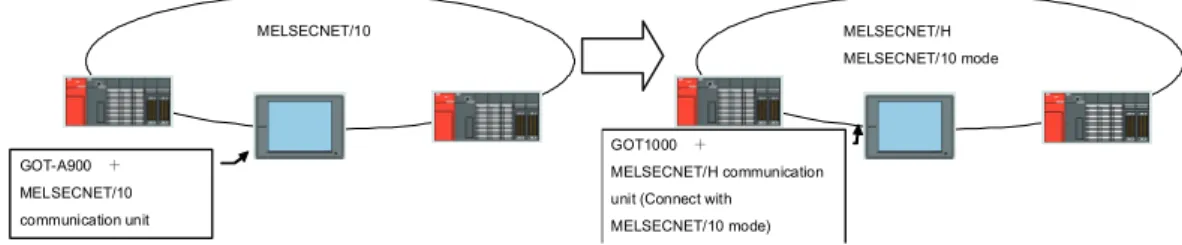
3.5 Replacing the GOT800 or A77GOT series connected to the MELSECNET/10 (programmable controller to
programmable controller optical loop/coaxial bus) network system with the GOT1000 series
Use the MELSECNET/H communication unit listed in Section 3.4.1, set the MELSECNET/H communication
unit to the MELSECNET/10 mode, and connect the GOT to the MELSECNET/10 network system.
MELSECNET/10
GOT-A900 + MELSECNET/10 communication unit
MELSECNET/H MELSECNET/10 mode
GOT1000 +
MELSECNET/H communication unit (Connect with MELSECNET/10 mode)
[Issue No.]
GOT-A-0018-G
[Page]
10/27
[Title]
Precautions when Replacing GOTA800, A77GOT, A64GOT Series with GOT1000 Series
[Date of Issue]
Ver.G: September 2011 (First Edition: September 2005)
[Relevant Models]
GOT800, A77GOT, and A64GOT Series
TECHNICAL BULLETIN
4. Cables
4.1 Bus connection cables
4.1.1 Utilization of cables in present use
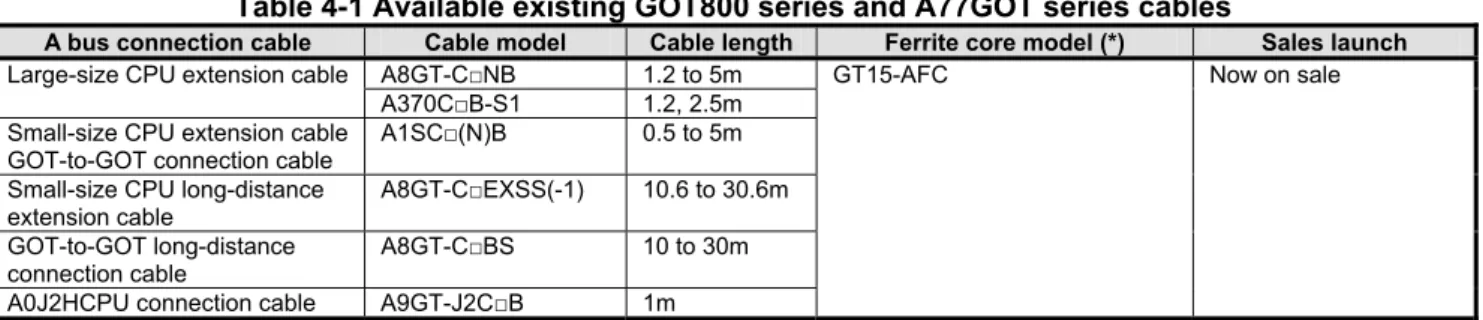
The following GOT800 series and A77GOT series bus connection cables can be used for the GOT1000 series
by adding dedicated ferrite cores (*) to the both ends of the cables.
Table 4-1 Available existing GOT800 series and A77GOT series cables
A bus connection cable Cable model Cable length Ferrite core model (*) Sales launch
A8GT-C□NB 1.2 to 5m GT15-AFC Now on sale Large-size CPU extension cable
A370C□B-S1 1.2, 2.5m Small-size CPU extension cable
GOT-to-GOT connection cable
A1SC□(N)B 0.5 to 5m Small-size CPU long-distance
extension cable
A8GT-C□EXSS(-1) 10.6 to 30.6m GOT-to-GOT long-distance
connection cable
A8GT-C□BS 10 to 30m A0J2HCPU connection cable A9GT-J2C□B 1m
* Purchase the ferrite cores from Mitsubishi Electric System & Service Co., Ltd. (The GT15-AFC includes two
ferrite cores for a cable.)
The following GOT800 series and A77GOT series cables are not available for the GOT1000 series. Replace
the cables with the bus connection cables for the GOT1000 series as shown below.
Table 4-2 Unavailable existing GOT800 series and A77GOT series cables
A bus connection cable Cable model (combination) Cable length Alternative cable model Remarks
AC□B 0.6 to 5m GT15-C□NB -
AC□B+A7GT-CNB-BUS-1 0.6 to 5m + 0.3m
GT15-C□NB - AC□B
+A7GT-CNB
+A8GT-C□EXSS-1/-C□EXSS
0.6 to 5m +10 to 30.6m
GT15-AC□B +A7GT-CNB +GT15-C□EXSS-1
-
AC□B-R 1.2 to 5m GT15-C□NB The old series cable is a right angle cable. The
corresponding cable is not available for the GOT1000 series. Replace the cable with the alternative cable. AC□B-R
+A7GT-CNB-BUS-1
1.2 to 5m + 0.3m
GT15-C□NB Same as above AC□B-R
+A7GT-CNB
+A8GT-C□EXSS-1/-C□EXSS
1.2 to 5m +10 to 30.6m
GT15-AC□B +A7GT-CNB +GT15-C□EXSS-1
- A7GT-C□EXS(-1) 10 to 30m GT15-C□EXSS-1 - A7GT-C□B 10 to 30m GT15-C□BS - A370C□B 1.2 to 2.5m GT15-A370C□B - Large-size
CPU extension cable
A370C□B
+A7GT-CNB-BUS-1
1.2 to 2.5m + 0.3m
GT15-A370C□B-S1 - Small-size
CPU extension cable
A1SC□NB
+A7GT-CNB-BUS-1
0.5 to 5m + 0.3m
GT15-A1SC□B - A bus connection cable A0J2HCPU connection cable
A0J2C04B 0.4m GT15-J2C10B The corresponding cable of the 0.4m cable is not available for the GOT1000 series. Replace the cable with the 1m cable.
4.1.2 Replacing GOT when using multiple units of bus connection
[Issue No.]
GOT-A-0018-G
[Page]
11/27
[Title]
Precautions when Replacing GOTA800, A77GOT, A64GOT Series with GOT1000 Series
[Date of Issue]
Ver.G: September 2011 (First Edition: September 2005)
[Relevant Models]
GOT800, A77GOT, and A64GOT Series
TECHNICAL BULLETIN
4.2 RS-232 cable
The connectors for the GOT800 series serial communication module (RS-232) and for the GOT1000 series
serial communication port (RS-232) are the same type (9-pin D-sub (male), with inch screws). The pin locations
are also the same.
Use the Mitsubishi GOT1000 series cables (including user-created cables described in GOT1000 Series
Connection Manual) to connect to the GOT1000 series.
4.3 RS-422 cable
For the Mitsubishi GOT800 series cables in use (AC
□
R4 and A7GT-AC
□
R4), the connector for the GOT800
series cables differ from the connector for the GOT1000 series cables. Replace the cable with the GOT1000
series cable.
Use the Mitsubishi GOT1000 series cables (including user-created cables described in the GOT1000 Series
Connection Manual) to connect to the GOT1000 series.
4.4 Network cable (MELSECNET/10 and CC-Link)
The network cables for the old series are available for the GOT1000 series.
4.5 Other cables
Table 4-3 Treatment for other existing cables
Cable type Treatment
Printer cable
The GOT800 series cables are not available for the GOT1000 series since the interfaces differ between the GOT1000 series and the GOT800 series (GOT1000 series: USB or RS-232 interface, GOT800 series: Centronics interface).
[Issue No.]
GOT-A-0018-G
[Page]
12/27
[Title]
Precautions when Replacing GOTA800, A77GOT, A64GOT Series with GOT1000 Series
[Date of Issue]
Ver.G: September 2011 (First Edition: September 2005)
[Relevant Models]
GOT800, A77GOT, and A64GOT Series
TECHNICAL BULLETIN
5. Mounting intervals
When replacing the GOT800, A77GOT, or A64GOT series with the GOT1000 series, some models and
connection types require larger mounting intervals than the GOT800, A77GOT, and A64GOT series. The
following describes the precautions.
For intervals required for each product, please refer to the product installation interval section in the GOT1000
catalog.
In addition, when installing a communication unit or option unit on the GOT to use the multi-channel function,
refer to GT15 User’s Manual for the E dimension.
5.1 GOT800 and A77GOT series
Among the mounting intervals (A to F dimensions in the above figure), the F dimension for the GOT1000 series
is larger than the F dimension for the A851GOT with the bus connection or the A852GOT with the CC-Link
connection. The following table shows the dimension.
When using the multi-channel function, consider the thickness of the communication unit to be mounted.
For details, refer to the chapter regarding the multi-channel function in the GOT1000 Series Connection
Manual.
Table 5-1 Depth dimension (F dimension) with bus connection or CC-Link connection
(Unit: mm)
GOTA800 series in present use Alternative model
GOT model Connection
type
F
dimension GOT model
Communication unit model
F dimension
A851GOT-LWD(-M3), A851GOT-LBD(-M3) GT1550-QLBD A851GOT
A851GOT-SWD(-M3),A851GOT-SBD(-M3) A bus
connection 62 GT1555-QSBD
GT15-ABUS(2)
GT15-75ABUS(2)L 77 A852GOT-LWD(-M3),A852GOT-LBD(-M3) GT1550-QLBD
A852GOT
A852GOT-SWD(-M3),A852GOT-SBD(-M3)
CC-Link
connection 69 GT1555-QSBD GT15-J61BT13 77
5.2 A64GOT series
Table 5-2 shows the comparison of mounting dimensions.
For the A64GOT series, some dimensions are not defined. The E and F dimensions for the GOT1000 series
are larger than those for the A64GOT series. Check the dimensions when replacing the unit with the GOT1000
series.
Table 5-2 Comparison of mounting dimensions between A64GOT and GT1550-QLBD (Unit:
mm)
Model A dimension B dimension C dimension D dimension E dimension F dimension
A64GOT-L/-LT21B Not defined Not defined Not defined Not defined 51.5 73.5
GT1550-QLBD (With MELSECNET/H
communication unit)
[Issue No.]
GOT-A-0018-G
[Page]
13/27
[Title]
Precautions when Replacing GOTA800, A77GOT, A64GOT Series with GOT1000 Series
[Date of Issue]
Ver.G: September 2011 (First Edition: September 2005)
[Relevant Models]
GOT800, A77GOT, and A64GOT Series
TECHNICAL BULLETIN
6. Cable connection direction and PC (CF) card insertion direction
The cable connection direction or position and the PC (CF) card insertion direction differ between the GOT800,
A77GOT, or A64GOT series and the GOT1000 series.
The following shows the difference between the old series and the GOT1000 series. To mount the GOT on the
control panel, perform wiring and others by referring to the following.
6.1 Cable connection direction and position
(1) GOT800 series: The terminal block is on the right side of the GOT.
(2) A77GOT and A64GOT series: The A77GOT has the terminal block at the bottom. The A64GOT has the terminal
block on the left side.
A870GOT A85□GOT
<GOT裏面>
A77GOT
A64GOT
<GOT rear face>
[Issue No.]
GOT-A-0018-G
[Page]
14/27
[Title]
Precautions when Replacing GOTA800, A77GOT, A64GOT Series with GOT1000 Series
[Date of Issue]
Ver.G: September 2011 (First Edition: September 2005)
[Relevant Models]
GOT800, A77GOT, and A64GOT Series
TECHNICAL BULLETIN
(3) GOT1000 series: The terminal block is at the bottom of the GOT.
6.2 CF card insertion direction
(1) GOT800 series: Insert a card from the left side of the GOT.
(2) A77GOT series: Insert a card from the GOT rear face.
Memory card
A77GOT rear face
[Issue No.]
GOT-A-0018-G
[Page]
15/27
[Title]
Precautions when Replacing GOTA800, A77GOT, A64GOT Series with GOT1000 Series
[Date of Issue]
Ver.G: September 2011 (First Edition: September 2005)
[Relevant Models]
GOT800, A77GOT, and A64GOT Series
TECHNICAL BULLETIN
CF Card top face
(3) GOT1000 series (excluding GT155
□
and GT115
□
): Insert a card from the GOT rear face.
GT15 GT16
CF Card top face
(4) GT155
□
and GT115
□
: Insert a card from the side of the GOT.
[Issue No.]
GOT-A-0018-G
[Page]
16/27
[Title]
Precautions when Replacing GOTA800, A77GOT, A64GOT Series with GOT1000 Series
[Date of Issue]
Ver.G: September 2011 (First Edition: September 2005)
[Relevant Models]
GOT800, A77GOT, and A64GOT Series
TECHNICAL BULLETIN
7. Monitor screen data
7.1 Using exiting monitor screen data
Flow of using existing monitor screen data of GOT800 series, A77GOT or A64GOT series, or A77GOT-S5 data
GOT800 series
A77GOT or A64GOT series
A77GOT-S5
When you have the data
When you do not have
the data
(Upload the data from
the GOT.)
When you have the data
When you do not have
the data
(Upload the data from
the GOT.)
SW2
□
-AGOTP
Upload the project
data.
SW3NIW-A8GOTP or
data transfer tool
Upload the project data.
SW3NIW-A8GOTP
Convert the AGOTP
data into the GOT800
data when reading
other data.
GT Converter2 Version
□
Convert the GOT800 data into the GOT1000
project data.
GT Designer2 Version2
or GT Works3 Version1
Edit the GOT1000 project
[Issue No.]
GOT-A-0018-G
[Page]
17/27
[Title]
Precautions when Replacing GOTA800, A77GOT, A64GOT Series with GOT1000 Series
[Date of Issue]
Ver.G: September 2011 (First Edition: September 2005)
[Relevant Models]
GOT800, A77GOT, and A64GOT Series
TECHNICAL BULLETIN
7.1.1 How to convert monitor screen data from GOT800 series to GOT1000 series
By converting the monitor screen data for the GOT800 series into the GOT1000 series data with the data
conversion software (GT Converter2 Version2 or GT Converter2 Version3), the monitor screen data for the
GOT800 series can be used for the GOT1000 series.
The data conversion software is included with the following drawing software for the GOT1000 series.
1)GT Converter2 Version2
- GT Works2 Version2(SW2D5C-GTWK2)
- GT Designer2 Version2(SW2D5C-GTD2)
2)GT Converter2 Version3
- GT Works3 Version1(SW1DNC-GTWK3)
(1) When you have the monitor screen data for the GOT800 series
Convert the GOT800 series data into the GOT1000 series data by using GT Converter2 Version
□
.
To edit the file after the conversion, open and edit the file with GT Designer2 Version
□
or GT Works3
Version1.
< Operation of GT Converter2 Version
□
>
1) Start GT Converter2 Version
□
.
2) Select the monitor screen data to be converted, and start conversion.
3) After the conversion is completed, name and save the file.
* The file format after conversion is “*.G1”instead of “*.GTE”.
* For the operation of GT Converter2 Version
□
, refer to the following manual.
1)GT Converter2 Version2
- GT Converter2 Version2 Operating Manual (SH-080533ENG)
2)GT Converter2 Version3
- GT Converter2 Version3 Operating Manual for GT Works3 (SH-080862ENG)
< Editing with GT Designer2 >
(a) GT Designer2 Version
□
1) Start GT Designer2 Version
□
.
2) Select [Project] – [Open] from the menu.
3) Select [GOT1000 Binary Files(*.G1)] for [Files of type] in the [Open] dialog box.
4) Select the file to be edited, and then click the [Open] button.
5) Edit the file, and then save the file as a new file to create the monitor screen data (GTE file) for the
GOT1000 series.
[Issue No.]
GOT-A-0018-G
[Page]
18/27
[Title]
Precautions when Replacing GOTA800, A77GOT, A64GOT Series with GOT1000 Series
[Date of Issue]
Ver.G: September 2011 (First Edition: September 2005)
[Relevant Models]
GOT800, A77GOT, and A64GOT Series
TECHNICAL BULLETIN
(b) GT Designer3 Version1
1) Start GT Designer3 Version1.
2) Select [Open] in the [Select Project] dialog box.
3) Click the [Open GT Designer2/G1 format file] button for another format in the [Open Project] dialog box.
4) Select [GOT1000 Binary Files(*G1)] for [Files of type] in the [Open] dialog box.
5) Select the file to be edited, and then click the [Open] button.
6) Edit the file, and then save the file as a new file to create the monitor screen data for the GOT1000
series.
[Issue No.]
GOT-A-0018-G
[Page]
19/27
[Title]
Precautions when Replacing GOTA800, A77GOT, A64GOT Series with GOT1000 Series
[Date of Issue]
Ver.G: September 2011 (First Edition: September 2005)
[Relevant Models]
GOT800, A77GOT, and A64GOT Series
TECHNICAL BULLETIN
(2) When you do not have the monitor screen data for the GOT800 series
After the data is uploaded from the GOT800 series, execute the conversion as shown in above (1).
The data can be uploaded from the GOT by using the GOT800 series drawing software SW3NIW-A8GOTP or
the data transfer tool.
* The GOT800 series drawing software SW3NIW-A8GOTP supports the operating systems of Windows3.1
and Windows95.
* The following shows the OSs that support the data transfer tool.
- Windows 2000 Professional
- Windows XP Professional/Home Edition
- Windows Vista Ultimate/Enterprise/Business/Home Premium/Home Basic
- Windows7 Ultimate/Enterprise/Professonal/Home Premium/Starter
* The SW3NIW-A8GOTP can be downloaded from the MLFANSWeb website
The data transfer tool is included with GT Works2 Version2 and GT Works3 Version1, or the tool can be
downloaded from the MELFANSWeb website.
< How to upload data with A8GOTP >
Refer to SW3NIW-A8GOTP Graphic Settings Software Package Operating Manual (Data
Transmission/Debugging/Document Creation Manual).
< How to upload data with data transfer tool >
1) Data transfer tool startup screen
Select [GOT800 Series], and then click the [GOT Read] button.
2) GOT read screen
Specify a location where data is read, and then click the [GOT Read] button to read the data.
[Issue No.]
GOT-A-0018-G
[Page]
20/27
[Title]
Precautions when Replacing GOTA800, A77GOT, A64GOT Series with GOT1000 Series
[Date of Issue]
Ver.G: September 2011 (First Edition: September 2005)
[Relevant Models]
GOT800, A77GOT, and A64GOT Series
TECHNICAL BULLETIN
7.1.2 How to convert monitor screen data from A77GOT series to GOT1000 series
The monitor screen data for the A77GOT series can be converted into GOT800 series data by using the
GOT800 series drawing software SW3NIW-A8GOTP. Then, the GOT800 series data can be converted into
GOT1000 series data by using the data conversion software (GT Converter2 Version
□
).
(1) When you have the monitor screen data for the A77GOT series
After the monitor screen data for the A77GOT series is converted into GOT800 series data by using the
GOT800 series drawing software SW3NIW-A8GOTP, convert the data into GOT1000 series data by using
GT Converter2 Version
□
.
1) Prepare the GOT screen data.
2) By using the W3NIW-A8GOTP, convert the data into GOT800 series data.
Select [Project] – [Import File] – [AGOTP Data] from the menu on the A8GOTP.
The data is read as the GOT800 series data.
3) Save the data by selecting [Project] –[Save As] from the menu.
4) Convert the data into GOT1000 series data by using GT Converter2 Version
□
.
→
Refer to Section 7.1.1 (1).
(2) When you do not have the monitor screen data for the A77GOT series
Upload the monitor screen data from the A77GOT, and then convert the data.
Note that uploading is available when the following conditions are satisfied.
- The GOT is the A77GOT-S5.
- The GOT type is set to [A77GOT-S5] in the data.
Uploading is not available with the models other than the A77GOT-S5. Use data stored in the personal
computer or floppy disk, or create screen data for the GOT1000 series.
To upload the monitor screen data from the A77GOT, the A77GOT drawing software
(SW2SRX-AGOTP/SW2IVD-AGOTP/SW2NX-AGOTP) is required.
1) Upload the monitor screen data from the A77GOT-S5, and save the data.
[Issue No.]
GOT-A-0018-G
[Page]
21/27
[Title]
Precautions when Replacing GOTA800, A77GOT, A64GOT Series with GOT1000 Series
[Date of Issue]
Ver.G: September 2011 (First Edition: September 2005)
[Relevant Models]
GOT800, A77GOT, and A64GOT Series
TECHNICAL BULLETIN
7.1.3 How to convert monitor screen data from A64GOT series to GOT1000 series
The monitor screen data for the A64GOT can be converted into GOT1000 series data with the same
procedures as converting the A77GOT series data.
(1) When you have the monitor screen data for the A64GOT series
Convert the data with the same procedures as converting the A77GOT series data.
→
Refer to Section 7.1.2 (1).
(2) When you do not have the monitor screen data for the A64GOT series
Uploading is not available with the A64GOT. Use data stored in the personal computer or floppy disk, or
create screen data for the GOT1000 series.
7.1.4 Precautions for data conversion
To use the A77GOT or A64GOT series data for the GOT1000 series, if the parts data is not stored in the
condition where the data is stored by using the SW
□□□
-AGOTP (if the parts file is stored in a different drive or
the directory of the parts file is changed), the parts data cannot be read.
When the parts file is stored in a different drive or the directory of the parts file is changed, perform the following
operations by using the SW
□□□
-AGOTP.
1) Read the existing old series data to be opened with the drawing software.
2) Read the parts file.
3) Save the file.
Specify the saved file as shown in the above 3) for conversion.
7.1.5 USB serial adapter available for communication between the data transfer tool and the GOT800
series
By using the data transfer tool, the screen data and others can be downloaded/uploaded from/to the GOT800
series.
(Compatible Product)
Manufacturer
Model
Diatrend Corporation
DIFC-U2 (USB/RS-232C converter)
PLANEX COMMUNICATIONS INC.
URS-04 (USB/serial adapter)
A87*GOT
A810GOT
A85*GOT
AC30R2-9P
AC30R2-9SS
AC30R2-9P
URS-04
URS-04
DIFC-U2
Personal
computer
Cable model Cable pin
AC30R2-9SS 9-pin (female)-9-pin (female), for AGOT AC30R2-9P 9-pin (female)-25-pin (male), for AGOT
The operation of the USB serial adapter is checked with the following personal computer.
- Apricot CX
[Issue No.]
GOT-A-0018-G
[Page]
22/27
[Title]
Precautions when Replacing GOTA800, A77GOT, A64GOT Series with GOT1000 Series
[Date of Issue]
Ver.G: September 2011 (First Edition: September 2005)
[Relevant Models]
GOT800, A77GOT, and A64GOT Series
TECHNICAL BULLETIN
7.2 Compatibility of monitor screen data
7.2.1 Data compatibility list
To convert GOT800, A77GOT, or A64GOT series drawing data into GOT1000 series drawing data, some
functions have restrictions or cannot be converted. For the A77GOT or A64GOT series data, convert the data
into the GOT800 series monitor screen data by using the GOT800 series drawing software
(SW3NIW-A8GOTP9). Then, convert the data into the GOT1000 series drawing data by using GT Converter2
Version
□
.
For whether the data can be converted into the GOT1000 series drawing data, refer to the following table.
Table7-1 Availability of functions on GOT1000 series after conversion
: Available,
○
: Available (The partial setting change may be required.),
<>: N/A (Conversion unavailable, available with new setting), ×: N/A,
-
: Unsupported function
Whether the function is available for GOT1000 series after conversion
Function GOT 800 A77 GOT A64 GOT Remarks (Precautions)
Numerical display ○*1 ○ ASCII display ○*1 ○
Quarter characters are converted into quad characters. Therefore, set the character display size to quarter size.
*1: When this object is overlapped with the other objects (example: trend graph), set the layer for the object to [Front].
String display - ○*1
The function is converted into the ASCII display.
*1: When this object is overlapped with the other objects (example: trend graph), set the layer for the object to [Front].
Comment display - - -
Clock display ○*1 *1: When this object is overlapped with the other objects (example: trend graph), set the layer for the object to [Front].
Alarm list display ○*1 - *1: When this object is overlapped with the other objects (example: trend graph), set the layer for the object to [Front].
Alarm history display - - -
Level display -
Lamp display - - -
Panel meter - - -
Parts display Part display setting alone to which the part number is not changed cannot be used. (substantially impossible setting)
Movement (Parts movement) -
Locus (Parts movement) -
Error warning display -
<>
<>
Configure the new setting for the alarm list display function. Numerical value - ○ ○Block data
display ASCII - ○ ○
The function is converted into multiple numerical displays and ASCII displays.Quarter characters are converted into quad characters. Therefore, set the character display size to quarter size. Data
display function
Data list display - - -
Scroll ○ ○ Up to eight lines (data) are converted per graph. For a graph with 9 to 16 lines (data), configure the new graph setting. Batch
<>
<>
Configure the new setting for the trigger of the line graph function. Trendgraph
Overwrite - × - The GOT1000 series does not support this function. *
Line graph -
Normality -
Bar
graph Accumulation - × - The GOT1000 series does not support this function. Band graph - -
<>
Configure the new setting for the statistics graph. Pie graph -<>
- Configure the new setting for the statistics graph. Scatter graph -<>
<>
The GOT800 series does not support this function. Therefore, when replacing the A77GOT or A64GOT series data, configure the new setting with GT Designer2.
Graph display function
Spline graph - × - The GOT1000 series does not support this function. Numerical input ○*1
Data input
function ASCII input ○*1
[Issue No.]
GOT-A-0018-G
[Page]
23/27
[Title]
Precautions when Replacing GOTA800, A77GOT, A64GOT Series with GOT1000 Series
[Date of Issue]
Ver.G: September 2011 (First Edition: September 2005)
[Relevant Models]
GOT800, A77GOT, and A64GOT Series
TECHNICAL BULLETIN
Table7-1 Availability of functions on GOT1000 series after conversion(from the previous page)
: Available,
○
: Available (The partial setting change may be required.),
<>: N/A (Conversion unavailable, available with new setting), ×: N/A,
-
: Unsupported function
Whether the function is available for GOT1000 series after conversion
Function GOT 800 A77 GOT A64 GOT Remarks (Precautions)
SET/RST ○*2
Reversing ○*2 Touch
switch
function Switch ○*2
*2: When operation is set more than once, it is necessary to set it again.
Report function
<>
- When this function is set with the A77GOT, configure the new setting.System information - -
Operation panel function
<>
*3<>
*3 *3: Configure the new setting. Announcement function -<>
-This function is available with the new setting for the alarm history display function.
Status observation function - - -
Time action function -
<>
-The GOT800 series does not support this function. Therefore, when replacing the A77GOT or A64GOT series data, configure the new setting with GT Designer2.
Snapshot function, hard copy function
<>
*4 -*4: Displaying and printing the memory card data on the personal computer are available. (Not available on the GOT.)
Password - -
Straight line, Continuous straight line, Rectangle, Polygon, Circle, Circular arc
-
Rectangle of rubbing into,
Rubbing into ○ ○ ○ Pattern 2 of rubbing into is converted into pattern 1. Figure data
Oval ○ ○ ○ An ellipse of 23 dots or less is converted into a 32-dot ellipse. Change the size with the GOT1000 series drawing software.
Graphic
When the character data is overlapped with the other objects (example: trend graph), the character data is positioned under the objects.
Text ○ -
The characters are converted into graphic characters because the GOT1000 series supports the fast character display.
However, it is necessary to draw to the background in the rectangle of rubbing into because the data of the reversing attribute is converted into the normal rotation and to change the character attribute to the black.
Character data
Foreign character -
<>
<>
This function is available with the symbol parts.Comment data ○ ○ ○ Comment number 0 moves to another number and is used.
Parts data -
Special key
<>
*5<>
*5 *5: Configure the new setting.Screen switching -
Printer model specification ○ ○ -
This function supports a PictBridge compatible printer and a serial printer.(The printers manufactured by NEC Corporation (PC-PR printers) are not available.)
Backlight OFF time setting ○ ○ - This setting is available with the GOT1000 series main unit. GOT
switch function
Function key,
Arrow key (cursor key), Return key,
System protecting switch, Emergency stop button
[Issue No.]
GOT-A-0018-G
[Page]
24/27
[Title]
Precautions when Replacing GOTA800, A77GOT, A64GOT Series with GOT1000 Series
[Date of Issue]
Ver.G: September 2011 (First Edition: September 2005)
[Relevant Models]
GOT800, A77GOT, and A64GOT Series
TECHNICAL BULLETIN
7.2.2 Monitor screen data compatibility between GOT800 series and GOT1000 series
(1) Precautions for compatibility
When converting GOT800 series data into GOT1000 series data, the compatibility is basically upward.
However, some functions require changes of sequence programs or drawing data.
The following shows the functions that require changes of sequence programs or drawing data.
Table 7-2 Functions that require changes in sequence programs and drawing data
Item Description Procedures for replacing GOT800 series with GOT1000
series
When [Display Mode] is set to [XOR], the parts that group superimposed figures are displayed as follows: GOT800 series : The grouped figures are displayed at
once by using the XOR display. GOT1000 series: Each in the grouped figures is
displayed individually in order of the superimposed figures by using the XOR display.
When [Display Mode] is set to [XOR] with the GOT800 series, if the same color is set for the line color and the pattern color with the pattern type 8 (fill), the outside of the part is displayed in one-dot smaller size with the GOT1000 series.
Configure the auxiliary setting in the system environment so that the grouped figures are displayed at once by using the XOR display.
When [Display Mode] is set to [XOR] with the GOT800 series (16-color model), if the converted data is displayed with the GOT1000 series (16-color model), the superimposed section of a figure and a part is displayed with a dark color. (The display color setting is adjusted to that of the GOT1000 series 65536-color models.) <Example>
No change in the setting is required when the dark color is used for the superimposed section.
When the dark color is not used for the superimposed section, set the part to dark color.
(Either the part color or the superimposed section color is always set to dark color.)
<GOT1000 series colors corresponding to the left example>
GOT Figure color colorPart
Superim posed section color
GOT Figure color color Part
Superim posed section
color GOT800 series
(16 colors)
Blue White Yellow GOT1000 series
(16 colors)
Blue White Dark yellow GOT1000 series
(65536 colors)
Blue White Yellow
GOT1000 series (16 colors)
Blue Dark
white Yellow Parts display
Parts movement When [Indirect] is set for [Parts indication] with the parts movement function of the GOT800 series, if the device value is a negative value or is outside the display range, the parts are displayed as follows:
GOT800 series: The parts are not displayed. GOT1000 series: The parts are displayed.
[Issue No.]
GOT-A-0018-G
[Page]
25/27
[Title]
Precautions when Replacing GOTA800, A77GOT, A64GOT Series with GOT1000 Series
[Date of Issue]
Ver.G: September 2011 (First Edition: September 2005)
[Relevant Models]
GOT800, A77GOT, and A64GOT Series
TECHNICAL BULLETIN
Table 7-2 Functions that require changes in sequence programs and drawing data (from the previous page)
Item Description Procedures for replacing GOT800 series with
GOT1000 series
Touch switch The priority level when the movement of the touch switch is set more than once is different according to GOT used.
GOT800 series: Word SET → Bit SET GOT1000 series: Bit SET → Word SET
Change the order of the touch switch operations.
System information [Before/after change]
When a minus value is input by a numeric input of BIN with 16 bit sign, it is different according to GOT that the value and the value of the value after it changes use before changing system information.
Example: Last quotation that inputs numerical value:"-1"
Numeric input value:"-2"
<System information of GOT800 series> Value before it changes "0X0000FFFF" Value after it changes "0X0000FFFE" <System information of GOT1000 series>
Value before it changes "0XFFFFFFFF" Value after it changes "0XFFFFFFFE"
When a negative value with the 16-bit singed BIN is not input, the values have no difference between GOT800 series and GOT1000 series.
When the sequence program refers to Value before it changes of the system information in 16-bit unit, the values have no difference between GOT800 series and GOT1000 series.
When the sequence program refers to Value before it changes of the system information in 32-bit unit, make the program refer to the lower 16 bits.
System information [Automatic Screen Saver Disable Signal (b0), Forced Screen Saver Enable Signal (b1)]
For the GOT1000 series, the operation of b1 (Forced screen saver enable signal) takes precedence of the operation of b0 (Automatic screen saver disable signal). Therefore, the operation of the GOT varies depending on the series when b0 and b1 are turned on.
<When b0 and b1 are turned on> GOT800 series
The display and the backlight are turned off by the screen saver.
GOT1000 series
The display and the backlight remain on.
To turn on or off the backlight by using the forced screen saver enable signal (b1) and the automatic screen saver disable signal (b0), change the sequence program and others.