CNBKSY Platform Manual for IP Login User
Table of Contents
1. Login ... 3
1.1. Login Interface ... 3
1.2. Operation Steps of Login Functions: ... 4
1.3. Exit ... 4
2. Home Page ... 6
3. General Search Function ... 7
3.1. Search Results ... 7
3.2. Cluster Results ... 9
3.3. Article Information ... 11
3.4. Export Index ... 11
3.5. Push Specific Titles ... 12
3.6. Search History (User Center) ... 13
3.7. Push Specific Titles (User Center) ... 14
3.8. Search Within Literature ... 16
3.9. Search by Author... 17
4. Basic Search ... 18
4.1. Basic Search Interface ... 18
4.2. Operation Steps ... 19
5. Advanced Search ... 21
5.1. Advanced Search Interface ... 21
5.2. Operation Steps ... 22
6. Professional Search ... 26
6.1. Professional Search Interface ... 26
6.2. Operation Steps ... 27
7. Literature Navigation ... 28
7.1. Literature Search ... 28
7.2. Periodical and Hong List Navigation ... 30
7.3. Newspaper Navigation ... 33
7.4. Newspaper Browse Function ... 34
1. Login
1.1. Login Interface
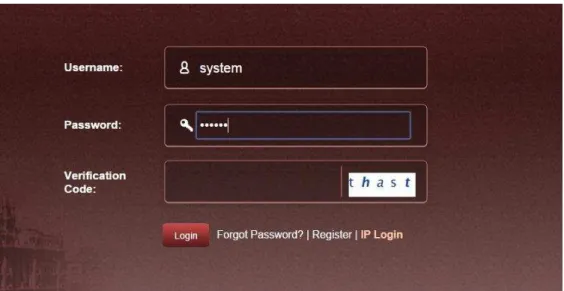
Login entrance: Home page of the website -> “Login” on the upper right
Figure 1.1: Login interface
1.2. Operation Steps of Login Functions:
1) Please click on “IP Login” on the bottom-right of the login interface (see Figure 1.1)
2) When accessing home page of the website, you’ll automatically login to our system if your current IP address is authorized.
Note:
Error tips Instruction
Your current IP doesn’t belong to any organization, so the IP login function is not available.
If your IP address is not within the IP ranges provided by your organization, the IP login function is not applicable.
The simultaneous user number of your organization has reached its maximum limit. Please try again later.
The simultaneous user number of your organization has a limit. You’ll fail to login the system if the simultaneous user number has reached up to its maximum. In this case, please try logging in after a while.
1.3. Exit
The “Exit” buttons of home page (see Figure1.3-1) and inner pages (see Figure 1.3-2) are located on the upper right corner of the interface.
Figure 1.3-1: Exit button of home page
Figure 1.3-2: Exit button of inner page
Steps:
1) Click on “Exit”, and you will logout.
2) When exiting from the home page, user can still browse the home page by refreshing the web page because the website supports anonymous access to the home page.
3) Otherwise, for pages which can only be accessed via login, refreshing will result in the automatic skip to the login interface on which users need to input the login information.
2. Home Page
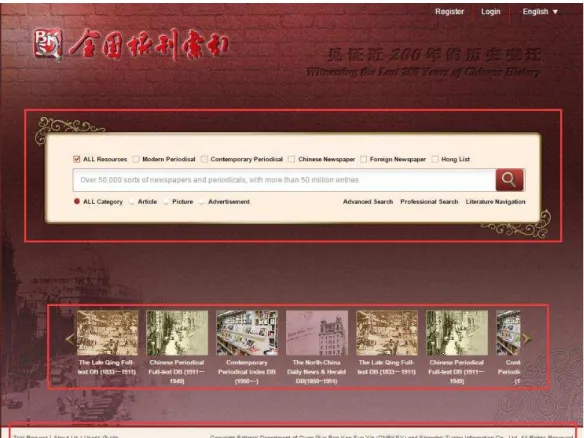
Figure 2: Home page interface
Introduction:
1) Upper right side: “Register”, “Login” and language swift buttons.
2) Middle part is the basic search bar. (For details, please refer to the basic search function hereinafter.) 3) The lower-middle part is the scrolling region for database introduction.
4) The footer is the information region of “Trial Request”, “About Us” and “User’s Guide”. The copyright information is placed on the right side of the region.
3. General Search Function
3.1. Search Results
Figure3.1: Search results Function Introduction:
1) Click on “Select All” to choose all the search results of current page;
2) Click on “Clear the Selected” to deselect all the records selected in current page;
3) The system supports “Display Title Only” by default (see Figure 3.1). Click on the “Display Details”, and the information will be displayed as follows:
4)
The left drop-down box: switch among 10, 20, 50 and 100 items shown on each page; The middle drop-down box: sort search results by descending order or ascending order; The right drop-down box: sort search results by relevance or by year.
3.2. Cluster Results
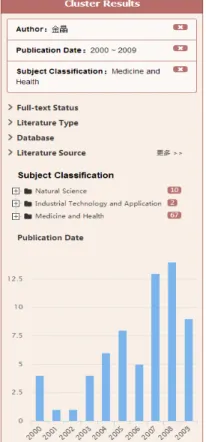
Figure 3.2-1: “Cluster Results” fields Figure 3.2-2: “Subject Classification” fields Function Introduction:
1) The “Cluster Results” by year are displayed by histogram (see Figure 3.2-1) and the system supports searching by years within the range from ten years to one year.
Click on the column of the histogram to search the article of this year.
2) Click on any item of “Subject Classification” to cluster search results according to its subject classification (see Figure 3.2-2).
Figure 3.2-3: “Cluster Results” function 3) Click on to delete the current cluster condition (see Figure 3.2-3).
3.3. Article Information
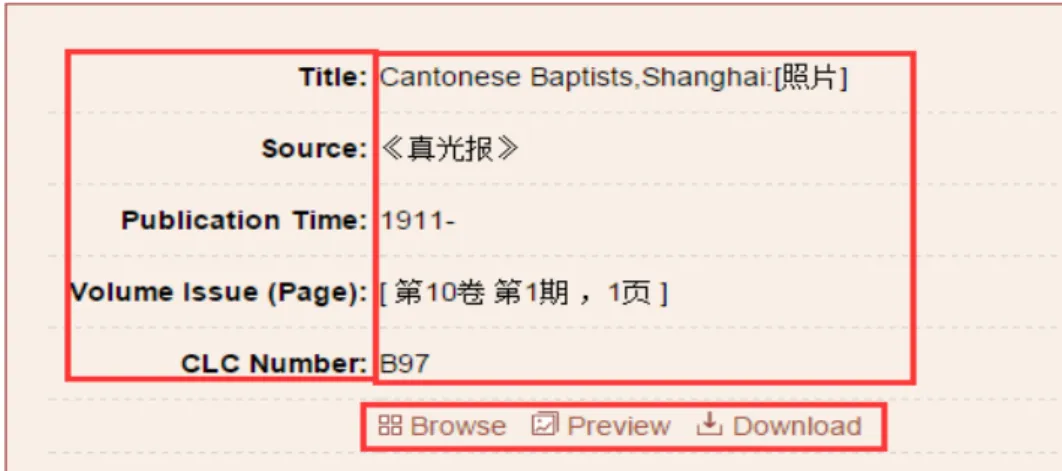
Figure 3.3: Article information
Interface Introduction:
1) Click on the article title of search results to gain the detailed information for the article (see Figure 3.3) 2) Field name will be displayed on the left side and field contents will be displayed on the right side.
3) If a user is not authorized to download the article and is required to make payment, the price information will be displayed on the bottommost; otherwise, the
“Browse”, “Preview” and “Download” buttons will be displayed.
3.4. Export Index
1) Click on button on the literature search interface to export the selected title index directly.
2) If a user does not select any title, the following notice will appear:
See Figure 3.4-1 for export results:
Figure 3.4-1: “Export Index” samples
3.5. Push Specific Titles
Click on button, the following information notice box will appear:
Figure 3.5: “Push Specific Titles” information box
1) “Keywords in Title” is the keywords for Push Specific Titles;
2) “Sending Frequency” is the cycle of Push Specific Titles, which can be selected as “Weekly”, “Monthly”, and “Quarterly”; 3) “Receiver’s E-mail Address” is the e-mail address to which the specific titles will be mailed;
4) Click on “Confirm” button to save your required information for Push Specific Titles function.
3.6. Search History (User Center)
Check on “Search History” in “User Center” (see Figure 3.6).
Figure 3.6: “Search History” in “User Center” Click on “Push Specific Titles” to add current record into the list.
3.7. Push Specific Titles (User Center)
Check the “Push Specific Titles” information via “User Center” (see Figure3.7-1). Users can check detailed information via title, status and sending status.
Figure 3.7-1: “Push Specific Titles” in “User Center” User can cancel or keep subscription status via revising subscription status.
IP user can unsubscribe “Push Specific Titles” function via e-mail.
3.8. Search Within Literature
Figure 3.8: “Search Within Literature” function interface
Interface Introduction:
1) Left side: brief information for the literature;
2) Right side: the list of articles collected in this literature. Users can select fields to search, which is akin to the simplified version of advanced search function.
3.9. Search by Author
Figure 3.9: “Search by Author” function interface
Interface Introduction:
1) “Search by Author” provides direct and accurate search concerning certain author. Click on the author to “Search by Author”. 2) Left side: clustering information; right side: search results.
4. Basic Search
4.1. Basic Search Interface
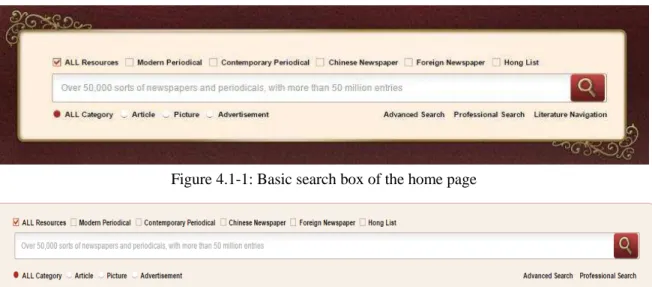
Figure 4.1-1: Basic search box of the home page
Figure 4.1-2: Basic search box of the inner page Interface Introduction:
1) The check box items on top line are the resource category. User can select all resources to search or conduct classification search within selected resource; 2) The search box in the middle is used for inputting search terms;
3) There are three document categories at the bottom line, namely article, picture and advertisement.
4.2. Operation Steps
Steps:
1) Select resource category 2) Select document category 3) Input search terms
4) Click on “Search” button (or press the Enter key) to conduct search.
5) Please refer to “General Search Function” chapter for search contents presentation.
Note:
1) Document category (including “Article”, “Picture”, and “Advertisement” ) is associated with the resource category (including “ Modern Periodical”, “Contemporary Periodical”, “Chinese Newspaper”, “Foreign Newspaper”, and “Hong List”) selected. For example, “Modern Periodical” is only related to “Article”.
Figure 4.2-1: Basic search box
2) The basic search doesn’t support search without search terms. 3) If a user doesn’t have any authority, the following notice will occur:
Figure 4.2-2: Non-authority search notice 4) Input agreement for contents in search box:
a) Blank space is adopted as segmentation to split search terms.
b) The double quotation marks “” is adopted to define search terms as a coherent phrase.
5. Advanced Search
5.1. Advanced Search Interface
Figure 5.1: Advanced search interface
Interface Introduction:
1) Left side: database list. User can choose databases by checking the boxes.
2) Middle part: search box. Users can make classification search according to three categories (“Article”, “Picture”, and “Advertisement”) of documents.
5.2. Operation Steps
Steps:
1) Select specific databases or check “Select All” in the bottom right of the database list.
2) Switch the document category (“Article”, “Picture”, and “Advertisement”) and select the fields for search. 3) Click on to add search conditions; click on to delete search conditions.
Figure 5.2-1: Advanced search condition combination 4) The search condition of the advanced search supports the following conditions:
Figure 5.2-2: Condition combination And: (A and B) represents meeting A and B conditions simultaneously;
Or: (A or B) represents meeting A or B condition;
And Not: (A and non B) represents meeting A but not meeting B condition; Or Not: (A or non B) represents meeting A or not meeting B condition. 5) Select search condition of “Fuzzy” or “Precise” search.
Figure 5.2-3: Search method
6) Select time scope:
7) Conduct the next search based on the previous search results by selecting the combination relationship of “Search Again”, “Search in Results”, “Add to Results”, or
“Remove from Results”.
Figure 5.2-4: Search combination relationship 8) Click on “Search” to immediately present search results.
Note:
1) It is required to select at least one database from the database list; otherwise, the following notice will occur:
2) In advanced search, the search fields will automatically alter in accordance with the databases selected.
Figure 5.2-5: Advanced search fields
(Abbreviation Instruction: MP=Modern Periodical; CP=Contemporary Periodical; FN=Foreign Newspaper; CN=Chinese Newspaper; HL=Hong List) 3) The search time scope will automatically alter in accordance with the databases selected.
4) The advertisements in The North China Daily News and The North-China Herald have been deeply indexed. When selecting the two databases only, the advertisement type can be precisely classified as follows:
Figure 5.2-6: Search by advertisement type for The North China Daily News & Herald
Change “Advertisement Date” to search by specific dates;
Advertisement type supports multiple choices.
5) Select CLC, namely Chinese Library Classification, then the text box will support auto-complete feature. The user will get the matching reminder for the words input (see Figure 5.2-7):
Figure 5.2-7: CLC auto-complete feature notice 6) The advanced search will list search conditions at the bottom of the search box (see Figure 5.2-8):
Figure 5.2-8: Advanced search conditions listed at the bottom of the search box
6. Professional Search
6.1. Professional Search Interface
Figure 6.1: Professional search interface
Interface Introduction:
1) The left side shows the database list which is similar to the advanced search interface.
2) The search box on the right can also be divided in accordance with document category. The “Field Code Table” lists the search fields supported by current databases. Users can input search conditions in terms of the combination fields.
6.2. Operation Steps
Steps:
1) Select the document type and input search conditions in the search box with the search fields provided in the “Field Code Table”. 2) Solr search rule are adopted for professional search function:
a) Support search combination condition AND OR NOT; b) Use semicolon “ : ” to separate the search fields; c) Blank space or “( )” can be applied for separation; d) [ TO ] can be applied to support search scope;
e) For grammar regulation, please refer to the search condition of advanced search (see step 4 in 5.2); f) Examples are as follows:
i. TI: 上海/Shanghai represents that the title contains resources of two characters of (上海/Shanghai). If the two characters (上海/Shanghai) are divided, resources with word (上/Shang)or (海/Hai) will be searched;
ii. TI: “(上海/Shanghai)” represents that the search title name shall contain all resources including (上海/Shanghai).
iii. TI: “(上海/Shanghai)” AND Year: [1911 TO *] represents that all the titles including (上海/Shanghai) after 1911 will be searched. Note:
1) The following notice will occur when search condition is incomplete or wrong:
7. Literature Navigation
7.1. Literature Search
Figure 7.1-1: “Literature Search” function interface 1
Figure 7.1-2: “Literature Search” function interface 2
(“Subject Classification Navigation” is supported for “Contemporary Periodical”)
Interface Introduction:
1) The top side: the resource type column which is used to classify literature types;
2) “Alphabet Navigation”: click on the letter to screen results according to initial letter of Pinyin for literature title;
3) Subject Classification Navigation” is supported for “Contemporary Periodical” (see Figure 7.1-2). Click on the specific subject to screen the search results. (If the search result is marked in gray, the literature is not available to the user.)
7.2. Periodical and Hong List Navigation
Figure7.2-1: “Periodical Navigation” function interface (Nan Yang Bing Shi Magazine as an example)
Interface Introduction:
1) Left side: literature information 2) Middle: year span of the literature
3) Right Side: “Browse the Whole” and “Browse the Titles” functions for each issue of the literature
4) If the search result is marked in gray, this literature is not available to the user.
5) Click on “Browse the Titles” to enter into the interface for article titles in this issue (see Figure 7.2-2).
Figure 7.2-2: “Browse the Titles” function interface for Nan Yang Bing Shi Magazine
6) Click on “Browse the Whole” to enter the interface of the literature page by page (see Figure 7.2-3).
Figure 7.2-3: “Browse the Whole” function interface for Nan Yang Bing Shi Magazine
Input the page number into the search box at the top of the interface. -> Click on “GO” to go to the specific page ->
Click on icon to go to the first page;
Click on icon to go to the last page;
Click on icon to go to the previous page;
Click on icon to go to the next page.
7.3. Newspaper Navigation
Figure 7.3: “Newspaper Navigation” function interface (The North-China Daily News as an example) Interface Introduction:
1) Left side: brief introduction for the newspaper
2) Upper right timeline: slide the timeline to select the year and month, and choose the issue date of the newspaper in the calendar below. (If the year or month is not within the scope, it is marked in gray and not available.)
3) Lower right monthly calendar: move mouse over the icon and click on “Browse the Whole” or “Browse the Titles” to enter the corresponding interface.
7.4. Newspaper Browse Function
Figure 7.4-1: Newspaper browse function interface
Interface Introduction:
1) The left top: page navigation for the current newspaper.
2) Followed by: the thumbnail of current page. Users can click on different section of the thumbnail. The sections are highlighted by three different colors according to the document types (red for “Article”; green for “Picture”; blue for “Advertisement”).
3) Click on different section of the thumbnail, and then detailed information for each item is displayed under the thumbnail. 4) The left lower part is a calendar of current document. Click on the designated date to enter the chosen newspaper.
5) The right side: display area of the newspaper. Users can zoom in or out on the page by using mouse wheel, and focus on it by double-clicking. 6) Click on icon to enter the literature catalogue for current newspaper (see Figure7.4-2).
Figure 7.4-2: Literature catalogue for newspaper
7) Click on icon to download the current page.
8) Click on icon to zoom out the page; Click on icon to zoom in the page. 9) Click on icon to display the page in full screen.